


 Top Rated Course

We may not have the course you’re looking for. If you enquire or give us a call on 01344203999 and speak to our training experts, we may still be able to help with your training requirements.
Best Microsoft Word Alternatives for Cloud and Desktop Use
Richard Harris 27 February 2026Microsoft Word Alternatives offer cloud collaboration, offline editing, free tools, and modern features for personal, business, and team use. They suit writers, students, and teams looking for flexibility, cost savings, and cross-platform access. Choosing the right option depends on your workflow, required features, and budget.

Training Outcomes Within Your Budget!
We ensure quality, budget-alignment, and timely delivery by our expert instructors.
Table of Contents

Microsoft Word is something most of us grew up using, but today it can feel a bit restrictive. Whether it’s dealing with subscriptions, juggling file versions, or needing better teamwork tools, many people now look for a Microsoft Word Alternative that fits modern, everyday work habits more naturally.
In this blog, we explain why Microsoft Word Alternative makes sense. We also show how to choose the right tool for your workflow and explore the best options for easier writing and collaboration. Let’s dive in.
Table of contents
1) Why Look for Microsoft Word Alternatives?
2) How to Choose the Best Microsoft Word Alternatives?
3) Top Microsoft Word Alternatives
4) Microsoft Word Alternatives Comparison Table
5) Pros and Cons of Microsoft Word Alternatives
6) Conclusion
Why Look for Microsoft Word Alternatives?
Many people trust Microsoft Word for Word processing. However, there are numerous reasons why it might be worth exploring alternatives to this MS Word:
a) Cost Efficiency
Microsoft Word is included in the Microsoft Office package. It typically requires either a subscription or a single purchase. If you are an individual or small business on a lower budget, these expenses can increase. Searching for other options may involve discovering software that provides comparable capabilities but at a lower cost.

b) Platform Flexibility
Imagine you need to work on your documents from different devices, like a Windows PC. Then, continue on a Mac laptop at home or a tablet while on the go. Some Microsoft Word Alternatives are designed to work seamlessly across various operating systems and devices. This flexibility can help you access their documents from anywhere.
c) Features Tailored to Your Needs
While Microsoft Word has several features, not everyone uses or needs all of them. Some alternatives are streamlined and focused, offering exactly what you require without confusing you with unnecessary functionalities. This can result in a smoother and more efficient writing experience.
d) Privacy and Data Control
Using cloud-based solutions like Microsoft Word might raise concerns about data privacy and security. Storing your documents on remote servers could potentially expose sensitive information. Certain alternatives allow you to work offline or offer self-hosted options, giving you more control over your data.
e) Innovation and Uniqueness
The technology world is always changing, as well as the methods we use to create and manage documents. Microsoft Word Alternatives might introduce innovative features that cater to modern workflows and collaboration styles. Exploring these alternatives could open new possibilities for enhanced productivity.
How to Choose the Best Microsoft Word Alternatives?
Having well-defined criteria is crucial when making decisions. These are the main aspects to take into account when assessing other options:
a) Functionality
The first thing to assess is whether the alternative offers the features you need. Does it have the essential tools for your word processing tasks? Some alternatives might focus on basic writing, while others offer more advanced formatting, collaboration, or integration capabilities.
b) Usability
No one wants to struggle with a difficult and confusing interface. Is the alternative user-friendly? Can you easily navigate through its menus and options? A clean and insightful interface can significantly enhance your overall experience.
c) Compatibility
Think about the files you already have. Can the alternative open and save documents in popular formats, such as .docx or .pdf? Compatibility with existing files is crucial to ensure a smooth transition.
d) Collaboration Features
Collaboration is more and more important in the current digital world. Does the alternative support real-time editing and commenting? Can multiple people work on the same document simultaneously? Consider whether the collaboration features match your needs.
e) Cost
Different alternatives are available at different prices. Certain options are available for free with open source code, while others necessitate a single payment or a subscription. Consider your budget and the worth you will receive in exchange for the cost.
f) Support and Resources
Imagine encountering an issue while working on an important document. How readily available is customer support? Are there user communities or resources like tutorials that can help you get the most out of the software? Take into consideration the support and resources that alternatives offer.
Elevate your collaboration game with our Microsoft Teams Training – empower your team, streamline communication!
Top Microsoft Word Alternatives
Presenting the finest alternatives to Microsoft Word, each option offers distinct features and advantages. These alternatives come with various pricing models, tailored to suit different user requirements and preferences.
a) Google Docs
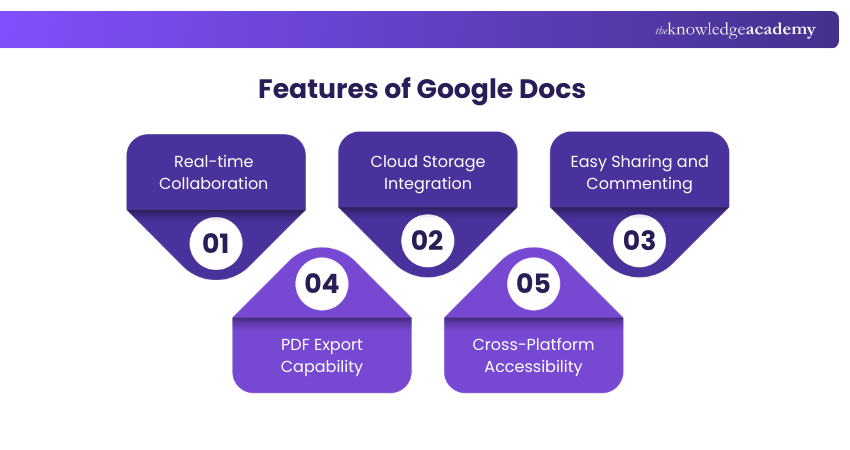
Google Docs is a free, web-based word processor that supports Microsoft Word files and enables users to create, share, and edit documents together in real time. It offers useful features such as templates, spell checking, and grammar tools, with work automatically saved online for easy access and collaboration.
Pricing: Free
Features:
a) Real-time Collaboration: Multiple users can edit the same document at once, making it ideal for team-based work.
b) Document Templates: Built-in templates help you quickly create resumes, letters, and reports.
c) Spell Checker: Automatically highlights spelling errors to improve accuracy.
d) Grammar Checking: Provides grammar suggestions to enhance writing quality.
e) Track Changes: Shows who made edits and when, keeping changes transparent.
f) Version History: Stores previous versions so you can review or restore earlier drafts.
g) Commenting: Allows users to leave comments and feedback directly in the document.
h) Export to PDF: Documents can be downloaded as PDFs for easy sharing and compatibility.
i) Multiple File Format Support: Easily imports files such as Microsoft Word, PDF, and plain text for seamless editing across platforms.
b) LibreOffice Writer
LibreOffice Writer is a free, open-source word processor within the LibreOffice suite and a popular alternative to Microsoft Word. It supports Word files, offers essential writing and formatting tools, and runs on Windows, macOS, and Linux.
Pricing: Free
Features:
a) Grammar Checker: Helps identify and correct grammar issues in documents.
b) Thesaurus: Allows you to find synonyms and alternative word choices easily.
c) Footnote and Endnote Manager: Enables you to add references and extra notes within documents.
d) Mail Merge: Supports creating personalised letters or emails for multiple recipients.
e) Templates: Provides ready-to-use templates for resumes, letters, and reports.
f) Multiple File Format Support: Imports and exports files such as Microsoft Word, PDF, and plain text.
g) Customisation Options: Let you adjust fonts, colours, and themes to suit your preferences.
Gain knowledge of how to create a table of contents, index, and bibliography with our LibreOffice Training – Join now!
c) WPS Office
WPS Office is a freemium office suite that includes a word processor, spreadsheet tool, presentation software, and PDF viewer. Its WPS Writer works as a strong Microsoft Word Alternative, supporting common Office file formats and offering a range of built-in tools for everyday document creation and editing.
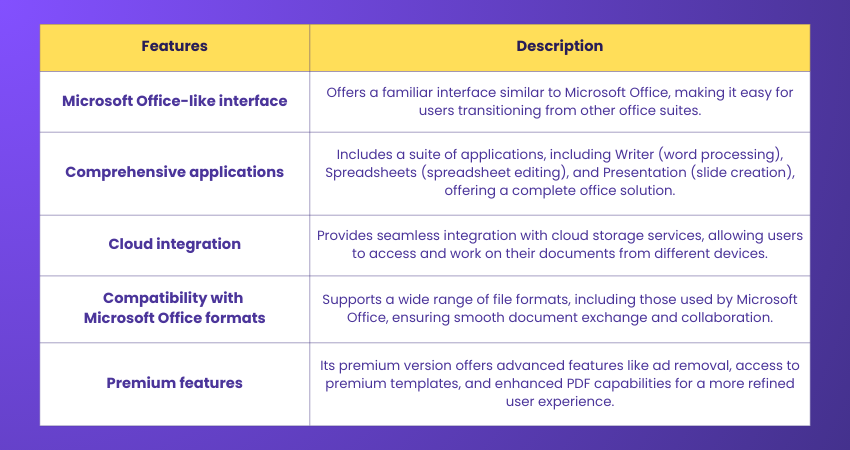
Pricing: Free (free version with limited features, paid plans for advanced tools)
Features:
a) Grammar Checker: Helps identify and correct writing errors within documents.
b) Thesaurus: Allows users to find synonyms and alternative word choices easily.
c) Mail Merge: Supports creating personalised letters or emails for multiple recipients.
d) Templates: Provides ready-made templates for resumes, letters, reports, and more.
e) Multiple File Format Support: Imports and exports files such as Microsoft Word, PDF, and plain text.
f) Cloud Storage Integration: Connects with cloud services like Google Drive for easy file access and storage.
d) Apple Pages
Apple Pages is a Word processor that is part of the Apple iWork suite. It is designed for macOS and iOS devices and has several features, including templates, spell checking, and grammar checking.
Pricing: Free for macOS and iOS devices, 16.58 GBP for Windows
Features:
a) Templates: Ready-made templates for resumes, letters, and reports.
b) Spell & Grammar Checking: Built-in tools to improve writing accuracy.
c) Track Changes: View edits and see who made them and when.
d) Version History: Access and restore earlier versions of documents.
e) Commenting: Add comments to collaborate with others easily.
f) Export to PDF: Convert documents into shareable PDF files.
g) Multiple File Format Support: Import files such as Microsoft Word, PDF, and plain text.
Elevate your productivity with our Microsoft Office 365 Training and unlock the full potential of this powerful suite!
e) OnlyOffice
OnlyOffice is a cloud-based office tool that includes a Word processor, spreadsheet, presentation, and PDF viewer. It is compatible with Microsoft Office documents and has a variety of features, including a grammar checker, a thesaurus, and a mail merge.
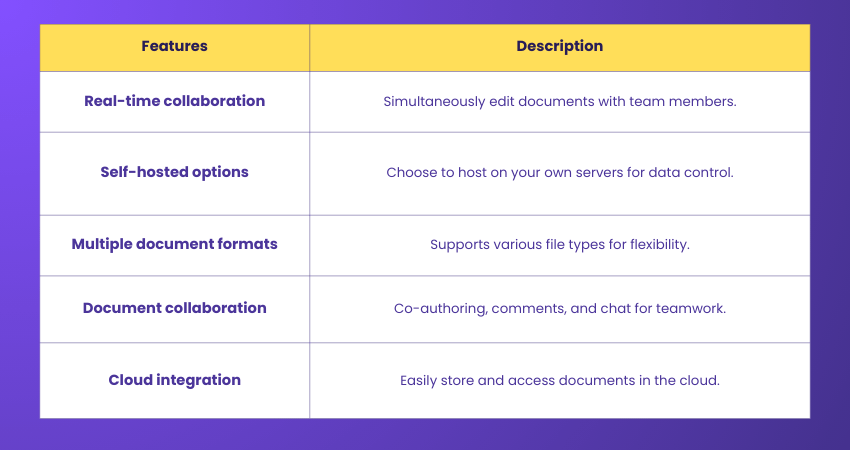
Pricing: Free (free plan with basic features, paid plans for advanced tools)
Features:
a) Grammar Checker: Built-in tool to identify and correct writing errors.
b) Thesaurus: Helps find synonyms and alternative word choices.
c) Mail Merge: Enables creation of personalised letters or emails in bulk.
d) Templates: Offers ready-to-use templates for resumes, letters, and reports.
e) Multiple File Format Support: Imports and exports files such as Microsoft Word, PDF, and plain text.
f) Cloud Storage Integration: Connects with services like Google Drive and Dropbox.
g) Real-time Collaboration: Allows multiple users to edit the same document simultaneously.
f) Dropbox Paper
Dropbox Paper is a free, web-based word processor from Dropbox that offers a clean, distraction-free writing experience. With a Dropbox account, users can create collaborative documents and add rich media like images, videos, and audio.
Pricing: Free with a Dropbox account
Features:
a) Third-party Integrations: Connects with tools such as Trello, YouTube, and SlideShare.
b) Collaboration Tools: Supports link sharing, task assignments, and embedded Dropbox documents.
c) Checklists: Enable quick creation and assignment of checklists for team collaboration.
d) Real-time Editing: Allows multiple users to edit documents simultaneously.
e) Version History: Keeps track of changes so users can review or restore earlier versions.
g) Etherpad
Etherpad is a web-based, open-source document editor designed for real-time collaboration, allowing multiple users to work on the same document from anywhere. It requires no account or email sign-up users can simply create a pad, share the link, and start collaborating instantly, with optional email invitations if needed.
Pricing: Free
Features:
a) Real-time Collaboration: Multiple users can edit the same document at the same time.
b) Open Source and Customisable: Can be tailored to meet specific needs.
c) No Sign-up Required: Start collaborating instantly without creating an account.
d) Email Invitations: Share documents easily via email links.
e) Privacy-focused: Ideal for users who prefer tools that require minimal personal information.
Elevate your skills with our Microsoft Office Training and unlock new levels of productivity!
h) Zoho
Zoho offers a suite of free online applications, including Zoho Writer, with a clean and user-friendly interface and easy sign-in through Google or Yahoo. Zoho Writer saves work in real time, supports Microsoft Word files, and includes features such as encryption, file recovery, two-step authentication, desktop sync, and in-app chat for secure collaboration.
Pricing: Zoho Writer is free to use and includes all features without extra cost, making it a strong alternative to paid word processors.
Features:
a) Two-way Desktop Sync: Keeps documents updated across devices automatically.
b) Large File Support: Handles big file transfers with ease.
c) Security Controls: Includes encryption and file recovery options.
d) Two-step Authentication: Adds an extra layer of account protection.
e) In-app Chat: Enables instant communication during collaboration.
f) MS Word Compatibility: Allows easy import and editing of Word documents.
g) Multiple Export Formats: Supports DOCX, ODF, PDF, LaTeX, RTF, TXT, and HTML.
h) Digital Signatures: Integrates with Echosign for signing documents.
i) Publishing Options: Let’s you publish documents online or make them public.
Microsoft Word Alternatives Comparison Table
The table below compares popular Microsoft Word Alternatives based on everyday use, platform, cost, and collaboration, helping you choose the right tool at a glance. Here’s the comparison to help you choose the right option:
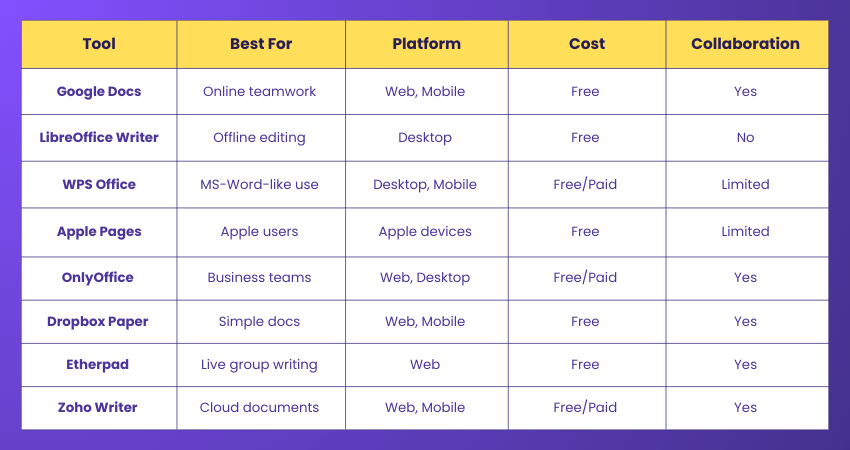
Pros and Cons of Microsoft Word Alternatives
Before choosing a Microsoft Word Alternative, it helps to weigh its benefits and limitations. Here are the key pros and cons to consider:
Pros
1) Often free or lower cost than Microsoft Word
2) Easy real-time collaboration and cloud access
3) Works across multiple devices and platforms
4) Simple interfaces suited for quick editing
Cons
1) Limited advanced formatting and features
2) Compatibility issues with complex Word files
3) Some tools require internet access
4) Fewer professional templates and add-ins
Conclusion
Choosing the right Microsoft Word Alternative depends on how you work and what features matter most to you. With options offering cloud access, collaboration, and cost savings, users can find tools that fit both personal and professional needs. Exploring these alternatives helps improve flexibility, productivity, and everyday Document Management.
Build practical layout and design skills for business and marketing content. Join our Microsoft Publisher Training now!
Frequently Asked Questions
What is Better, OpenOffice or LibreOffice?

LibreOffice is generally considered better than OpenOffice due to more frequent updates, better compatibility with modern file formats, and a larger community supporting its development. LibreOffice also offers more advanced features and improved stability, making it the preferred choice.
Is OpenOffice Compatible with Microsoft?
OpenOffice can open and save files in Microsoft formats like .docx, .xlsx, and .pptx, but the compatibility isn't perfect. Some formatting may be lost or altered when moving files between OpenOffice and Microsoft Office, especially for complex documents. LibreOffice tends to offer better compatibility.
What are the Other Resources and Offers Provided by The Knowledge Academy?
The Knowledge Academy takes global learning to new heights, offering over 3,000+ online courses across 490+ locations in 190+ countries. This expansive reach ensures accessibility and convenience for learners worldwide.
Alongside our diverse Online Course Catalogue, encompassing 17 major categories, we go the extra mile by providing a plethora of free educational Online Resources like Blogs, eBooks, Interview Questions and Videos. Tailoring learning experiences further, professionals can unlock greater value through a wide range of special discounts, seasonal deals, and Exclusive Offers.
What is The Knowledge Pass, and How Does it Work?
The Knowledge Academy’s Knowledge Pass, a prepaid voucher, adds another layer of flexibility, allowing course bookings over a 12-month period. Join us on a journey where education knows no bounds.
What are the Related Courses and Blogs Provided by The Knowledge Academy?
The Knowledge Academy offers various Microsoft Office Training, including the Microsoft Word Course, Microsoft PowerPoint Training, and Microsoft Publisher Training. These courses cater to different skill levels, providing comprehensive insights into How to Insert a Line in Word.
Our Office Applications Blogs cover a range of topics related to Microsoft Word Alternative, offering valuable resources, best practices, and industry insights. Whether you are a beginner or looking to advance your Office Applications skills, The Knowledge Academy's diverse courses and informative blogs have got you covered.

Richard Harris


Senior Full Stack Developer and Technology Educator
Richard Harris is a highly experienced full-stack developer with deep expertise in both frontend and backend technologies. Over his 12-year career, he has built scalable web applications for startups, enterprises and government organisations. Richard’s writing combines technical depth with clear explanations, ideal for developers looking to grow in modern frameworks and tools.

Upcoming Office Applications Resources Batches & Dates
Date
 Microsoft PowerPoint Training
Microsoft PowerPoint Training
Fri 29th May 2026
Microsoft PowerPoint Training
Fri 28th Aug 2026
Microsoft PowerPoint Training
Fri 27th Nov 2026

 If you wish to make any changes to your course, please


