


 Top Rated Course

We may not have the course you’re looking for. If you enquire or give us a call on 01344203999 and speak to our training experts, we may still be able to help with your training requirements.
How to Cancel LinkedIn Premium: A Step-by-Step Guide
James Smith 14 July 2026To cancel LinkedIn Premium, go to subscription settings and follow the steps carefully, or cancel through Apple or Google if you subscribed there. LinkedIn subscriptions can be managed easily on both iOS and desktop. Be sure to cancel at least one day before your billing date to avoid future charges and confusion.

Training Outcomes Within Your Budget!
We ensure quality, budget-alignment, and timely delivery by our expert instructors.
Table of Contents

Ever signed up for LinkedIn Premium, forgot about it, and saw the charge hit your account? You're not the only one. If you’ve been searching for How to Cancel LinkedIn Premium without jumping through hoops, this is your no-stress guide to getting it done.
Whether you’re cutting costs, finished your job search, or just didn’t find the features useful, knowing How to Cancel LinkedIn Premium the right way can save you money and a headache. Let’s walk through it step-by-step quick, clear, and on your terms.
Table of Contents
1) What is LinkedIn Premium?
2) Steps to Take Before Cancelling
3) How to Cancel LinkedIn Premium?
4) How do I Remove the Payment Method in LinkedIn?
5) Will I Get a Refund if I Cancel LinkedIn Premium?
6) Conclusion
What is LinkedIn Premium?
LinkedIn Premium is a subscription-based service that offers more than the basic LinkedIn experience. It provides access to exclusive features such as InMail messages, detailed profile view insights, advanced job search filters, and access to LinkedIn Learning courses. These tools are designed to support professionals in building stronger connections, improving their visibility to recruiters, and developing in-demand skills through targeted learning.
There are several Premium plans available, each tailored to different professional goals whether it’s career growth, lead generation, or hiring. With these upgraded features, users can explore job opportunities more efficiently, make informed networking decisions, and position themselves more effectively in their industry. LinkedIn Premium is ideal for anyone looking to enhance their professional presence and take a more strategic approach to networking and career development.
Steps to Take Before Cancelling
Before you cancel LinkedIn Premium subscription, it’s a good idea to go through a few simple steps to avoid any issues later.
1) Check What You Use:
Look at the features you’ve used, like InMail, profile views, or LinkedIn Learning. If you still find them helpful, you might want to keep your plan.
2) Save Important Information:
Download anything important like certificates, messages, or course progress. You may lose access after cancelling.
3) Know Your Billing Date:
Find out when your next payment is due. Cancelling just before the date helps you use the service fully without being charged again.
4) Think About a Cheaper Plan:
If you want to save money but still need some Premium features, try switching to a lower plan instead of fully cancelling.
5) Tell Your Team:
If you're using LinkedIn Premium for work, let your team know before you cancel so no one is caught off guard.
Develop proficiency in planning, strategy, and testing for Digital Marketing. Join our Digital Marketing Course today!
How to Cancel LinkedIn Premium?
Before you cancel LinkedIn Premium subscription, take a moment to think about why you want to leave. Are the features helping you reach your goals, or are you just looking to cut costs? Knowing your reason can help you decide what’s best for you.
If you're sure you want to cancel, you can do it easily through your browser or an iOS device by following a few simple steps.
Gain insights into effective social media platform utilisation with our Influencer Marketing Course – Register now!
How to Cancel LinkedIn Premium on Your browser
These steps will guide you through the process of Cancel LinkedIn Premium subscription on your browser:

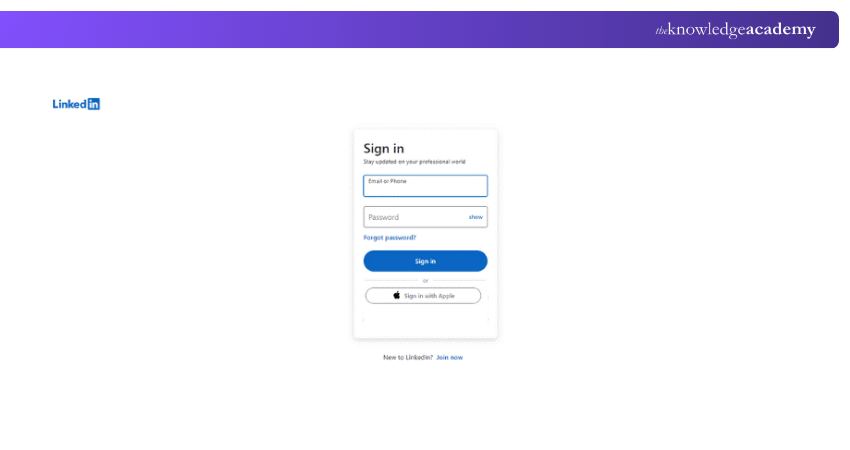
Step 1. Access your LinkedIn Account
Firstly, log in to your LinkedIn account using your credentials. Make sure that you are logging into the correct account associated with your LinkedIn Premium subscription.
Step 2. Navigate to Account Settings
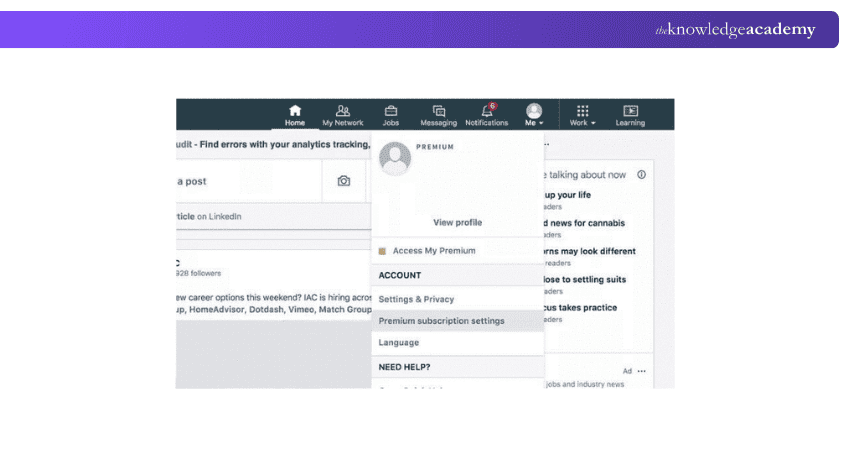
Once logged in, click on your profile picture located at the top-right corner of the LinkedIn homepage. A dropdown menu will appear; select "Settings & Privacy" from this menu.
Step 3. Manage Premium Subscription
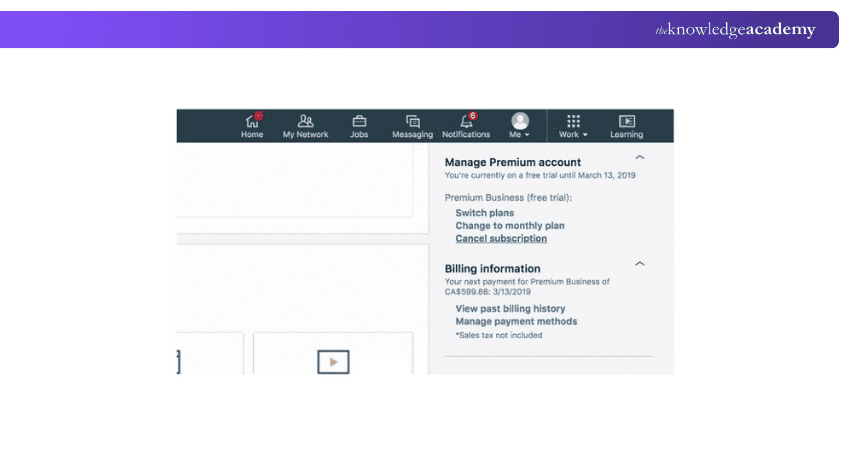
Within the "Settings & Privacy" section, you'll find a navigation menu on the left-hand side. Click on the "Account" tab, and under the "Subscriptions" section, you'll find the option to “Cancel" your LinkedIn Premium subscription.
Step 4. Select a Cancellation Reason
LinkedIn will ask you to select a reason for your cancellation. Choose the most appropriate reason from the provided dropdown menu.
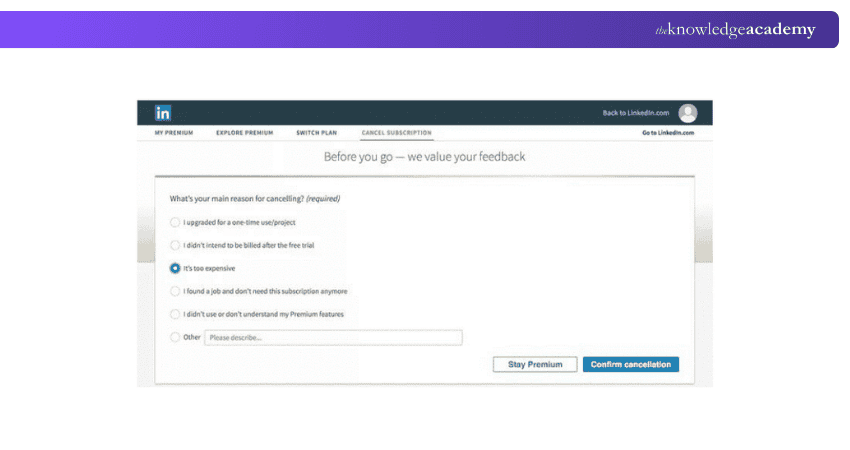
Step 5. Confirm Cancellation
After specifying your reason, LinkedIn will display a summary of your subscription details and the benefits associated with it. To proceed, confirm the cancellation by clicking the "Continue to cancel" button.

Step 6. Optional Feedback
At this point, LinkedIn may offer an optional feedback section where you will be asked to share your thoughts about your experience with the platform and your decision to cancel.
Step 7. Cancellation Confirmation Email
Upon successful cancellation, LinkedIn will send you a confirmation email. Keep this email for your records as proof of cancellation.
Step 8. Verify Cancellation
Visit your LinkedIn account and access the Account page again to ensure that your Premium subscription has been effectively cancelled. You should no longer have access to Premium features.
Stay informed about the latest updates and features on LinkedIn. Join our LinkedIn Marketing Course now!
How to Cancel LinkedIn Premium on Your IOS
If you signed up for LinkedIn Premium through iTunes, you’ll need to cancel your subscription using your iPhone’s Settings. Note that LinkedIn Premium cancel cannot be done via the LinkedIn mobile app but can be made through your mobile browser or directly in your device settings.
Follow these steps:
Step 1: Open the Settings app on your iPhone
Step 2: Tap your Apple ID name at the top

Step 3: Select Media & Purchases

Step 4: Tap View Account and authenticate using your passcode, Face ID, or Touch ID
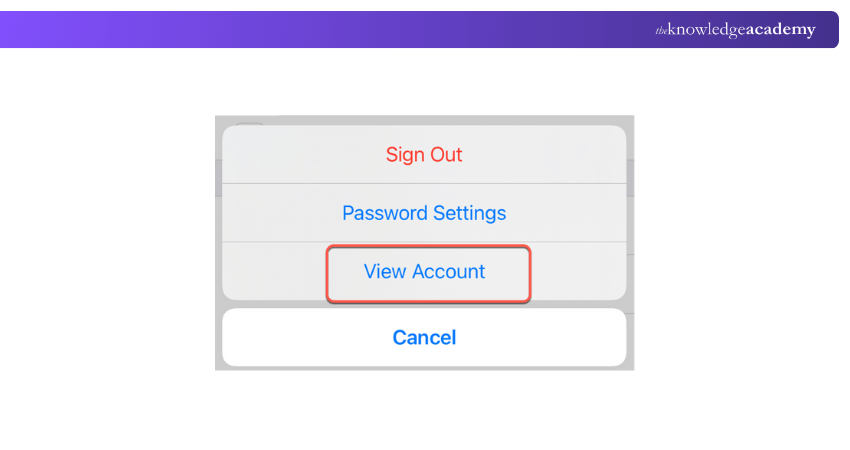
Step 5: Tap Subscriptions
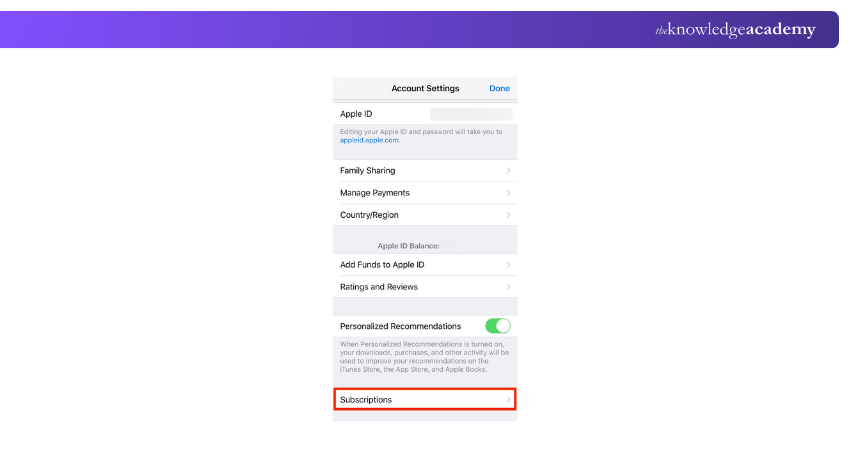
Step 6: Choose LinkedIn from the list
Step 7: Tap Cancel Subscription, then confirm to complete the cancellation
How do I Remove the Payment Method in LinkedIn?
To remove a payment method from LinkedIn, you must first cancel any active Premium subscriptions linked to it. Once there are no active subscriptions, follow these steps:
1) Go to Settings & Privacy from the “Me” icon on LinkedIn
2) Click on Subscriptions & Payments
3) Select Payment methods
4) Choose the card or method you want to remove and click Delete or Remove
Will I Get a Refund if I Cancel LinkedIn Premium?
LinkedIn typically doesn’t offer refunds after a subscription is charged. However, in some cases, you may be eligible for a refund if:
1) You cancel within 7 days of the billing date
2) You haven’t used any Premium features during that time
If you're eligible, you can request a refund by contacting LinkedIn customer support. Keep in mind that subscriptions made through Apple must be handled via the App Store.
Conclusion
Now that you know How to Cancel LinkedIn Premium, you can take control of your subscription with confidence. Whether you're simplifying expenses or no longer need the extra features, following the right steps ensures a smooth and stress-free cancellation. Always remember to cancel before your billing date to avoid unexpected charges.
Learn advanced strategies to enhance your online presence effectively. Join our Social Media Marketing Course now!
Frequently Asked Questions
Will I be Charged if I Cancel LinkedIn Premium?

If you Cancel your LinkedIn Premium subscription, you won't be charged for the next billing cycle. However, it's important to note:
1) Cancel at least 1 day before your renewal date
2) You won’t be charged for the next billing cycle
3) No refunds for unused time after cancellation
4) Premium features stay active until the current period ends
What Happens if I Forgot to Cancel my LinkedIn Premium Free Trial?
If you forget to cancel your LinkedIn Premium free trial before it ends:
1) You’ll Be Charged:
The trial auto-renews into a paid plan if not cancelled in time
2) No Refunds:
LinkedIn usually doesn’t refund missed cancellations
3) Premium Access Continues:
You’ll keep Premium benefits until the paid period ends
4) Set a Reminder:
Cancel at least a day before the trial ends to avoid charges

James Smith


Digital Marketing Manager and Trainer
James Smith is a digital marketing professional with over a decade of experience in SEO, content strategy, paid media and analytics. He has supported both SMEs and global brands in transforming their digital presence. James’s writing and training are rooted in results-driven tactics and the latest marketing trends.
View Detail

 If you wish to make any changes to your course, please


