


 Top Rated Course

We may not have the course you’re looking for. If you enquire or give us a call on 01344203999 and speak to our training experts, we may still be able to help with your training requirements.
Find and Replace Text in Microsoft Word: How to Use?
The Knowledge Academy 14 July 2026To find and replace text in Microsoft Word, use the Ctrl+H (Cmd+H on Mac) or Home > Editing > Replace menu option. Use Replace All with advanced options. Explore step-by-step usage, advanced search settings, formatting control, and best practices to edit documents accurately and save time efficiently across files.

Training Outcomes Within Your Budget!
We ensure quality, budget-alignment, and timely delivery by our expert instructors.
Table of Contents

Editing long or frequently updated documents in Microsoft Word can be time-consuming when changes have to be made word by word. The Find and Replace feature simplifies this process by allowing users to locate specific text and update it instantly across an entire document. When used correctly, it can significantly improve accuracy and efficiency.
This blog explains how to use Microsoft Word Find and Replace, covering basic functions, keyboard shortcuts for Windows, and advanced options such as formatting controls and refined search settings. It also highlights practical ways to replace repeated words or phrases accurately, helping users maintain consistency and save valuable time while editing documents.
Table of Contents
1) Accessing the Find and Replace tool in Microsoft Word
2) Finding Text in Microsoft Word
3) Replacing Text in Microsoft Word
4) Advanced Techniques to Find and Replace Text in Microsoft Word
5) What is Ctrl +F4 in Word?
6) What is the Meaning of F1 F2 F3 F4 F5 F6 F7 F8 F9 F10 F11 F12?
7) Conclusion
Accessing the Find and Replace tool in Microsoft Word
To apply the Microsoft Word Find and Replace option and use it to take advantage of the useful search and replacement features, it is important to follow the steps given below:

1) Step 1: Click on the Microsoft Word file you wish to edit.
2) Step 2: In the next step, you need to press Ctrl + H on the keyboard, and this will open the Microsoft Word Find and Replace dialogue box instantly. Or, in the Home tab, choose the Editing group, and the option Replace.
3) Step 3: The Find and Replace dialogue box will be seen normally on the left-hand side of the screen.
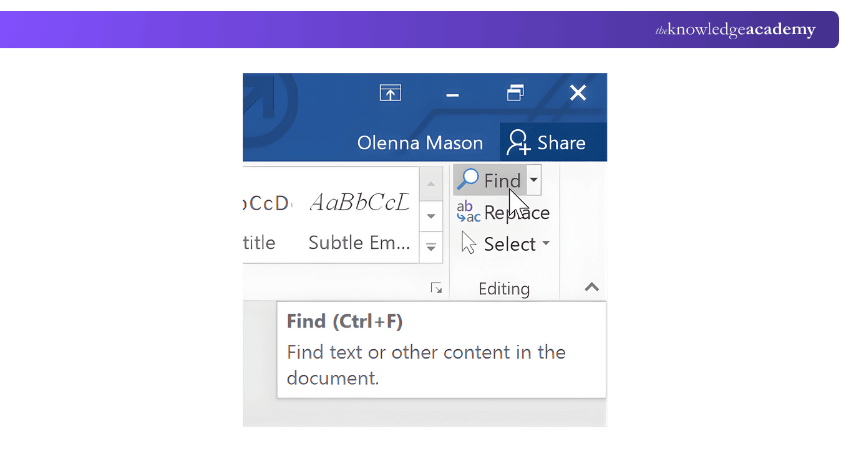
4) Step 4: In the Find what field, type the information that you would like to find. To discuss the search, e.g., with the matches of either case or appearance of whole words only, choose More, which shows the advanced search options.
5) Step 5: Replace with: The replacement text is to be typed in the field of Replace with.
6) Step 6: To find each instance separately, click Find next. In order to make the matched text readable, it will be highlighted in the document.
7) Step 7: To edit all the incidences at once, choose Replace All. This puts the change all over the document without further confirmation.
With these steps, you can easily reach and use the Microsoft Word Find and Replace tool to make the editing process fast and accurate, as well as enhance productivity with the help of the Microsoft Word-related documents.
Design impactful presentations with our Microsoft PowerPoint Training- Sign in today!
Finding text in Microsoft Word
Searching for a particular word or phrase on a Microsoft Word document is a basic editing operation that can be accomplished through the Find feature. To search effectively, the steps below are used in a efficient manner:
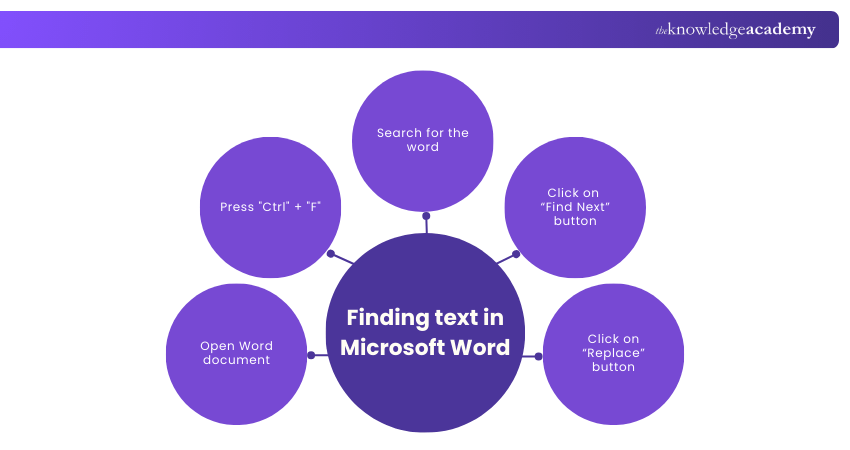
1) Step 1: Open the Microsoft Word document requiring search.
2) Step 2: On your keyboard, press Ctrl + F, and this in turn opens the Find pane. Alternatively, find either the Home tab or on the Edit menu where the version of your Word has Find, depending on which version of Word you are using.
3) Step 3: The Find pane will be displayed, which is typically at the upper part of the screen or on the left side. Type in the word or phrase that you are searching for in the search box. Options or More can be used to add options to your result, like matching case or whole word searches.
4) Step 4: You will get the arrow keys to move to the next instance of the text you are searching in, or you can use Find Next to move between each occurrence of that text.
5) Step 5: In case you need some alterations, find the replacement on the Find pane, and you see the replacement options.
The Find feature allows you to find a given content or formatting in a document in seconds, which helps you to review, edit, and keep the necessary accuracy easier when working with longer and more intricate content in a document.
Replacing text in Microsoft Word
To update words, phrases, or formatting in a specific document quickly and accurately, replacing text in Microsoft Word is necessary. To employ the Replace feature, follow the following steps:
1) Step 1: Go to your Microsoft Word document.
2) Step 2: On your keyboard, press Ctrl + H to display the Find and Replace dialogue box. Or, in the Home tab, choose the Editing group, and the option Replace.
3) Step 3: Click on the Find what field, type the text you wish to replace.
4) Step 4: The Replace field is where one should type the new text that is to replace the initial one.
5) Step 5: When the desired text is highlighted, choose Replace to update that instance, or select Replace All to change every occurrence throughout the document at once.
6) Step 6: To have even more control over your search and replace processes, use More or Options to get to advanced settings, e.g., matching case or finding the whole Word only.
The Replace feature can be useful in saving time by making the same corrections across a document in Microsoft Word and also making the work accurate.
Organise, schedule, and communicate efficiently with our Microsoft Outlook Training- Join today!
Advanced Techniques to Find and Replace Text in Microsoft Word
Microsoft Word provides the option to use wildcards and regular expressions for advanced search and replace operations. These features allow you to perform complex searches, pattern matching, and replacement tasks.
Moreover, these tools offer different methods to find and replace words in Microsoft Word. Here's how you can utilise wildcards and regular expressions in Microsoft Word:
1) Open the Microsoft Word document where you want to perform the advanced search and replace.
2) Press "Ctrl" and "H" on your keyboard to open the "Find and Replace" dialogue box. Alternatively, you can go to the "Home" tab, click on the "Replace" button, or navigate to the "Edit" menu and select "Replace."
In the "Search in document" field, you can enter your search pattern using wildcards or regular expressions. Here are some examples below:
1) Wildcards
Microsoft Word's "Find and Replace" feature includes advanced search options with wildcards. Wildcards like the asterisk (*) and question mark (?) allow for flexible pattern matching, making it easier to search and replace text efficiently in your documents.
1) Asterisk (*) - Represents any sequence of characters. For example, "te*t" will match "text," "test," and "teapot."
2) Question mark (?) - Represents any single character. For example, "b?t" will match "bat," "bet," and "bit."
3) Square brackets ([ ]) - Defines a range of characters to match. For example, "b[aei]t" will match "bat," "bet," and "bit."
2) Regular expressions
Regular expressions provide even more powerful pattern-matching options. For example:
a) "b[at]" - Matches "bat" or "bat."
b) "b[a-z]t" - Matches "bat," "bet," and "bit" (any lowercase letter between "a" and "z" is accepted).
1) Enter your replacement text in the "Replace with" field. To start the advanced search, click "Find Next" to find the first matching instance.
2) To replace it, click "Replace." To check and replace each instance one by one, keep clicking "Find Next" and then "Replace" for each one.
3) To replace all matching instances in the document at once, click "Replace All."
4) Using wildcards and regular expressions lets you perform detailed and specific search-and-replace tasks in Microsoft Word.
Elevate your Microsoft Office 365 knowledge with our detailed Microsoft Office 365 Training- register today!
What is Ctrl +F4 in Word?
The keyboard shortcut F4 can be used to close the active document or tab within an application. It allows users to exit a specific file without closing the entire program. This shortcut is commonly used in web browsers, text editors, and productivity tools. It is especially useful when working with multiple open tabs or windows.
What is the Meaning of F1 F2 F3 F4 F5 F6 F7 F8 F9 F10 F11 F12?
Function keys refer to the keys that are labelled F1 to F12 on top of a keyboard. Each key has a particular shortcut action that could accelerate the common action in most applications and operating systems. They have the following default uses:
1) F1: Opens the Help screen in most programmes.
2) F2: Renames the selected file or folder in Windows.
3) F3: Opens a search feature for the active application.
4) F4: With Alt, closes the active window.
5) F5: Refreshes or reloads the current page or document.
6) F6: Moves the cursor to the address bar in most browsers.
7) F7: Triggers spelling and grammar checks in many word processors.
8) F8: Used to access the boot menu or start Windows in Safe Mode.
9) F9: Refreshes documents in certain apps and can send/receive emails in Outlook.
10) F10: Activates the menu bar in the active programme, and Shift + F10 acts like a right-click.
11) F11: Toggles full-screen mode in many web browsers.
12) F12: Opens the Save As dialog in Microsoft Word.
Precise behaviour may differ slightly depending on software and device, although these are the commonly agreed functions of these keys.
Conclusion
Using the Microsoft Word Find and Replace feature streamline editing by allowing quick and accurate text updates across documents. When used with advanced options, it ensures consistency and reduces the risk of manual errors. Mastering this function improves productivity, especially when working with lengthy or frequently revised files. It is a simple yet powerful tool for maintaining professional and well-structured documents.
Create professional documents with ease and advanced features with our Microsoft Word Course- Join now!
Frequently Asked Questions
What is the shortcut for Find and Replace Text in Microsoft Word?

The shortcut for Find and Replace in Microsoft Word is "Ctrl + H." This key combination opens the Find and Replace dialogue box, allowing you to search and modify text quickly.
What is “Find” in MS Word?
The Find function in Microsoft Word allows users to search for specific text within a document. It helps to quickly locate words, phrases, or other elements without manual scanning. This feature enhances efficiency by streamlining the editing process.

The Knowledge Academy


Global Training Provider
The Knowledge Academy is a world-leading provider of professional training courses, offering globally recognised qualifications across a wide range of subjects. With expert trainers, up-to-date course material, and flexible learning options, we aim to empower professionals and organisations to achieve their goals through continuous learning.


 If you wish to make any changes to your course, please


