




We may not have the course you’re looking for. If you enquire or give us a call on 01344203999 and speak to our training experts, we may still be able to help with your training requirements.
Microsoft Word Tools: Essential Features You Should Know
ByThe Knowledge AcademyLast updated on: 17 September 2026
Microsoft Word includes powerful tools for writing, editing, formatting, collaboration, automation, and accessibility. Explore essential Microsoft Word Tools and learn how features such as Editor, Track Changes, Mail Merge and Styles, along with Copilot where available, can make document work more efficient.
Writing a document is often the easiest part of working in Microsoft Word. The bigger challenge can be reviewing long content, maintaining consistent formatting, coordinating feedback, finding information quickly, or preparing documents for different audiences.
This is where Microsoft Word Tools become particularly useful.
From writing assistance and speech-to-text to document collaboration and automation, Word includes features that can simplify routine tasks and improve how documents are created, reviewed, and shared. Let’s explore this more below.
What are Microsoft Word Tools?
Microsoft Word Tools are features and capabilities available in Word that support different stages of document creation and management, including writing, editing, formatting, reviewing, collaboration, automation, and accessibility.
Rather than using every feature in every document, users can select tools according to the task they need to complete. The following Microsoft Word Tools are particularly useful across personal, academic, and professional workflows.
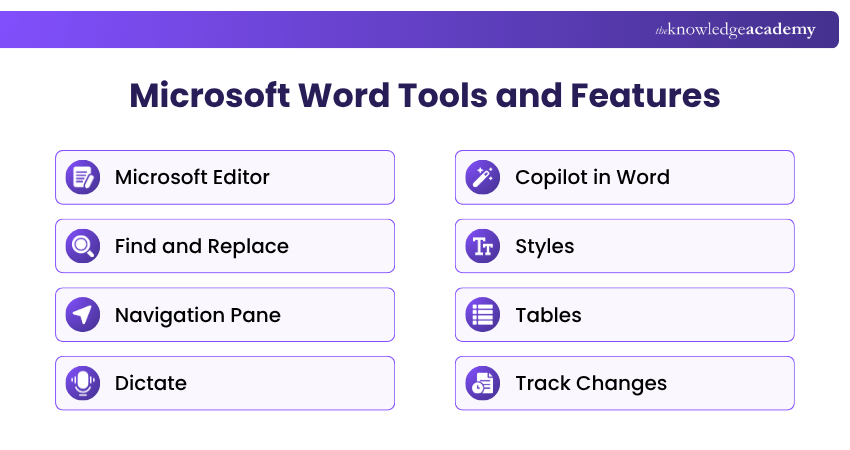
Essential Microsoft Word Tools and Features
Microsoft Word combines writing tools with document-management and collaboration capabilities. Understanding what each feature is designed to do can help users choose the right option instead of relying only on basic formatting commands. The following tools highlight some of the most useful ways to create, review, and manage documents in Microsoft Word.
1) Microsoft Editor
Microsoft Editor reviews documents for spelling, grammar, and writing issues. In Microsoft 365, it can also provide refinements relating to areas such as clarity, conciseness, vocabulary, and formality, although available suggestions vary by language and version.
Best for: Proofreading and refining written content before it is shared.
2) Find and Replace
Find and Replace helps locate repeated words, phrases, formatting, and special characters and replace them efficiently. Advanced options can also search for formatting patterns or use wildcard characters, making the tool particularly useful when editing longer documents.
Best for: Making repeated corrections or formatting changes across a document.
3) Navigation Pane
The Navigation Pane makes it easier to search a document and move between matching results. When documents use heading styles, it can also help users navigate through larger sections without repeatedly scrolling through pages.
Best for: Navigating lengthy reports, manuals, proposals, and structured documents.
4) Dictate
Dictate converts speech into text using a microphone and internet connection, allowing users to create drafts, outlines, or notes by speaking. It can also recognise supported voice commands for punctuation and other editing actions, although availability depends on the version and subscription.
Best for: Capturing ideas quickly or creating first drafts without typing.
Quick Tool Match
Scenario: You have a 40-page report and discover that the same outdated department name appears throughout it.
Which tool would you use first?
A) DictateB) Find and ReplaceC) Track ChangesD) Mail MergeBest Answer: B) Find and Replace
It can locate repeated instances and help update them without editing every occurrence manually.
5) Copilot in Word
Copilot in Word can assist with drafting, rewriting, summarising, and exploring document content. Users can ask questions about a document or request revisions to selected text, although specific capabilities depend on the Microsoft 365 subscription, Copilot licence, and organisational settings.
Best for: Drafting, rewriting, summarising, and reviewing document content with AI assistance.
6) Styles
Styles apply predefined combinations of formatting such as fonts, spacing, alignment, and heading levels. They help maintain consistency throughout a document and can also support structured navigation and features such as automatically generated Tables of Contents.
Best for: Maintaining consistent formatting across long or professionally structured documents.
Enhance your professional skills with our range of Microsoft Office Courses – Join today!
7) Tables
Tables organise information into rows and columns, making comparisons, schedules, figures, and structured data easier to present. Word provides table design and layout options for adding rows, columns, headers, and formatting while also supporting accessible table structures when used appropriately.
Best for: Presenting structured information clearly within documents.
8) Track Changes
Track Changes records edits made to a document, including additions, deletions, and formatting changes. Reviewers can then examine individual revisions and choose whether to accept or reject them.
Best for: Reviewing edits where every textual change needs to remain visible.
9) Comments and @Mentions
Comments allow reviewers to ask questions, suggest changes, or discuss specific parts of a document without altering the text itself. In supported Microsoft 365 environments, @mentions can draw a particular collaborator's attention to a comment and support threaded discussion.
Best for: Feedback, questions, and discussions during collaborative document reviews.
Document Review Decision
Two colleagues are reviewing the same proposal.Use Track Changes when:You want to suggest an actual edit to the document.Use Comments when:You want to ask a question or discuss an issue without changing the text.Use both when:The document requires detailed editing and contextual feedback.Challenge: Before your next review, decide whether each piece of feedback is an edit or a discussion before choosing the tool.
10) AutoSave and Version History
AutoSave can save supported Microsoft 365 files automatically every few seconds when they are stored in OneDrive or SharePoint. Version History allows users to view earlier versions and restore one when needed, providing additional control over changes to cloud-based documents.
Best for: Protecting ongoing work and recovering earlier versions of shared documents.
11) Mail Merge
Mail Merge combines a Word document with a data source to create personalised copies for multiple recipients. It can be used for letters, emails, labels, envelopes, and other documents where selected fields such as names or addresses need to change for each recipient.
Best for: Producing personalised documents efficiently at scale.
12) Accessibility Checker
Accessibility Checker reviews a document for issues that may create barriers for people with disabilities. It can identify concerns such as missing alternative text or document-structure problems and suggest ways to address them before sharing.
Best for: Checking whether documents are easier for a wider range of people to read and navigate.
Word Workflow Challenge
Imagine you are preparing an important report for external distribution.
Put these tasks in the order you would complete them:
A. Review accessibility issuesB. Apply heading StylesC. Check writing with EditorD. Collect feedback using Track Changes and CommentsSuggested Flow: B → D → C → A
The exact workflow can vary, but formatting structure early and checking accessibility before final distribution can reduce last-minute corrections.
How to Use Microsoft Word Tools More Effectively
Knowing that a feature exists is only useful when it becomes part of an efficient workflow. The following practices can help users get more value from Microsoft Word without adding unnecessary steps.
1) Use Styles Early: Apply heading and paragraph styles while creating the document rather than manually correcting formatting later.
2) Use Find and Replace Carefully: Review replacements where context could change the meaning instead of automatically replacing every occurrence.
3) Store Collaborative Documents in the Cloud: OneDrive or SharePoint enables features such as AutoSave, Version History, and real-time collaboration.
4) Check Content Before Sharing: Run Microsoft Editor and Accessibility Checker as final quality checks.
5) Use AI Selectively: Review Copilot-generated content for accuracy, tone, context, and suitability before keeping it.
Organise projects efficiently with our Microsoft Planner Training and keep teams aligned, productive, and on schedule.

The Knowledge Academy develops accessible learning content across Project Management, IT, Cybersecurity, Data Science, Business Analysis, HR, Accounting and Finance, Leadership and Health and Safety. Its resources combine subject research with clear explanations to help professionals build practical knowledge across a wide range of disciplines.
View Detail

 If you wish to make any changes to your course, please


