




We may not have the course you’re looking for. If you enquire or give us a call on 01344203999 and speak to our training experts, we may still be able to help with your training requirements.
PowerPoint Tips and Tricks for More Effective Presentations
ByGaurav KalitaLast updated on: 17 September 2026
PowerPoint Tips can help you create clearer, more engaging and professional presentations. This blog explores practical ways to improve slide structure, design, visuals, readability, audience engagement and delivery.

Think about the last PowerPoint presentation you created.
Could someone look at one of your slides for five seconds and understand:
☐ What is the main message?
☐ Where should they look first?
☐ Why is the visual there?
☐ What should they remember?
If not, your slides may be competing with your message rather than supporting it.
A strong presentation is not about filling every slide with information or using impressive effects. It is about making ideas easy to understand, follow, and remember. To achieve this, the right PowerPoint Tips can help you improve your content, design and delivery while keeping your slides clear and purposeful.
Best PowerPoint Tips and Tricks
Creating an effective PowerPoint presentation requires more than choosing an attractive template. Your structure, content, visuals and delivery should work together to communicate your message clearly.
Here are some practical PowerPoint Tips and Tricks that can make your next presentation more effective.
1) Start With a Clear Presentation Structure
Before designing individual slides, decide what you want your audience to understand, remember or do after your presentation.
Arrange your ideas in a logical sequence. For example, you could introduce the topic, explain the main points, provide supporting evidence and finish with a conclusion or next action.
Planning the overall story first prevents individual slides from becoming disconnected pieces of information.
Quick Check: If you cannot explain the purpose of a slide in one sentence, consider whether it needs to be included.

2) Choose a Design That Matches Your Audience
Your presentation design should suit both the subject and the people viewing it. A formal business presentation may benefit from a clean and restrained design, while an educational or creative presentation may allow more visual variety.
Consider your audience, presentation environment and subject before choosing colours, layouts and other design elements.
Most importantly, avoid choosing a theme simply because it looks impressive. The design should reinforce your message rather than compete with it.
3) Keep Slide Designs Consistent
Consistency helps your audience focus on your information instead of adjusting to a different visual style on every slide.
Maintain a consistent approach to headings, fonts, colours, spacing, alignment and visual elements throughout the presentation. Appropriate slide layouts can also help you maintain this consistency.
However, consistency does not mean every slide must look identical. You can vary layouts to suit different content while maintaining the same overall visual style.
4) Keep Each Slide Simple and Focused
Trying to communicate several ideas on one slide can quickly create clutter. Give each slide one clear primary purpose and remove information that does not support it.
Use concise text, suitable white space and only the visuals needed to communicate your point. If a slide contains several unrelated messages, consider separating them into different slides.
The goal is to help your audience understand the main idea quickly rather than making them search through information.
Did You Know?
The 5-5-5 Rule is an informal presentation guideline rather than an official PowerPoint requirement. It is commonly used as a reminder to avoid overcrowding slides with text. Use it as a flexible guideline and adapt your slide content to the audience, topic and presentation format.
5) Create a Clear Visual Hierarchy
A well-designed slide should make it easy for your audience to recognise what matters most.
Use differences in text size, positioning, spacing and emphasis to distinguish the main message from supporting information. Headings should stand out clearly, while secondary information should carry less visual weight.
A strong visual hierarchy guides the audience through the slide instead of making them search for the key point.
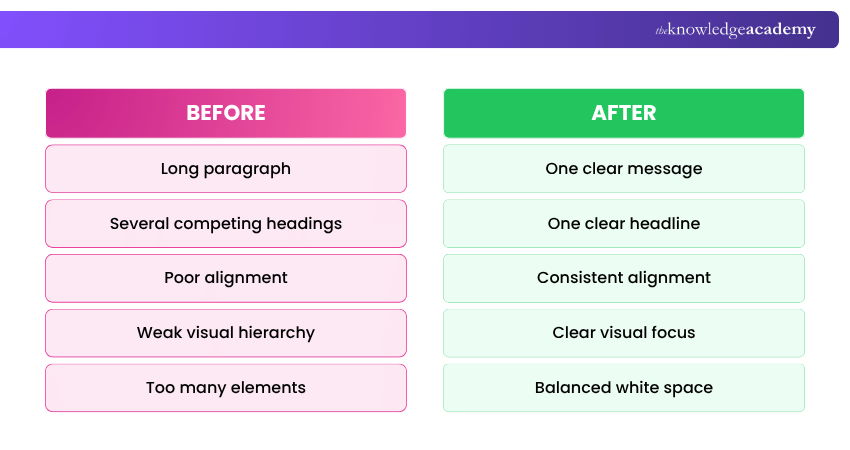
Visual hierarchy becomes easier to understand when you compare a cluttered slide with a well-structured one. The table below shows how a few simple design changes can make a slide clearer and easier to follow:
Before vs After: How to Improve a PowerPoint Slide?
6) Choose Readable Fonts
Fonts should make your presentation easier to read rather than simply adding visual personality.
Choose clear typefaces and limit unnecessary font variation. Use consistent styles for headings, subheadings and body text so your audience can quickly recognise the information hierarchy.
Font size also matters. Consider the presentation environment and whether the text will remain readable for people sitting farther away from the screen.
7) Use Colours Purposefully
Colour can create emphasis, separate information and establish a consistent visual identity. However, using too many colours can make slides distracting.
Choose a limited colour palette and maintain sufficient contrast between text and its background. Use accent colours strategically to draw attention to important information.
Avoid relying on colour alone to communicate meaning, particularly when presenting categories, status indicators or important differences.
8) Use Relevant Images and Graphics
Images, diagrams, icons and illustrations can make information easier to understand and remember when they serve a clear purpose.
Choose visuals that explain a concept, demonstrate an example, show a relationship or reinforce your message. Avoid adding images simply to fill empty areas.
A useful question to ask is:
“Does this visual help my audience understand something faster?”
If the answer is no, reconsider whether it needs to be there.
9) Present Data with Clear Charts
Charts can turn complex data into a visual story, but only when the chart type matches the information you want to communicate.
Choose charts based on the relationship you want your audience to notice, such as a comparison, trend, distribution or proportion. Use clear labels and remove unnecessary elements that make the information harder to interpret.
Do not try to display every available data point. Make the key insight easy to identify.
Quick Question
Before adding a chart, ask, “What should my audience understand from this data?”
10) Use Animations and Transitions Sparingly
Animations and transitions can help control the sequence of information and direct attention towards important elements.
For example, revealing information gradually can prevent your audience from reading ahead while you are explaining an earlier point.
However, excessive movement can become distracting. Use effects when they improve clarity, sequence or storytelling, not simply because they are available.
Master Microsoft Office 365 Tools to work smarter every day. Sign up for our Microsoft Office 365 Training today!
11) Use Templates as a Starting Point
Templates can save time by providing ready-made layouts and consistent visual styles. However, a template should support your presentation rather than dictate it.
Adapt layouts to suit your content and remove unnecessary template elements. You can also adjust colours, fonts and visual components where appropriate while maintaining a coherent design.
Think of a template as a starting framework, not a finished presentation.
12) Make Your Slides Accessible
Accessibility helps more people understand and navigate your presentation.
Maintain sufficient contrast between text and backgrounds, use readable font sizes and avoid relying on colour alone to communicate important information. Give each slide a clear title and arrange slide elements in a logical reading order to support people using assistive technologies.
Add meaningful alternative text to important images, charts and other visuals. You can also use PowerPoint's Accessibility Checker to help identify potential accessibility issues, such as missing alternative text and other problems that could make slides harder to navigate or understand.
Trainer's Tip
If removing something from a slide does not change what your audience understands, you probably do not need it.
13) Engage Your Audience
A presentation can become more memorable when your audience has opportunities to participate rather than simply watch.
Depending on the presentation format, you could use questions, polls, demonstrations, quizzes or short discussions. However, interactive elements should have a clear connection to your topic rather than being included purely for entertainment.
Sometimes, one well-timed question can create more engagement than several interactive features.
14) Rehearse Your Presentation
Strong slides cannot compensate for an unprepared delivery.
Practise your presentation to check timing, transitions and familiarity with your content. Rehearsing can also reveal slides that contain too much information or sections where the narrative does not flow naturally.
Recording a practice run or asking someone for feedback can help you identify where your pacing, explanations or overall delivery could improve.
Trainer's Pro Tip
Rehearse once with your slides and once without reading them. If you cannot explain the main point without relying on the slide text, simplify the slide or strengthen your familiarity with the message.
Common PowerPoint Mistakes to Avoid
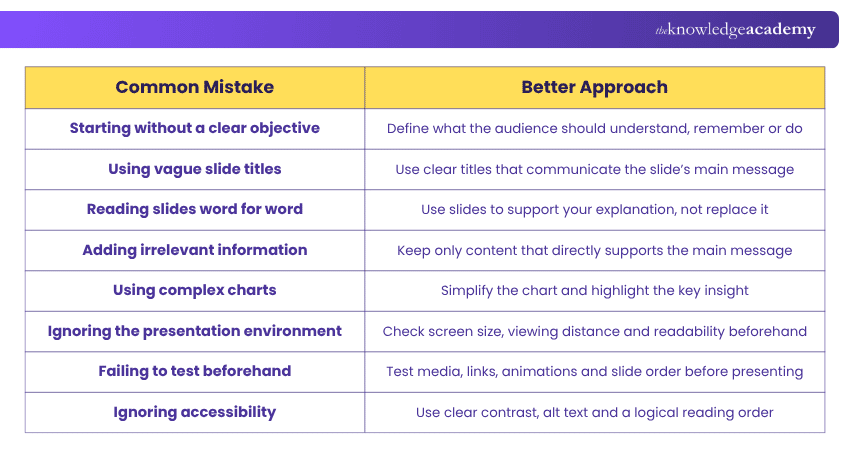
Knowing what to include in a presentation is important, but recognising what can weaken it is equally useful. Even strong content can lose impact when slides become overloaded, inconsistent or unnecessarily complicated.
The table below shows the common PowerPoint mistakes and how to avoid them:
Warning Sign: If your audience spends more time reading your slides than listening to you, the slides may contain too much information.
Learn from highly trained instructors using flexible learning options with our Microsoft Office Training – Join now!

Gaurav Kalita is a Content Writer with 2+ years of experience in content development, research and storytelling. His background in English literature and teaching, combined with his growing interest in AI and Machine Learning, supports his writing across Business Skills and IT and Tech.
View Detail

 If you wish to make any changes to your course, please


