




We may not have the course you’re looking for. If you enquire or give us a call on 01344203999 and speak to our training experts, we may still be able to help with your training requirements.
Home
 Resources
Office Applications
Microsoft Teams Tips: Master Communication and Boost Productivity
Resources
Office Applications
Microsoft Teams Tips: Master Communication and Boost Productivity
Resources
Office Applications
Microsoft Teams Tips: Master Communication and Boost Productivity
Microsoft Teams Tips: Master Communication and Boost Productivity
ByGaurav KalitaLast updated on: 17 September 2026
Microsoft Teams offers practical features for organising conversations, improving meetings and simplifying everyday work. Explore useful Microsoft Teams Tips for chats, meetings, productivity and safer collaboration.
You open Microsoft Teams to reply to one message. Ten minutes later, you have checked three channels, opened two files, responded to a meeting notification and forgotten what you originally came to do.
The problem is not always the amount of work. Sometimes, the way Teams is organised and used can add unnecessary friction to an already busy day.
The right Microsoft Teams Tips can turn the platform from a stream of constant activity into a more organised workspace. This blog explores practical ways to manage chats, improve meetings, streamline everyday tasks and collaborate more securely without adding unnecessary complexity. Read on!
Best Microsoft Teams Tips and Tricks
Getting more from Microsoft Teams does not mean using every available feature. The most useful approach is to identify where communication or workflow friction occurs and then choose the feature that addresses it.
The following image can help you identify where to start.
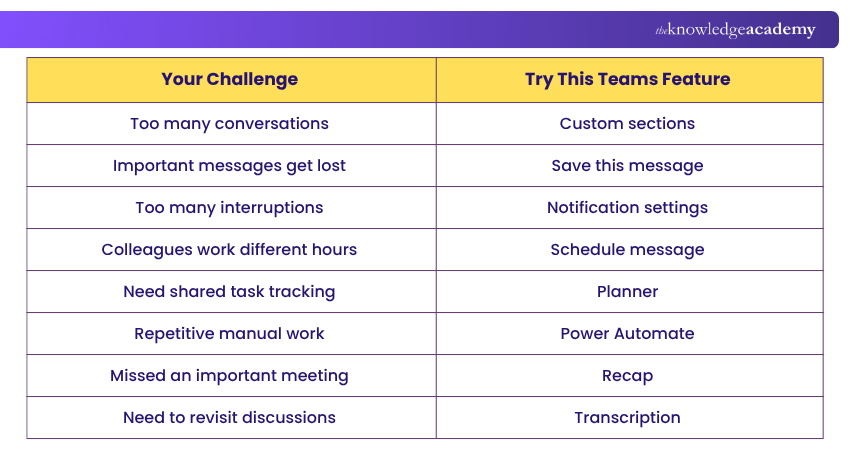
These features are available across current Teams experiences, although some options may depend on your organisation's settings or licence. Microsoft currently supports features such as custom conversation sections, saved messages and scheduled chat and channel messages.
Microsoft Teams Tips for Chats and Channels
Chats and channels can quickly become difficult to follow when every conversation receives equal attention. These Microsoft Teams Tips focus on organising communication, so that important information is easier to find and respond to.
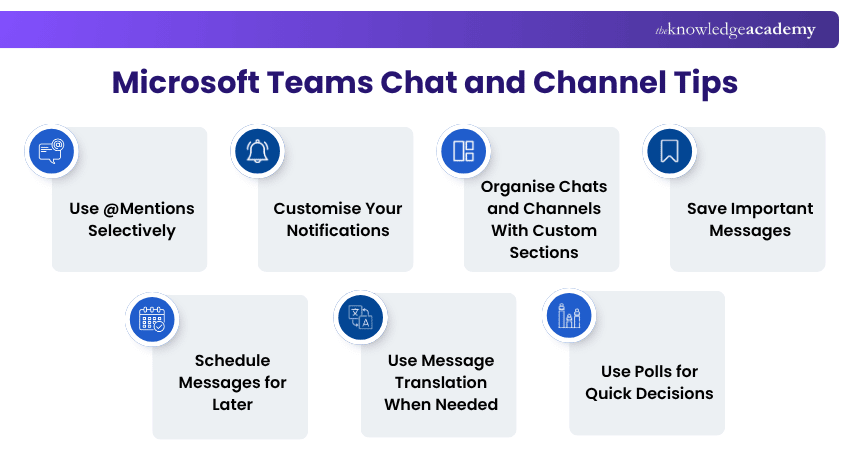
1) Use @Mentions Selectively
Use @mentions when a particular person or group genuinely needs to notice a message. Overusing mentions can make priority notifications less meaningful and contribute to unnecessary interruptions.
2) Customise Your Notifications
MS Teams allows users to adjust notifications for chats, channels, meetings and other activities. Instead of accepting every alert, choose which conversations deserve banners, Activity feed updates or fewer interruptions.
3) Organise Chats and Channels With Custom Sections
Custom sections let you group related chats and channels by project, topic or priority. This can be particularly useful when you work across several teams and want important conversations available without searching through a long list.
4) Save Important Messages
When a message contains a useful decision, instruction or reference, save it instead of assuming you will remember where it appeared. Saved chat messages and channel posts can be accessed later from the Saved section.
5) Schedule Messages for Later
A message may be ready now without needing to reach somebody immediately. Teams supports scheduled messages in both chats and channels, allowing you to choose a more appropriate delivery time.
6) Use Message Translation When Needed
Teams can translate received messages into your preferred language. In chats, users can also enable automatic translation for supported incoming messages, although availability may depend on language and organisational settings.
7) Use Polls for Quick Decisions
When a team needs to choose between several options, a poll can be faster and clearer than collecting individual replies across a long thread.
Should You Send It Now?
Before sending a non-urgent Teams message, ask:
1. Does the recipient need it immediately?2. Is it within their normal working hours?3. Will sending it now create unnecessary pressure?4. Would scheduled delivery be more appropriate?If the message can wait, scheduling it can keep communication timely without making every update feel urgent.
Microsoft Teams Meeting Tips
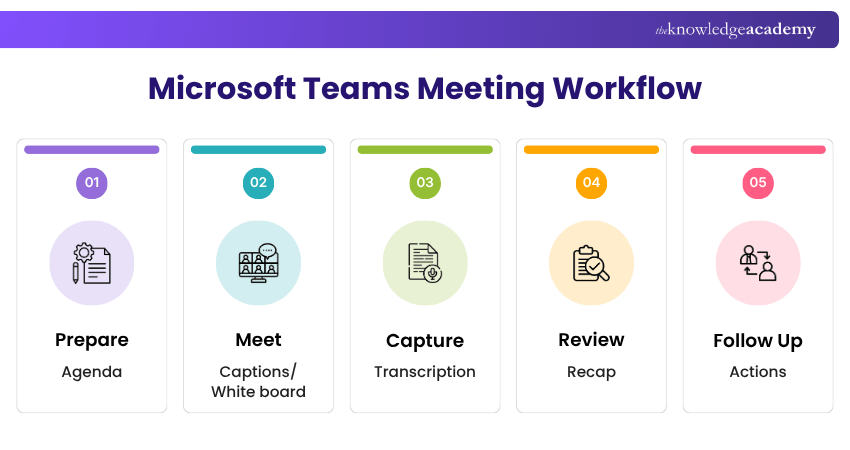
Meetings can create just as much information as chats, particularly when decisions, files and follow-up actions are spread across different places. The following tips focus on making meetings easier to prepare for, participate in and review afterwards.
1) Share an Agenda Before the Meeting
Give attendees enough context to understand why the meeting is happening and what decisions or discussions are expected. A clear agenda can also help participants decide what information they need to prepare before joining.
2) Use Live Captions and Transcription Appropriately
Live captions show spoken content in real time, while transcription creates a reviewable written record. Enable transcription when you need a searchable written record, as live captions are not saved. These features can support accessibility and make discussions easier to follow, while transcription provides a written record that can be reviewed afterwards.
3) Review Meetings With Recap
Teams Recap can bring meeting recordings, transcripts, shared content, notes and other meeting information together for easier review. Instead of replaying an entire meeting, use Recap to locate the information you actually need. Some AI-powered recap capabilities require Teams Premium or Microsoft 365 Copilot.
4) Use Breakout Rooms for Smaller Discussions
Large meetings can make it difficult for everyone to contribute. Breakout rooms allow attendees to work in smaller groups before returning to the main meeting. They are useful for workshops, brainstorming, training and focused small-group discussions.
5) Collaborate With Microsoft Whiteboard
Microsoft Whiteboard provides a shared visual space for brainstorming, mapping ideas and working through concepts together during a meeting. Use it when the discussion would benefit from seeing connections and contributions rather than relying entirely on spoken conversation.
6) Record Meetings Only When it Adds Value
Recording can be helpful when people cannot attend or when the discussion genuinely needs to be revisited. However, not every routine meeting requires permanent recording. Meeting recording and transcription can also be controlled through organisational policies and meeting settings.
Before You Record
Before recording a Teams meeting, check:
Is the recording genuinely required? ✓Do participants know recording or transcription is taking place? ✓Is access to the recording appropriate? ✓Does the meeting contain sensitive information? ✓Are organisational policies being followed? ✓A recording should make future work easier, not create unnecessary information or access risks.
Learn to design powerful databases and streamline data management with Microsoft Access Training – Join now!
Microsoft Teams Productivity Tips
Microsoft Teams can improve everyday efficiency by bringing tasks, files, apps and communication into one workspace. These tips can help reduce repeated work and make essential resources easier to access.
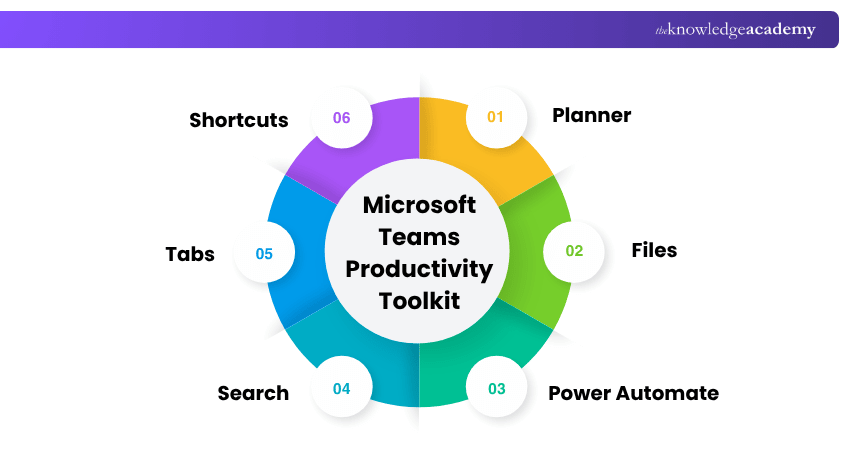
1) Manage Tasks with Planner: Use Planner within Teams to assign tasks, set deadlines and track progress.
2) Co-author Files in Real Time: Work on shared documents simultaneously to reduce duplicate files and version confusion.
3) Automate Repetitive Tasks with Power Automate: Automate routine notifications, approvals and workflows to reduce manual effort.
4) Find Information Quickly with Search: Use Teams Search to locate messages, people, files and other shared information quickly.
5) Add Frequently Used Apps and Files as Tabs: Pin important resources as tabs for faster access within chats and channels.
6) Use Keyboard Shortcuts for Faster Actions: Use shortcuts to navigate Teams and complete repeated actions more quickly.
Build practical planning skills with Microsoft Planner Training and organise team tasks more efficiently.
Microsoft Teams Security Tips
Safe collaboration in Microsoft Teams depends on how users manage shared files, external access and meeting information. Simple precautions can help protect workplace information and reduce unnecessary exposure.
1) Review External and Guest Access: Check who can access a team or channel before sharing internal or sensitive information.
2) Share Sensitive Files Carefully: Review permissions and recipients before sharing confidential documents through Teams.
3) Protect Meeting Recordings and Transcripts: Limit access to recordings and transcripts that contain confidential or sensitive discussions.
4) Follow Your Organisation's Authentication Policies: Use approved sign-in methods and report suspicious login activity through the appropriate internal process.
Strengthen your collaboration skills with Microsoft SharePoint Training and manage workplace information today.

Gaurav Kalita is a Content Writer with 2+ years of experience in content development, research and storytelling. His background in English literature and teaching, combined with his growing interest in AI and Machine Learning, supports his writing across Business Skills and IT and Tech.
View Detail

 If you wish to make any changes to your course, please


