




We may not have the course you’re looking for. If you enquire or give us a call on 01344203999 and speak to our training experts, we may still be able to help with your training requirements.
What is Microsoft Word: Everything You Need to Know
ByThe Knowledge AcademyLast updated on: 02 October 2026
Get familiar with Microsoft Word and discover the features and capabilities that support everything from everyday writing to professional document creation.
Are you ready to unlock the secrets of one of the most popular tools in the digital landscape? What is Microsoft Word, you ask? It's more than just a word processor. It's a gateway to a world of creativity, efficiency, and seamless document management.
From creating simple letters and resumes to preparing detailed reports and professional documents, Microsoft Word provides tools for a wide range of writing needs. If you haven't started using it, worry no more. Read this blog and explore why Microsoft Word continues to be a go-to choice for handling documents across different needs.
What is Microsoft Word?
Microsoft Word is a widely used word-processing application for creating, editing and formatting documents such as letters, reports, resumes and other professional content. It provides tools for text formatting, spelling and grammar checking, and adding elements like images, tables, charts and signatures.
Microsoft Word also supports templates, document sharing, change tracking and real-time collaboration. Word for the web offers core features such as templates, dictation, cloud storage and collaboration, while eligible Microsoft 365 plans provide additional capabilities, including access to the desktop version of Word.
Key Features of Microsoft Word
The following are the key features of Microsoft Word that contribute to its widespread popularity:
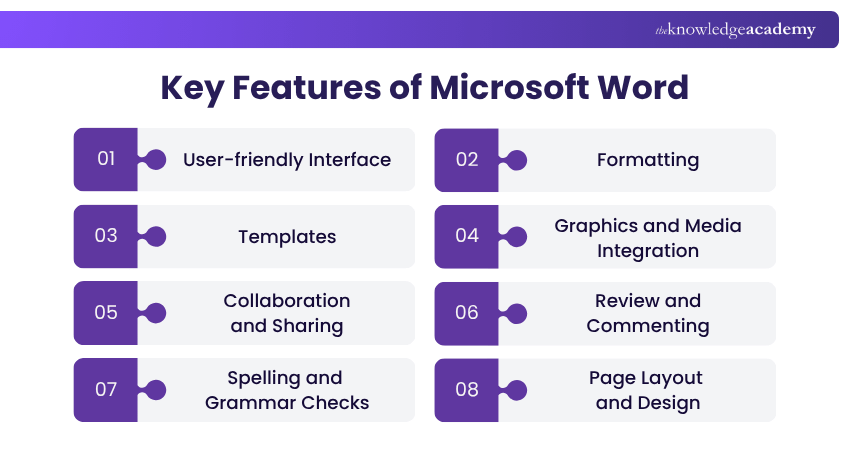
a) User-friendly Interface: Provides an easy-to-use layout for quickly accessing tools and functions.
b) Formatting: Allows users to customise fonts, sizes, colours and other formatting elements.
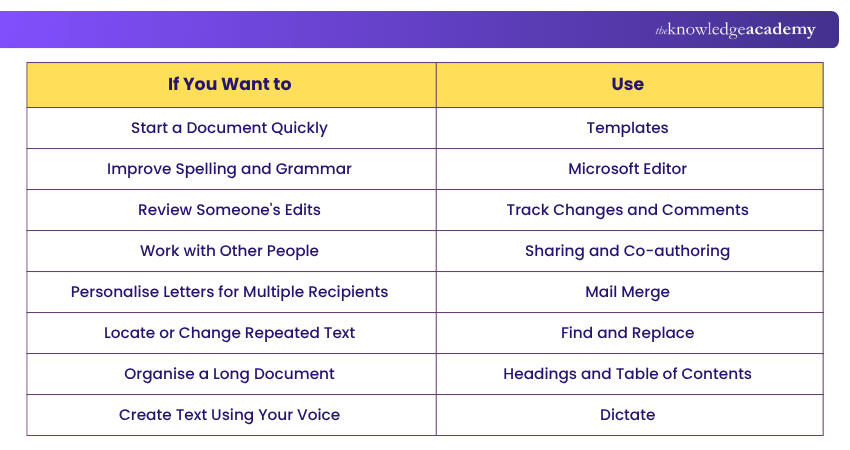
c) Templates: Offers ready-made templates that save time and help create professional-looking documents.
Trainer’s Insight
Treat templates as a starting point rather than a finished document. Review the layout, fonts, colours and placeholder content so the final document matches its purpose and audience.
d) Graphics and Media Integration: Allows users to insert images, shapes, charts and other media into documents.
e) Collaboration and Sharing: Supports real-time co-authoring, allowing multiple users to work on the same document.
f) Review and Commenting: Uses Track Changes and comments to simplify document reviewing, feedback and editing.
g) Spelling and Grammar Checks: Helps identify and correct spelling and grammar errors in documents.
h) Page Layout and Design: Allows users to adjust margins, orientation, headers and footers for consistent document layouts.
i) Table of Contents and Navigation: Helps organise lengthy documents and navigate content using headings and a Table of Contents.
j) Mail Merge: Creates personalised letters, labels and other documents for multiple recipients efficiently.
Enhance document creation, formatting, and collaboration tools with Microsoft Word MO100 Training – Register today!
k) Compatibility and Cloud Integration: Supports multiple file formats and cloud storage for convenient document access.
l) Find and Replace: Quickly find and replaces specific words or texts throughout a document.
m) AutoCorrect and AutoText: Corrects common typing errors and enables frequently used text to be saved and reused.
n) Word Count and Statistics: Tracks document length and provides statistics such as word and sentence counts.
o) Language Translation: Enables users to translate document content into different languages.
p) Page Break: Controls where one page ends and the next begins for better document organisation.
Pro Tip
When working with a long document, use Word's built-in heading styles instead of manually formatting each heading. This keeps the document structure consistent and makes it easier to create and update a table of contents.
What is Microsoft Word Used For?
As a versatile word processing software, Microsoft Word finds applications across various domains and serves diverse user needs. Let’s explore some of the common use cases where Microsoft Word excels:
a) Document Creation and Editing: Microsoft Word is mainly used to create and edit various types of documents. It's helpful for tasks like writing essays, letters, or reports, offering an easy way to write, review, and improve written content.
b) Academic Assignments: For students and educators, Microsoft Word is an essential tool for academic assignments, research papers, and presentations. Its formatting options, headers, footers, and referencing tools help organise and professionally present academic work.
c) Business Reports and Correspondence: In the corporate world, Microsoft Word is commonly used for crafting business reports, memos, proposals, and other official documents. Its collaboration features enable seamless teamwork and real-time editing among colleagues.
d) Resume and CV Creation: Job seekers rely on Microsoft Word to create eye-catching and well-structured resumes and Curriculum Vitae (CV). The software's templates and formatting options help applicants present their qualifications effectively.
e) Creative Writing and Publishing: Writers and authors use Microsoft Word to craft novels, short stories, poems, and other creative pieces. The ability to organise content, use various fonts, and add images fosters creativity and enhances the overall writing experience.
f) Collaborative Work: Microsoft Word's collaboration features enable multiple users to work on the same document. This use case is particularly beneficial for group projects, brainstorming sessions, and remote collaboration.
g) Creating Newsletters and News Articles: Journalists and media professionals use Microsoft Word to compose newsletters and news articles. MS Word’s spell checker and grammar tools ensure accuracy and professionalism.
h) Editing and Reviewing: Microsoft Word is often used to proofread and edit content. The "track changes" feature allows editors and reviewers to suggest edits, making the revision process more efficient.
i) Legal Documentation: In law, Microsoft Word is used to write legal documents like contracts and court papers, ensuring accuracy and professionalism in the legal process.
j) Transcription and Dictation: Word's dictate feature lets users create text by speaking, while supported transcription features can convert recorded speech into text.
Advance your document creation skills with Microsoft Word Expert MO101 Training – Sign up soon!
How to Use Microsoft Word?
Microsoft Word is straightforward and efficient, empowering users to create documents, edit them, and format content seamlessly. Follow these steps to get started on how to use Microsoft Word:
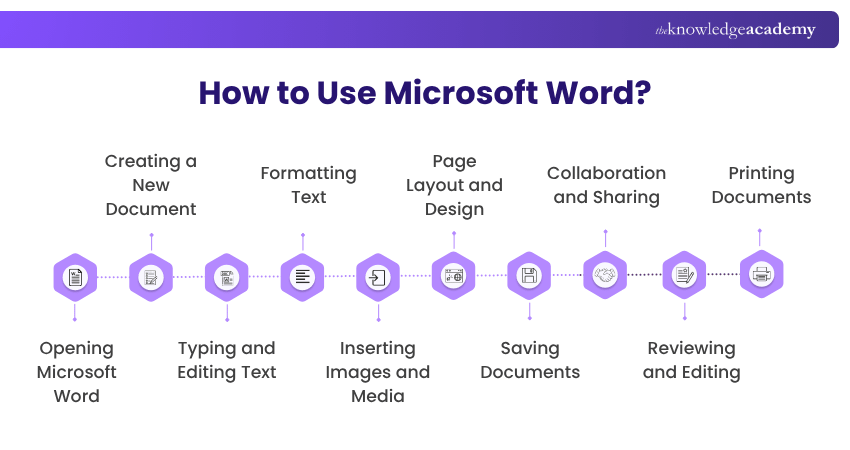
a) Opening Microsoft Word: Launch Microsoft Word from your desktop or Start Menu. Alternatively, Word for the web can be accessed through a supported web browser. Microsoft currently offers Word for the web as a free option.
b) Creating a New Document: Click “blank document” to start a new project or choose from available templates for various document types.
c) Typing and Editing Text: Begin typing your content in the document. Use basic editing commands like copy, cut, and paste for content manipulation.
d) Formatting Text: Highlight the text to apply formatting options such as font style, size, colour, and alignment using the formatting toolbar.
e) Inserting Images and Media: Click on "Insert" to add images, shapes, charts, and other media to enhance your document.
f) Page Layout and Design: Adjust page layout using the available layout controls. Set margins and orientation, and add headers or footers.
g) Saving Documents: Save your work often by clicking "File" then "Save." Name your file and choose where to save it.
h) Collaboration and Sharing: Collaborate by clicking “Share” to work on the same document with others in real-time.
i) Reviewing and Editing: Use the "Review" tab to make changes, leave comments, and check for mistakes.
Trainer’s Insight
Before sharing an important document, review more than spelling and grammar. Check the headings, formatting, page layout and overall readability, and use Word's accessibility tools where appropriate.
j) Printing Documents: Print your document by clicking "File," then "Print" to see a preview and print it.
Quick Check
What do you mainly need Microsoft Word for?a) Writing assignments or reportsb) Creating professional documentsc) Preparing a CV or letterd) Collaborating and reviewing documentse) Creating and formatting personal content
Sharpen your office skills and power through your workday with Microsoft Office Training now!

The Knowledge Academy develops accessible learning content across Project Management, IT, Cybersecurity, Data Science, Business Analysis, HR, Accounting and Finance, Leadership and Health and Safety. Its resources combine subject research with clear explanations to help professionals build practical knowledge across a wide range of disciplines.
View Detail

 If you wish to make any changes to your course, please


