


 Top Rated Course

We may not have the course you’re looking for. If you enquire or give us a call on 01344203999 and speak to our training experts, we may still be able to help with your training requirements.
What is a Spreadsheet: How to Create and Work With It
Sophia Ellis 15 November 2025A Spreadsheet is a digital tool that organises information in a grid of rows and columns, making it easy to calculate, analyse, and manage data. It helps users perform formulas, create charts, track numbers, and organise tasks or budgets. It is commonly used for financial planning, reporting, analysis and Data Management.

Training Outcomes Within Your Budget!
We ensure quality, budget-alignment, and timely delivery by our expert instructors.
Table of Contents
Do you work with numbers, plan projects, track expenses, or simply love staying organised? Then you will need something that keeps your information neat, clear, and easy to manage. That is where a Spreadsheet becomes your best ally. With all its perks, it can be your most reliable companion for staying organised.
A Spreadsheet helps you turn data into meaningful insights, organise tasks effortlessly, and carry out calculations without stress. In this blog, we will learn What is a Spreadsheet, how it works, and how you can start creating one with confidence. Let's dive in!
Table of Contents:
1) What are Spreadsheets and How Do They Work?
2) What is the Purpose of a Spreadsheet?
3) Examples and Uses of a Spreadsheet
4) Pros and Cons of Spreadsheets
5) How Spreadsheets Can Support Your Project Management?
6) How to Create a Spreadsheet?
7) Conclusion
What are Spreadsheets and How Do They Work?
A Spreadsheet is a computer application that organises information in a grid made of rows and columns, allowing you to store, display and manage data with ease. It is designed to handle numerical values, short text entries and formulas, which makes it one of the most widely used tools for analysis, planning and organisation.

Each box in the grid is called a cell, and it can hold numbers, text, dates or formulas. These cells are identified using a combination of letters and numbers, such as A1, A2 or B3, which makes it simple to cross-reference and locate information. Instead of using a calculator or writing numbers down on paper, a Spreadsheet performs the work instantly, which reduces errors and saves time.
What is the Purpose of a Spreadsheet?
The purpose of a Spreadsheet is to help you organise your data in a way that is easy to read, use and analyse. It serves as a digital workspace where you can handle everything from simple lists to large sets of data. Let's have a deep check into its purpose:
1) Calculating
Spreadsheets have a versatile set of formulas and Mathematical functions to perform calculations and automate them. From basic arithmetic to complex equations, you can process large amounts of data instantly by applying formulas across multiple cells.
2) Accounting
They are ideal for accounting tasks, because spreadsheets handle calculations so well. You can perform all the accounting tasks like bill tracking, budgeting, ledger maintenance, invoice generation and much more. Additionally, Spreadsheets have many templates that are suitable for Accounting.
3) Inventory Tracking
Inventory tracking is one of the crucial parts of any business. In this process, managing and monitoring inventory is very important to ensure the availability of the entities in the business and to optimise the cost of the project. This can effectively avoid over-stocking or stockouts.
4) Scheduling
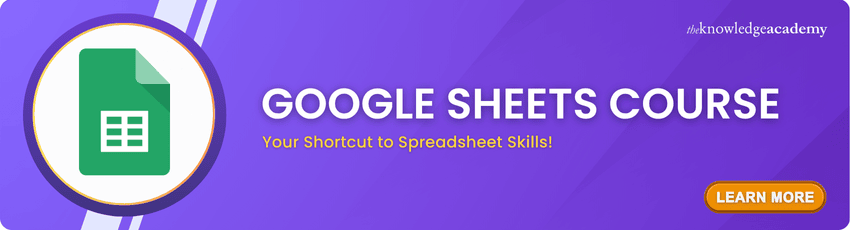
Spreadsheets can also be used to schedule events, tasks and deadlines. Excel has an inbuilt calendar template to carry out these kinds of tasks without any hassle. These schedules can be used as a reminder for any tasks and events.
5) Planning
Planning is the process of setting goals and defining objectives by developing strategies and action plans. It can be easily done with the tabular format of Spreadsheets. You need to create the parameters to record relevant values.
6) Listing
Spreadsheets are useful for creating and managing lists of any kind. You can use both short and long text forms in the sheets. Using these basic features, you can create any type of organised database.
7) Project Management
Project Management is one of the wise tasks in any company. Spreadsheets act as a foundation for them. From task allocation and progress monitoring to reviewing and project completion, all can be done with Spreadsheets.
8) Time Management
One of the helpful features of spreadsheets is the ability to maintain time logs. Although many modern applications offer time-tracking tools, spreadsheets remain a simple, traditional and accessible way to manage time-related tasks.
Unlock smarter workflows with our Google G Suite Training — Join now!
Examples and Uses of a Spreadsheet
Let's now check some of the most common examples of Spreadsheets and how they are used:
1) Finance
Finance is one of the areas where Spreadsheets are used the most. People use them to track income, expenses, profits and losses. Businesses often rely on Spreadsheets to prepare financial reports, calculate forecasts and create budgets.
2) Forms
Spreadsheets can also act as a form to collect data for any survey. They make it easy to gather data from multiple people without confusion. These data can be used for data interpretation and manipulation.
3) School and Grades
Spreadsheets can be an easy solution for teaching professionals to monitor and track the attendance and academic records of the students. These data can turn into a strong insight for the teachers to guide their students effectively.
4) Lists
Spreadsheets can also function as a list and be used for various purposes like business inventory, telephone directory, to-do-list, grocery list and much more. Because you can sort and filter data, lists become easier to manage and update.
5) Sports
Sports teams and coaches often use spreadsheets to track performance statistics, follow scores, training schedules and match results. It helps them monitor improvements and plan future training sessions.
Create dashboards that tell powerful stories with our Google Data Studio Training - Sign up soon!
Pros and Cons of Spreadsheets
Spreadsheets offer many advantages but also have a few limitations. Understanding both helps you decide how and when to use them. So, here are its pros and cons:
Pros of Spreadsheets
1) Easy to organise and manage large amounts of data
2) Useful for calculations and Data Analysis
3) Flexible and suitable for different tasks
4) Accessible to beginners with simple functions
5) Excellent for visualising data through charts and tables
6) Supports collaboration when sharing online
Cons of Spreadsheets
1) Can become difficult to manage when the dataset grows too large
2) Errors in formulas may cause incorrect results
3) Not ideal for advanced data security unless extra steps are taken
4) Overuse of complex formulas can make sheets confusing
5) Limited functions compared to dedicated database tools
How Spreadsheets Can Support Your Project Management?
A well organised Spreadsheet can be a strong foundation for your Project Management activities. Even though it may not offer the advanced capabilities of dedicated Project Management tools, it can still meet most basic requirements effectively.
Spreadsheets provide a clear and flexible way to organise tasks, timelines and responsibilities. You can list project activities, set milestones and record deadlines in rows, while columns help you track planned dates, delays, updated schedules and progress status.
Formulas allow automatic calculation of timelines, such as adding a set number of days to a start date to determine a planned finish date. If delays occur, these values update instantly, helping you keep the schedule accurate.
How to Create a Spreadsheet?
Creating a Spreadsheet is an easy process. Follow the mentioned step-by-step instructions and create your first Spreadsheet today:
Step 1:
Select a tool such as Microsoft Excel or Google Sheets to create a Spreadsheet. Google Sheets is great for online collaboration, while Excel offers more advanced features. Let's consider that you are using MS Excel.
Step 2:
Now, click on All Programs. There, you need to go to Microsoft Office and then click Microsoft Office Excel (MS Excel). Select a blank workbook.
Step 3:
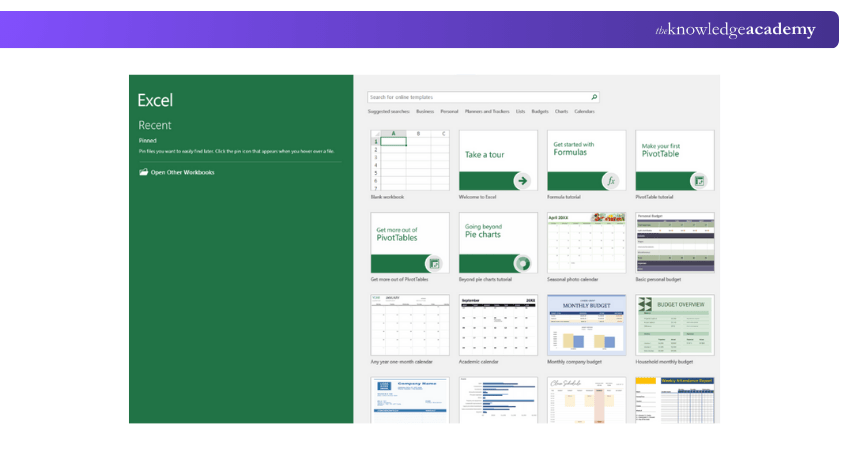
Now, if you see the bottom-right corner, you can find a sheet created by default. You can also create multiple sheets by just clicking the + symbol. A collection of Spreadsheets is called as a ‘workbook’.
Step 4:
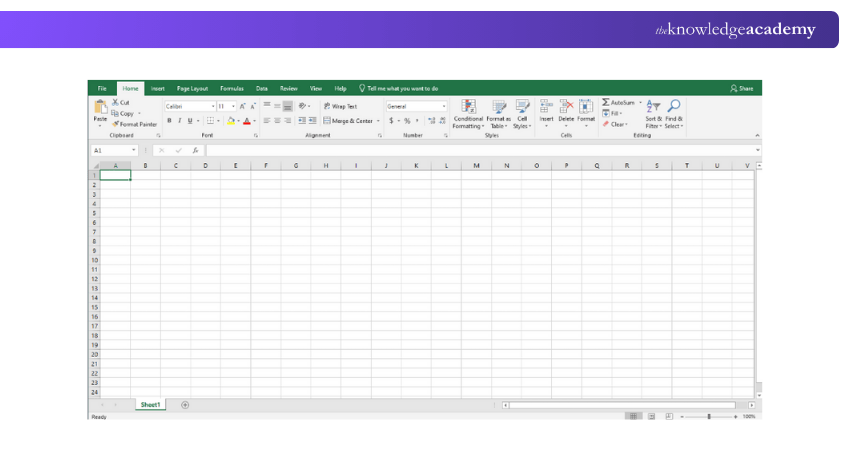
Now, you have successfully created your first Excel sheet. You can click on any cell and type numbers, text or dates as needed. Add column headings, adjust widths and use colours or formatting to keep everything clear.

Step 5:
Don’t forget to save your file once you have edited or added something.
Conclusion
Spreadsheets are powerful sources to store and access your data. They are easy to learn and can be adapted to almost any situation. Whether you are managing personal tasks, planning a project or analysing data for work, being fully aware of What is a Spreadsheet and its features will make the usage effective. With a little practice, you will be able to create Spreadsheets that save time, reduce errors and help you stay in control of your information.
Enhance how you collect and analyse data with our Google Forms Training - Register today!
Frequently Asked Questions
How Can I Share My Spreadsheet With Others?

To share your Spreadsheet with others,
1) Open the sheet you want to share
2) Click Share in the top right corner
3) Enter the email addresses you want to share with
4) Choose the kind of access you want to give (edit, comment, view)
5) Click Send
How Do I Apply Formulas Effectively in a Spreadsheet?
To insert a formula in Excel, start by selecting a cell, type an equal sign (=). After that, you can enter your formula in the cell and then press Enter.
What are the Other Resources and Offers Provided by The Knowledge Academy?
The Knowledge Academy takes global learning to new heights, offering over 3,000+ online courses across 490+ locations in 190+ countries. This expansive reach ensures accessibility and convenience for learners worldwide.
Alongside our diverse Online Course Catalogue, encompassing 19 major categories, we go the extra mile by providing a plethora of free educational Online Resources like Blogs, eBooks, Interview Questions and Videos. Tailoring learning experiences further, professionals can unlock greater value through a wide range of special discounts, seasonal deals, and Exclusive Offers.
What is The Knowledge Pass, and How Does it Work?
The Knowledge Academy’s Knowledge Pass, a prepaid voucher, adds another layer of flexibility, allowing course bookings over a 12-month period. Join us on a journey where education knows no bounds.
What are the Related Courses and Blogs Provided by The Knowledge Academy?
The Knowledge Academy offers various End User Training, including Google Sheets Course, Google G Suite Training, and Google Data Studio Training. These courses cater to different skill levels, providing comprehensive insights into File Management.
Our Office Applications Blogs cover a range of topics related to Spreadsheets, offering valuable resources, best practices, and industry insights. Whether you are a beginner or looking to advance your Spreadsheets skills, The Knowledge Academy's diverse courses and informative blogs have got you covered.
Upcoming Office Applications Resources Batches & Dates
Date
 Google Sheets Course
Google Sheets Course
Fri 27th Mar 2026
Google Sheets Course
Fri 19th Jun 2026
Google Sheets Course
Fri 4th Sep 2026
Google Sheets Course
Fri 4th Dec 2026

 If you wish to make any changes to your course, please


