




We may not have the course you’re looking for. If you enquire or give us a call on 01344203999 and speak to our training experts, we may still be able to help with your training requirements.
What is File Management: Definition, Importance
ByThe Knowledge AcademyLast updated on: 10 October 2026
This blog explores what file management is, its key features, and why it matters, along with popular file management tools, practical tips, and how to choose the right system for your needs.
In a world that is increasingly filled with digital clutter, it can be quite hard to locate the exact file at the exact moment. That's where file management comes in, a structured approach to classifying, protecting and retrieving information so it doesn't get lost in the noise. Done well, it saves time, reduces errors and keeps a digital workspace organised rather than overwhelming. Let's look into it in more detail.
What is File Management?
File management means keeping your digital files organised and easy to find. It includes saving them in the right folders, giving them clear names, and deleting ones you don't need. You can also back up important files to avoid losing them and set permissions to keep private information safe. It saves time, helps you work faster, and keeps your computer neat and secure.
It becomes especially important in collaborative environments, where multiple people need access to the same files in an organised way. It saves time, boosts productivity, ensures data security, and helps maintain a clean digital workspace.
Core file management activities:
1) Keeping folders based on categories or projects
2) Naming files consistently to avoid confusion
3) Backing them up to prevent data loss
4) Controlling access and permissions to protect sensitive data
5) Removing duplicates and outdated files for storage management
For example, a business might store invoices under Finance > Invoices > 2026, while customer records are kept separately under Customers > Active Accounts. This makes it easier to locate the required information without searching through unrelated documents.

What Can You Store in a File Management System?
A file management system has the capability to maintain a variety of digital files like text documents, reports, spreadsheets, images, presentations, and PDF files. Moreover, the system has the potential to accept various media files, such as graphics and videos, in different formats.
Through the centralisation of files in a single system, users are allowed to organise, access, and manage content with great ease. This, in turn, leads to better control over digital assets and faster retrieval when necessary.
Features of File Management
Here are some of the key features of file management:
1) File Organisation: Files are stored in folders or directories to sort and find easily. You can group similar files together for better structure.
2) Easy File Access: Users can quickly open, edit, save, or move files. Some systems also allow searching by file name, type, or date.
3) File Naming and Metadata: Supports consistent naming and adds metadata like author, date, or size to help manage files better.
4) File Permissions and Security: Controls who can view, edit, or delete folders. This protects sensitive data and prevents unauthorised changes.
5) Backup and Recovery: Automatically saves copies of information and restores them if they are lost or damaged, helping avoid data loss.
6) Version Control: Keeps track of file changes over time and allows users to restore earlier versions if needed.
7) File Sharing and Collaboration: Allows users to share files with others easily, making teamwork and communication smoother.
8) Storage Management: Monitors file sizes, available space, and duplicate folders to keep the system organised and efficient.
Why is a File Management System Important?
Effective file management provides more than an organised digital workspace. It can improve productivity, support collaboration and help organisations maintain better control over their information. Here are its key benefits:
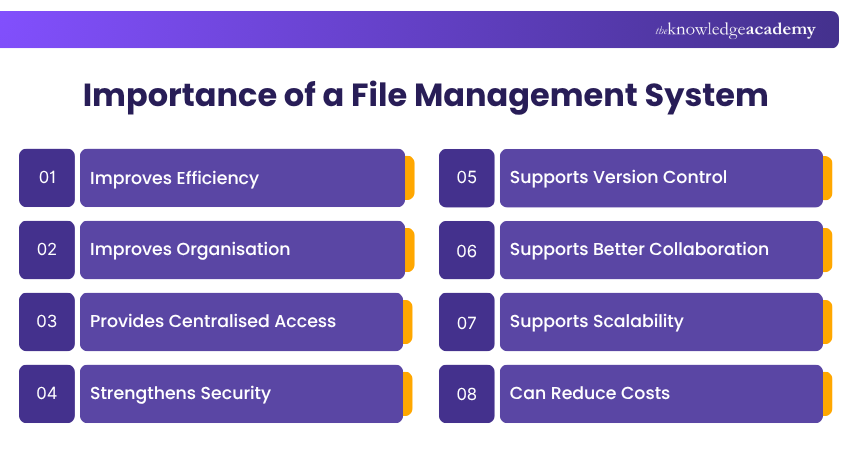
a) Improves Efficiency: A clear file structure reduces the time users spend searching for documents. It can also reduce the need to recreate files that already exist but cannot easily be found.
b) Improves Organisation: Folders, subfolders, naming conventions and metadata provide a structured way to store information. This makes it easier to sort files by project, type, department or date.
c) Provides Centralised Access: Where files are stored in a shared or centralised system, users do not need to search across numerous emails, devices or personal folders to locate information.
d) Strengthens Security: Permissions and access controls can restrict sensitive information to authorised users. This is particularly useful for financial information, employee records and confidential business documents.
e) Supports Version Control: Version history can reduce confusion about which copy of a document is current. It can also allow users to review or restore previous versions where the system supports this functionality.
f) Supports Better Collaboration: Shared file systems make it easier for team members to access and work with common documents. Some platforms also provide real-time editing, commenting and sharing features.
g) Supports Scalability: As an organisation grows, the amount of information it manages often increases. A suitable file management system can support increasing numbers of files, users and storage requirements.
h) Can Reduce Costs: Digital file management can reduce reliance on paper, physical storage and manual administrative processes. Efficient organisation can also reduce time lost searching for or recreating documents.
Trainer's Insight
More features do not automatically mean better file management. Focus on the capabilities your workflow actually needs, such as search, permissions, version history, sharing and backup.
Learn time-saving skills with our Google Sheets Course – Join today
Popular Free File Storage and File Management Tools
There are many free file management options that allow individuals to manage their documents without extra cost. Here are the best free systems:
1) Dropbox
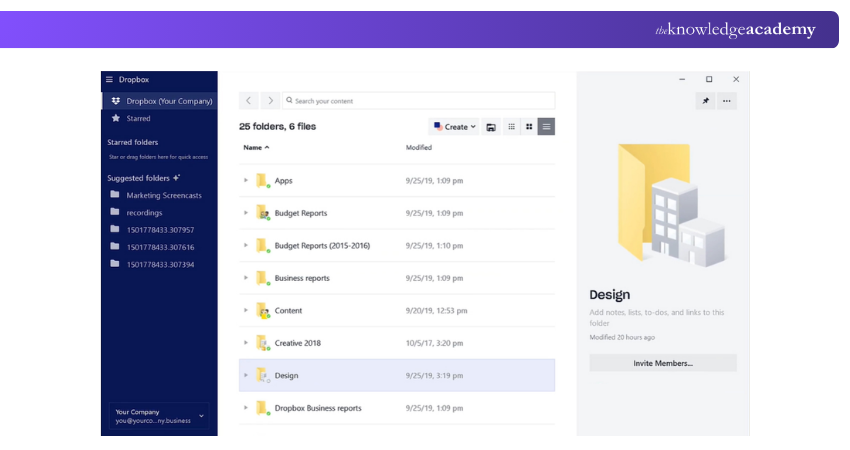
Dropbox is a cloud-based file management system that lets you securely store, organise, and access files from anywhere. It integrates with tools like Slack, enabling easy file sharing, collaboration, and version control within projects. It provides device-wide access, flexible folder organisation, and real-time sync with version control.
2) OneDrive
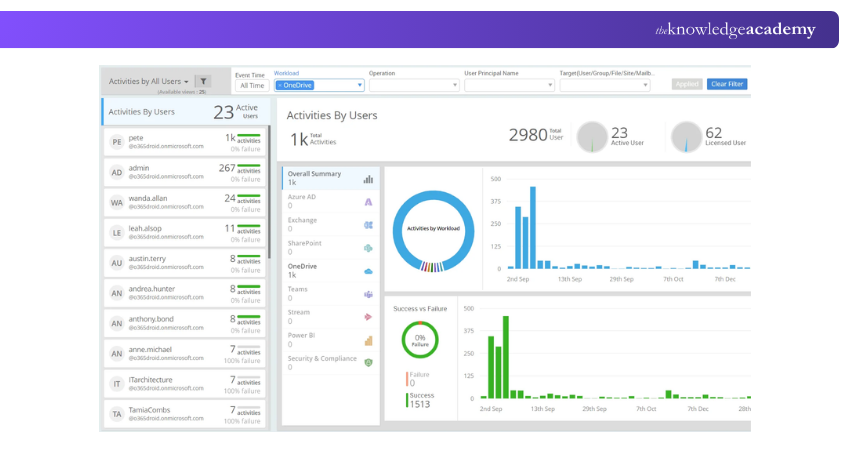
OneDrive is a file management system based on cloud storage that permits you to keep, classify, and gain access to files from any location. It integrates very easily with Microsoft 365 applications, which allow for immediate collaboration, and sharing of files is also very easy across devices.
3) Google Drive
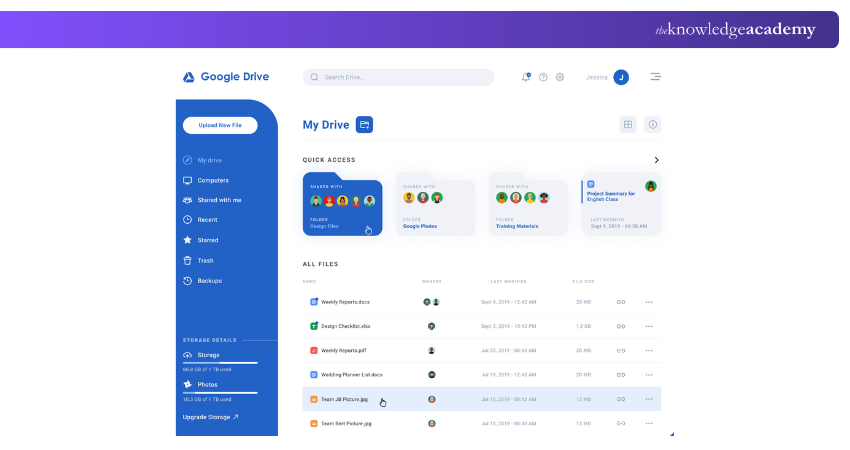
Google Drive is a cloud-based file management system that offers storage, organisation, and access to files from any location, as well as sharing and collaboration features that are easy to use. It connects with Google Workspace applications such as Docs and Sheets, which allow for real-time editing, continuous syncing, and device-wise version history.
4) Smartsheet
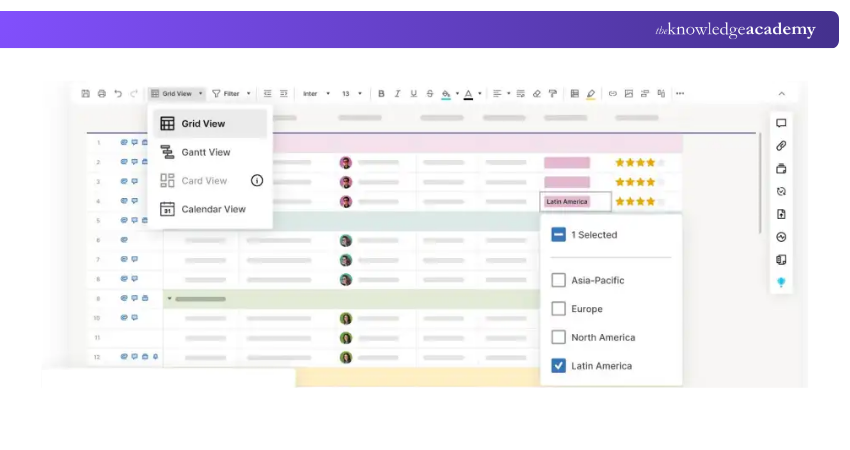
Smartsheet is a work management platform based on the cloud that integrates project planning, teamwork, and file management and enables teams to keep their work files accessible and even stored in the project workflows.
5) FileCenter
FileCenter is a document management software designed mainly for small to mid-sized businesses. It helps users scan, organise, search, and store digital files in a simple folder-based layout.
1) Supports PDF editing for easy file changes
2) Offers file routing to automate document flow
3) Ideal for offices managing both paper and digital files
4) Helps organise and digitise physical documents efficiently
6) Notion
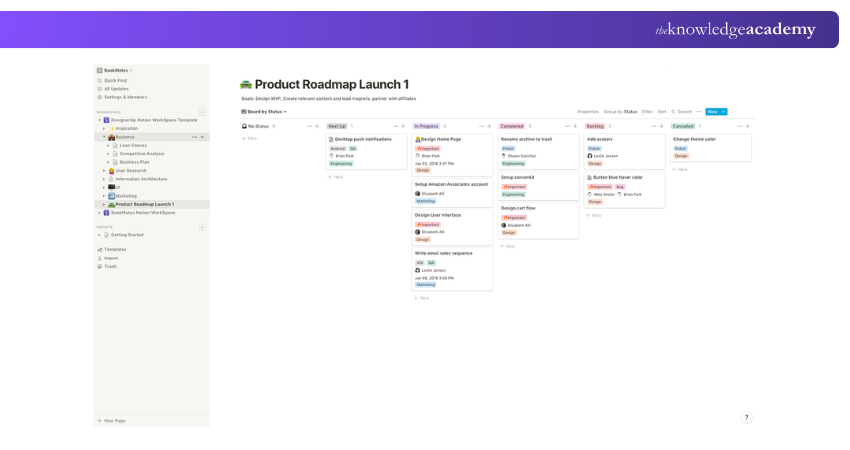
Notion is a comprehensive workspace that integrates notes, tasks, and databases with file management, giving you the power to organise, upload, and access files alongside your content and projects. It also simplifies sharing and collaboration, allowing teams to have documents connected to their work in one central place.
Learn advanced file management with our Google G Suite Training – Join today!
File Management Tips
Here are some important file management tips:
1) Utilise Metadata Effectively
Metadata is the hidden but powerful information attached to a file, like the author, creation date, file type, and tags. When used properly, metadata makes searching and sorting folders much easier. Instead of opening each folder, you can filter by date or tag to find what you need.
For Example: In a marketing folder, tagging all social media assets with "2025_campaign" allows instant access to relevant content.
Pro Tip
Use meaningful file names and metadata together. File names provide immediate context, while tags and metadata can make larger collections easier to search.
2) Organise Files as You Go
One of the simplest but most effective habits is organising files as you work. Saving documents directly into their correct folders instead of letting them pile up in the downloads folder saves time and prevents future confusion.
For Example: After creating a sales report, immediately save it to Reports > Sales > June 2025.
3) Perform Periodic Checks
Even the most organised systems can get messy over time. Performing regular checks weekly or monthly helps you identify duplicate files, outdated documents, and misplaced items. This cleanup prevents your folders from becoming overwhelming.
For example: Reviewing your "Projects" folder every month allows you to archive completed work and delete irrelevant drafts.
4) Regularly Backup Files
Backing up your files is crucial to prevent data loss from accidental deletion, system crashes, or cyberattacks. A good practice is to back up your files to both a cloud service like Google Drive or Dropbox and an external hard drive.
For Example: Back up client files and reports weekly to Google Drive or a USB drive.
5) Maintain Naming Consistency
Consistent file names make locating files much easier, especially in shared systems. Avoid vague names like final.docx or new1.pdf which can be confusing later. This consistency helps both you and your team quickly understand the file's purpose and version.
For Example: Name files like ClientABC_Invoice_June2025.pdf instead of invoice1.pdf.
6) Avoid Overloading Folders
Stuffing hundreds of files into one folder makes it harder to find what you need. Instead, break large folders into logical subfolders. This improves visibility and speeds up file access. Keeping folders light and specific reduces confusion and increases efficiency.
For Example: Instead of dumping all marketing materials into one folder, create subfolders like social posts and reports.
Quick File Management Checklist
□ Create a clear folder structure□ Use descriptive and consistent file names□ Remove unnecessary duplicates□ Archive outdated files where appropriate□ Use metadata or tags where useful□ Set appropriate access permissions□ Keep track of important file versions□ Back up critical files regularly□ Review folders periodically□ Ensure team members follow the agreed structure
How Often Should Files be Backed up to Prevent Data Loss?
Files should be backed up regularly, ideally daily or weekly, depending on their importance and frequency of updates. Critical data may require real-time or automated backups to prevent loss. Multiple backup copies should be stored securely, both online and offline.
A common approach is the 3-2-1 rule: keep three copies of important data, on two different types of storage, with at least one copy stored offsite. Testing backups periodically is just as important as creating them, since a backup that fails to restore properly provides little real protection.
How to Choose a File Management System?
Choosing the right file management system starts with understanding what you actually need to manage. Consider the number and types of files involved, how people access them and what security or collaboration requirements apply. Working through the following questions is the most practical way to compare options and narrow down what actually fits:
1) What types and volumes of files do you need to manage?
2) Does the system integrate with the applications you already use?
3) Does it provide suitable permissions and access controls?
4) Does it provide the search, sharing, versioning or collaboration features you need?
5) Can it support your future storage and user requirements?
6) What backup, recovery and security capabilities are available?
Quick Summary
1. File management involves organising, storing, naming, securing and retrieving digital files efficiently.2. A structured system makes files easier to find while supporting security, collaboration and version control.3. Consistent file names, folders and metadata can reduce confusion and improve file retrieval.4. Regular backups, access controls and periodic cleanups help protect important files and maintain an organised system.5. The right file management system depends on your storage, collaboration, security and workflow requirements.
When users understand the tools, businesses achieve more. Equip your workforce with practical skills through our End User Training – Sign up now!

The Knowledge Academy develops accessible learning content across Project Management, IT, Cybersecurity, Data Science, Business Analysis, HR, Accounting and Finance, Leadership and Health and Safety. Its resources combine subject research with clear explanations to help professionals build practical knowledge across a wide range of disciplines.
View Detail

 If you wish to make any changes to your course, please


