


 Top Rated Course

We may not have the course you’re looking for. If you enquire or give us a call on 01344203999 and speak to our training experts, we may still be able to help with your training requirements.
How to do Regression Analysis in Excel: A Beginner's Guide
Olivia Taylor 24 February 2026Read this blog to understand how to perform Regression Analysis in Excel, a statistical technique that can help you understand the relationship between variables and make predictions based on data. You will learn the steps to set up your data, run the analysis, interpret the results, and create a scatter plot with a regression trendline.

Training Outcomes Within Your Budget!
We ensure quality, budget-alignment, and timely delivery by our expert instructors.
Table of Contents

When it comes to Data Analysis in today's data-driven world, individuals and organisations often encounter a perplexing challenge. The consequences of not effectively analysing data can result in suboptimal decisions and missed opportunities. Fortunately, there's a powerful solution at hand in the form of Regression Analysis in Excel. By understanding How to do Regression Analysis in Excel, you can navigate these challenges and unlock the full potential of your data.
If you want to learn how to perform Regression Analysis in Excel, then this blog is for you. In this blog, you will learn What is Regression Analysis, its benefits and How to do Regression Analysis in Excel with clear steps; let’s dive in!
Table of Contents
1) What is Regression Analysis?
2) Steps to perform Regression Analysis in Excel
a) Input your data into Excel
b) Install Data Analysis ToolPak plugin
c) Open the "Data Analysis" dialog box
d) Input data for variables
e) Select output options
f) Examine your results
g) Construct a scatter plot
h) Integrate a regression trendline
i) Apply the finishing touches
3) Critical points to note in Excel Regression Analysis
4) Conclusion
What is Regression Analysis?
Regression Analysis is a statistical technique that models the relationship between a dependent variable and one or more independent variables. The dependent variable is the outcome or response you want to explain or predict, while the independent variables are the factors or predictors affecting the dependent variable.
For example, let's say you want to study how the temperature of a manufacturing process depends on the pressure and the fuel rate. In that case, the temperature is the dependent variable, and the pressure and the fuel rate are the independent variables.
Regression Analysis can help you find the equation that best describes the relationship between the variables and use it to make predictions or test hypotheses. There are different Types of Regression Analysis, depending on the nature of the dependent variable and the number of independent variables.
Benefits of Regression Analysis
From identifying trends to enhanced decision-making, Regression Analysis has several benefits. Let's explore some of them below:
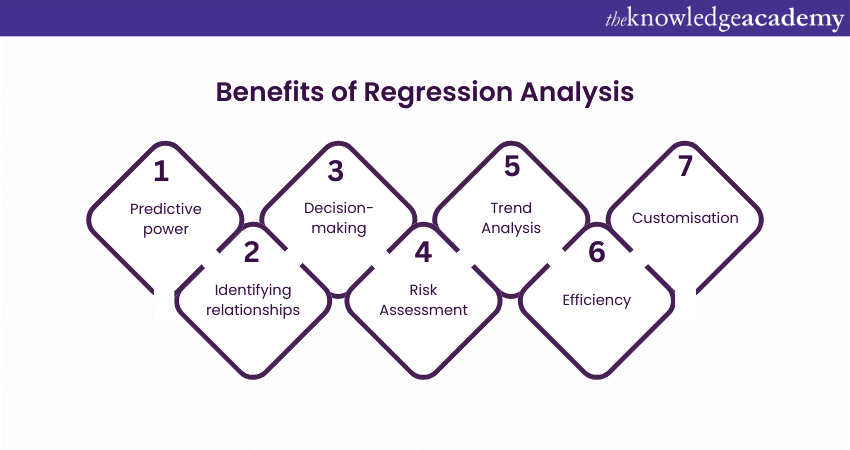
1) Predictive power: It allows for predicting outcomes based on changes in independent variables. This is particularly useful in fields like finance, marketing, and economics.
2) Identifying relationships: Regression helps identify and quantify the strength of the relationship between variables. For instance, it can show how sales might be affected by changes in marketing spend.
3) Decision-making: Businesses and researchers use Regression Analysis to make informed decisions. For example, it can help a company determine the most cost-effective way of increasing production.
4) Risk Assessment: In finance, regression models are used to assess investment risks by understanding market trends and their impacts.
5) Trend Analysis: It can be used to analyse trends over time, which is crucial in fields like economics and public health.
6) Efficiency: Organisations can allocate resources more efficiently by understanding which factors are significant.
7) Customisation: Different types of Regression (like linear, logistic, and multivariate) provide flexibility to model a variety of relationships based on the nature of data and objectives.

Steps to perform Regression Analysis in Excel
Regression Analysis is useful for examining how one or more independent variables influence a dependent variable. Let's explore How to do Regression Analysis in Excel:
1) Input your data into Excel
You need to organise your data in columns, each representing a variable. You can also label the columns with the names of the variables. For example, if you want to study how the temperature of a process depends on the pressure and the fuel rate, you can enter the data as shown below:
2) Install Data Analysis ToolPak plugin
This free add-in provides various statistical tools in Excel, including Regression Analysis and Cohort Analysis in Excel. To install it, go to the File tab, click Options, click Add-Ins, select Excel Add-ins, and click Go. Then, check the box for Analysis ToolPak and click OK. You should see the Data Analysis button on the Data tab.
3) Open the "Data Analysis" dialog box
To start the Regression Analysis, click the Data Analysis button on the Data tab and select Regression from the list of options. Then, click OK to open the Regression dialogue box, where you can enter the data for the variables.
4) Input data for variables
In the Regression dialogue box, under Input, click the Y Range box and select the cell range containing the dependent variable. This is the variable that you want to explain or predict using the model. In our example, this is Temperature ©. Then, click the X Range box and select the cell range containing the independent variables. These are the variables that affect the dependent variable.
In our example, these are Pressure and Fuel Rates. Check the Labels box if your data has labels in the first row.
5) Select output options
In the Regression dialogue box, under Output options, you can choose where and how you want to display the results of the analysis. You can select an output range on the same worksheet, a new worksheet, or a new workbook. You can also select the output options that you want to see, such as residuals, residual plots, line fit plots, and normal probability plots. These options can help you check the assumptions and the quality of the Regression Analysis.
Transform your future with our Financial Modelling and Forecasting Training – Sign up today!
6) Examine your results
After selecting the output options, click OK to run the analysis. Excel will generate a summary output that contains various statistics and charts that you can use to interpret the results. Some of the important statistics are:
7) Construct a scatter plot
To visualise the relationship between the dependent and independent variables, you can create a scatter plot of the data and add a regression line to it. To create a scatter plot, select the data that includes the dependent variable and one of the independent variables and go to the Insert tab.
Then, click Scatter and choose the option that shows only the markers. Excel will create a scatter plot of the data on the worksheet. Repeat the same steps for the other independent variable and create another scatter plot. You should see two scatter plots, one for each independent variable. To gain a deeper understanding of the relationship between these variables, you may want to explore a Regression Analysis Guide, which can provide valuable insights into how to analyze these types of data effectively.
8) Integrate a regression trendline
To show the regression line on your scatter plot, you need to do the following:
1) Right-click on any data point on your plot, and choose Add a Trendline from the pop-up menu.
2) On the right side of the screen, you will see the Format Trendline pane, where you can select the Linear option under the Trendline Options section. This will add a straight line that best fits your data points.
3) Scroll down and check the box for Display Equation on the Chart if you want to see the regression line formula on the chart. The formula shows how the dependent variable is related to the independent variable.
9) Apply the finishing touches
The last step is to make your scatter plot look more professional and attractive by adjusting some features of the chart. You can do this by following these steps:
1) Click the Fill and Line icon on the Format Trendline pane, which looks like a paint bucket. Here, you can change your trendline's colour, size, transparency, and width according to your preference.
2) Click on the chart and go to the Chart Elements button, which looks like a plus sign. Here, you can add or remove elements such as the chart title, the axis titles, and the legend. You can also edit them to make them more descriptive and informative. For example, you can change the chart title to “Temperature vs. Pressure”, the horizontal axis title to “Pressure”, and the vertical axis title to “Temperature ©”.
3) Drag the regression line equation to a position where it is clearly visible and does not overlap with the data points.
Enhance your financial expertise with our Accounting Finance Training – Sign up now!
Critical points to note in Excel Regression Analysis
Customise the trendline style: You can customise the appearance of the trendline by using the Format Trendline option on the scatter plot. You can change the colour, size, width, and transparency of the line, as well as the equation and the R-squared value that is displayed on the chart.
1) Check the residual plots: You should always check the residual plots when you use the Data Analysis ToolPak in Excel to perform Regression Analysis. The residual plots show the difference between the actual and predicted values of the dependent variable for each observation. They can help you assess the assumptions and the quality of the Regression Analysis, such as linearity, normality, and homoscedasticity.
2) Evaluate Simple vs. Multiple Linear Regression: You should compare the results of Simple and Multiple Linear Regression and choose the one that best suits your data and research question. Simple Linear Regression involves one independent variable, while Multiple Regression Analysis involves more than one independent variable. You can use ANOVA and adjusted R-squared to evaluate the overall fit and significance of the models.
Conclusion
We hope you read this blog and understood How to do Regression Analysis in Excel. Mastering it enables you to make informed decisions and extract valuable insights from your data. Additionally, understanding the difference between Correlation vs Regression helps in selecting the appropriate method for analyzing relationships between variables. From the knowledge gained from this blog, you're well-prepared to navigate Data Analysis complexities and harness Excel's full potential for your analytical needs.
Improve your analytical skills with our Regression Analysis Training – Sign up today!
Frequently Asked Questions

Olivia Taylor


Chartered Accountant and Financial Training Specialist
Olivia Taylor is a qualified chartered accountant with over a decade of experience in financial management, auditing and corporate reporting. Having worked with leading firms in both the public and private sectors, Olivia brings clarity to complex financial topics. Her writing focuses on helping professionals build confidence in key areas of accounting, compliance and financial planning.
View Detail
Upcoming Accounting and Finance Resources Batches & Dates
Date
 Regression Analysis Training
Regression Analysis Training
Fri 1st May 2026
Regression Analysis Training
Fri 24th Jul 2026
Regression Analysis Training
Fri 23rd Oct 2026

 If you wish to make any changes to your course, please


