


 Top Rated Course

We may not have the course you’re looking for. If you enquire or give us a call on 01344203999 and speak to our training experts, we may still be able to help with your training requirements.
How to Block Emails: Gmail, Outlook, Yahoo, Zoho, and Apple Mail
James Smith 16 July 2026To Block Emails, open a message from the sender you want to stop receiving emails from. Then, click the three-dot menu and choose the “Block” option. Once blocked, future emails from that sender will automatically move to your spam folder. You can later unblock them anytime from your email settings if you change your mind.

Training Outcomes Within Your Budget!
We ensure quality, budget-alignment, and timely delivery by our expert instructors.
Table of Contents
Tired of your inbox overflowing with spam, unwanted newsletters or irrelevant messages? Blocking emails is one of the easiest ways to take back control of your inbox and maintain focus on what matters. Whether it’s a persistent marketer, a phishing attempt, or unnecessary promotional mail, learning How to Block Emails can save you time and reduce stress.
In this blog, you’ll learn How to Block Emails easily across major platforms. Mainly for Gmail, Outlook, Yahoo, Zoho, and Apple Mail, along with quick methods for Android and iPhone users to keep your inbox clean and spam-free.
Table of Contents
1) How to Block Emails on Gmail?
2) How to Block Emails on Outlook?
3) How to Block Emails on Yahoo?
4) How to Block an Email in Zoho?
5) How to Block Emails on Apple Mail?
6) How to Block Emails on Android?
7) How to Block Emails on iPhone?
8) Conclusion
How to Block Emails on Gmail?
Gmail offers two ways to stop unwanted emails: blocking specific senders or blocking entire domain names.
Blocking Unwanted Senders
1) Open your Gmail inbox and click on an email from the sender you wish to block
2) Click on the "More" option (three vertical dots icon) after the Reply button, then select Block "Sender".
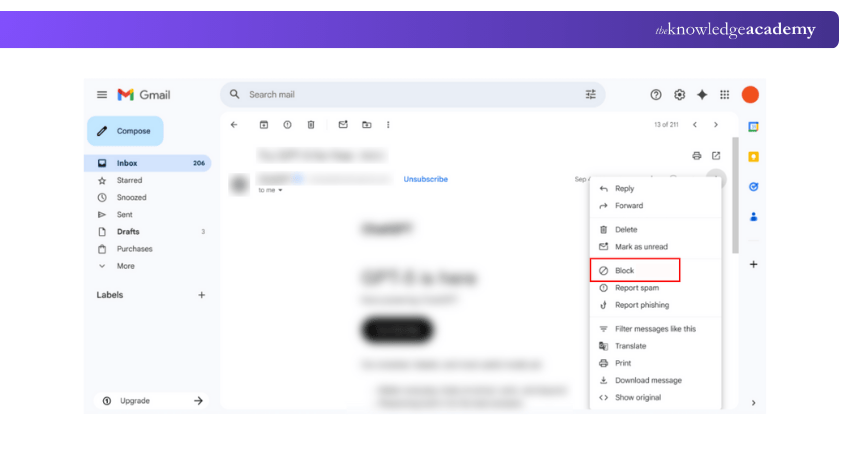
3) A pop-up will appear, notifying you that Google will mark future emails from this sender as spam. Click Block to confirm.
4) You can do the same steps to block a sender on the Gmail app
Blocking Domain Names
Blocking individual email addresses may not always work, as spammers can create new ones. Luckily, Gmail lets you block entire domains, stopping all emails from that sender’s domain.
To block a domain, follow these steps:
1) Log into Gmail and click the Show search options icon next to the search bar
2) In the From field, type the domain you wish to block (e.g., @example.com)
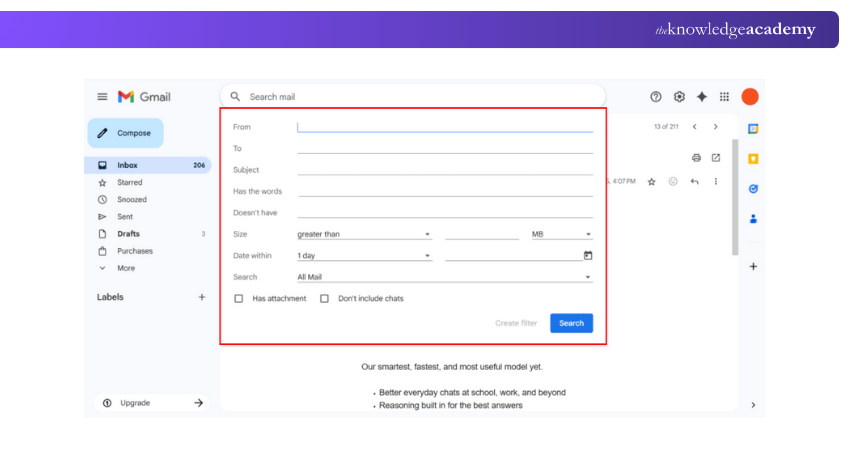
3) Click Create filter
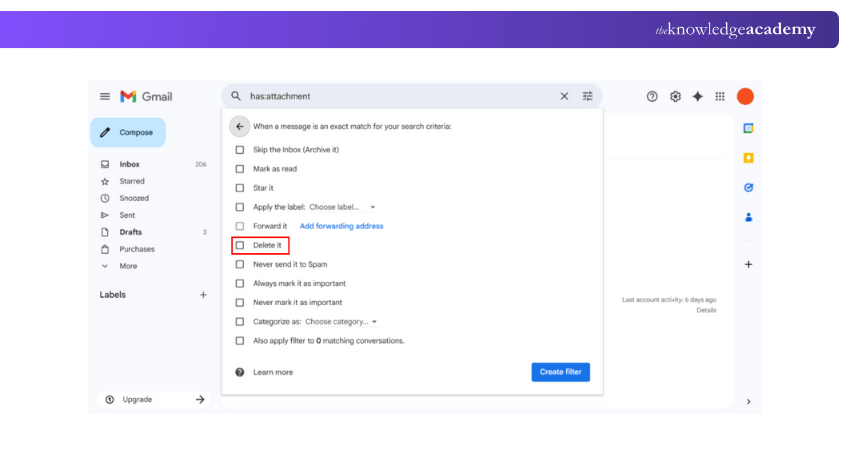
4) Select “Delete it” to automatically delete future emails from that domain, then click Create filter.
This will Block Emails from the entire domain, stopping all future Email Communications from that source.
Managing Filtered Emails and Blocked Senders
If you mistakenly block an email or filter out a domain, you can undo it by following these steps:
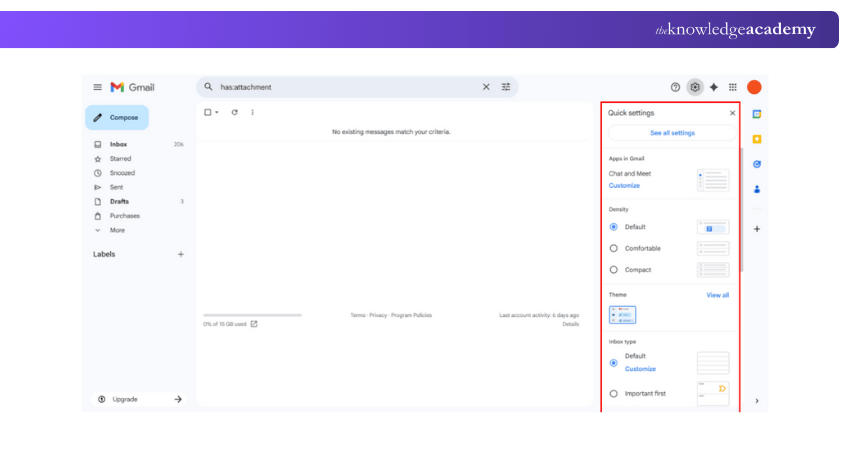
1) Access Settings (the gear icon) on the top toolbar and click see all settings
2) Open the Filters and Blocked Addresses tab to view blocked addresses and domains
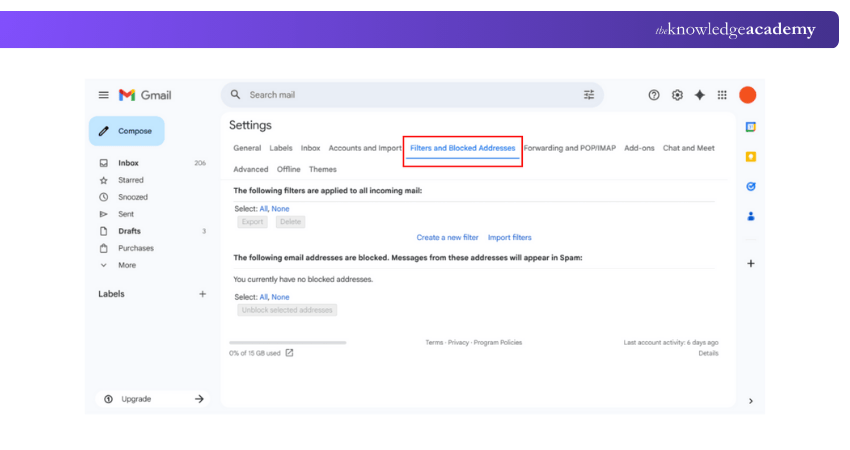
3) To remove a filter or unblock a sender, click Delete or Unblock accordingly
How to Block Emails on Outlook?
Are you thinking about how to block unwanted emails in Outlook? If yes, follow these steps:
In Your Browser
1) Open Outlook's website in any web browser
2) Sign in to your Outlook account
3) Navigate to your Inbox
4) Choose the email from the sender you wish to block
5) Click the three horizontal dots icon in the top-right corner and select Block
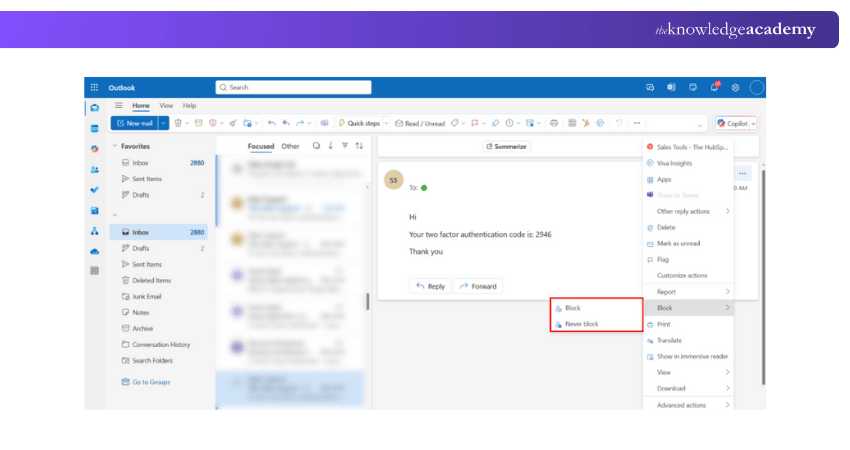
6) Click OK to confirm that you want to block the sender
Click the gear icon in the top-right corner, select View all Outlook settings to manage blocked senders and junk email settings.
In the App
Here’s how to block an email address on the Outlook mobile app:
1) Open the Outlook app on your iPhone or Android phone
2) Go to your inbox
3) Choose the email from the sender you want to block
4) On Android, press and hold the email. On iPhone, swipe left on the email to see options
5) Tap Junk and select Block Sender
6) Confirm your choice
Attain the ability to develop impactful campaigns that drive audience engagement. Join our Content Marketing Course now!
How to Block Emails on Yahoo?
Yahoo lets you block up to 500 email addresses, automatically sending their messages to the Spam folder to keep your inbox tidy. Here is How to Block Emails on Yahoo:
In Your Browser
Here is a step-by-step guide for blocking Emails on Yahoo:
1) Sign in to your Yahoo account on any web browser
2) Tap the settings icon in the top-right corner and select More Settings
3) In the settings menu, go to the Security and Privacy tab
4) Click on Blocked Addresses
5) Under Blocked Addresses, click Add
6) Type the email address you wish to block in the "Add an email address to block" field
7) Click Save
In the App
Here’s How to Block Emails on Yahoo using your phone:
1) Open the Yahoo Mail app on your iPhone or Android
2) Go to your inbox
3) Tap on the three dots and select Mark as Spam
4) The email will automatically move to the Spam folder
Note: Marking an email as spam will send it to the spam folder, but future emails from the same sender may still appear in your inbox. It’s better to block the sender directly by finding the Block Sender option on the specific email in Yahoo.
How to Block an Email in Zoho?
In Zoho Mail, you can use email filters to block a specific email address and automatically delete all emails sent from it. Filters can also help automate tasks like labelling or transferring emails.
1) To make a filter in Zoho Mail that adds an email address or domain address to the block list
2) Log in to your Zoho Mail account
3) Click the gear icon at the top for Settings
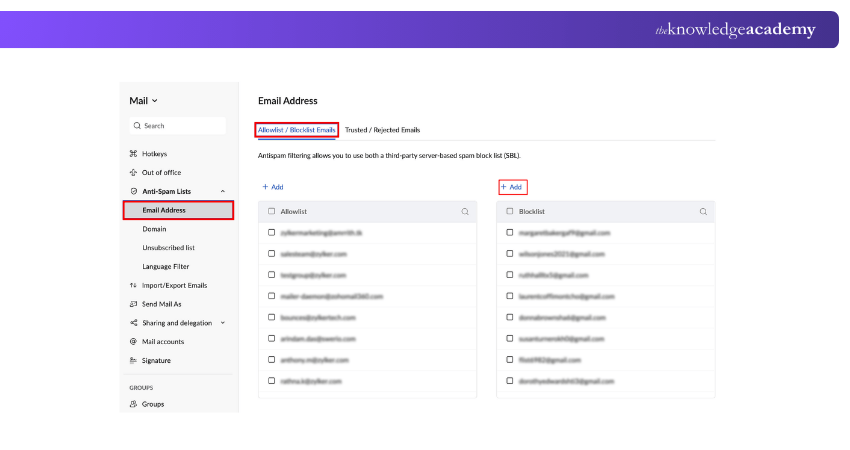
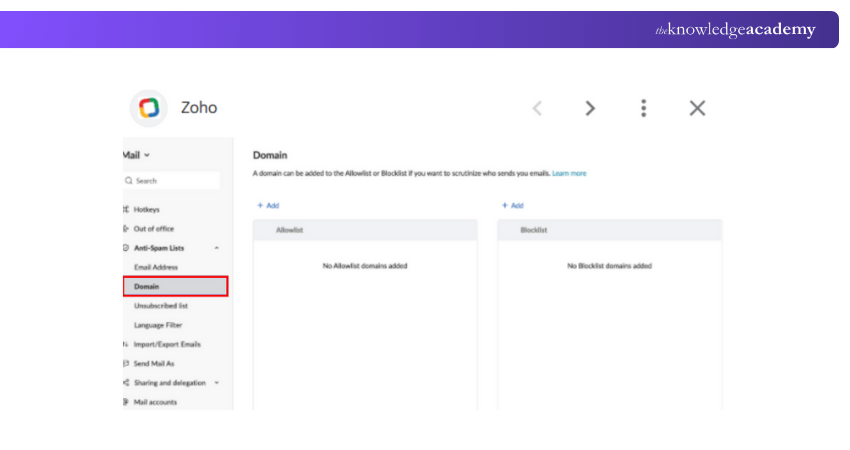
4) Select Anti-Spam Lists and select Email Address to block specific emails. For blocking entire domains, select the Domain section
5) In the Allowlist/Blocklist Emails section, click Add above the Blocklist field
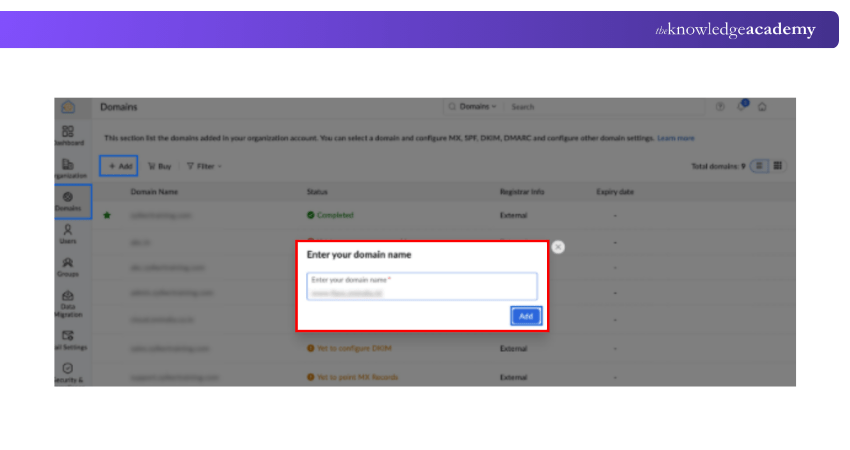
6) Click the Add button when you finish
Understand the tools and techniques used for video marketing campaigns. Join our Video Marketing Course now!
How to Block Emails on Apple Mail?
Setting up your email on Apple Mail allows you to Block Emails on all your Apple devices. Here’s how to block unwanted emails on both mobile and desktop.
Blocking Emails on macOS
To Block Emails in the Mac Mail app:
1) Open the email you want to block
2) Click the dropdown menu next to the sender's name in the message header
3) Select Block Contact
You can also create filters to automatically Block Emails from specific senders. Here’s how:
1) Go to Settings (gear icon) -> Rules
2) Click Add New Rule, set the rule name, conditions and actions
3) Click Add to save the rule
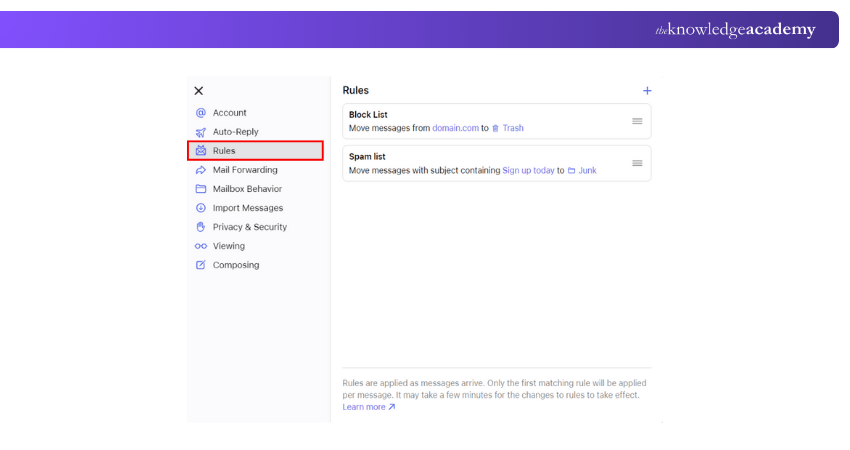
4) Apple Mail applies the first matching rule, so arrange rules by priority.
5) Click a rule to edit or delete it.
How to Block Emails on Android?
These are the steps for blocking emails on Android:
In the Gmail app
1) Open the Gmail app
2) Go to the email from the sender you want to block
3) Tap the More icon (three dots)
4) Select Block [Sender’s Name]
5) Confirm by tapping Block in the pop-up
In the Mail app
1) Open the Mail app
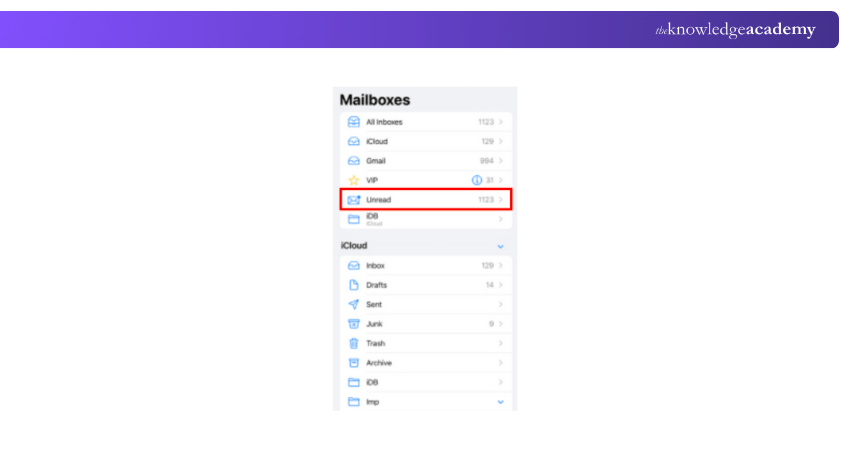
2) Go to the email from the sender you want to block
3) Tap the sender's email address in the email address field
4) From the menu that appears, select Block
5) Confirm the action
How to Block Emails on iPhone?
These are the steps to block email on iPhone:
In the Gmail app
1) Tap the Gmail app icon on your iPhone's home screen
2) Open an email from the sender you want to block
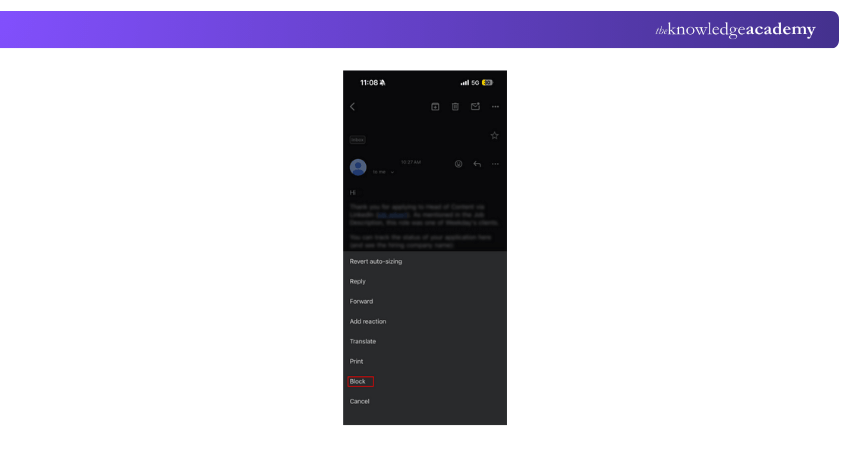
3) Tap the three dots icon (more options)
4) From the menu, select Block [Sender's Name]
5) Confirm if prompted
In the Mail app
1) Open the Mail app
2) Choose an email from the sender you want to block
3) Tap the sender's name
4) Tap the sender's name again in the "From" section
5) Select Block this contact
You can also block an email directly from the Settings app. To do this:
1) Go to Settings on your iPhone
2) Scroll down and tap Mail
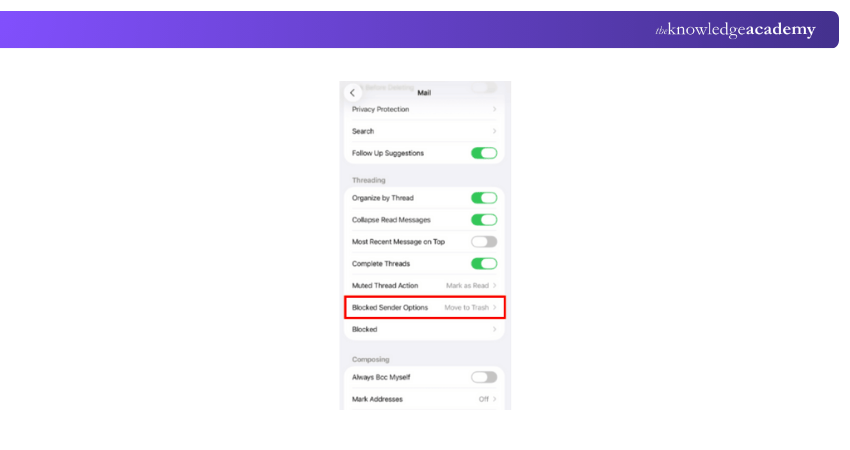
3) Under Threading, tap Blocked Sender Options
4) Tap Add New to block the email address
Conclusion
Blocking unwanted emails is a simple yet effective way to maintain a clean and secure inbox. By following the steps on various platforms like Gmail, Outlook, Zoho and Apple Mail, you can easily learn How to Block Emails and protect yourself from spam and potential threats. Taking control of your email settings ensures a more organised and safer digital experience.
Enhance your ability to influence, engage, and convert your audience. Join our Marketing Courses now!
Frequently Asked Questions
How do I Block Emails in my Inbox?

To Block Emails in your inbox, you simply need to open the email, click on the options menu, and select Block. The process varies slightly between email providers, but it is generally simple.
How do I Block Emails in my Inbox?
Once you block an email address using your email service provider’s blocking feature, emails from that domain will be automatically delivered to your Spam or Junk folder. Some platforms also permit you to create custom filters to Block Emails permanently.

James Smith


Digital Marketing Manager and Trainer
James Smith is a digital marketing professional with over a decade of experience in SEO, content strategy, paid media and analytics. He has supported both SMEs and global brands in transforming their digital presence. James’s writing and training are rooted in results-driven tactics and the latest marketing trends.
View Detail

 If you wish to make any changes to your course, please


