




We may not have the course you’re looking for. If you enquire or give us a call on +918037244591 and speak to our training experts, we may still be able to help with your training requirements.
What are the Advantages and Disadvantages of PowerPoint
ByNilotpal SarmahLast updated on: 03 October 2026
Explore the advantages and disadvantages of PowerPoint in our latest blog. Discover how this popular presentation tool can enhance communication and engagement while also exploring potential pitfalls. Gain insights on harnessing its power for effective presentations and navigating its limitations for more impactful business and educational content.
PowerPoint, a versatile software tool, has revolutionised the way presentations are created and delivered. PowerPoint empowers presenters to showcase their ideas, captivate audiences, and effectively convey information.
Learning about the advantages and disadvantages of PowerPoint is crucial to using it effectively. In this blog, you will get to know about the pros and cons of PowerPoint. Let's dive deeper to learn how it can impact your presentations!
Advantages of PowerPoint
PowerPoint is a powerful software tool developed by Microsoft that enables users to create visually appealing and engaging presentations. It offers various functionalities and features that make it a popular choice for individuals and professionals who want to convey information effectively. Here, we will explore the advantages of PowerPoint and how it can enhance your presentations. Let's dive into the benefits it offers:
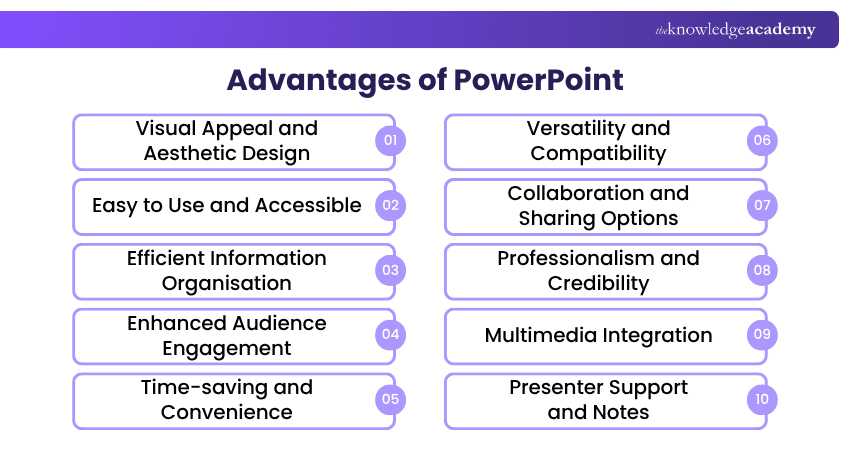
1) Visual Appeal and Aesthetic Design
One of the primary advantages of PowerPoint is its ability to create visually appealing presentations. With a vast array of design templates, colour schemes, and graphical elements, PowerPoint allows you to add visual appeal to your slides. This visual enhancement can captivate your audience's attention and make your presentation more engaging.
2) Easy to Use and Accessible
PowerPoint is known for its user-friendly interface, making it accessible to users of any level. Its intuitive design and straightforward navigation enable users to create PowerPoint presentations quickly and efficiently. Moreover, PowerPoint is available on Windows, macOS, mobile devices and the web, although available features may vary by platform and version.
3) Efficient Information Organisation
One of the significant advantages of PowerPoint is its capability to organise information effectively. With features like bullet points, numbered lists, and hierarchical structures, you can present your ideas in a logical and organised manner. This helps your audience understand and retain the information more easily.
4) Enhanced Audience Engagement
PowerPoint offers various features to enhance audience engagement during presentations. Animations, transitions, and multimedia elements can make your slides dynamic and captivating. Additionally, interactive features like hyperlinks and embedded videos can encourage audience participation, making your presentation more memorable.
5) Time-saving and Convenience
Creating presentations from scratch can be time-consuming. However, PowerPoint provides pre-designed templates and themes that can save you significant time and effort.
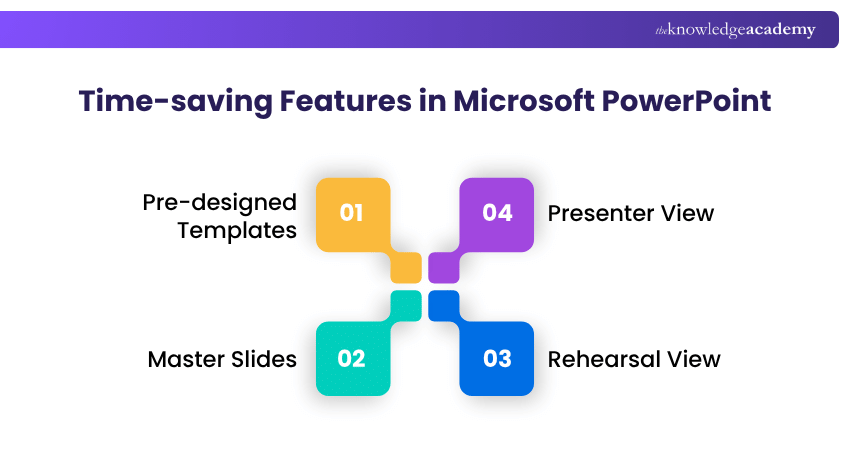
These templates offer professionally designed layouts and graphics, allowing you to focus on the content rather than spending hours on design. Furthermore, PowerPoint's autosave feature can automatically save your work when the file is stored in OneDrive or SharePoint, providing convenience and peace of mind.
6) Versatility and Compatibility
PowerPoint's versatility is another key advantage that sets it apart as a presentation tool. It offers broad features and compatibility options that make it highly adaptable to different content formats and sharing platforms.
a) Support for Various Media Formats:
PowerPoint supports images, videos, audio clips, and charts, making presentations more engaging and interactive. Images and charts can simplify complex information, while videos and audio add a dynamic element, helping presenters communicate ideas more effectively.
Trainer Insight
When making PowerPoint presentations, start with the message, not the template. Define your audience, objective and key points before designing your slides. A strong structure is more valuable than decorative effects.
Want to enhance your productivity and proficiency in using Microsoft software? Register for the Microsoft Office Training. Join now!
b) File Conversion and Sharing Options:
PowerPoint presentations can be converted into formats such as PDFs, videos, and images, making them easier to share and access across different devices and platforms. PDFs help preserve formatting, while videos provide consistent playback for online sharing. Presentations can also be distributed through email, file-sharing platforms, and cloud services such as Google Drive or OneDrive.
7) Collaboration and Sharing Options
Collaboration is made easy with PowerPoint's sharing and collaboration features. Multiple users can work on a presentation, making it ideal for team projects or group presentations. For real-time co-authoring, the presentation should be saved in OneDrive or SharePoint and shared with people using compatible versions of PowerPoint. This enables seamless collaboration and feedback exchange.
8) Professionalism and Credibility
PowerPoint's professional look and feel can support a polished presentation. However, credibility depends on accurate content, clear evidence and effective delivery, rather than the software alone. By using PowerPoint, you can convey your ideas with authority and leave a lasting impression on your audience.
9) Multimedia Integration
Incorporating multimedia elements is a breeze with PowerPoint. You can insert images, videos, audio clips, and animations easily into your slides, making your presentation more dynamic and engaging. Visual and auditory aids can help audiences follow and understand information when they are used purposefully alongside clear explanations.
Pro Tip
Use animations and transitions when they help explain a sequence, reveal information gradually or direct attention. Avoid adding effects simply because they are available.
10) Presenter Support and Notes
PowerPoint offers several features to support presenters during their delivery. The presenter view provides a helpful tool for managing your presentation, displaying speaker notes, and previewing upcoming slides. You can also add speaker notes to individual slides, ensuring that you don't miss any crucial points during your presentation.
Discover the full potential of Microsoft Office 365 and revolutionise your productivity with the Microsoft Office 365 Training. Sign up now!
Disadvantages of PowerPoint
While PowerPoint is a widely used and effective presentation tool, it is not without its drawbacks. Understanding the potential disadvantages of PowerPoint is essential for creating engaging and impactful presentations. In this section, we'll explore the limitations and challenges that PowerPoint may present.
It's important to be aware of these drawbacks so that you can address them and make informed decisions when using PowerPoint for your presentations. Let's dive into the disadvantages:
1) Overreliance on Visuals
While visuals can enhance a presentation, overreliance on them can be a disadvantage. When too much emphasis is placed on visuals, the audience may become distracted or miss essential information. It's crucial to use visuals purposefully and support them with clear spoken explanations and concise on-slide text to ensure the message is effectively conveyed.
2) Potential for Information Overload
PowerPoint Presentations have the potential to overwhelm the audience with excessive information. Presenters may feel compelled to include every detail on the slides, leading to information overload. It's important to prioritise key points and keep the content concise and focused to prevent overwhelming the audience.
Pro Tip
Give each slide one clear purpose. If a slide contains several unrelated ideas, consider separating them instead of shrinking the text to fit everything.
3) Lack of Interactivity
PowerPoint presentations can become a one-way form of communication if the presenter does not build in opportunities for participation. While you can incorporate interactive elements, such as hyperlinks or quizzes, the level of interaction is often limited. This can hinder audience engagement and participation, particularly in scenarios that require active involvement.
Take your Microsoft Office skills to the next level – sign up for the Power Apps and Power Automate Training!
4) Limited Customisation Options
While PowerPoint provides various design templates, the customisation options may be limited when compared to dedicated design software. Presenters seeking highly customised and unique designs may find PowerPoint's options somewhat restrictive. However, for most presentations, the available templates and customisation features are sufficient.
5) Technical Glitches and Compatibility Issues
Technical glitches and compatibility issues can occasionally occur when using PowerPoint. File corruption, formatting inconsistencies, or software compatibility problems can disrupt the smooth delivery of your presentation. It's crucial to test your presentation on the actual equipment or platform to minimise the risk of technical difficulties.
6) Dependency on the Presenter
PowerPoint Presentations often rely heavily on the presenter's ability to deliver the content effectively. A presenter who lacks public speaking skills or fails to engage the audience may negatively impact the overall effectiveness of the presentation. Developing strong presentation skills and practising delivering your presentation is important to ensure a successful outcome.
7) Not Suitable for All Presentation Types
While PowerPoint is a versatile tool, it may not be the best choice for all presentation types. Highly technical or data-heavy presentations can be created in PowerPoint, but specialised tools may sometimes be more suitable for advanced analysis, live dashboards, or complex data visualisation. It's important to assess the specific requirements of your presentation and choose the appropriate tool accordingly.
8) Accessibility Challenges
PowerPoint Presentations may pose accessibility challenges for individuals with disabilities. Issues such as small font sizes, lack of alt text for images, or inadequate colour contrast can make it challenging for people with visual impairments to fully engage with the content. Videos and audio should also include captions where appropriate to support people who are hard of hearing. Accessibility and inclusivity should be prioritised to ensure a clear and engaging presentation for all.
Trainer Insight
Design for the audience, not just your laptop screen. Consider whether text, charts and other visual elements will remain clear when viewed from a distance or on a different display.
9) Copyright and Intellectual Property Concerns
When using videos, images or other media in PowerPoint presentations, it's essential to respect copyright and intellectual property rights. Failure to obtain proper permissions or or use media in line with its licence terms can lead to legal issues. It's crucial to use licensed or royalty-free media or obtain explicit permission from copyright holders before including them in your presentations.
Transform your teamwork with Microsoft SharePoint Training! Learn to manage content, collaborate seamlessly, and optimise your SharePoint experience. Join today!
10) Risk of Boring and Monotonous Presentations
PowerPoint presentations can become dull and monotonous if not crafted effectively. Over-reliance on bullet points and text-heavy slides may reduce engagement and variety. To keep the audience interested and attentive, it’s crucial to use storytelling techniques, integrate multimedia elements, and diversify the presentation format.
PowerPoint Presentation Checklist
Before presenting, check that:
□ Each slide has a clear purpose□ Text is concise and readable□ Visuals support the message□ Fonts and formatting are consistent□ Charts and data are easy to understand□ Colour contrast and accessibility have been considered□ Animations and transitions serve a purpose□ Videos, audio and links work correctly□ Speaker notes contain any supporting details you need□ The complete presentation has been tested before delivery

Nilotpal Sarmah is a Senior Content Writer with 11+ years of overall experience spanning engineering, operations and content development. His technical knowledge and extensive writing experience enable him to simplify specialised topics across IT and Tech, Business Skills, Project Management, Health and Safety, and ISO and Compliance.
View Detail

 If you wish to make any changes to your course, please


