


 Top Rated Course

We may not have the course you’re looking for. If you enquire or give us a call on 01344203999 and speak to our training experts, we may still be able to help with your training requirements.
Understanding GUI: A Complete Guide to Graphical User Interfaces
The Knowledge Academy 19 December 2025A Graphical User Interface is a visual system that lets users interact with software using icons, menus, and windows, making it easy to use and navigate. Unlike Command Line Interfaces, GUIs allow users to interact with a system through visual elements like icons, menus, and windows, eliminating the need to memorise commands.
Home
 Resources
Programming & DevOps
Understanding GUI: A Complete Guide to Graphical User Interfaces
Resources
Programming & DevOps
Understanding GUI: A Complete Guide to Graphical User Interfaces
Resources
Programming & DevOps
Understanding GUI: A Complete Guide to Graphical User Interfaces

Training Outcomes Within Your Budget!
We ensure quality, budget-alignment, and timely delivery by our expert instructors.
Table of Contents

Picture a world where using a computer meant memorising endless lines of code; no icons, no buttons, no drag and drop. Sounds like a tech nightmare, right? This is where the Graphical User Interface (GUI) came to the rescue. GUI is the visual layer that lets you interact with computers without typing complex commands.
From desktops and smartphones to gaming devices and portable media players, GUIs make tech feel simple and user-friendly. This blog explores What is GUI, how it works, its history, key components, benefits and drawbacks. So read on and discover the power behind every click, tip and swipe that makes GUIs so essential!
Table of Contents
1) What is Graphical User Interface?
2) An Overview of GUI History
3) How GUIs Work?
4) Benefits of a GUI
5) Abstraction in GUIs
6) The Birth of Modern GUI at Xerox PARC
7) Drawbacks of GUI
8) Conclusion
What is GUI?
A Graphical User Interface (GUI) lets people use computers and other devices by clicking on pictures and icons instead of typing commands. It shows things like windows, menus, and buttons, making it easier for anyone to use, no matter their skill level.
The concept of GUI was introduced as a reaction to the comparatively steep learning curve of command-line interfaces (CLIs) that demand commands to be typed on a computer keyboard. The actions in a GUI are typically performed through direct manipulation of the graphical elements. Beyond computers, GUIs are used in numerous handheld mobile devices, such as:
1) MP3 players
2) Portable media players
3) Gaming devices
4) Smartphones
5) Smaller household, office and industrial controls
An Overview of GUI History
The evolution of the Graphical User Interface has significantly shaped human interaction with computers. Here's a brief timeline of its fascinating history:
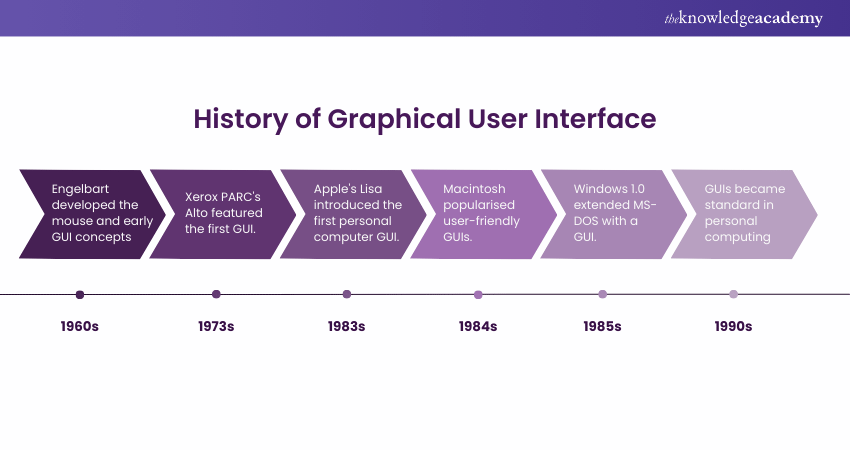
1) 1960s: Douglas Engelbart's work at Stanford Research Institute led to the development of the computer mouse and early GUI concepts.
2) 1973: Xerox PARC introduced the Alto, the first computer designed with GUI. It featured windows, icons, and menus controlled by a mouse.
3) 1983: Apple's Lisa became the first personal computer with a GUI, setting the stage for more user-friendly computing.
4) 1984: Apple's Macintosh further popularised GUIs, emphasising the ease of use and visual appeal.
5) 1985: Microsoft released Windows 1.0, offering a GUI as an extension of MS-DOS, making GUI-based computing more accessible to a broader audience.
6) 1990s: GUIs became the standard for personal computing, with systems like Windows 3.0 and Mac OS leading the way.
How GUIs Work?
The Graphical User Interface is basically coordinated graphics that display visual elements on a screen. Consider these points:
1) The interface functions as a user-friendly abstraction layer between the computer code's inner workings and the user.
2) It shows graphical symbols for files called icons and commands such as buttons and menu item and allows the user to manipulate objects with a pointing device called cursor.
3) Standard input devices include a mouse, touchpad, or touch screen to perform tasks.
4) In GUI Operating Systems (OS), the user doesn’t need extensive knowledge of a Programming Language to make it work.
5) The GUI interprets their gestures and performs accordingly.
6) The technical layers are essentially hidden behind the GUI screen.
Dreaming of setting up your online platform? Our UI UX Design Course will offer a helping hand - Sign up now!
Element of Graphical User Interfaces (GUI)
GUIs have plenty of graphical elements that permit you to directly manipulate some aspects of the display screen. Here are the main components:
1) Cursor: This symbol is shaped like an arrow or other pointing devices. It indicates the user’s position on the screen.
2) Icons: It's a symbol of a program, file or command.
3) Toolbars: It's typically a horizontal strip containing text command labels for efficient control of an application.
4) Buttons: These are labelled graphical elements used to initiate an action when clicked.
5) Checkboxes: These allow the user to select one or more options.
6) Windows: These are rectangular areas containing file lists and applications. You can move Windows around the screen, layered on top of another, minimised, maximised and closed.
7) Menus: These lists offer users an easy way to choose commands. They drop down from a pop-up window or toolbar.
8) Radio buttons: These allow the user to choose one option from a collection of mutually exclusive options.
9) Text boxes: These are fields for inputting text.
10) Dialog boxes: These are small windows that display vital information and require user input.
11) Sliders: These help you adjust values within a range.
12) Progress bars: These are visual indicators of a task's progress on its way to completion.
13) Scroll bars: These bars can be clicked and dragged horizontally or vertically helping you see text or data that doesn’t fit in the window view.
Want to know the trick of turning web layouts from regular to remarkably responsive? Our Website Design Course will lead the way – Sign up now!
Benefits of a GUI
GUIs make it easier for average users to control a computer or other electronic device. The benefits of GUIs include the following:
More Engaging
a) GUIs offer more freedom compared to text-based interfaces.
b) Users can move the pointer freely and explore options before making a choice.
c) Multiple icons can be selected and various actions performed easily.
d) Text interfaces are usually designed for specific, predefined tasks. GUIs provide a more open-ended and customisable way to interact with systems.
e) GUIs encourages a user to explore without needing to memorise commands in advance.
More Intuitive
a) The GUI is more intuitive than older, text-based systems
b) Once users learn the basic visuals, actions, and gestures, using a GUI feels natural
c) Many people have grown up using GUIs, making them easy to pick up
d) GUIs are quickly understood by new users, including children
e) A child’s quick adaptation to a device like an iPad shows how user-friendly GUIs ar
More Efficient
a) GUIs make it easier to perform basic tasks like managing files and using apps
b) They are designed to be user-friendly and intuitive
c) This ease of use helps users complete their tasks more efficiently
d) The clear layout and visual elements guide users through actions step by step
Bring your dream App and Website to life! Sign up for our up-to-date App & Web Development Training now!
Abstraction in GUIs
GUIs help people interact with a device without needing to understand its code. This is called abstraction, which is about hiding complex details behind a simple interface. For example, when driving a car, you don’t need to know how the engine works; you just need to know how to use the pedals and wheel. Here are the layers of abstraction in a Graphical User Interface:

The Birth of Modern GUI at Xerox PARC
The birth of modern GUI can be credited to Xerox PARC. Here are the key points regarding this development:
1) GUI innovation took a big leap at Xerox PARC in the 1970s.
2) The previous ideas led to the Xerox Star computer, launched in 1981, following the prototype Alto.
3) The Star used “bit mapping,” treating the entire screen as a picture.
4) Bit mapping enabled the WYSIWYG feature: “What you see is what you get.”
5) The interface used icons like a virtual desktop to represent everyday office tasks.
6) Users could interact with icons using a mouse, making commands faster and more intuitive than typing.
7) Alan Kay and the PARC team played a key role in shaping this icon-based, metaphor-driven GUI.
Master the art of crafting innovative mobile applications! Register for our Mobile App Development Coursenow!
Drawbacks of GUI
Despite their benefits, GUIs have a few limitations that keep some users returning to CLIs. Let's explore these drawbacks in detail
Potentially Inefficient
Some people don’t think GUIs are the most efficient. Experts who know command lines well, especially in systems like Linux, say they can work faster and more effectively using just the keyboard instead of a mouse.
Longer to Develop
Designing and creating a Graphical User Interface is a massive undertaking. Building and testing a GUI requires much more time and labour.
Slower
GUIs demand more computing power and data processing than a text interface. They need more memory, higher-resolution screens, and quick processors to handle the extra burden of displaying visual information. Since the command line system is less resource-intensive, it can operate faster.
Conclusion
So, the simplest answer to the question, What is GUI? is that it’s the bridge between humans and machines, turning code into clickable, visual experiences. From icons to windows, GUIs make technology feel natural and easy to use. Understanding how GUIs work helps us see just how far computing has come and how design continues to shape the way we interact with the digital world.
Gamify your latest tech idea like a pro with our comprehensive Gamification Training - Register now!
Frequently Asked Questions
What are two types of GUI?

The two types of GUI are:
a) Form-based User Interface: It's used to enter data into a program by offering a limited selection of choices. A device's settings menu is form-based.
b) Graphical User Interface: It's a tactile UI input with a visual UI output, such as a keyboard and monitor.
Graphical User Interface Examples
Here are some examples of Graphical User Interfaces:
a) Windows OS
b) macOS
c) Android
d) iOS
e) Web browsers
f) Video games
What are the Other Resources and Offers Provided by The Knowledge Academy?
The Knowledge Academy takes global learning to new heights, offering over 3,000+ online courses across 490+ locations in 190+ countries. This expansive reach ensures accessibility and convenience for learners worldwide.
Alongside our diverse Online Course Catalogue, encompassing 19 major categories, we go the extra mile by providing a plethora of free educational Online Resources like Blogs, eBooks, Interview Questions and Videos. Tailoring learning experiences further, professionals can unlock greater value through a wide range of special discounts, seasonal deals, and Exclusive Offers.
What is The Knowledge Pass, and How Does it Work?
The Knowledge Academy’s Knowledge Pass, a prepaid voucher, adds another layer of flexibility, allowing course bookings over a 12-month period. Join us on a journey where education knows no bounds.
What are the Related Courses and Blogs Provided by The Knowledge Academy?
The Knowledge Academy offers various What is a Web Browser, including the MEAN Stack Web Development Training and the UI UX Design Course. These courses cater to different skill levels, providing comprehensive insights into What is a Web Browser.
Our Programming & DevOps Blogs cover a range of topics related to GUI, offering valuable resources, best practices, and industry insights. Whether you are a beginner or looking to advance your UI UX Design skills, The Knowledge Academy's diverse courses and informative blogs have got you covered.

The Knowledge Academy


Global Training Provider
The Knowledge Academy is a world-leading provider of professional training courses, offering globally recognised qualifications across a wide range of subjects. With expert trainers, up-to-date course material, and flexible learning options, we aim to empower professionals and organisations to achieve their goals through continuous learning.

Upcoming Programming & DevOps Resources Batches & Dates
Date
 UI UX Design Course
UI UX Design Course
Mon 1st Jun 2026
UI UX Design Course
Wed 2nd Sep 2026
UI UX Design Course
Mon 21st Dec 2026

 If you wish to make any changes to your course, please


