




We may not have the course you’re looking for. If you enquire or give us a call on + 1-866 272 8822 and speak to our training experts, we may still be able to help with your training requirements.
What is DOS (Disk Operating System): A Beginner's Guide
ByNilotpal SarmahLast updated on: 10 October 2026
Disk Operating System (DOS) is a classic command-line OS used in early PCs like IBM compatibles, letting users control systems by typing text-based commands. It was widely used before graphical interfaces became common. Systems like Windows later made computing more visual, interactive, efficient, and user-friendly.

What You'll Discover
1. DOS organises stored information through files and directories.2. Common DOS commands help users navigate, create, copy, move, rename and delete files.3. DOS was designed to operate efficiently on computers with limited hardware resources.4. Different DOS variants emerged as personal computing expanded, including MS-DOS, PC DOS and DR-DOS.5. Learning DOS provides useful insight into command-line interaction and early computing environments.
Have you ever wondered What is DOS and how it shaped early computing? DOS, or Disk Operating System, is one of the first Operating Systems used on personal computers. Before today’s visual interfaces, DOS let users control their systems through typed commands. It was simple yet powerful. Understanding it reveals computing’s roots.
Understanding What is DOS helps us see how early computers worked. It taught users to manage files and run programs using typed commands. Though outdated, DOS is still used in some systems. This blog covers its commands, uses, benefits, drawbacks, and how it differs from Windows.
What is a DOS (Disk Operating System)?
A DOS, short for disk Operating System, is an OS that runs from a disk drive. The term can also mean a particular family of disk Operating Systems, most commonly MS-DOS, which is an acronym for Microsoft DOS. An OS controls a computer's hardware and peripheral devices while allowing other software programs to function.
Early computers in the 1940s and 1950s lacked disk drives and were hard-wired for specific tasks. In the 1960s and 1970s, punch cards and magnetic tapes were used to load instructions. By the 1980s, storing instructions on floppy disks or HDDs became a major technological breakthrough.
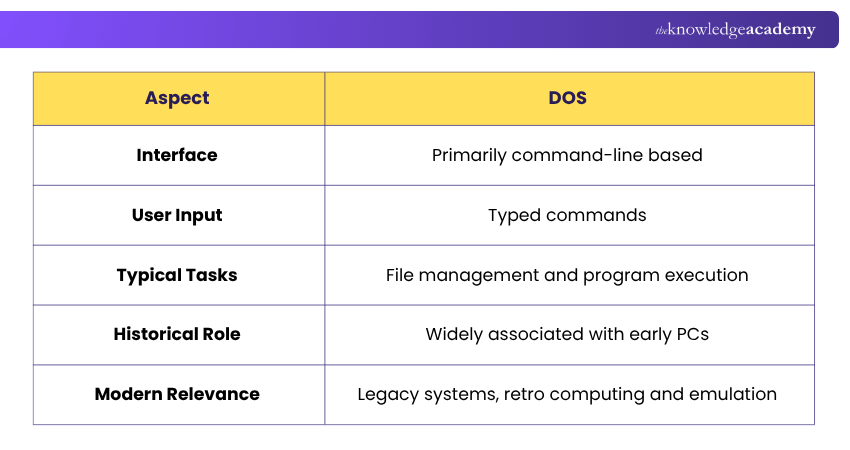

History of DOS
Here is the history of DOS that shows how it helped shape the early days of personal computers.
1) The Birth of DOS (1981)
a) Microsoft released MS-DOS with IBM PCs.
b) Based on 86-DOS (acquired from Seattle Computer Products).
c) Became the standard OS for IBM-compatible PCs.
2) Rise in Popularity (1980s)
a) Widely adopted in homes, schools, and offices.
b) Enabled file management, program execution, and hardware control.
c) Many vendors created their own DOS versions (DR-DOS, PC-DOS, etc.).
3) DOS Meets Windows (1990s)
a) Windows 3.x and 95/98 ran on top of DOS.
b) GUI became dominant, but DOS still played a core role.
4) Decline and Legacy (2000s-Today)
a) Windows XP and later removed DOS dependency.
b) Still used in embedded systems, legacy machines, and through emulators like DOSBox.
c) Valuable for understanding early computing and file systems.
Build the in-demand skills that keep computer systems running. Sign up for the Computer Hardware Troubleshooting Course now!
How Does DOS Work?
Here’s a basic breakdown of how DOS commands work:
a) Boot Process: DOS undergoes a boot process when the computer turns on. The BIOS (a DOS component) initially checks if the device works properly.
b) DOS Kernel: After the BIOS conducts a self-check, the DOS Kernel takes control. This is when the computer's true operation begins. The kernel also manages operating files, memory, etc.
c) Command Prompt: Once the kernel takes over, it’s time for the user to enter commands. Command prompts are the instructions you want the computer to perform.
d) Command Execution: Command execution happens as the kernel reads and interprets commands into actions.
e) File System: Under DOS, the computer stores the data in directories (now known as files).
f) Running Applications: Apps boast their own set of commands built into them. When a user prompts the computer to run an app, the app temporarily takes over.
g) Exiting DOS: After performing the task, when the user shuts the computer down, DOS automatically shifts into BIOS mode.
The cycle repeats until the computer starts up again, continuing the above-mentioned process.
Pro Tip
When learning DOS, practise in a safe test environment or emulator. This lets you experiment with commands and understand the file system without affecting important files on your main computer.
Features of DOS
Here are some of the distinguishing features of DOS:
a) It's a free, 16-bit Operating System.
b) The mouse can't be used to operate it. Input happens through basic system commands.
c) The maximum space available is 2 GB.
d) It uses a text-based interface and needs text and codes to operate.
e) It's a single-user OS and doesn't support a graphical interface.
f) It is a character-based interface system.
g) It helps with file management, e.g., editing, creating, deleting files, etc.
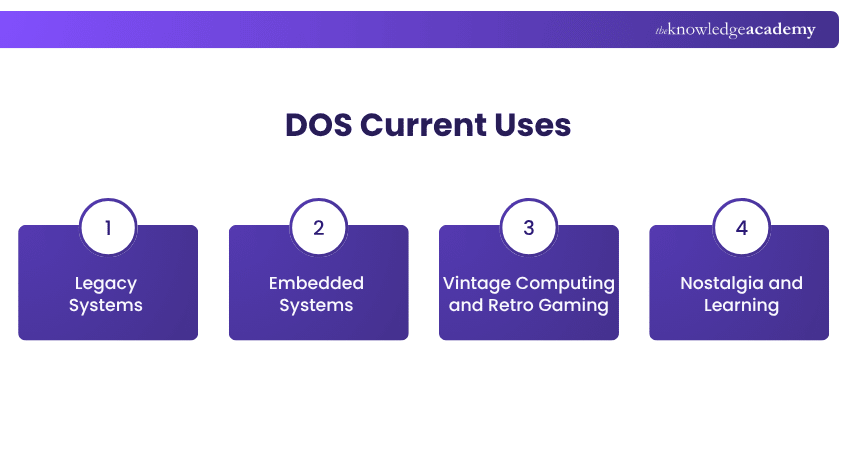
Current Uses of DOS
Windows may have replaced DOS, but some people still go for the DOS option. If you want to know the reason for this, here are some ways that industries use disk Operating Systems today:
1) Legacy Systems
Some early applications and programs developed by governments, companies, and organisations were designed for DOS-based computers. Restructuring these systems needs time and money. This structure prompted organisations to opt for DOS and hire specialised support and maintenance engineers.
2) Embedded Systems
Due to its simplicity, DOS is still used in some embedded systems (e.g., medical equipment, public space kiosks, ATMs, and store point-of-sale terminals). Updating embedded systems for a modern OS is an expensive endeavour.
3) Vintage Computing and Retro Gaming
Hobbyists and collectors have preserved their DOS computers from decades ago. To run classic software on updated computers, virtual machines and DOS emulators are dedicated to the community of nostalgics and retro gamers.
4) Nostalgia and Learning
Understanding how pre-GUI computers (GUI stands for Graphical User Interface) work is the first step to learning about Programming. DOS accomplishes this by exposing tech students and enthusiasts to the early days of computing. They can easily experiment with DOS with low-level Programming before moving up to today’s more complex Operating Systems.
Understand cloud-based collaboration and data security protocols. Join our Google G Suite Training now!
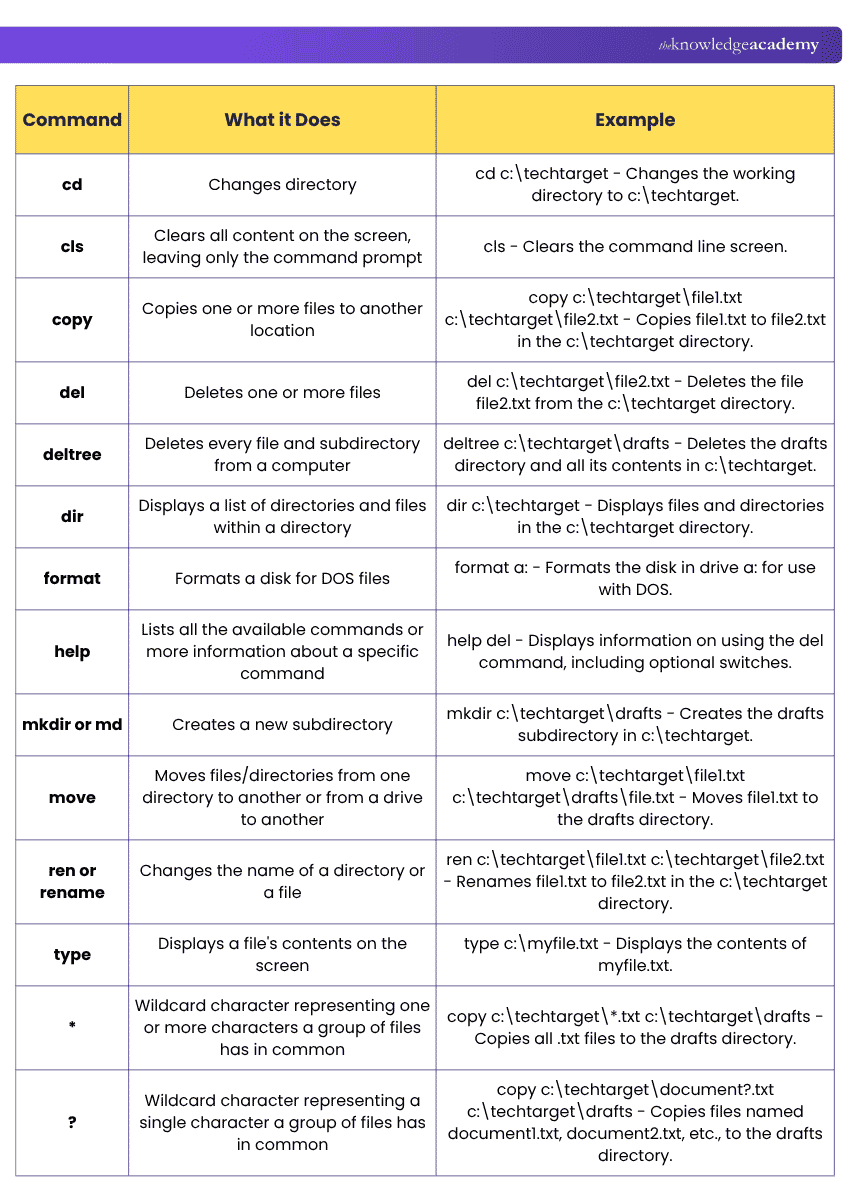
Commonly Used DOS Commands
It's important to note that MS-DOS is not case-sensitive so commands can be written in either uppercase or lowercase. The following table summarises some of the most used DOS commands:
DOS Command Safety Checklist
Before running a DOS command, check:☐ Confirm your current directory before modifying files☐ Check the command syntax before pressing Enter☐ Verify file and directory names carefully☐ Back up important files before making changes☐ Use help when unsure about a command☐ Be careful with commands that delete or format data☐ Practise unfamiliar commands on test files first
Benefits of DOS
Here are some advantages of DOS to consider:
1) You can have direct access to BIOS and its underlying hardware.
2) Its size will boot faster than any Windows version, making it capable of running on a smaller system.
3) It's very lightweight, so it doesn't have the overhead of the multitasking Operating System.
4) It is suitable for making workarounds for managing or administering an MS system and combining programs.
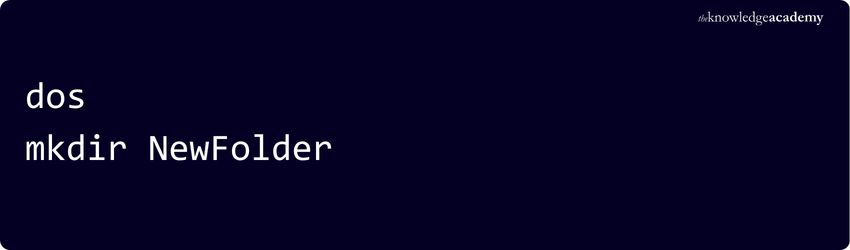
Here’s an example of creating a directory and a file in DOS:
Step 1: Use the mkdir command to create a new directory.
Command:
Example Usage:
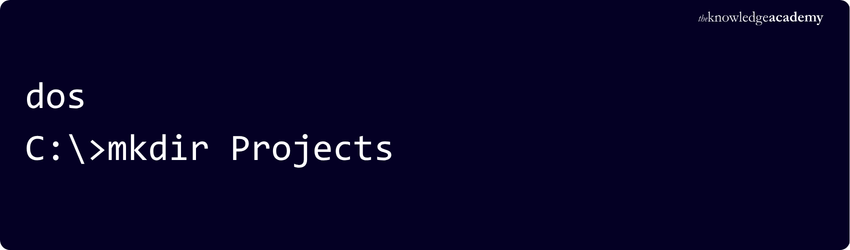
A directory named Projects is created in the current directory.
Step 2: Use the echo command to make a file with some text content.
Command:
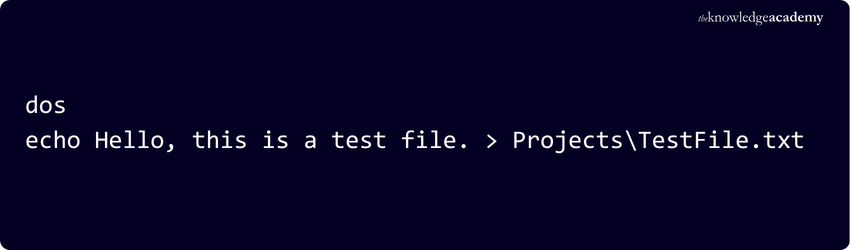
Example Usage:
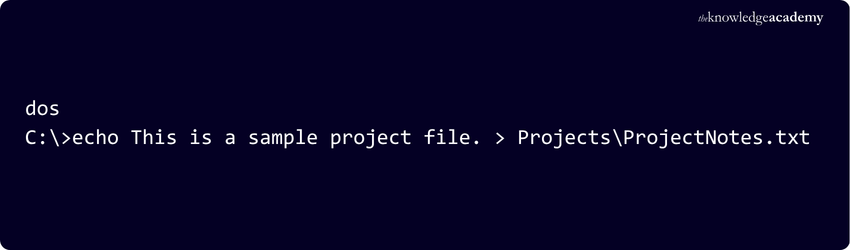
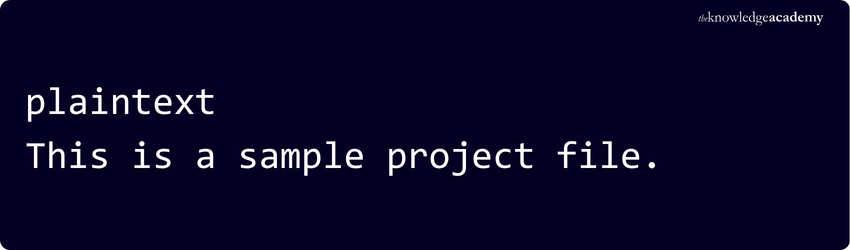
Result:
A file named ProjectNotes.txt is created in the Projects directory with the text:
Drawbacks of DOS
Despite its advantages, it has many drawbacks too, which are listed below:
1) The OS doesn't support multi-tasking.
2) You'll face difficulty accessing memory when addressing more than 640 MB of RAM.
3) You will have to manage interrupt levels for the hardware.
4) The OS doesn't support automatic IRQ ordering.
Pro Tip
When studying DOS limitations, consider them in their historical context. DOS was designed for computers with far fewer hardware resources and different user requirements than today's systems.
Boost your tech career by joining our Software Testing Courses – join us now and excel in this fast-paced industry!
How is DOS Different From Windows?
These are the main differences:
1) DOS Uses Text Commands: Windows uses a graphical interface
2) DOS Supports One Task: Windows allows for multitasking
3) DOS Is Harder to Use: Windows is user-friendly
4) DOS Looks Basic: Windows looks modern and interactive
5) DOS is Simple: Windows offers more features
Pro Tip
Start with navigation and information commands such as dir and cd before practising commands that modify, move or delete files. Knowing your current directory can help prevent mistakes.
How do I Know if my Laptop is DOS or Windows?
To check your laptop's operating system, turn it on and observe the startup screen. If you see a command-line interface with no icons, it's likely running DOS. If it loads a graphical user interface with a Start menu, icons, and windows, it’s running Windows. You can also press Windows + R, type winver, and hit Enter to confirm if Windows is installed.

Nilotpal Sarmah is a Senior Content Writer with 11+ years of overall experience spanning engineering, operations and content development. His technical knowledge and extensive writing experience enable him to simplify specialised topics across IT and Tech, Business Skills, Project Management, Health and Safety, and ISO and Compliance.
View Detail

 If you wish to make any changes to your course, please


