


 Top Rated Course

We may not have the course you’re looking for. If you enquire or give us a call on 01344203999 and speak to our training experts, we may still be able to help with your training requirements.
How to Use QuickBooks: A Step-by-Step Guide for Beginners
Olivia Taylor 05 March 2026Learn How to Use QuickBooks by setting up your company profile and linking bank accounts to import transactions and manage finances with ease. Discover how to track income and expenses, create invoices, reconcile accounts, and generate reports, empowering you to manage business finances accurately and efficiently.

Training Outcomes Within Your Budget!
We ensure quality, budget-alignment, and timely delivery by our expert instructors.
Table of Contents
Managing business finances can feel overwhelming, especially for beginners with no accounting background. QuickBooks simplifies this process by offering an easy-to-use platform for tracking income, expenses, invoices, and financial reports.
This blog explains How to Use QuickBooks from the ground up, guiding beginners through key features and practical techniques to manage accounts accurately, save time, and maintain better control over business finances.
Table of Contents
1) What is QuickBooks?
2) How to Use QuickBooks?
3) Benefits of Using QuickBooks
4) How do I Start with QuickBooks?
5) What are the Five Basic Functions of QuickBooks?
6) Do I Need to Know a lot About Accounting to use QuickBooks?
7) Conclusion
What is QuickBooks?
QuickBooks is a popular accounting software developed by Intuit that helps individuals, small businesses, and even larger companies manage their finances with ease. It is designed to simplify financial tasks such as bookkeeping, invoicing, payroll, tax filing, and reporting, all from one user-friendly platform.
Key Features Include:
1) Offers both desktop and cloud access for flexibility
2) Connects to bank accounts and auto-imports transactions
3) Tracks income, expenses, and generates financial reports
4) Supports tax compliance and simplifies filings
5) Automates tasks like invoicing, payroll, and bill reminders
6) Reduces errors and saves time
7) Suitable for freelancers, small businesses, and accountants
8) Simplifies accounting so you can focus on growth
How to Use QuickBooks?
QuickBooks provides a structured yet user-friendly way to manage your finances. Here's how to get started and make the most of its features:
Set Up Your QuickBooks Account
Begin by creating your account and tailoring the software to your business needs. Steps to follow:

1) Choose the right version (QuickBooks Online for cloud access or Desktop for local installation).
2) Create an account using your email address and set a strong password.
3) Select your business type like, sole proprietor, partnership, corporation, so QuickBooks can tailor features accordingly.
4) Configure settings like local currency, financial year start date, VAT/GST preferences, and payment terms.
2) Add Your Company Information
Personalise your QuickBooks profile to reflect your brand and business identity. Key functions:
1) Head to Settings > Account and Settings > Company.
2) Enter details such as business name, address, contact info, logo, and industry type.
3) This information appears on invoices, estimates, and financial reports, adding professionalism and Branding.
3) Navigate the QuickBooks Dashboard
Familiarise yourself with the main dashboard where you'll access your key financial insights. The second step include:
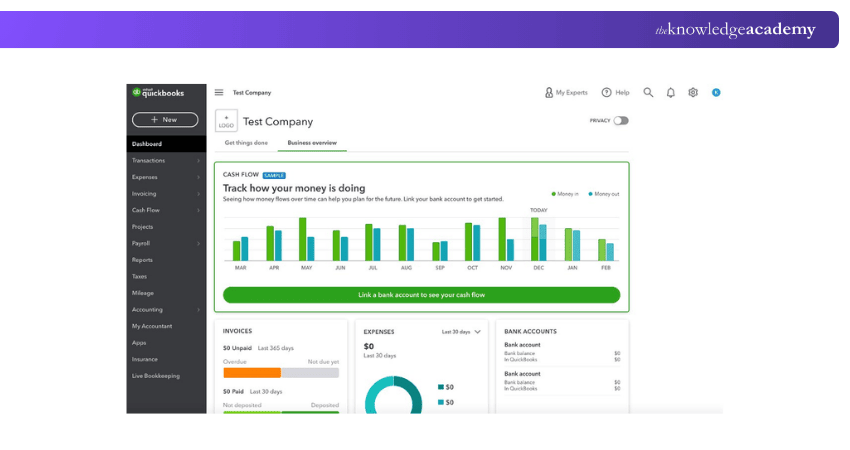
1) The dashboard is your control center, get a quick glance at sales, profits, bank balances, and invoices.
2) Use the left-hand menu to access core functions: Banking, Sales, Expenses, Payroll, Reports, and Taxes.
3) Customise the dashboard widgets to display what matters most to your business.
4) Connect Bank Accounts and Credit Cards
Integrate your bank account or credit card with QuickBooks so that it feeds on new transactions, so you do not have to input the information manually. Use any of the following methods to maintain your books in order:
Method 1: Link Your Bank Account
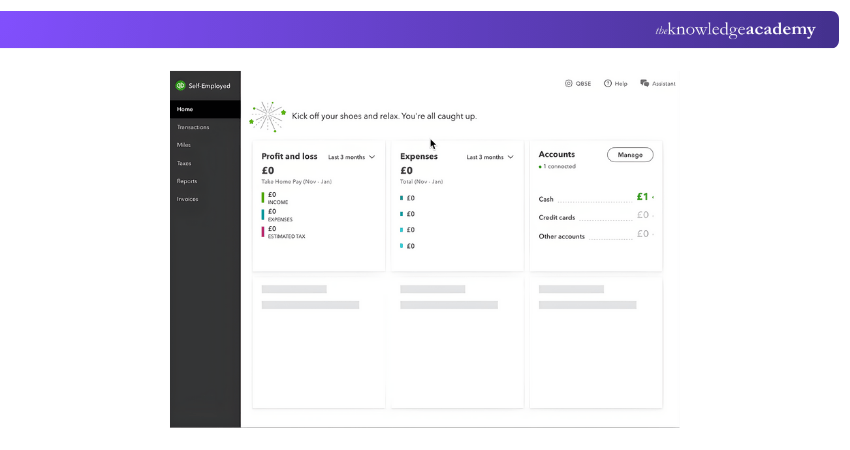
QuickBooks Self-Employed can be linked to your bank account, where your transactions will be automatically imported, and it will make your bookkeeping easier. Select the banks that accept open banking connections and then enter your account or credit card.
To add Multiple Accounts:
1) Go to Transactions.
2) Click next to Add transactions
3) Select Add bank account
4) Respond to the questions and identify the connection
In case your bank is not listed, you just have to import transactions manually.
Method 2: Manually Upload Bank Transactions
If your bank doesn’t support a direct connection or you need to upload older transactions:
1) Convert PDF bank statements to CSV format before importing.
2) QuickBooks automatically downloads the last 90 days of transactions; older transactions must be added manually.
5) Review and Categories Bank Transactions
Once your transactions are imported into QuickBooks, review them and confirm that the software has categorised them correctly.
1) Go to Transactions
2) Use the Type dropdown to select Unreviewed or Unreviewed Income
3) Follow the prompts to review and assign categories to each transaction
Excluding Transactions
If you need to remove a transaction, such as a duplicate or error, you can exclude downloaded transactions or delete manually added ones. Excluding helps maintain accurate records, but it’s recommended to consult an accounting professional before removing or deleting any transactions.
6) Set Up Chart of Accounts
Organise your finances by creating a structured list of categories for all your transactions. Steps to follow:
1) The Chart of Accounts is the backbone of your bookkeeping.
2) It categorises your transactions into types like assets, liabilities, income, and expenses.
3) QuickBooks provides a default setup based on your industry, but you can customise or add accounts based on your business needs (e.g., “Office Supplies” or “Advertising”).
7) Record Income and Expenses
The step includes tracking every payment and bill to stay on top of your Cash Flow. Steps include:
1) Create and send invoices, record sales receipts, or log bank deposits for payments received.
2) Expenses enter bills, upload receipts, and track vendor payments.
3) Use categories and tags to make tax preparation and budgeting easier later.
8) Manage Payroll
It's recommended to use QuickBooks Payroll to pay employees accurately and on time. Key areas are as follows:
1) Set up your employee list under Payroll > Employees.
2) Add employee details, including salaries, tax info, and bank accounts for direct deposits.
3) QuickBooks calculates taxes, creates payslips, and handles deductions like pension or insurance.
4) You can set schedules for automatic payroll runs and even file payroll taxes directly through QuickBooks (in supported regions).
9) Generate Financial Reports
Turn your business data into actionable insights using built-in reporting tools. Here are the detailed steps to follow:
1) Go to Reports to access pre-built templates like:
a) Profit and Loss Statement
b) Balance Sheet
c) Cash Flow Report
d) Sales by Customer or Product
2) Reports are customisable by date, account, customer, or project.
3) These help you monitor business performance, manage budgets, and prepare for tax filings or investor presentations.
Level up your career with financial practical knowledge with our Tally Training- Join today!
Benefits of Using QuickBooks
QuickBooks is a powerful tool that makes managing finances easier and more efficient for both individuals and businesses. Let’s explore how it can help:
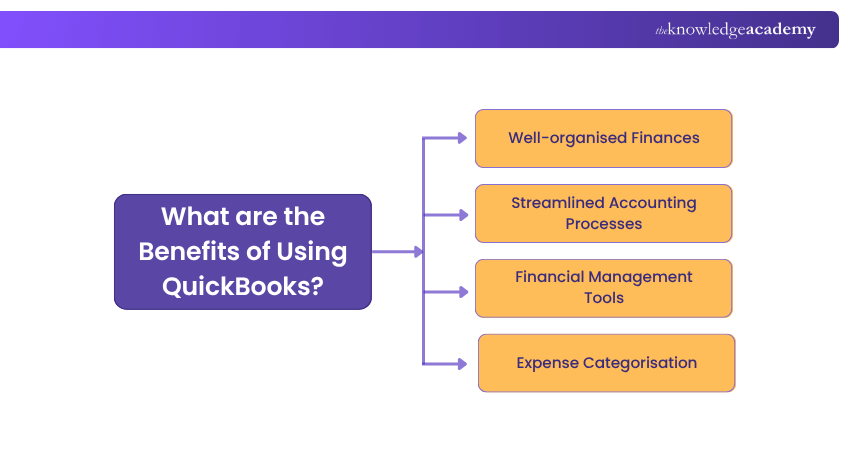
1) Well-organised Finances
QuickBooks acts like a digital filing cabinet for your finances. Key areas include:
1) Centralises all financial data - Income, expenses, assets, and liabilities
2) Makes information easy to access and manage
3) Helps in making smarter financial decisions
4) Simplifies audits and financial reporting
2) Streamlined Accounting Processes
It reduces the need for manual work by automating many everyday Accounting tasks. Key areas:
1) Automates routine tasks like transaction entry and bank reconciliation
2) Reduces manual errors and saves time
3) Improves accuracy of financial records
4) Makes month-end closing faster and easier
3) Financial Management Tools
One of the pros is it comes with built-in tools that take care of important financial tasks. Key functions are:
1) Creates and sends professional invoices
2) Manages payroll efficiently
3) Automatically calculates taxes
4) Supports compliance with financial regulations
Learn to manage your finances effortlessly with our Wave Accounting Training – sign up now!
4) Expense Categorisation
Keeping an eye on where your money goes is key to running a successful business. Key areas are as follows:
1) Allows easy tagging of expenses by category (e.g., travel, utilities)
2) Improves budgeting and cost tracking
3) Helps identify areas to cut unnecessary spending
4) Supports better Financial Planning and analysis
How do I Start with QuickBooks?
QuickBooks is easy and fast to start with. The initial process would be to create your firm file, which will be the basis of all your accounting processes. When established, you will be able to add customers, vendors, financial accounts, and items you purchase or sell, and this has made it easy to maintain your business finances.
Follow these steps to learn how to begin with QuickBooks:
1) Establish your company file where all the financial information shall be stored.
2) Track transactions and relationship management by adding customers and vendors.
3) Establish objects that you are buying and selling to simplify the process of inventory keeping and sales.
4) Connect the bank accounts and other financial accounts to enter transaction imports automatically.
5) Record previous transactions so that you have updated books.
6) Install payroll, sales tax, and other users (as required).
7) Also, take up your data regularly to avoid data loss and to create security.
What are the Five Basic Functions of QuickBooks?
QuickBooks will provide all the necessary accounting features to assist in business management and the monitoring of finances. These are the main functions that bookkeeping, payroll, reporting, and compliance perform so that you can make informed decisions and maintain the relevant accurate records:
1) Invoicing and Sales Management: prepare, customise, and send invoices, record payments, configure recurrent billing, and accept versatile payments to ease the process of collecting revenues.
2) Expenses and Bill Management: Document and manage expenses, bank account connection to automate imports, upload receipts, and schedule bill payments to maintain spending control.
3) Payroll Processing: Automate Computations of payrolls, taxes to be withheld, and direct deposits, as well as the generation of payroll reports to make sure that employees are paid correctly.
4) Financial Reporting and Analysis: Prepare the major reports, including profit and loss statement, balance sheet, and cash flow statements, in order to track the financial performance.
5) Tax Preparation and Compliance: Track deductible expenses, calculate taxes, prepare records for filing, and manage sales tax to simplify compliance and reduce stress during tax season.
Do I Need to Know a lot About Accounting to use QuickBooks?
Not at all. QuickBooks is built to be simple and user-friendly, guiding you through essential tasks without requiring advanced expertise. It takes care of the basics, making financial management easy, while also offering powerful features for those who want deeper insights.
Simplify your finances while making the right choice with our Sage 50 Accounts Training -Join today!
Conclusion
QuickBooks simplifies accounting by bringing essential financial tasks into one easy-to-use platform. By understanding How to Use QuickBooks, beginners can easily set up their business, track transactions, and generate accurate reports. With the right setup and regular use, it helps maintain organised records and clear cash flow visibility. Overall, QuickBooks is a practical solution for managing business finances with confidence.
Upgrade your accounting skills and manage finances with confidence with our Accounting Software Training – Join now!
Frequently Asked Questions
Are QuickBooks Worth It for a Small Business?

Yes, QuickBooks is highly worth it for small businesses. It automates accounting tasks, tracks income and expenses, manages invoices, and generates reports, all in one place. It saves time, reduces errors, and provides financial insights to help small businesses grow efficiently.
Which QuickBooks Version is Best for Me?
The right QuickBooks version depends on your needs. For example, QuickBooks Online suits most businesses with its flexibility, cloud access and scalability. QuickBooks Desktop is better for those wanting advanced features and offline use. Self-Employed is ideal for freelancers while QuickBooks Advanced supports larger, growing companies.
What are the Other Resources and Offers Provided by The Knowledge Academy?
The Knowledge Academy takes global learning to new heights, offering over 3,000+ online courses across 490+ locations in 190+ countries. This expansive reach ensures accessibility and convenience for learners worldwide.
Alongside our diverse Online Course Catalogue, encompassing 17 major categories, we go the extra mile by providing a plethora of free educational Online Resources like Blogs, eBooks, Interview Questions and Videos. Tailoring learning experiences further, professionals can unlock greater value through a wide range of special discounts, seasonal deals, and Exclusive Offers.
What is The Knowledge Pass, and How Does it Work?
The Knowledge Academy’s Knowledge Pass, a prepaid voucher, adds another layer of flexibility, allowing course bookings over a 12-month period. Join us on a journey where education knows no bounds.
What are the Related Courses and Blogs Provided by The Knowledge Academy?
The Knowledge Academy offers various Accounting Software Training, including Tally Training, Xero Introduction Training and Wave Accounting Training. These courses cater to different skill levels, providing comprehensive insights into Double-Entry Bookkeeping.
Our Accounting and Finance Blogs cover a range of topics related to finance management, offering valuable resources, best practices, and industry insights. Whether you are a beginner or looking to advance your accounting skills, The Knowledge Academy's diverse courses and informative blogs have got you covered.

Olivia Taylor


Chartered Accountant and Financial Training Specialist
Olivia Taylor is a qualified chartered accountant with over a decade of experience in financial management, auditing and corporate reporting. Having worked with leading firms in both the public and private sectors, Olivia brings clarity to complex financial topics. Her writing focuses on helping professionals build confidence in key areas of accounting, compliance and financial planning.
View Detail
Upcoming Accounting and Finance Resources Batches & Dates
Date
 QuickBooks Training
QuickBooks Training
Fri 27th Mar 2026
QuickBooks Training
Fri 8th May 2026
QuickBooks Training
Fri 26th Jun 2026
QuickBooks Training
Fri 18th Sep 2026
QuickBooks Training
Fri 4th Dec 2026

 If you wish to make any changes to your course, please


