


 Top Rated Course

We may not have the course you’re looking for. If you enquire or give us a call on 01344203999 and speak to our training experts, we may still be able to help with your training requirements.
How to Unblock Someone on Facebook: A Simple User Guide
James Smith 16 July 2026Have you blocked someone on Facebook and now regret it? Don’t worry – you’re not alone! Whether it was a moment of frustration or an accidental click, unblocking someone is easier than you think. In this blog, we’ll show you How to Unblock Someone on Facebook step-by-step and get back to reconnecting seamlessly to help you manage your privacy.

Training Outcomes Within Your Budget!
We ensure quality, budget-alignment, and timely delivery by our expert instructors.
Table of Contents

Have you ever blocked someone on Facebook in a moment of frustration, only to later realise you want to reconnect? Maybe it's a friend you miss chatting with, a family member you want to mend fences with, or a colleague you need to collaborate with again. The good news is that learning How to Unblock Someone on Facebook is a breeze.
In this blog, we'll walk you through the simple steps on How to Unblock Someone on Facebook and restore those connections. Imagine the relief of seeing their posts again, sharing updates, and rekindling conversations. Ready to get started? Let's dive in and make your Facebook experience a little friendlier and more connected.
Table of Contents
1) Unblock Someone on Facebook Using a Computer
2) Unblock Someone via the Facebook Website
3) Unblock Someone on Facebook Through the Mobile App
4) Unblock Someone on Facebook on an Android App
5) Unblock Someone on Facebook on iOS Devices (iPhone and iPad)
6) Conclusion
Unblock Someone on Facebook Using a Computer
Whether it’s to re-establish communication or resolve a misunderstanding, follow these simple steps to unblock a user using your computer.
1) Access Settings: Click the dropdown icon in the top right corner of your Facebook page.
2) Navigate to Settings & Privacy: Select "Settings" from the "Settings & Privacy" menu.
3) Go to Blocking: Click on "Blocking" in the left-hand menu.
4) Find Blocked Users: In the "Block Users" category, you'll see a list of people you've blocked.
5) Unblock the User: Find the person you want to unblock and click "Unblock" next to their name.
6) Confirm Your Choice: Click "Confirm" to complete the process
Unblock Someone via the Facebook Website
Here's how to unblock friends on Facebook using the official website. This can be done from any browser on a computer or mobile, and it only takes a minute or two.
1) Open Facebook: Launch your preferred browser and go to Facebook.com.
2) Access Settings: Click the arrow-down button in the top-right corner of the page.
3) Navigate to Settings & Privacy: Select "Settings & Privacy" from the dropdown menu.
4) Open Settings: Click on "Settings."
5) Go to Blocking: In the left-hand column, click on "Blocking."
6) Find Blocked Users: Under the "Block users" category, you'll see a list of people you've blocked.
7) Unblock the User: Find the person you want to unblock and click the "Unblock" option next to their name.
8) Confirm: Click "Continue" to confirm your choice.
Learn strategic content creation with our Influencer Marketing Course – Join today!
Unblock Someone on Facebook Through the Mobile App
If you're using the Facebook mobile app, unblocking someone is quick and easy. Whether you’re ready to reconnect or just update your settings, follow these steps to unblock a user directly from your smartphone.
1) Open the Facebook App: Launch the Facebook app and tap the Menu icon. This is located in the bottom-right corner on iPhone or the top-right corner on Android.
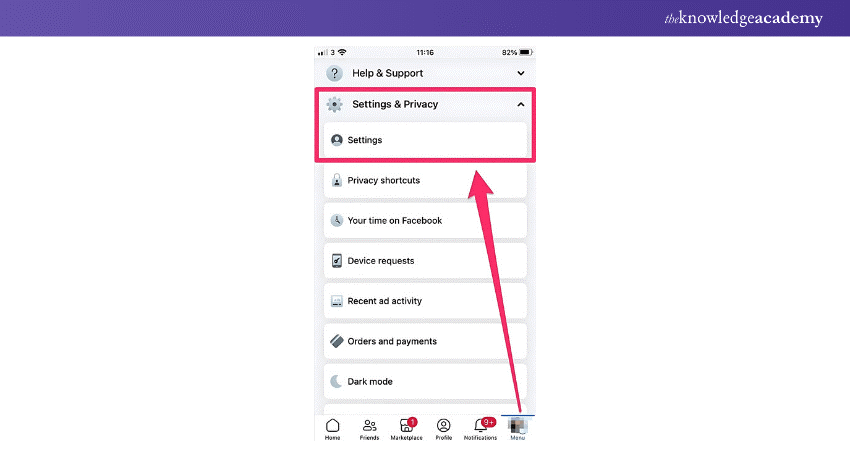
2) Navigate to Settings: On the Menu page, scroll down and tap "Settings & Privacy," then select "Settings."
3) Access Blocking: In the Settings page, scroll down and tap "Blocking."

4) Unblock Users: You'll see a list of everyone you've blocked. Find the person you want to unblock and tap "Unblock" next to their name. Confirm by tapping "Unblock" again.

Unblock Someone on Facebook Using an Android App
Unblocking someone through the Facebook app on an Android device is a simple process. Whether you're patching things up or managing your blocked list, follow these straightforward steps to unblock a user with ease. However, if you’re considering a bigger step, learning How to Deactivate or Delete Your Facebook Account ensures you have full control over your online interactions.
1) Open the Facebook App: Launch the Facebook app on your Android mobile and tap the icon with three stacked horizontal lines in the top right corner.
2) Go to Settings: Select "Settings" from the "Settings & Privacy" menu.
3) Access Blocking: Scroll down and tap "Blocking" under the "Audience & Visibility" section.
4) Unblock Users: You'll see a list of blocked people. Tap "Unblock" next to the person you want to unblock.
5) Confirm Unblock: Tap "Unblock" again to confirm.
Unblock Someone on Facebook with iOS Devices (iPhone and iPad)
If you're using Facebook on an iPhone or iPad, unblocking someone is quick and hassle-free. Whether you're reconnecting or simply updating your preferences, these easy steps will help you through the process.
1) Open the Facebook App: Launch the Facebook app on your iPhone or iPad and tap the icon with three stacked horizontal lines in the bottom right corner.
2) Go to Settings: Open the "Settings & Privacy" menu and tap "Settings."
3) Access Blocking: Select "Blocking" from the "Audience & Visibility" section.
4) Unblock Users: A list of blocked people will appear. Tap "Unblock" on the person’s profile you want to unblock.
5) Confirm Unblock: Tap "Unblock" again to confirm.
Learn digital marketing tools with our Digital Marketing Tools Course – Join today!
Conclusion
Unblocking someone on Facebook is a straightforward way to rebuild connections and improve relationships, especially if you’re managing your presence through a Facebook Business Page. By following the steps in this blog, you can easily unblock someone and enjoy renewed interactions. Whether you're mending a friendship or simply clearing your blocked list, knowing How to Unblock Someone on Facebook can make your social media experience more enjoyable.
Learn how to generate leads with our Facebook Ads Course – Join today!
Frequently Asked Questions
How Do I Find My Blocked List on Facebook?

To find your blocked list on Facebook, click the dropdown icon in the top right corner, go to "Settings & Privacy," and select "Settings." Navigate to "Blocking" in the left-hand menu. You'll see a list of all the users you've blocked under the "Block Users" section.
Will the Person Know if I Unblock Them on Messenger?
No, the person will not be notified when you unblock them on Messenger. However, unblocking allows them to message or call you again, which may make them aware of the change if they try to contact you.

James Smith


Digital Marketing Manager and Trainer
James Smith is a digital marketing professional with over a decade of experience in SEO, content strategy, paid media and analytics. He has supported both SMEs and global brands in transforming their digital presence. James’s writing and training are rooted in results-driven tactics and the latest marketing trends.
View Detail

 If you wish to make any changes to your course, please


