


 Top Rated Course

We may not have the course you’re looking for. If you enquire or give us a call on 01344203999 and speak to our training experts, we may still be able to help with your training requirements.
How to Schedule an Email in Outlook: 3 Ways (Mac, Windows, and Web)
The Knowledge Academy 16 July 2026To Schedule an Email in Outlook, compose your message, then use the dropdown arrow next to the Send button to select a future date and time for delivery. It is a step-by-step instruction to send emails at a future date and time. This is helpful for improving timing and productivity, regardless of the device you use.
Home
 Resources
Office Applications
How to Schedule an Email in Outlook: 3 Ways (Mac, Windows, and Web)
Resources
Office Applications
How to Schedule an Email in Outlook: 3 Ways (Mac, Windows, and Web)
Resources
Office Applications
How to Schedule an Email in Outlook: 3 Ways (Mac, Windows, and Web)

Training Outcomes Within Your Budget!
We ensure quality, budget-alignment, and timely delivery by our expert instructors.
Table of Contents

Ever wanted to send an email while sipping your coffee, enjoying a sunrise, or even catching some Z’s? With Outlook’s scheduling feature, you can! It’s like having your own Email Communication assistant; perfect for setting up Monday’s emails on a lazy Sunday or ensuring birthday wishes arrive right at midnight. We have got you! Learning How to Schedule an Email in Outlook is the key to effortless and Effective Communication.
In this blog, we’ll show you How to Schedule an Email in Outlook, plus a few handy tips to make it even easier. We will walk you through the steps, from drafting the email to setting the perfect schedule and ensuring your messages are sent at the right time. Let’s get started!
Table of Contents
1) How to Schedule an Email in Outlook on Windows?
2) How to Schedule an Email in Outlook on Mac?
3) How to Schedule an Email in Outlook on the Web?
4) How to Keep Track of Scheduled Emails in Outlook?
5) Disadvantages of Scheduling Email in Outlook
6) Can You Set Up Outlook to Schedule Emails at Certain Times Automatically?
7) How Can I Schedule an Email to Send at a Certain Time?
8) Conclusion
How to Schedule an Email in Outlook on Windows?
Want to send an email at just the right time? Knowing How to Schedule an Email in Outlook on Windows is super simple and helps you stay on top of your communication game.
Here’s how you can do it:
1) Write Your Email:
Open Outlook and draft your email as usual. Add the recipient, subject line, and all the details in the body.
2) Head to the ‘Options’ Tab:
While writing your email, click the Options tab at the top menu bar.
3) Choose ‘Delay Delivery:
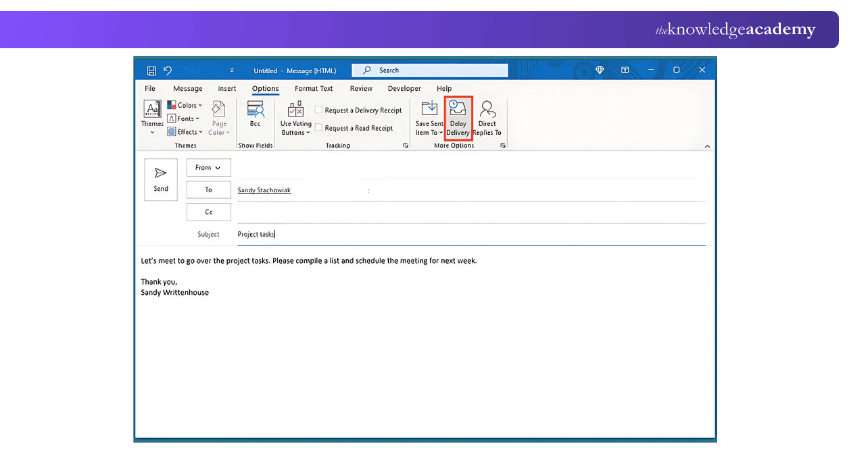
4) Pick Your Send Time:
A new window will pop up. Check the Do not deliver before box, then select the date and time you want the email to go out.

5) Save and Send:
Hit Close to save the settings, and then click Send as usual. Your email will be there in the Outbox until the scheduled time.

How to Schedule an Email in Outlook on Mac?
Good news, Mac users! Learning How to Schedule an Email in Outlook on Mac is quick and easy, giving you full control over when your messages are sent.
Here are simple steps to help you out:
1) Draft Your Email:
Open Outlook and write your email like you normally would.
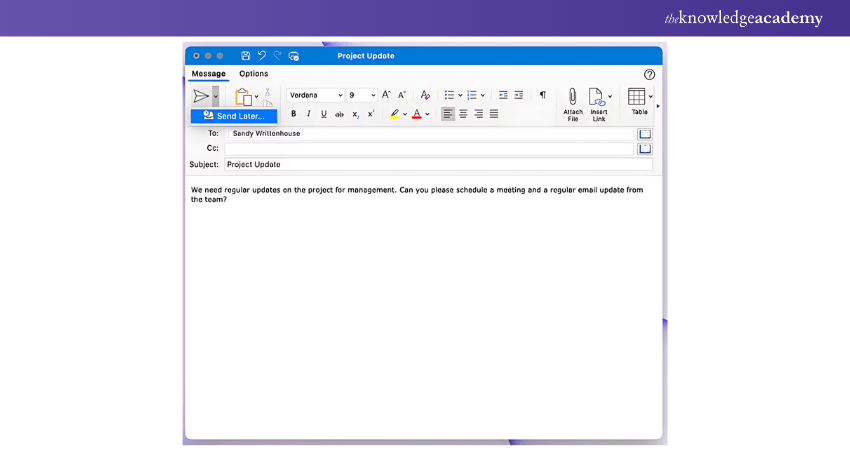
2) Click ‘Send Later’:
When your email is ready, click the drop-down arrow next to the Send button and then click on Send Later.
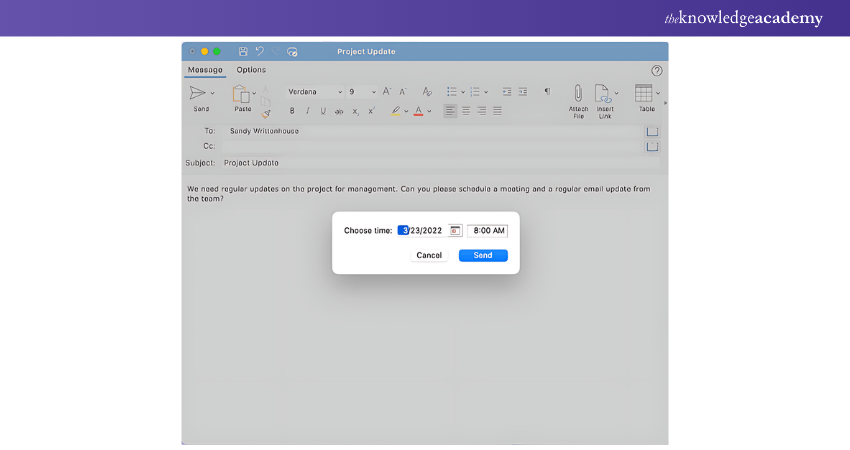
3) Set the Perfect Time:
A scheduling window will pop up. Choose the date and time you want the email to go out.
4) Confirm and Save:
Hit Send. The email will move to your "Drafts" folder and be sent automatically at the scheduled time.
Pro Tip:
Outlook for Mac syncs beautifully with cloud services, so make sure your account is online to avoid any delays
Unlock cloud-powered productivity tools and work smarter with Microsoft Office 365 Training now!
How to Schedule an Email in Outlook on the Web?
Using Outlook’s web version? Scheduling emails is just as simple! Here’s how to get it done:
1) Log In to Outlook Web:
Open your browser, head to the Outlook website, and log in to your account.
2) Compose Your Email:
Click New Message, and write your email as usual, keeping in mind the difference between CC and BCC to ensure proper recipient management.
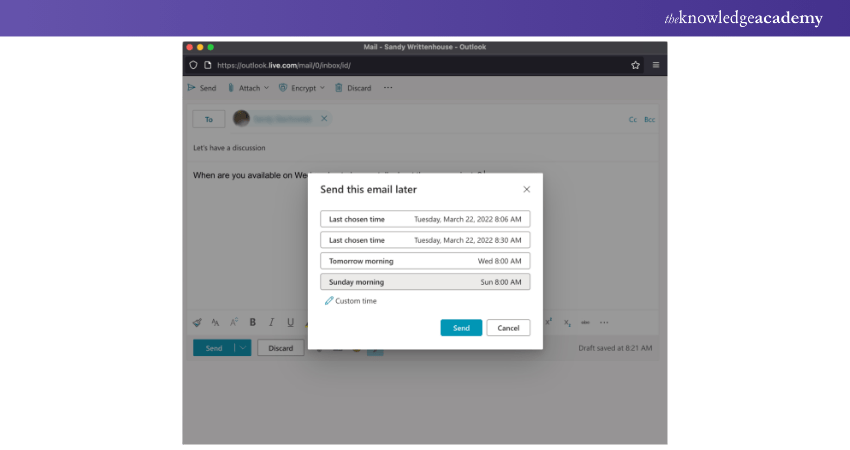
3) Use the ‘Send’ Drop-Down:
Instead of clicking Send, click the small drop-down arrow next to it.
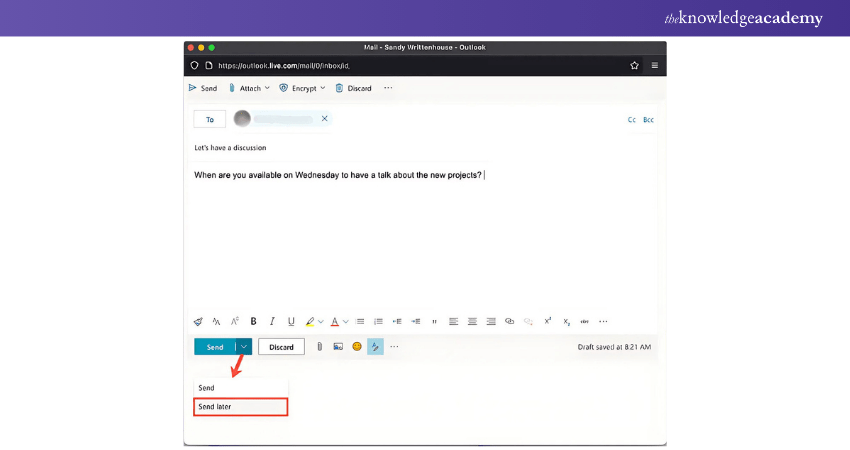
4) Choose ‘Schedule Send’:
Select Schedule Send, then set the date and time you’d like your email to be delivered.
5) Confirm and Relax:
Click Send, and your email will be queued to go out exactly when you’ve scheduled it.
How to Keep Track of Scheduled Emails in Outlook?
Tracking and Learning How to Schedule an Email in Outlook helps you stay in control of messages set to send later. Here are some simple ways to manage them.
Step 1 – Go to the ‘Outbox' Folder in Outlook
When you schedule an email, Outlook stores it in the Outbox, or in some versions, the Drafts folder. Open this folder from the left-hand navigation pane to view emails waiting to be sent. These messages stay here until the scheduled time.
Step 2 – Open the ‘Field Chooser' Settings
To get more visibility into your scheduled emails, right-click on the column header in the Outbox and select the Field Chooser. This setting enables you to add extra fields that display delivery-related emails, making it easier to track.
Step 3 – Add the ‘Defer Until' Column
In the Field Chooser, find the Defer Until field and drag it into the column area. This column provides the exact date and time each email is scheduled for delivery. You can open any scheduled email to edit its content, save changes, or remove it.
Learn to build dynamic, multimedia presentations with our Microsoft Sway Training. Register and elevate now!
Disadvantages of Scheduling Emails in Outlook
While Learning How to Schedule an Email in Outlook is incredibly useful, it does come with a few limitations. Here’s what to keep in mind:
1) Limited Personalisation
Scheduled emails often lack options for dynamic customisation, making it harder to tailor messages for individual recipients.
2) Campaign Complexity
Managing multiple scheduled emails can get tricky, especially if you’re running a larger Marketing Campaign with various timelines.
3) Performance Tracking
Outlook doesn’t provide detailed analytics for scheduled emails, so you won’t get data on open rates or engagement.
4) No Follow-ups
There’s no built-in follow-up feature for scheduled emails. You’ll need to track responses and manage follow-ups on your own.
Plan smarter projects and turn tasks into organised action plans with Microsoft Planner Training – Join now!
Can You Set Up Outlook to Schedule Emails at Certain Times Automatically?
Yes, Outlook allows you to automatically schedule emails for a specific date and time through its built-in Schedule Send or Send Later feature. This option is available across Outlook desktop, web, and mobile apps. This feature is ideal for sending emails at the right time without the need for any reminders or manual follow-ups.
How Can I Schedule an Email to Send at a Certain Time?
You can schedule an email at a specific time using Gmail's Schedule Send feature. Follow the steps below for a successful e-mail delivery:
1) Go to Gmail and click Compose
2) Write your email as usual
3) Then, tap the Down Arrow next to the Send button
4) Select Schedule Send
5) Choose a date and time, then confirm
Conclusion
Learning How to Schedule an Email in Outlook gives you complete control over when your messages reach the inbox and when you send them. Whether you are planning for follow-ups, working across time zones, or managing a busy schedule, scheduling emails helps to communicate effectively. Using the steps shared above will help you stay organised, improve response rates, and ensure emails are sent at the right time.
Learn everyday tools for driving work success and boost productivity with Microsoft Office Training today!
Frequently Asked Questions
Will Scheduled Outlook Email Send While Offline?

Scheduled emails in Outlook will not be sent if you are offline or if Outlook is closed. The email will be delivered the next time you open Outlook and are connected to the internet.
How Many Emails Does Outlook Allow Per Day?
Outlook.com allows Microsoft 365 subscribers to send up to 5,000 emails per day, with a maximum of 500 recipients per message. Non-subscribers have lower limits.

The Knowledge Academy


Global Training Provider
The Knowledge Academy is a world-leading provider of professional training courses, offering globally recognised qualifications across a wide range of subjects. With expert trainers, up-to-date course material, and flexible learning options, we aim to empower professionals and organisations to achieve their goals through continuous learning.


 If you wish to make any changes to your course, please


