


 Top Rated Course

We may not have the course you’re looking for. If you enquire or give us a call on +47 80010068 and speak to our training experts, we may still be able to help with your training requirements.
How to Open VBA & Use the VBA Editor in Excel?
The Knowledge Academy 21 August 2026You can open the VBA editor in Excel by pressing Alt + F11 or going to the Developer tab and clicking Visual Basic. Enable Developer via File > Options. VBA Editor allows users to write, edit, and debug VBA code. This code automates tasks, customises Excel, and extends its functionality beyond Excel's default capabilities.

Training Outcomes Within Your Budget!
We ensure quality, budget-alignment, and timely delivery by our expert instructors.
Table of Contents

As you take advantage of the ubiquity and power of Excel, have you wondered if you could bypass its repetitive tasks and achieve results more quickly? No need to wonder because that's what Visual Basic for Applications (VBA) is for. It's the fuel behind Excel automation. Essentially, VBA enables you to automate tasks, build custom functions, and take Excel far beyond its default features.
However, before you dive into its coding aspect, you’ll need to know how to access the VBA editor. If you are looking for guidance on How to Open VBA in Excel, this blog will show you the way. So, read on and breathe new life into your spreadsheets with code!
Table of Contents
1) What is VBA?
2) How to open VBA in Excel?
3) How do I Get Access to VBA in Excel?
4) Excel's Visual Basic Editor's Structure
5) Vital VBA terms
6) Why is VBA not Working in Excel?
7) Is VBA Built Into Excel?
8) Conclusion
What is VBA?
Office suite programs are built using common programming languages, and VBA can be added to these programs to improve their functionality. But VBA works best with MS Excel. That’s because Excel handles repetitive tasks like organising data and analysing it in spreadsheets. In Excel, VBA utilises various elements, including variables, projects, properties, logical operators, modules, and objects, to perform tasks. With VBA, you can tell the computer to do a series of actions.
VBA also allows you to modify parts of the Graphical User Interface (GUI), such as menus, forms, toolbars, and dialogue boxes. Additionally, VBA can be used to automate tasks, build Windows API tools, and create custom functions. It's beneficial for automating computer calculations and tasks.
How to open VBA in Excel?
You can open VBA in Excel by following a few basic steps such as using a keyboard shortcut and the Developer tab. Let’s explore these steps in detail:
Use a Keyboard Shortcut
You can press the ALT key + F11 keys on keyboard to open the VBA quickly. This will open the window displaying the Visual Basic Application on the Excel worksheet separately.
Use the Developer Tab
You can access the VBA from the Excel ribbon.
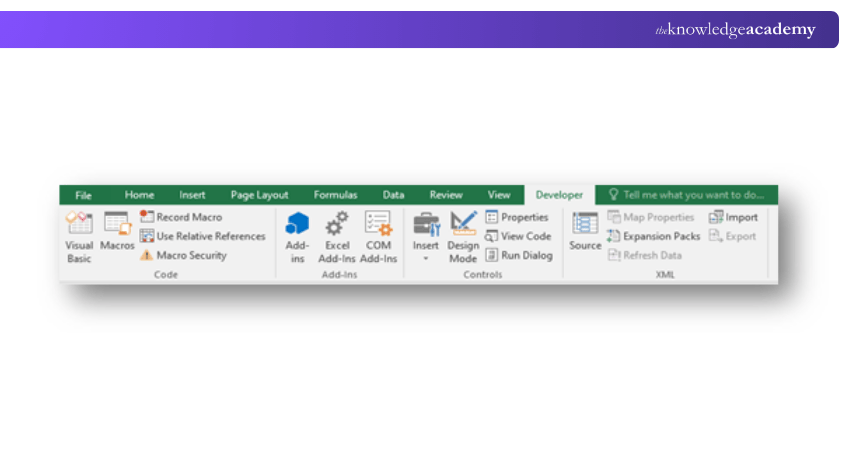
a) The Developer tab on the Excel ribbon contains essential buttons needed to open VBA.
b) Additionally, this tab facilitates the creation of Form/ActiveX Controls, including checkboxes, buttons, etc.
c) To access it, press on File from the menu bar, as it displays the Developer tab.
d) Then, click on the ‘options’ button from the drop-down menu while working on How to Create a Checkbox in HTML.
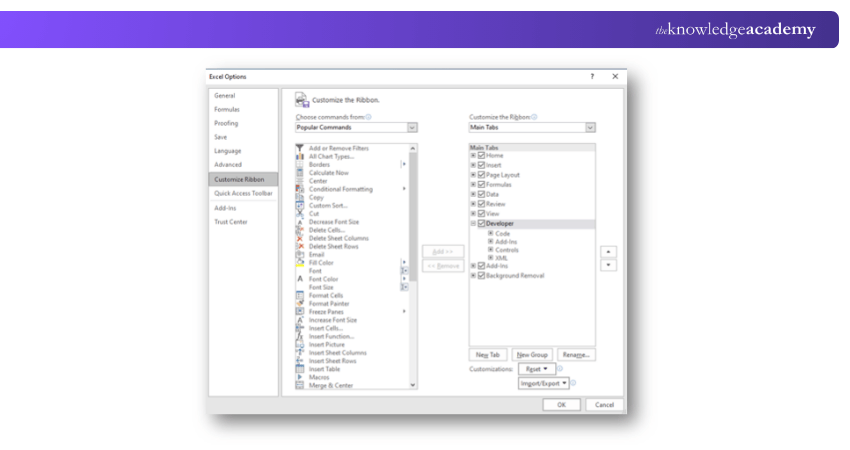
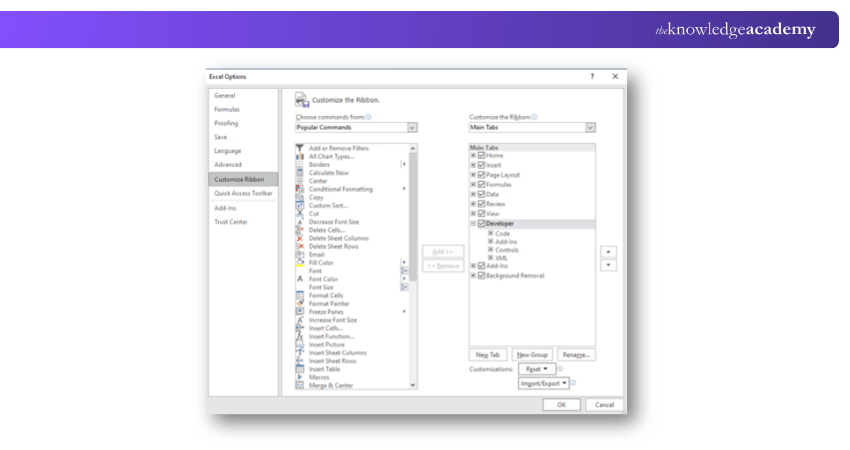
e) Once the Excel Options window is displayed, you can choose the ‘Customize Ribbon’ option on the left.
f) Now, browse through the Main Tabs and select the Developer checkbox.
g) Afterward, Insert a Checkbox in Excel if needed, then press the OK option at the page's end.
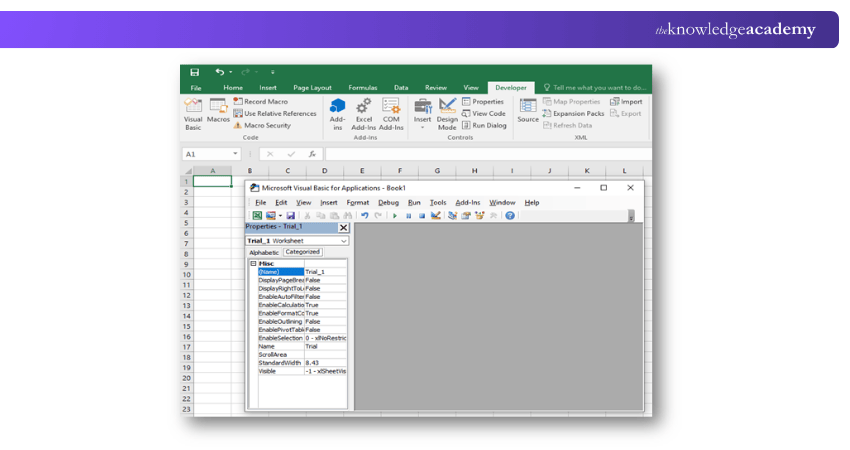
h) Click on the Developer tab on the toolbar at the top of your screen. Now, go to the code group and select the Visual Basic option.
How do I Get Access to VBA in Excel?
If you are unable to find the Developer tab in Microsoft Excel. You can start using it by following these steps:
Go to File > Options > Customize Ribbon and confirm if the ‘Developer’ option is checked in the right pane. You can also open the VBA editor option using the Alt +F11 shortcut on your keyboard
3) The ‘Developer’ tab will have all the options mentioned in the image below.
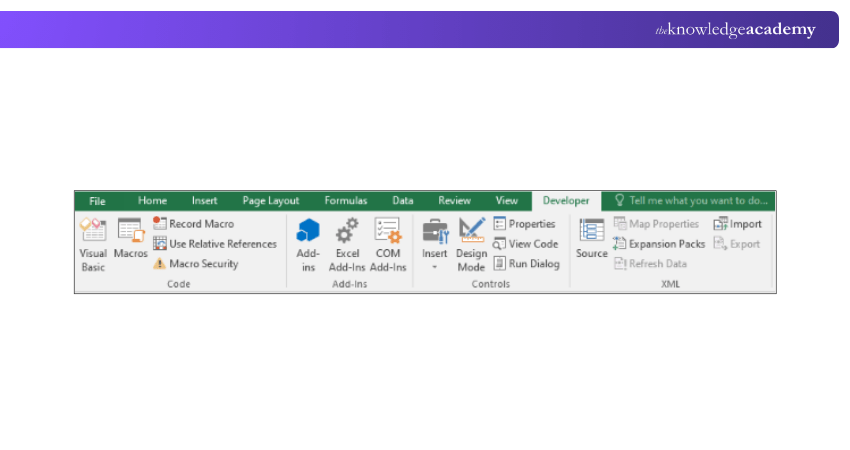
4) You can use the shortcut Alt+F11 or click on Visual Basic option on the ribbon for the Microsoft VBA window to open.
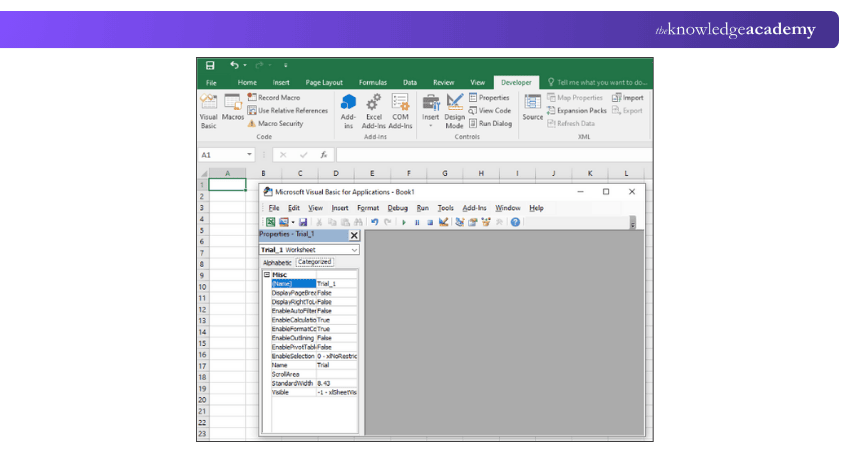
Following the above steps, you can quickly start using VBA in MS Excel spreadsheets. As we have understood how to open VBA in Excel spreadsheets, now let us move on to comprehend how to insert an Excel VBA For Loop action in Excel spreadsheets using VBA.
From Formulas to Forecasts, Become an Excel pro with MO201! Sign up for our Microsoft Excel Expert MO201 now!
Excel's Visual Basic Editor's Structure
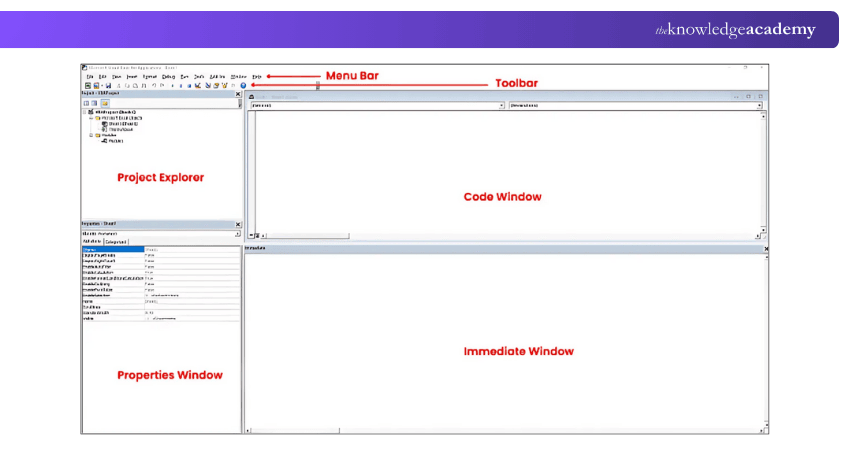
The image above shows the different components of the VB Editor, which are described in detail below. Let us now understand, what each of them does.
Menu Bar
This is where you have all the options which you can use in the VB Editor, which is similar to the Excel ribbon where there are tabs and options with each tab; By clicking on each of the menu elements, you can explore the in-hand options. One thing you will notice is that most of the options in VB Editor have Kkeyboard shortcuts mentioned next to them. Once you are familiar with a few keyboard shortcuts, working with the VB Editor becomes really simple.
Decode data and drive decisions like a pro! Our Business Analytics With Excel Course will show you the way - Register now!
Tool Bar
This toolbar in the VB Editor, by default, has some useful options that are likely to be needed most often. It is similar to the Quick Access Toolbar in Excel, which gives you quick access to some of the useful options. You can do a bit of customisation by adding or removing options to it (click on the small downward pointing arrow at the end of the toolbar). It is mostly in the cases where the default toolbar is needed while working with the VB Editor.
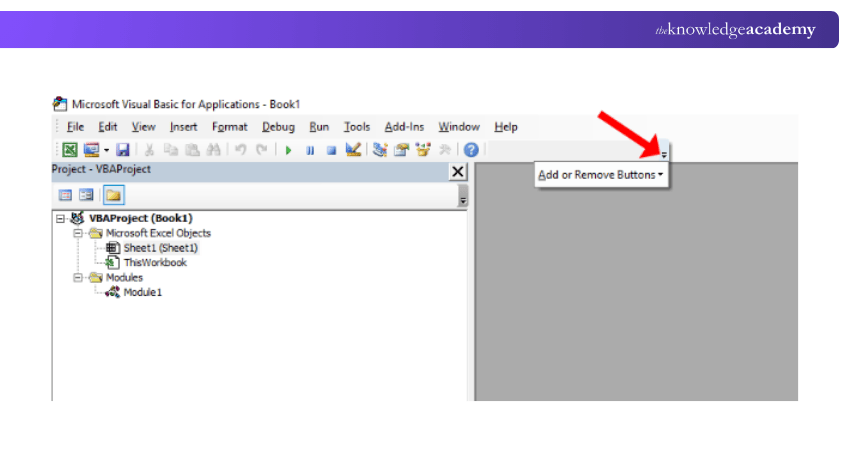
VB Editor, there are four toolbars: Standard, Debug, Editor, and User form. You can also access other toolbars by choosing the View option and hovering the cursor on the Toolbars option. Further, if you want to, then you can also add one or more toolbars to the VB Editor.
Project Explorer
There is a window on the left, known as the Project Explorer, that shows all the objects that are currently open in Excel. When working with Excel, every workbook or add-in that is open resembles a project, and each of these projects has a collection of objects in it.
For instance, in the below image, the Project Explorer shows that there is one workbook (Book1) that is open, and there are objects in this workbook (worksheets, ThisWorkbook, and Module in Book1).
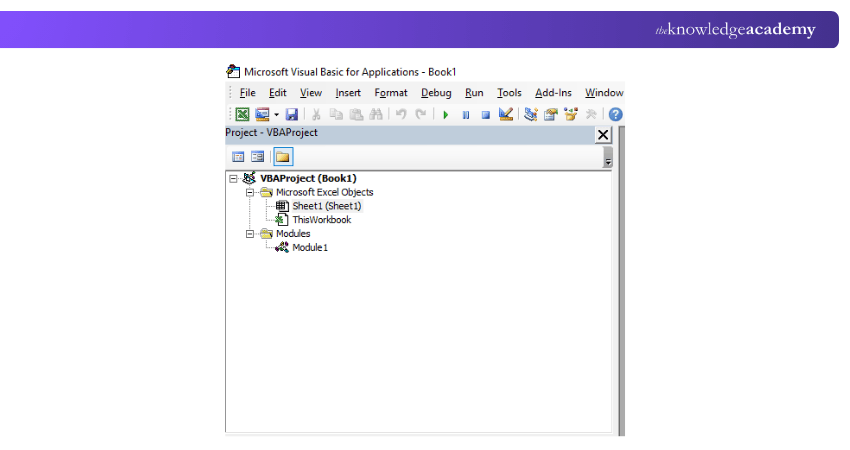
1) All Open Workbooks – Within each workbook, the following objects exist. there exist the following objects. They are
a) Worksheet object depicting each worksheet in the workbook.
b) ThisWorkBook object that implies the workbook itself.
c) Chartsheet object representing for each chart sheet, but they are not as common as worksheets.
d) Modules is where the code gets generated when a macro recorder goes. You can also write or copy and paste your VBA code here.
2) All Open Add-ins
The Project Explorer is considered as a place that outlines all the objects that are open in Excel at a given time. To open Project Explorer, the keyboard shortcut used is ‘Control + R’; to close it, click on the close icon at the top right of this window.
Excel Your Way Through Accounting! Sign up for our Excel for Accounting Course now!
Properties Window
In the Properties Window, you can view the properties of the selected object. If you do not have the Properties window open, you can access it by pressing the Keyboard shortcut F4 (alternatively, go to the View tab and click on ‘Properties Window’). It is a floating window that you can dock in the VB Editor. It also allows you to change the properties of the selected object.
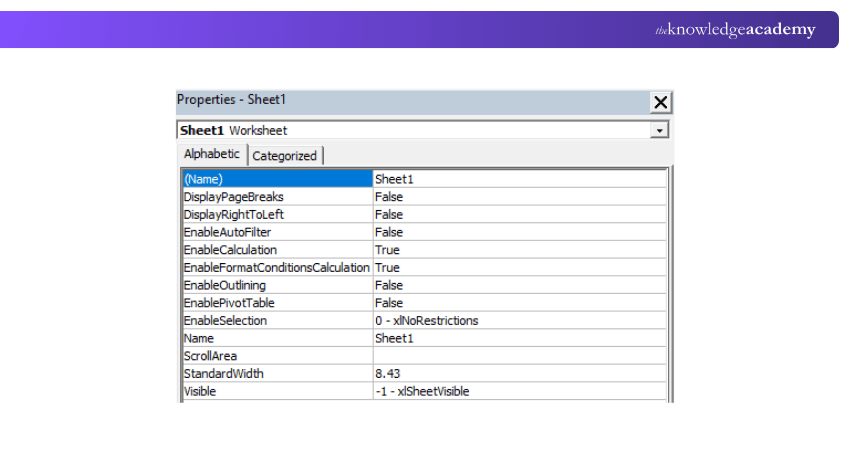
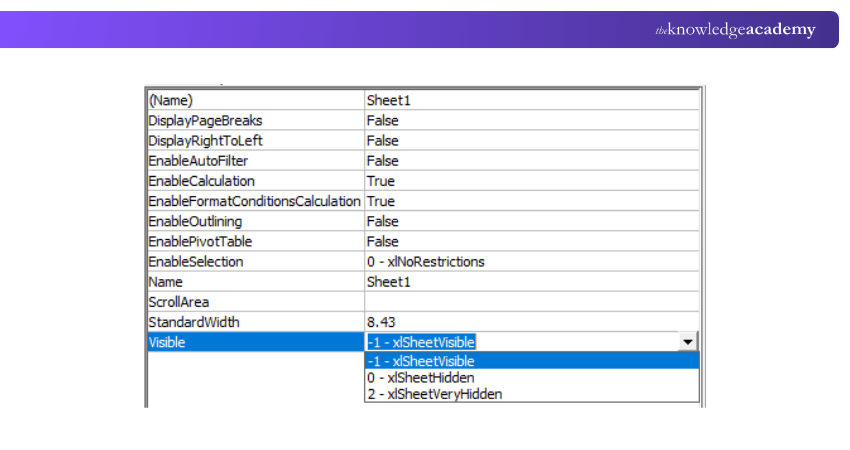
For instance, if you want to make any worksheet hidden, that can be done by editing the visible property of the selected worksheet object.
Code Window
For each object, a code window is listed in the Project Explorer. By double-clicking, you can open the code window for an object in the Project Explorer area. It is also a window where you can write your code or copy and paste code from elsewhere. In certain automation tasks, such as unhiding rows in Excel, this code window becomes essential for inserting or editing VBA scripts. When you start recording a macro, the code for this macro goes into the code window of the module. As a result, when recording, Excel inserts a module automatically to place the code in it.
Immediate Window
When debugging code, the Immediate Window is mainly used. One way to use the Immediate Window is by using a ‘Print.Debug’ statement within the code and further running the code. If the result of Print.Debug is seen in the Immediate Window; it indicates that the code is working up to that line. The Immediate Window, by default, is not visible in the VB Editor. Still, you can get it by typing the keyboard shortcut Control + G (alternatively, go to the View tab and click on ‘Immediate Window’).
Vital VBA terms
Here are some important terms pertaining to VBA that you must know to unlock this tool's full potential:
Module
In Excel, a Module is used to store VBA code. Information about these modules is kept in the Project Explorer, which is part of the VBA editor. The modules are stored in a folder called "Modules" and are often referred to as standard modules.
Objects
The codes in VBA help to handle or control objects in a skilled manner. Objects include cells, fonts, cell ranges, worksheets, and workbooks. These objects form the parts of a code used during VBA coding. For example, the “Active Cell” is used in VBA code to arrange the objects in the spreadsheet. To do this, you’ll have to select the object per your requirements.
Procedures
A procedure is a part of a computer program that helps carry out specific tasks. It’s a block of code that starts with a beginning statement and ends with a closing statement. VBA consists of two types of procedures:
a) Function Procedures: They handle necessary calculations and estimate a value.
b) Sub-procedures: They perform actions within MS Excel. These sub-procedures begin with the code “Sub.”
Statement
A statement is a set of instructions that can be categorised into two types. Firstly, declaration statements are used to highlight something significant. For example, it defines and highlights a variable or a constant value. Secondly, executable statements include codes that prompt the user to take action.
Your Journey to Excel Mastery Starts Here! Sign up for our Microsoft Excel Courses now!
Why is VBA not Working in Excel?
VBA may not work in Excel if the following conditions are true:
1) The VBA code is contained within an automatically running subroutine, like the Auto_Open or Auto_Close subroutine.
2) The code isn't contained in a Visual Basic module but is behind a worksheet or the workbook itself.
Is VBA Built Into Excel?
Yes, VBA is built into Excel. It’s a key part of the program and helps you automate tasks, create your own functions, and build advanced solutions. With VBA, you can do much more than what Excel offers by default.
Conclusion
Now that you know How to open VBA in Excel, you’re ready to start automating tasks and customising your spreadsheets with ease. Whether it’s creating macros or building functions, VBA opens a world of possibilities. It's about exploring, experimenting, and letting Excel work smarter for you, one line of code at a time.
Unlock new levels of excellence in Excel with our comprehensive Microsoft Excel VBA and Macro Training – Sign up now!
Frequently Asked Questions
What Button is Used to run VBA in Excel?

To create a button in Excel that runs a VBA macro, you can use either Form Controls or ActiveX Controls.
How do I Enable Macros in Excel?
Here are the steps to enable macros permanently in Excel:
1) Open your Excel file
2) Go to the Trust Center
3) Click File > Options > Trust Center.
4) Click Trust Center Settings > Macro Settings.
5) Select Enable all macros and click OK.
6) Click on “Enable Content” on the yellow warning bar and save the file as a trusted document.

The Knowledge Academy


Global Training Provider
The Knowledge Academy is a world-leading provider of professional training courses, offering globally recognised qualifications across a wide range of subjects. With expert trainers, up-to-date course material, and flexible learning options, we aim to empower professionals and organisations to achieve their goals through continuous learning.


 If you wish to make any changes to your course, please


