




We may not have the course you’re looking for. If you enquire or give us a call on + 1-866 272 8822 and speak to our training experts, we may still be able to help with your training requirements.
How to Unhide All Rows in Excel: A Quick and Easy Guide
ByGaurav KalitaLast updated on: 02 October 2026
To unhide rows in Excel, use the shortcut Ctrl + Shift + 9, right-click and select 'Unhide' from the context menu, or go to Home > Format > Hide & Unhide > Unhide Rows on the Ribbon.

What You'll Learn
1. Why rows may appear missing, including manual hiding, filters and zero row height.2. How to unhide top rows, all rows or only selected rows in a worksheet.3. How to identify whether rows are hidden or filtered out.4. How to adjust row height when the Unhide command does not restore missing rows.5. Why newly visible rows should be checked for formulas, values and formatting.
Did you ever feel the frustration of using a Microsoft Excel spreadsheet and realising rows of vital information have vanished without a trace? Maybe your colleague accidentally hid important data, or perhaps a wrong click left your spreadsheet in chaos. Does it sound familiar? If so, you are certainly not the only one! Fortunately, knowing how to unhide all rows in Excel can transform this panic into uninterrupted productivity within seconds.
Curious about how a few simple clicks can reveal your missing information? Want to ensure you never face spreadsheet surprises again? In this blog, you'll learn exactly how to unhide all rows in Excel, putting you back in control of your data and saving you from those dreaded spreadsheet stumbling blocks. So, let's get started!
Why Unhide All Rows in Excel?
Unhiding all rows in Excel ensures that no important data is missed. Hidden rows might contain formulas, notes, or critical values that can impact calculations or reports. By making all rows visible, you gain a complete view of your dataset, enhancing accuracy.
This practice is also beneficial when cleaning or editing large spreadsheets where rows may have been hidden over time. Unhiding everything helps avoid confusion, especially when sharing files with others or preparing final versions for review. It makes your work clearer and easier to manage.

How to Unhide Top Rows in Excel?
To unhide the top rows in Excel, which are vital for understanding your data, follow these streamlined steps:
1) Go to the "Home" tab: Navigate to the Excel ribbon and find the "Home" tab.
2) Open "Format": In the Cells group, click on "Format."
3) Select "Hide & Unhide": Choose "Hide & Unhide" from the drop-down menu.
4) Click on "Unhide Rows": Select "Unhide Rows" to reveal any hidden rows at the top of your spreadsheet.
Trainer Insight
Do not assume missing rows have been deleted. Gaps in row numbers can indicate hidden rows, so check the numbering before attempting to recreate supposedly missing data.
How to Unhide Every Row in Excel?
Hidden data can hinder your workflow. A great way to avoid this is to unhide every row of data. Here is how you can do so in a step-by-step process:
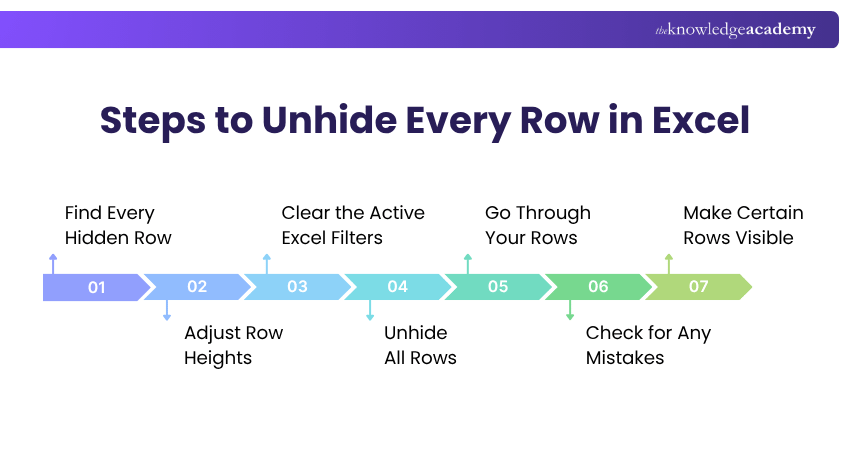
1) Find Every Hidden Row
Hidden rows can disrupt the flow of data analysis. To find them:
a) Scan your spreadsheet for any row numbers that skip sequences, indicating hidden rows.
b) Look for the small double line in the row header, which is another giveaway of hidden rows.
c) This step is crucial for ensuring you know all the data that might not be immediately visible.
2) Adjust Row Heights
Rows set to a minimal height might as well be invisible. To adjust row heights:
a) Right-click on the row numbers to the left of your spreadsheet.
b) Select "Row Height" and set a specific height (the default is usually 15).
c) This ensures no row is "hidden" because it's too thin to notice.
3) Clear the Active Excel Filters
Filters can hide rows based on criteria, sometimes unintentionally. To remove filters:
a) Go to the "Data tab" on the "Ribbon."
b) Click on "Filter" to toggle off any active filters, revealing any rows hidden by these filters.
c) Removing filters can instantly bring back a significant portion of your "missing" data.
Pro Tip
Check filters before troubleshooting. If rows still appear missing after using "Unhide," check whether a filter is active. Filtered-out rows are not the same as manually hidden rows, so the "Unhide" command alone may not bring them back.
4) Unhide All Rows
To unhide all rows in Excel:
a) Click the select-all triangle at the upper-left corner of your spreadsheet to select everything.
b) Right-click on the row headers and choose "Unhide."
c) This action reveals any rows that were hidden across the entire spreadsheet.
From balance sheets to budgets, Microsoft Excel is an accountant's best friend. Sign up for the Excel for Accounting Course now!
5) Go Through Your Rows
After unhiding rows, meticulously review your spreadsheet to ensure that all relevant data is now visible and that there are no gaps in information that could impact your analysis or reporting. Using basic Excel functions like SUM, AVERAGE, and COUNT can help you verify data accuracy.
6) Check for Any Mistakes
Unhiding rows might reveal errors or misplaced data. Carefully examine the newly visible rows for any inaccuracies, redundancies, or formatting issues that need to be corrected to maintain the integrity of your spreadsheet.
Pro Tip
Review before saving important workbooks. After revealing hidden rows, quickly scan newly visible formulas, values and formatting before saving or sharing the workbook. Hidden rows can still contain formulas that affect calculations.
7) Make Certain Rows Visible
If you need to make specific rows visible rather than unhide all rows:
a) Identify the hidden row by looking for the skipped sequence in the row header numbers.
b) Select the rows above and below the hidden row, right-click, and choose "Unhide."
This targeted approach allows you to reveal only the rows necessary for your current task.
How to Unhide Specific Rows in Excel?
To unhide specific rows in Excel, especially when you're focusing only on certain data segments, follow these detailed steps:
1) Identify the Hidden Rows
This can be done by looking at the row numbers on the left side of your spreadsheet. If there's a break in the sequence (e.g., it jumps from 4 to 8), rows 5 through 7 are hidden.
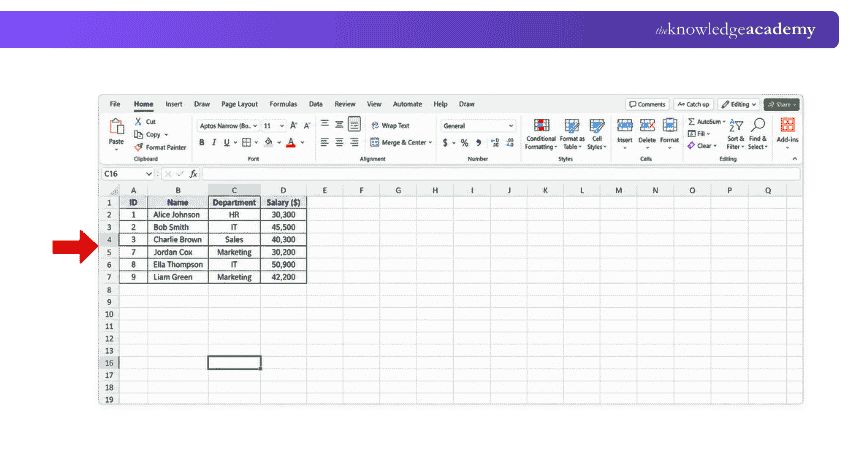
2) Select Surrounding Rows
Once you've identified the hidden rows, you need to select the rows immediately above and below the hidden ones. For example, if rows 5 through 7 are hidden, you would click on row 4, hold down the "Shift" key, and then click on row 8. This action selects rows 4 through 8, including the hidden rows between them.
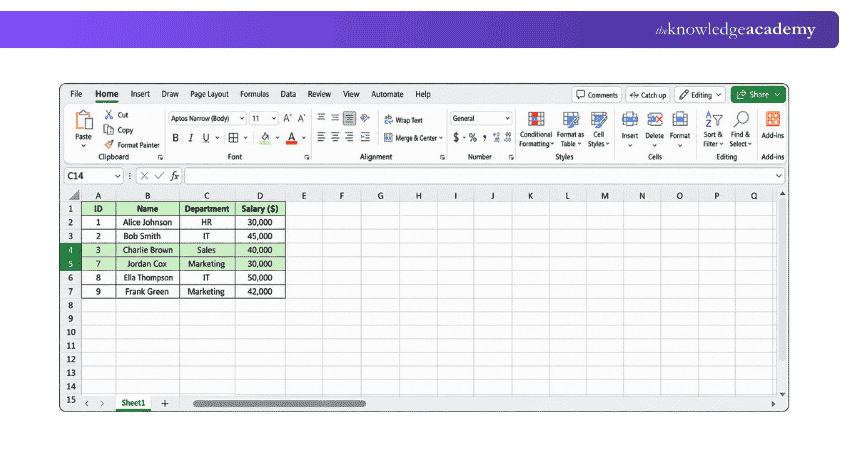
3) Right-click to Unhide
With the rows selected, position your cursor over one of the row numbers in your selection, then right-click to open the context menu. Look for the option labelled "Unhide" and click on it. The hidden rows within your selection will be revealed, leaving other hidden rows in the sheet still concealed.
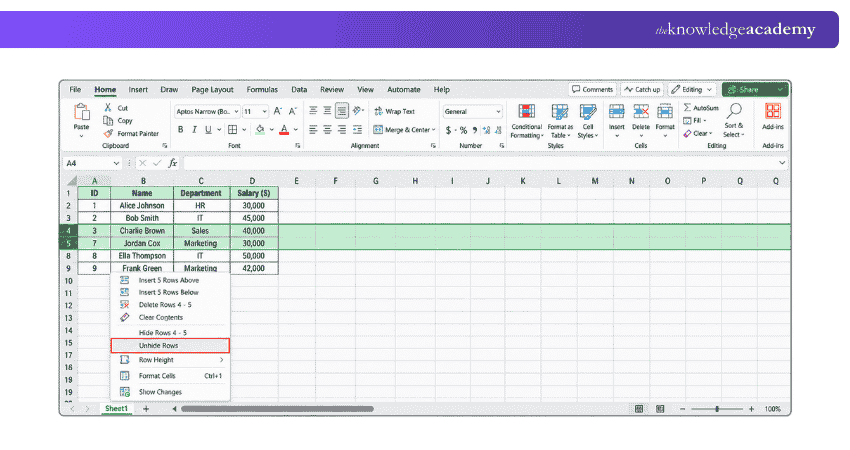
4) Using the Home Tab
Another way to unhide specific rows is through the Excel ribbon. With the rows above and below your hidden rows selected, navigate to the "Home" tab. In the Cells group, click on the "Format" button, hover over "Hide & Unhide" under the Visibility section, and then select "Unhide Rows." This action will reveal the selected hidden rows.
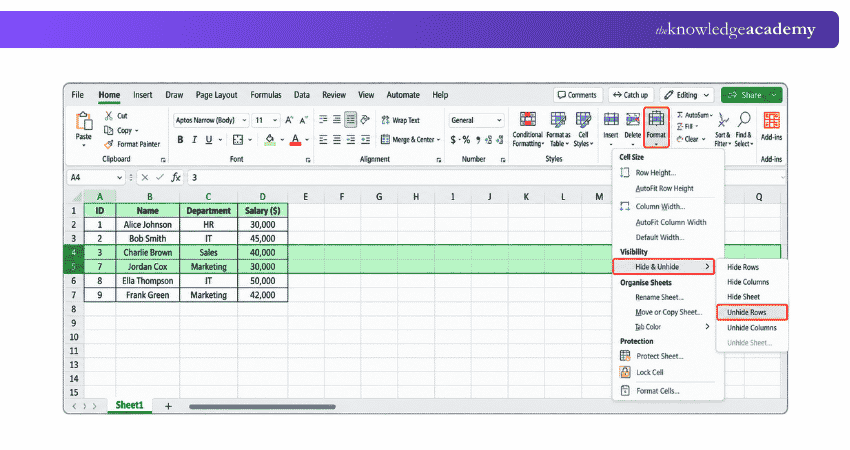
How do I Unhide all Rows in Excel on my Mac?
If some rows seem to be missing in your spreadsheet, they might simply be hidden. Follow these steps to make all rows visible again:
1) Open Your Excel Workbook: Start Excel and open the file where rows are not showing.
2) Select the Entire Sheet: Click on the square icon at the intersection of the row numbers and column letters to highlight every cell in the worksheet.
3) Right-click any Row Number: While everything is selected, right-click on any of the row numbers on the left-hand side.
4) Click "Unhide": From the menu that appears, select "Unhide" to display all hidden rows.
Adjust row height if needed. If rows are still not visible, go to the Format menu, click Row Height, and set it to a typical value like 15.
Quick Checklist: When Excel Rows Go Missing
□ Check for gaps in the row numbers□ Look for active filters□ Select the entire worksheet if necessary□ Use Unhide Rows□ Check whether row height is set to zero□ Check worksheet protection if Unhide is unavailable□ Review newly visible data and formulas□ Save the workbook after confirming the results
Learn how to create dynamic Gantt Charts in Excel and keep every task and milestone on track. Sign up for the Excel Training With Gantt Charts Course now!

Gaurav Kalita is a Content Writer with 2+ years of experience in content development, research and storytelling. His background in English literature and teaching, combined with his growing interest in AI and Machine Learning, supports his writing across Business Skills and IT and Tech.
View Detail

 If you wish to make any changes to your course, please


