


 Top Rated Course

We may not have the course you’re looking for. If you enquire or give us a call on 01344203999 and speak to our training experts, we may still be able to help with your training requirements.
How to Create a PowerPoint Presentation: A Step-by-Step Guide
The Knowledge Academy 16 July 2026Creating a PowerPoint Presentation involves designing slides that effectively convey your message using text, visuals, and structured layouts. Start by outlining your content, then use templates, images, and animations. A well-crafted presentation supports communication, whether for business, education, or storytelling.

Training Outcomes Within Your Budget!
We ensure quality, budget-alignment, and timely delivery by our expert instructors.
Table of Contents
You’re sitting at your desk, coffee in hand, deadline looming, and you’ve just been asked to put together a PowerPoint presentation. Suddenly, that blank screen feels more intimidating than it should. We've all been there - when turning ideas into slides feels like climbing a mountain in flip-flops. The good news? It doesn’t have to be that way.
Once you know How to Create a PowerPoint Presentation, the whole process becomes smoother, quicker, and dare we say, even a little fun. In this step-by-step blog, we’ll show you How to Create a PowerPoint Presentation that’s clear, visually engaging, and makes you look like you’ve been doing this for years, even if it’s your very first time.
Table of Contents
1) Understanding PowerPoint Presentations
2) Step to Create a PowerPoint Presentation
3) Tips for an Effective PowerPoint Presentation
a) Plan with an Outline Before Creating Slides
b) Maintain Consistency in Colours and Fonts
c) Review and Refine Slides Before Presenting
4) Conclusion
Understanding PowerPoint Presentations
Microsoft PowerPoint is a slideshow program that allows you to combine text, images, charts, animations, and multimedia into a series of slides. These slides are used to convey information in a structured and visually engaging way.
PowerPoint Presentations are commonly used in education, business, marketing, and personal projects or Storytelling. The goal is to enhance communication, making it easier for your audience to grasp your key messages. A well-designed presentation not only supports your speech but can also keep your audience engaged and interested throughout.

Step to Create a PowerPoint Presentation
Let’s now break down the process into manageable steps. You do not need to be a design expert to follow these.
1) Opening the PowerPoint Application
Start by launching Microsoft PowerPoint. If you're using a Windows computer, you’ll usually find it in the Start menu under Microsoft Office. On a Mac, it's typically located in your Applications folder.
Once the application opens, you’ll be greeted with a blank presentation or a choice of templates. This is your starting point.

2) Selecting a Design Theme
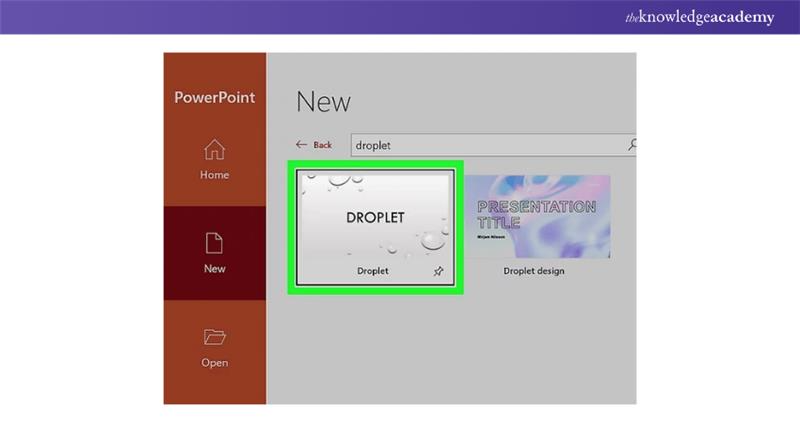
Your theme sets the tone for the entire presentation. PowerPoint offers a wide range of built-in design templates that include colour schemes, fonts, and background designs.
Choose a theme that matches the mood and purpose of your presentation. For instance, go for minimal and clean designs for professional use, and use vibrant, colourful themes for creative projects. You can always customise your choice later if you change your mind.
3) Designing the Title Slide
Your title slide is the first thing your audience will see, so make it count. Include the presentation title, your name, and any other relevant information such as the date or company name.
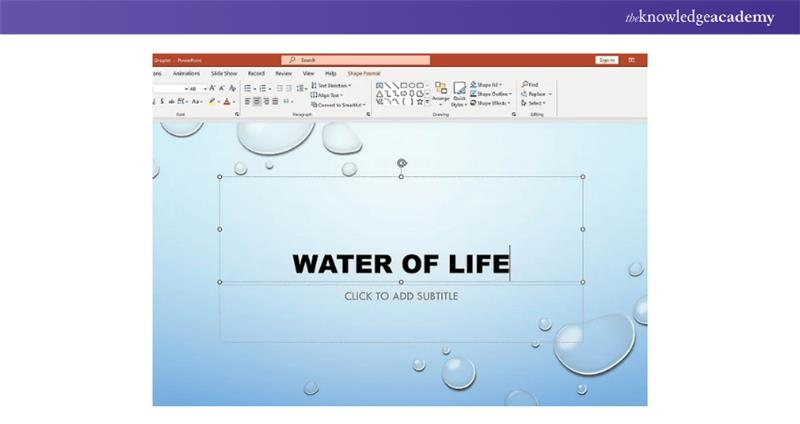
Avoid overcrowding the title slide. Keep the text simple and readable. This slide acts as your visual handshake with the audience, so it should look polished and professional.
Take your Microsoft Office skills to the next level – sign up for our Power Apps and Power Automate Training!
4) Adding and Organising Slides
After your title slide, it’s time to start adding content slides. You can do this by clicking on the "New Slide" button in the toolbar. PowerPoint will offer different layout options for each new slide, such as ‘Title and Content’, ‘Comparison’, or ‘Blank’.
As you add more slides, think about the logical flow of information. Make sure each slide leads smoothly into the next. You might want to begin with an introduction, followed by the main content, and end with a summary or conclusion.
5) Incorporating Charts, Images, and Graphs
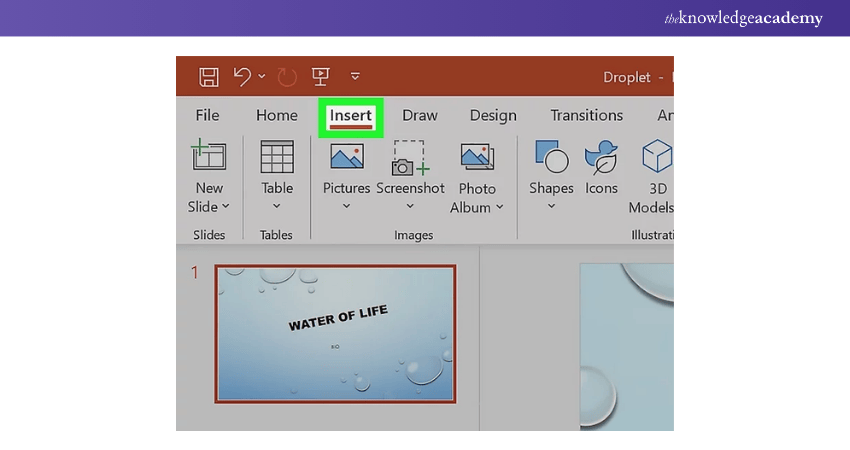
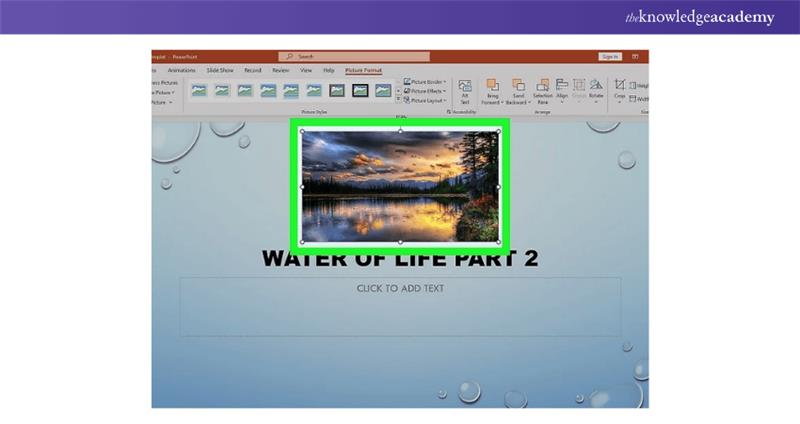
Visuals make your presentation more engaging and easier to understand. You can insert images, graphs, and charts directly from the Insert tab.
a) Images: Use high-quality pictures relevant to your content. Avoid overloading slides with too many visuals.
b) Charts and Graphs: Ideal for showing data trends or comparisons. PowerPoint allows you to create bar charts, pie charts, and line graphs directly in the app.
c) SmartArt: This feature helps you visualise processes, cycles, and relationships using pre-made graphics.
These elements should support your message, not distract from it, so use them wisely.
6) Applying Slide Transitions
Transitions are visual effects that appear when you move from one slide to another. While these can add flair to your presentation, moderation is key.
To apply a transition, click on the “Transitions” tab and choose an effect. Simple transitions like ‘Fade’ or ‘Push’ work well for most situations. Avoid using too many different effects, as it can look chaotic and unprofessional.

7) Rearranging Slide Order
If you want to change the sequence of your slides, go to the Slide Sorter view. You can simply click and drag slides into a new order. This feature is especially helpful once you’ve created all your slides and want to ensure the structure flows logically.
Take a few minutes to go through your entire deck from start to finish. Ask yourself whether the progression makes sense to someone seeing it for the first time.
8) Running Your Presentation
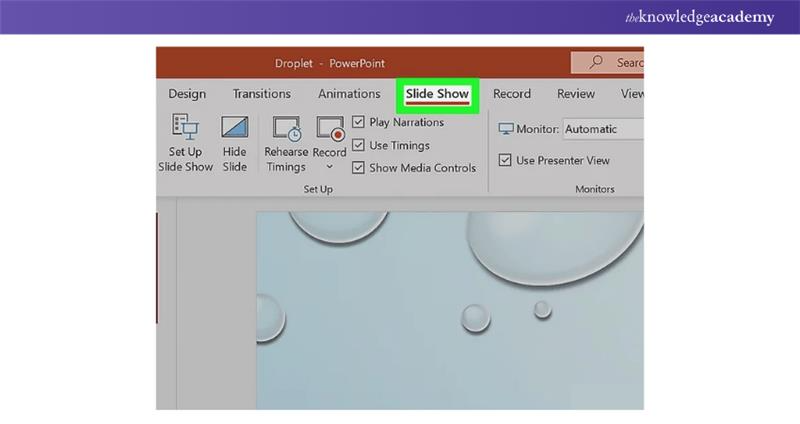
When your slides are ready, it’s time to present. Click on the “Slide Show” tab and select “From Beginning” to run the presentation from the first slide.
Use the arrow keys or space bar to navigate between slides. If you’re using speaker notes, they’ll be visible on your screen only (not on the projector), allowing you to present with confidence and clarity.
Learn how to create customised slide shows in MS PowerPoint with our Microsoft PowerPoint MO300 Training - Join now!
Tips for an Effective PowerPoint Presentation
Now that you know how to build a presentation, here are some best practices that will take your slides from basic to brilliant and also help in sharpening your overall presentation skill.
1) Plan with an Outline Before Creating Slides
One of the biggest mistakes people make is jumping straight into design without a plan. Before opening PowerPoint, sketch out an outline of your presentation. Decide on the key points you want to cover, the order in which to present them, and where visuals might be useful. Planning saves time and helps keep your content focused and structured.
2) Maintain Consistency in Colours and Fonts
A cohesive look helps keep your audience focused on the content rather than being distracted by inconsistent styling. Choose a colour palette that complements your message. For example, blue tones often suggest professionalism and trust, while bright colours may signal creativity and energy.
Use one or two fonts throughout the presentation. A bold font for headings and a clean, readable font for body text usually works best.
3) Review and Refine Slides Before Presenting
Before hitting that play button, take time to review your slides. Look out for spelling mistakes, misaligned objects, and inconsistent font sizes.
Practice your presentation a few times to make sure the timing works, and the transitions feel natural. If possible, get feedback from a friend or colleague. A fresh pair of eyes can catch things you might have missed.
Conclusion
Creating a compelling PowerPoint presentation is not just about knowing how to create a PowerPoint presentation. It’s about telling a story visually, keeping your message clear, and making a lasting impression. Whether you're preparing for PowerPoint Interview Questions or delivering a corporate presentation, each step plays a crucial role in the outcome. From selecting the right theme to organising content and practising delivery, ensuring clarity and impact is key. Keep your audience in mind, stay consistent with your design choices, and don’t forget to rehearse. The more you practise, the more confident you’ll become in presenting your ideas clearly and confidently.
Unlock your full potential and optimise your productivity with our comprehensive Microsoft Office 365 Training. Sign up now!
Frequently Asked Questions
How Do you Create a PowerPoint Presentation from a Word Document?

In Word, use heading styles (Heading 1 for slide titles, Heading 2 for content). Then, open PowerPoint, go to "File" > "Open" and select your Word file or use "Insert" > "Slides from Outline" to import. PowerPoint will convert the structure into slides.
How to Convert PDF into PowerPoint?
Open Microsoft PowerPoint, go to "File" > "Open" and select your PDF file. PowerPoint will convert the pages into editable slides. Alternatively, use online tools like Adobe Acrobat or third-party converters to export your PDF as a PowerPoint file (.pptx).

The Knowledge Academy


Global Training Provider
The Knowledge Academy is a world-leading provider of professional training courses, offering globally recognised qualifications across a wide range of subjects. With expert trainers, up-to-date course material, and flexible learning options, we aim to empower professionals and organisations to achieve their goals through continuous learning.


 If you wish to make any changes to your course, please


