




We may not have the course you’re looking for. If you enquire or give us a call on + 1-866 272 8822 and speak to our training experts, we may still be able to help with your training requirements.
What is Microsoft Office: Features, Benefits, and Uses
ByGaurav KalitaLast updated on: 02 October 2026
Wondering what is Microsoft Office and how it compares with Microsoft 365? This blog explains Microsoft Office, its key features, applications, and benefits, along with the key differences between Microsoft 365 and desktop Office.
Microsoft Office is a software suite that is very popular and, at the same time, frequently underrated. It greatly contributes to everyday tasks and teamwork among people in various organisations. To appreciate its full value, it is good to consider what is Microsoft Office apart from common tools.
Microsoft Office is far more than basic software; it determines how work is done in today's world. Its influence is felt not only by the individuals using it but also by groups and various tasks. Let’s first clarify what Microsoft Office is and its significance of it before we go any further.
What is Microsoft Office?
Microsoft Office is a collection of productivity applications used for professional and personal purposes to create documents, spreadsheets, presentations, emails, and more. It is made up of different applications that assist in performing basic and complicated tasks on different devices and in different working surroundings.
Today, Microsoft offers Office 2024 as a one-time purchase, while Microsoft 365 provides subscription-based access to familiar productivity applications together with additional services and ongoing feature updates.
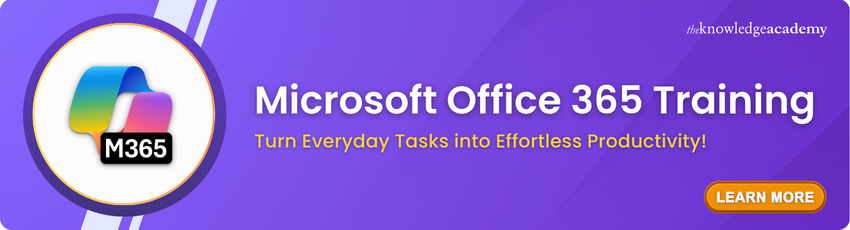
MS Office Applications
Microsoft Office includes several different applications, each serving a unique purpose. Below, we explore the primary components of the MS Office suite:
1) Microsoft Word
Microsoft Word is a word processing application utilised to create and edit documents. It provides extensive formatting options, templates, and collaboration features, making it ideal for writing reports, letters, essays, and more. With powerful tools like spell check, grammar suggestions, and options for deleting a page in Microsoft Word, users can efficiently produce professional-quality documents.
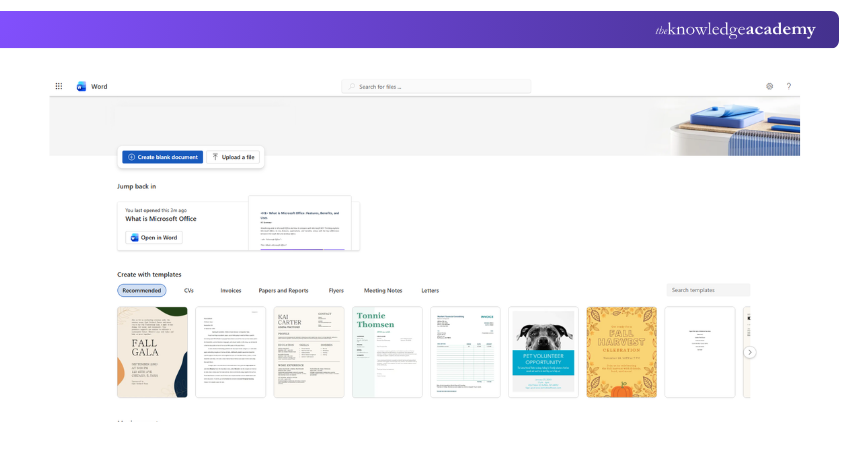
Uses at the Workplace:
a) Creating documents like reports, letters, and articles
b) Modifying and formatting text, including visuals and tables
c) Developing templates and mail merging
d) Reviewing and monitoring changes in documents
Pro Tip
For longer Word documents, use Styles for headings instead of formatting each heading manually. This helps maintain consistent formatting and makes it easier to create and update a Table of Contents.
2) Microsoft Excel
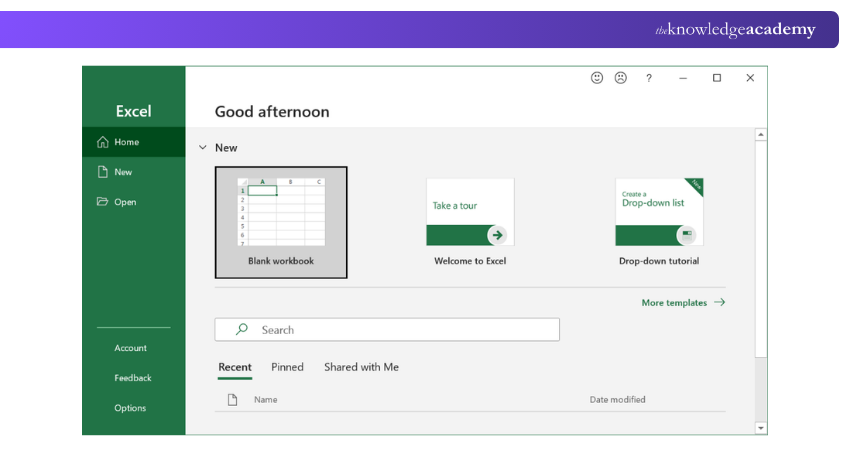
This is a spreadsheet application used for data organisation, analysis, and visualisation. It supports complex calculations, data manipulation, and graphical representations through charts and graphs. Excel is widely used for financial analysis, statistical analysis, and Project Management, offering functions and tools that cater to both basic and advanced users.
Uses at the Workplace:
a) Organising and analysing data
b) Creating charts and graphs
c) Performing calculations
d) Using formulas and functions
e) Managing budgets and finances
f) Forecasting and trend analysis
3) Microsoft PowerPoint
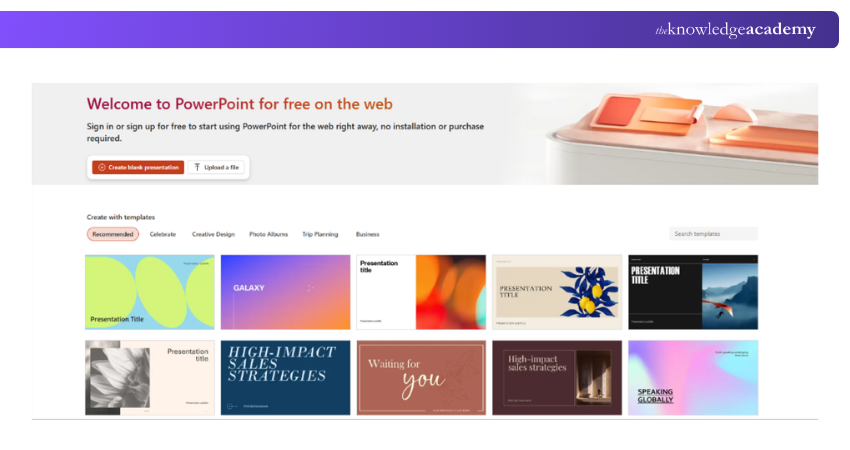
This is a presentation software used for creating slideshows that combine text, images, videos, and other multimedia elements. It is widely used in commercial presentations, educational lectures, and personal projects. PowerPoint's design templates, animation effects, and collaboration features allow users to craft engaging and visually appealing presentations.
Uses at the Workplace:
a) Creating presentations for meetings and conferences
b) Adding text, images, and videos
c) Designing slides with different layouts and themes
d) Using animations and transitions
e) Rehearsing and presenting presentations
Pro Tip
Give each PowerPoint slide one clear purpose. If a slide is trying to communicate several unrelated ideas at once, consider splitting it into separate slides to make the presentation easier to follow.
4) Microsoft Outlook
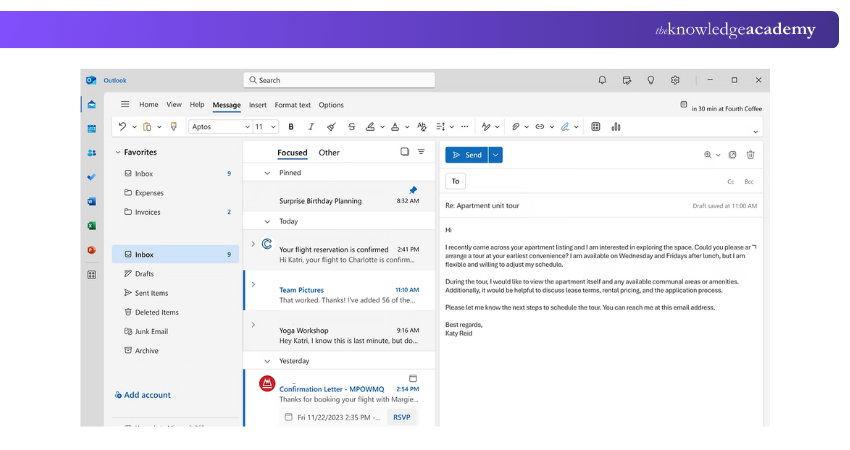
This is an email client that also includes calendar, task management, and contact management features. It is widely used in business environments to manage communication, schedule meetings, and organise tasks. Outlook integrates with other Microsoft Office applications, providing a seamless workflow for managing daily activities.
Uses at the Workplace:
a) Sending and receiving emails
b) Managing contacts and calendars
c) Creating tasks and events
d) Setting up reminders
e) Filtering and organising emails
f) Using email templates and signatures
Trainer’s Insight
Think of Outlook as a communication and scheduling workspace rather than just an email application. Using email, calendars, contacts and meeting scheduling together can make it easier to organise day-to-day work.
Take control of your inbox and own your workday with the Microsoft Outlook Training today!
5) Microsoft OneNote
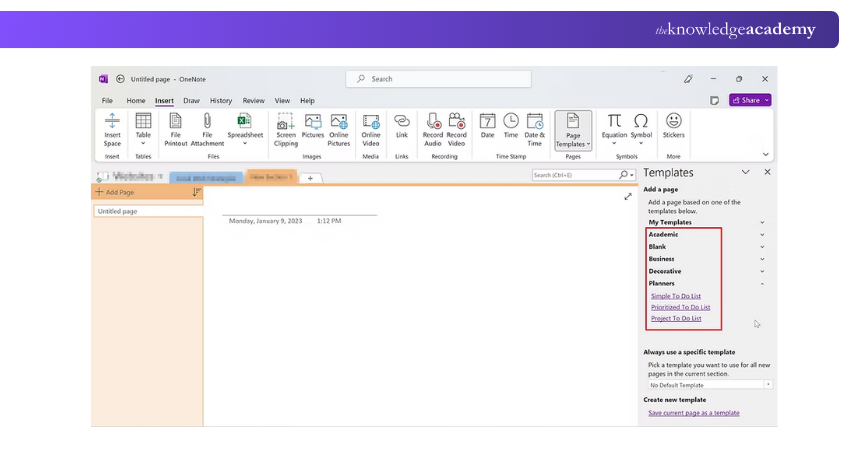
Microsoft OneNote is a digital note-taking application that enables users to capture and organise notes, ideas, and information. It supports text, images, audio, and video notes, making it a versatile tool for personal and professional use. Additionally, with Microsoft OneNote Add-ins, users can extend OneNote’s functionality, enhancing its versatility even further. OneNote's organisational features, such as notebooks, sections, and tags, help users keep their notes structured and easily accessible.
Uses at the Workplace:
a) Taking notes during meetings and presentations
b) Organising notes into notebooks and sections
c) Adding text, images, and voice recordings
d) Sharing notes with others
e) Searching notes for specific information
6) Microsoft Access
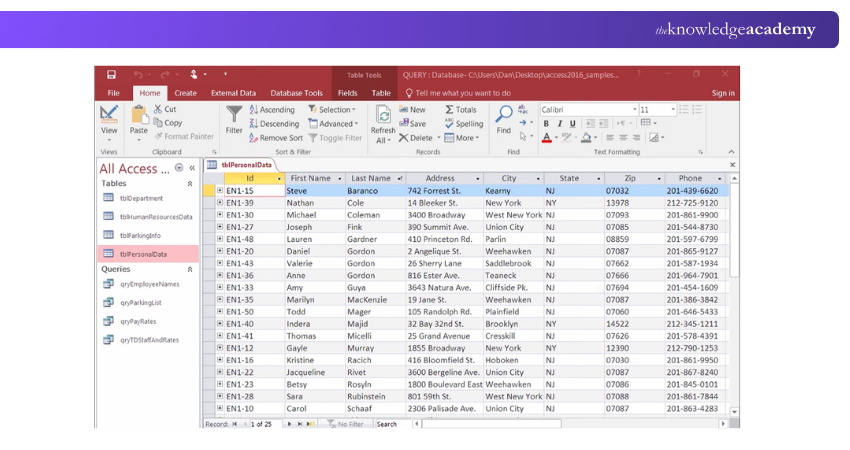
This database management system includes a relational database engine and a graphical user interface. It is used to store, manage, and analyse structured data, and it supports the creation of custom applications and reports.
Uses at the Workplace:
a) Storing and managing data
b) Creating tables and queries
c) Designing forms and reports
d) Automating tasks with macros
e) Analysing data and generating reports
7) Microsoft Publisher
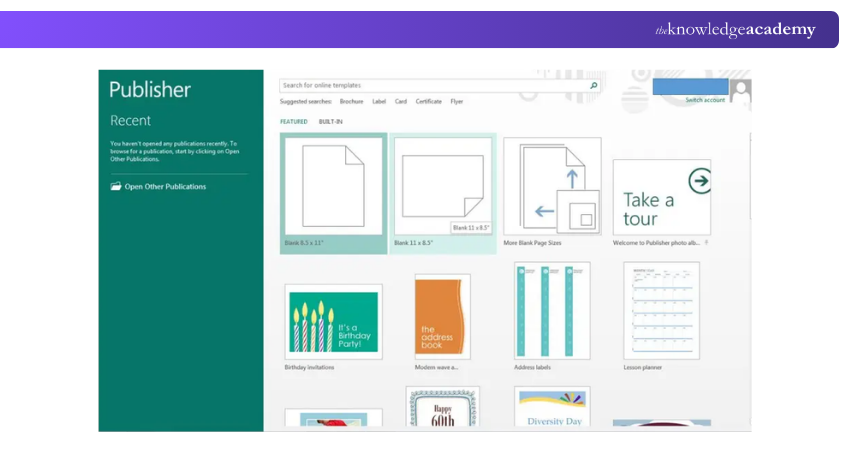
This is a desktop publishing application used to create professional-quality publications such as brochures, newsletters, flyers, and posters. It includes a multitude of layout tools and templates for design, making it simple for users to create appealing documents.
However, Microsoft Publisher is reaching end of life in October 2026. Microsoft 365 subscribers will no longer have access to Publisher after 1 October 2026, while support for the perpetual Publisher 2021 version ends on 13 October 2026. Microsoft recommends using applications such as Word and PowerPoint for many common Publisher tasks.
Uses at the Workplace:
a) Creating professional-looking documents, such as brochures, newsletters, and flyers
b) Designing layouts with different fonts and colours
c) Adding images and graphics
d) Formatting text and paragraphs
e) Printing and publishing documents
Build practical layout and design skills for business and marketing content with our Microsoft Publisher Training – Register now!
Microsoft Office Pros
The advantages mentioned below set Microsoft Office apart as one of the most-adopted productivity suites. Let’s look at them below:
a) Wide Range of Productivity Applications: You can get access to well-developed tools like Word, Excel, PowerPoint, and Outlook, with the applications and features available depending on the selected Office edition or Microsoft 365 plan, making it a comprehensive productivity suite.
b) Rich and Powerful Functionality: Since these apps have been refined for decades, they offer more advanced features and capabilities than many competing solutions.
c) Works Both Online and Offline: Installed Office and eligible Microsoft 365 desktop apps can be used without a continuous internet connection. However, internet access is required for installation, activation, updates and online services.
d) Robust Enterprise-grade Features: Microsoft 365 business and enterprise offerings provide security, compliance and administrative capabilities designed for organisational use.
e) Extensive Automation Options: Built-in scripting and automation tools give users the ability to streamline repetitive tasks across apps.
f) AI and Continuous Updates with Microsoft 365: Ongoing improvements and AI-powered features such as Copilot are available with eligible Microsoft 365 plans, helping keep the suite up-to-date and competitive.
g) Reasonable Pricing for Value: Office 2024 is available through a one-time purchase, while Microsoft 365 provides subscription-based access with ongoing feature updates and additional services
Microsoft Office Cons
The following are some limitations that users might experience depending on their needs and the extent of their use:
a) Too Feature-rich for Simple Tasks: The depth of features may feel overwhelming if you only need basic tools like simple word processing or spreadsheets.
b) Offline use can Hinder Collaboration: Encouraging offline work on files can lead to siloed workflows and confusion when merging changes later.
c) Less Consistent Across Platforms: Some applications and features differ between Windows and Mac, while Linux users generally rely on the web versions rather than equivalent native Microsoft 365 desktop applications.
d) Ongoing Subscription Costs: Microsoft 365 requires recurring payments. However, this does not apply universally to Microsoft Office because Office 2024 is available as a one-time purchase.
e) Confusing Pricing and Plan Options: Choosing between Office editions and different Microsoft 365 subscriptions can be difficult because applications, services and features vary between products and plans.
f) Premium Features may Cost Extra: Some advanced Microsoft 365 capabilities may depend on the selected plan or require additional licensing.
g) Regular Updates can Disrupt Workflows: Microsoft 365 receives ongoing feature updates, which can sometimes change the user experience. Office 2024, by comparison, receives security updates but does not receive continuous new feature additions
What is the Difference Between Microsoft Office and Microsoft 365?
You can choose between Office 2024 as a one-time purchase and Microsoft 365 as a subscription service. Both provide familiar productivity applications, but they differ in licensing, updates, device access and cloud-connected services.
1) Microsoft Office (Desktop)
Microsoft Office (Desktop), such as Office 2024, is a one-time purchase for users who prefer to own a specific version of the Office applications without an ongoing subscription. Its features and included applications depend on the edition purchased. As in:
a) Office 2024 can be purchased with a one-time payment for installation on one PC or Mac.
b) The one-time purchase provides access to that version of Office. Security updates are included, but new feature upgrades and future major releases are not. A future major Office release must be purchased separately.
c) The applications included depend on the edition. Office Home 2024 includes classic versions of Word, Excel, PowerPoint and OneNote for one PC or Mac.
2) Microsoft 365 (Subscription)
Microsoft 365 is a subscription service, payable monthly or annually. The subscription provides ongoing feature updates, security updates and bug fixes while it remains active. Eligible Microsoft 365 subscriptions include fully installed desktop applications, so Microsoft 365 is not simply a web version of Microsoft Office.
Installed applications can also work offline, although internet access is required periodically for updates, activation and certain connected services. These subscription options cater to different users and needs, as outlined below:
a) Microsoft 365 Personal is designed for one person. Microsoft states that its apps can be installed across a user's devices, with the user able to sign in on five devices simultaneously.
b) Microsoft 365 Family can be shared with up to five additional people.
c) Microsoft 365 Business plans combine productivity applications and services, with the exact features depending on the selected plan.
Pro Tip
Don’t choose between Office 2024 and Microsoft 365 based only on the applications you recognise. Consider how many devices you use, whether you need ongoing feature updates and cloud-connected services or prefer a one-time purchase or a recurring subscription.
How to Get Microsoft Office for Free?
If you have a Microsoft account, you can utilise the browser-based applications such as Word, Excel, and PowerPoint for free through Microsoft 365 for the web.
Microsoft provides free web and mobile access to applications including Word, Excel, PowerPoint, OneDrive and Outlook, along with 5 GB of OneDrive cloud storage. The browser-based offering should not be confused with receiving the full paid desktop editions of Office for free.
Myth vs Reality
Myth: Microsoft provides the complete paid desktop version of Office for free.Reality: Microsoft provides free browser-based versions of Word, Excel and PowerPoint through Microsoft 365 for the web. Full desktop applications and premium capabilities depend on the relevant Office purchase or Microsoft 365 subscription.
Learn the essentials behind the Microsoft 365 ecosystem by joining the Microsoft 365 Fundamentals MS900 Training now!

Gaurav Kalita is a Content Writer with 2+ years of experience in content development, research and storytelling. His background in English literature and teaching, combined with his growing interest in AI and Machine Learning, supports his writing across Business Skills and IT and Tech.
View Detail

 If you wish to make any changes to your course, please


