


 Top Rated Course

We may not have the course you’re looking for. If you enquire or give us a call on 01344203999 and speak to our training experts, we may still be able to help with your training requirements.
YouTube Banner Size: Key Dimensions & Best Practices
James Smith 15 July 2026Establish and imprint the first impression of your channel's identity with a YouTube banner. A YouTube Banner Size makes your channel look sharp on all devices. Ensures your content is properly displayed across mobiles, tablets, desktops, or TVs. Get the best dimensions, design tips, and sizes to create a stunning channel banner.

Training Outcomes Within Your Budget!
We ensure quality, budget-alignment, and timely delivery by our expert instructors.
Table of Contents
YouTube has been on the run for years. For the past decade, it has merged exceptionally with our lives and become one of the major sources of information and entertainment. However, the content discussed alone doesn’t count towards the reach of a video. Every single element contributes to gaining users’ attention. YouTube Banner Size is one on the list, too.
Are you struggling to make a strong first impression on your YouTube channel? Your banner is not just a picture; it is the face of your channel and helps viewers know what you are all about. Read along this blog to know what is the YouTube Banner Size, dimensions and design approach!
Table of Contents
1) What is a YouTube Banner?
2) YouTube Banner Size Guidelines
3) YouTube Banner Channel Art Guide
4) How to Upload a YouTube Banner?
5) YouTube Banner Best Practices
6) YouTube Thumbnail Image Size
7) YouTube Banner Examples
8) How Often Should I Change My YouTube Banner?
9) How Do I Add Social Media Buttons to My YouTube Banner?
10) Conclusion
What is a YouTube Banner?
A YouTube banner is the big picture at the top of your YouTube channel. It is like a cover photo that shows what your channel is about. It will be users’ first impression before getting into the video. You can use it to share your logo, slogan, or message that tells people what kind of videos you make.
A good banner helps your channel look professional and makes a strong first impression. Since people watch YouTube on phones, computers, and TVs, it is important to use the right size so your banner looks good on all screens.

YouTube Banner Size Guidelines
Your YouTube banner appears at the top of your channel and looks different depending on the device someone is using, like a phone, tablet, computer, or TV. That is why it is of utmost importance to use the right size and layout so your banner looks good everywhere.
The ideal YouTube Banner Sizes that fit all the devices include:
1) Best Size to Use: 2560 x 1440 pixels
2) Smallest Size Accepted: 2048 x 1152 pixels
3) Safe Space for Text and Logos: 1546 x 423 pixels (centre part)
4) File Size Limit: 6 MB
5) Image Format: JPG, PNG, BMP, or non-moving GIF
Banner Image Guidelines for Desktop
On desktop computers, YouTube shows more of the top and bottom of your banner. But depending on the screen size, parts of the top and bottom might still be trimmed. Only the middle part, which is the safe area, is always visible.
1) Banner Display Size on Desktop: 2560 x 423 pixels
2) Minimum Size to Upload: 2048 x 1152 pixels
3) Safe Space for Text and Logos: 1546 x 423 pixels
Banner Image Guidelines for iPhone, iPad, and Android
On phones and tablets, the banner is cropped even more. YouTube shows a smaller part of your banner, which is why it is important to keep key information right in the centre. You can use the full size for background designs but keep important details in the middle area.
1) Banner Display Size on Mobile Phones: 1546 x 423 pixels
2) Banner Display Size on Tablets: 1855 x 423 pixels
3) Minimum Size for the Safe Area of Text and Logos: 1235 x 338 pixels
YouTube Banner Channel Art Guide
The YouTube banner, also called channel art, is the large image at the top of your channel page. It will be the first thing that your viewers will see. It should grab their attention and clearly show what your channel is about. A well-designed banner builds your brand and encourages new users to stay and subscribe.
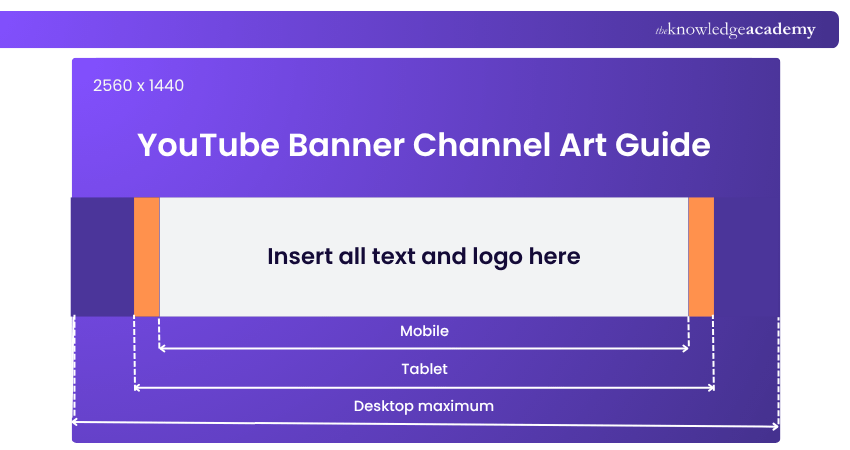
Since banners display differently on phones, tablets, desktops, and televisions (TVs), you need to follow YouTube’s size rules to make sure everything looks right everywhere. Here are the ideal sizes for your YouTube banner:
1) Full Banner Size: 2560 x 1440 pixels
2) Minimum Upload Size: 2048 x 1152 pixels
3) Maximum File Size: 6 MB
4) Aspect Ratio: 16:9
5) Safe Area Size: 1546 x 423 pixels
Tips for Creating YouTube Banner Channel Art
There are some details to be taken care of before creating a YouTube channel art. Here are some of the tips for you to create a perfect one:
1) Keep wordings big, bold, and simple since small text is hard to see on mobile devices
2) Match your banner style with your channel’s theme
3) Avoid too much clutter. A simple banner will be effective and easier to understand
4) Maintain your brand colours, fonts, and tone to keep your channel consistent
5) Use YouTube’s preview tool to see how your banner looks on all devices
Take control of your digital presence and tune your marketing skills by registering for our Social Media Marketing Course today!
How to Upload a YouTube Banner?
The following is the step-by-step procedure to how to upload a YouTube banner
Upload a YouTube Banner From the Desktop
a) Sign in to your YouTube account and go to your channel.
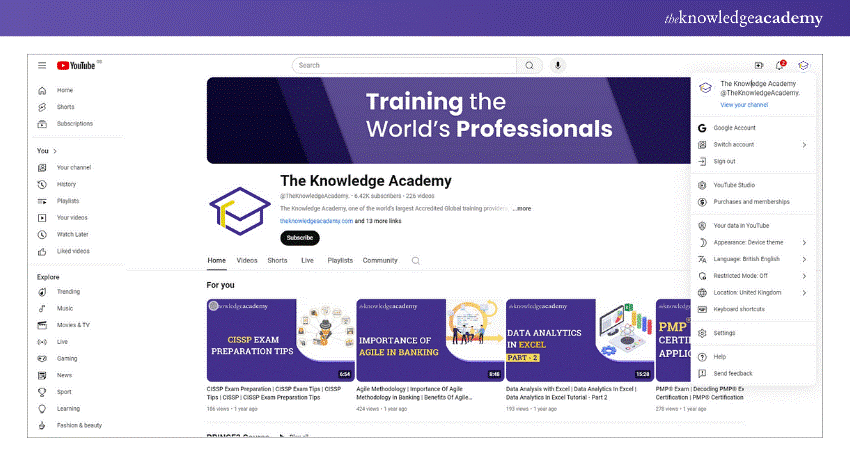
b) Then, click on the “Customise channel” option and select the “Branding” section.
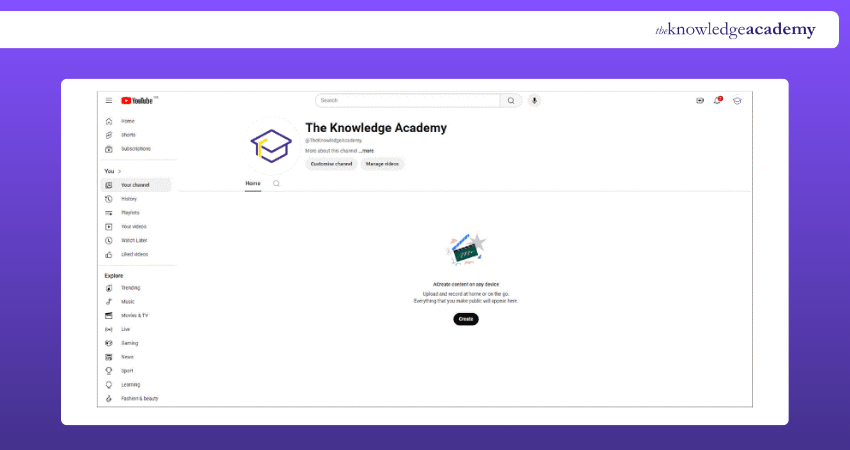
c) To upload your photo, click the "Upload photo" button below and select the desired banner from your computer.
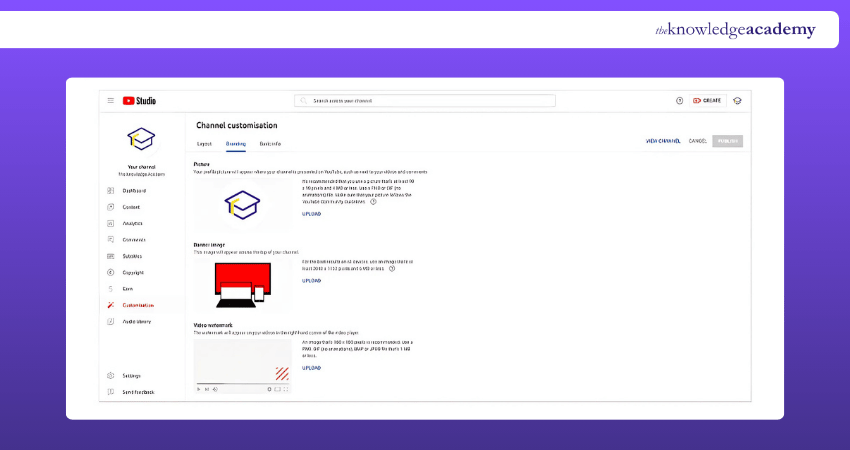
d) Adjust the crop and preview the banner across different devices.
e) Click “Select” or “Publish”, and your new banner will be uploaded.
Upload a YouTube Banner From Your iPad, iPhone, or Android
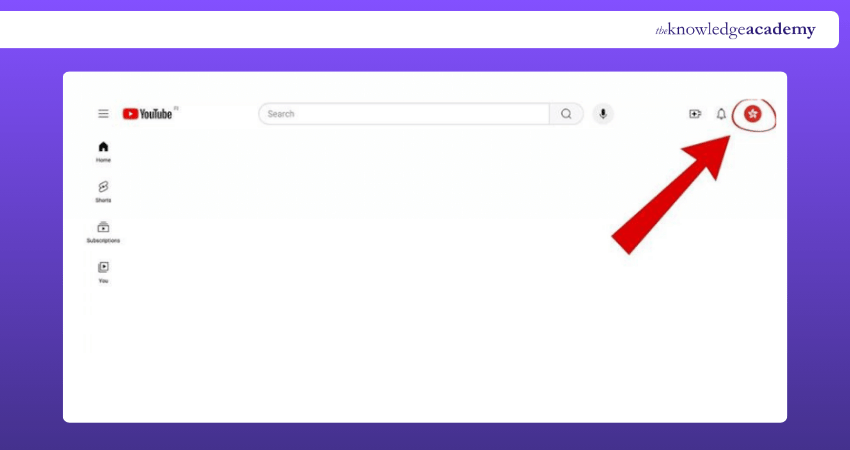
a) Open the YouTube app or browse YouTube on any browser. Log in to your account and tap on your account icon.
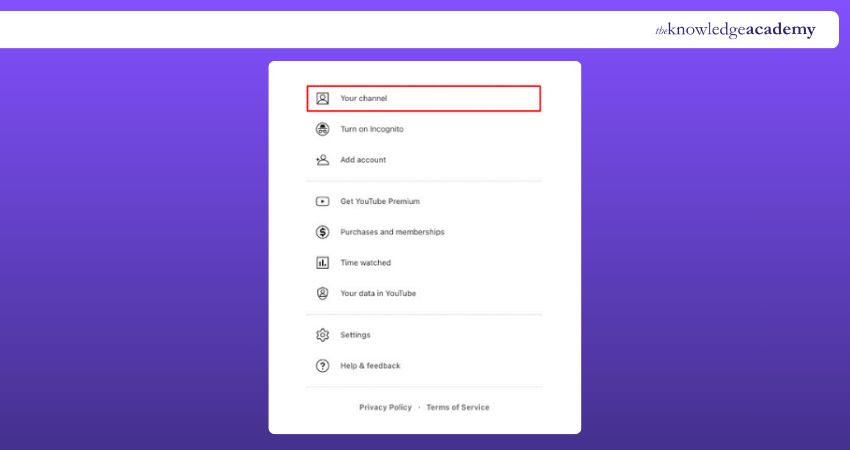
b) Go to 'Your channel', then tap on the camera icon on the banner.
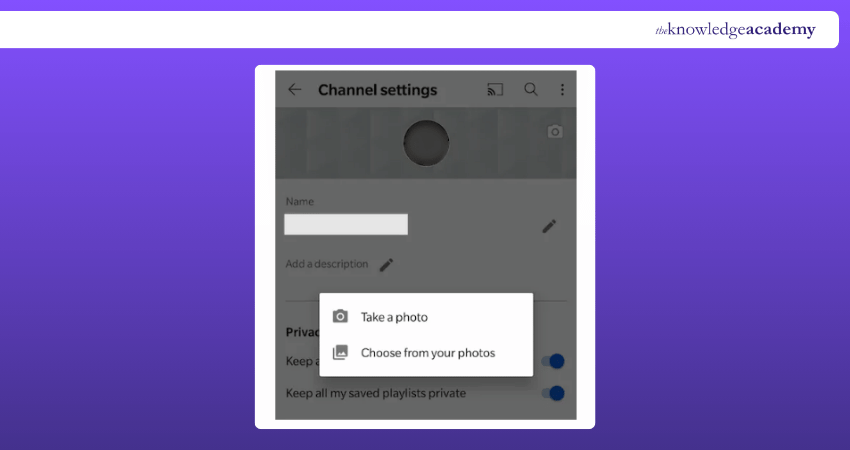
c) Choose 'Select from your photos' or 'Take a photo' to add a new banner.
d) Adjust the scaling and positioning of your banner image. You can select the image with the size 2560 x 1440 pixels.
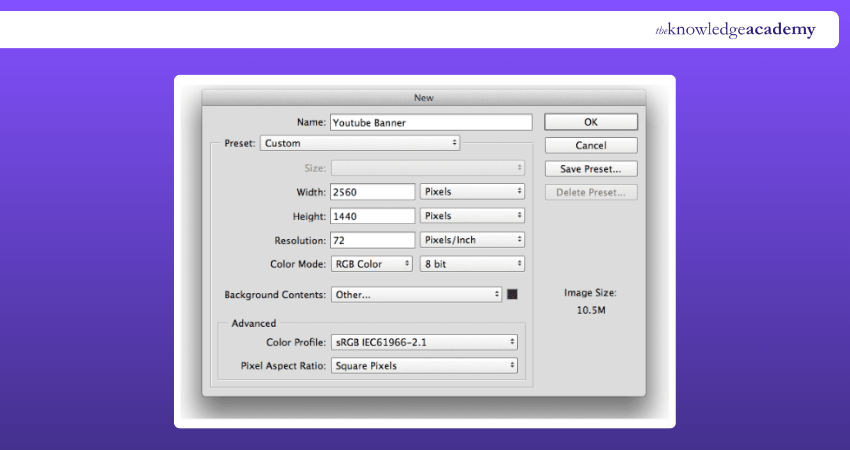
e) Save the changes, and your banner will update across devices.
YouTube Banner Best Practices
Now that you know how to upload a banner, here are some tips to make sure it looks great and works well for your channel.

1) Use High-quality Images
Always use high-resolution images to ensure your banner looks professional and crisp on all screens. Poor-quality images can badly affect your channel's credibility.
2) Simple and Clean Designs
A cluttered banner can distract viewers from your main message. For that, you need to keep the design clean and simple and focus on key elements like your logo, tagline, or main image.
3) Make Sure the Banner is Compatible with Your Channel Icon
Your channel icon often appears over the banner, so ensure the colours and designs are complementary and not clashing.
4) Link to Social Media Buttons
YouTube allows you to add links to social media on your banner. Utilise this feature to connect viewers with your other platforms, increasing your overall online presence.
5) Pay Attention to Spaces Outside of Mobile-only Zones
While the mobile view shows only the centre of your banner, desktop and TV screens show more. Try filling in the extra space, but keep key info in the centre to avoid it getting cut off.
6) Brand Building Toolbox for YouTube Banners
Your YouTube banner is more than just a background. It is an integral part of your brand. It should match your brand’s colours, fonts, and message to connect well with your audience.
Become familiar with the procedures and tricks of video marketing with our Video Marketing Course – Sign up immediately!
YouTube Thumbnail Image Size
A YouTube thumbnail is the small picture people see before clicking on your video. It is the first point of interaction before watching the video. It explains how it plays a big role in grabbing users’ attention.
The best size for a YouTube thumbnail is 1280 x 720 pixels. It must be at least 640 pixels wide and less than 2MB in size. The image should be in a 16:9 shape, which fits well on YouTube. You can use image formats like .JPG, .PNG, .BMP or .GIF (non-animated).
A good thumbnail helps people notice your video, so make sure it is clear, bright, and easy to understand even when it is small.
YouTube Banner Examples
a) Video Game Channel: An energetic header showcasing gaming characters and thrilling scenes, with standout text showcasing the channel's name and slogan such as "Exciting Gaming Journeys!"
b) Beauty Vlogger: An attractive banner in pastel hues, featuring beauty items, a prominent logo, and a catchphrase like "Makeup Tips & Tutorials."
c) Travel Vlog: An attractive banner featuring beautiful landscapes, with the channel's name in a fun font and a tagline such as "Discover the World with Us!"
d) Cooking Channel: A warm kitchen setting with culinary tools and cookware, showcasing the channel's title and a catchphrase such as "Simple and Tasty Recipes."
e) Fitness Channel: An animated banner featuring fitness visuals, like dumbbells or yoga positions, paired with inspiring messages like "Change Your Body."
f) Tech Review Channel: Featuring a stylish design with tech gadgets and logos, presenting the channel name along with the tagline "The Newest in Tech Reviews and Advice."
g) Educational Channel: An uncluttered banner with educational symbols, featuring the channel title and a slogan such as "Expand Your Knowledge Daily!"
How Often Should I Change My YouTube Banner?
You don’t have to change your YouTube banner often but updating it every few months is a good idea. It is applicable especially if your content, branding, or schedule changes. This is because if your channel gets a new look or theme, your banner should match. You can update it for special events, seasons, or promotions to keep your users engaged.
How Do I Add Social Media Buttons to My YouTube Banner?
To add social media buttons, go to your YouTube channel and click “Customise Channel” option. Then open the “Basic Info” tab and scroll down to the “Links” section. Here, you can include various links to your social media profiles like Facebook or Instagram.
Once you save the changes, the added icons will show up on the bottom right corner of your banner for users to click and visit your profiles.
Conclusion
Getting your YouTube Banner Size right isn’t just about looks. It is a lot about making a strong first impression. By using the correct size, keeping important details visible, and staying true to your style, you create a banner that feels professional and welcoming. With a little effort, your banner can really help your channel stand out.
Upskill your strategic content creation to enhance brand visibility online with our Influencer Marketing Course – Register now!
Frequently Asked Questions
What Size is the YouTube Banner Viewable on All Devices?

The part of your YouTube banner that shows up on all devices is called the safe area, and its size is 1546 x 423 pixels. This is the middle section of your banner. This is where you should place details like your channel name, logo, or tagline. Keeping everything in this space ensures nothing gets cut off on phones, tablets, or computers.
How Do I Make My YouTube Banner Fit My Picture?
To get your YouTube banner to fit your picture properly, you need to change the image to 2560 x 1440 pixels. The key is to keep important details like your logo or any text within the centre 1546 x 423 pixels, so they don’t get cut off on different screens. Tools like Canva or Adobe Express make it easy to adjust and position your image.

James Smith


Digital Marketing Manager and Trainer
James Smith is a digital marketing professional with over a decade of experience in SEO, content strategy, paid media and analytics. He has supported both SMEs and global brands in transforming their digital presence. James’s writing and training are rooted in results-driven tactics and the latest marketing trends.
View Detail

 If you wish to make any changes to your course, please


