


 Top Rated Course

We may not have the course you’re looking for. If you enquire or give us a call on 01344203999 and speak to our training experts, we may still be able to help with your training requirements.
What is a Network Security Key and Where to Find it?
John Davies 15 July 2026A Network Security Key is the password that protects your Wi-Fi network from unauthorised access and ensures safe online connectivity. This comprehensive blog explores what a key is, how it strengthens encryption, where to locate it across devices, how to reset or change it, and best practices for enhancing network security.

Training Outcomes Within Your Budget!
We ensure quality, budget-alignment, and timely delivery by our expert instructors.
Table of Contents

A network security key is a password that protects your wireless network and helps prevent unauthorised access. It plays a vital role in keeping your internet connection secure by encrypting the data shared between devices. Most home and office networks use these keys to ensure only trusted users can connect. In this blog, we’ll look at What Is A Network Security Key and why it matters for your digital safety.
Table of Contents
1) Definition of a Network Security key
2) Types of Network Security Keys
3) How to Find Your Network Security Key?
4) Tips for Choosing a Strong Network Security Key
5) Network Security Key Mismatch
6) Conclusion
Definition of a Network Security Key
The Network Security key is the password to the Wi-Fi network which establishes a secure connection between the devices and the router. It assists in keeping off the network and the users against unauthorised access, intruders, and prospective leaking data.

Types of Network Security Keys
There are four main types of network keys: Wired Equivalent Privacy (WEP), Wi-Fi Protected Access (WPA), Wi-Fi Protected Access 2 (WPA2), and Wi-Fi Protected Access 3 (WPA3). These encryption protocols protect Wi-Fi networks from unauthorised access and cyber threats.
Found on most routers, each type offers varying levels of security, with newer standards like WPA2 and WPA3 providing stronger, more advanced protection compared to older methods like WEP and WPA. Understanding these differences is crucial to defending against Password Attacks. Here’s a detailed breakdown of the four main types of network keys:
1) WEP (Wired Equivalent Privacy)
This is the first Wi-Fi security protocol. It used a static encryption code, which is now outdated and easily cracked with downloadable decryption software. As a result, WEP provides very limited security and is not recommended for use. In 2003, the Wi-Fi Alliance declared that WPA had superseded WEP.
2) WPA (Wi-Fi Protected Access)
WPA succeeded WEP and provided enhanced security. It employs a dynamic message integrity check algorithm known as Temporal Key Integrity Protocol (TKIP), which generates a unique encryption key for each packet transmitted across the network. Despite its improvements over WEP, WPA is still vulnerable to increasing cyberattacks.
3) WPA2 (Wi-Fi Protected Access 2)
Wi-Fi Protected Access 2 (WPA2) is the successor to WPA, incorporating the Advanced Encryption Standard (AES) to enhance security and replace the less secure TKIP system. AES provides strong encryption for all data transmitted over a Wi-Fi network. While WPA2 can still be compromised, it offers better protection against unauthorised access compared to previous protocols.
4) WPA3 (Wi-Fi Protected Access 3)
Wi-Fi Protected Access 3 (WPA3) is the recent protocol, designed to replace WPA2, though WPA2 remains widely used. WPA3 offers superior Network Security, allowing devices to join a network without transmitting a password. Instead, users sign in using a QR code or NFC tag. Understanding features like Turning on NFC on Android can help users take advantage of this seamless authentication method. Most routers certified post-2018 are compatible with WPA3, and every router certified after July 1, 2020, is required to support it.
Stay ahead of the curve with our CCNP Security Training – Join us and arm yourself with the latest skills to combat threats!
How to Find Your Network Security Key?
It is necessary to find your network key. You will find it printed on a sticker either at the back or bottom of your router and is often printed next to SSID or Wireless Password. In case it is altered, you will be required to access the key using a linked device. The following lists the steps to find your network key on various platforms:
Where to Find the Network Security Key on a Router
The network security key is usually printed on a label on the back or bottom of your router, labelled as “password” or “security key.” If it is not visible, check the manual. Changing the default key regularly helps protect your Wi-Fi network.
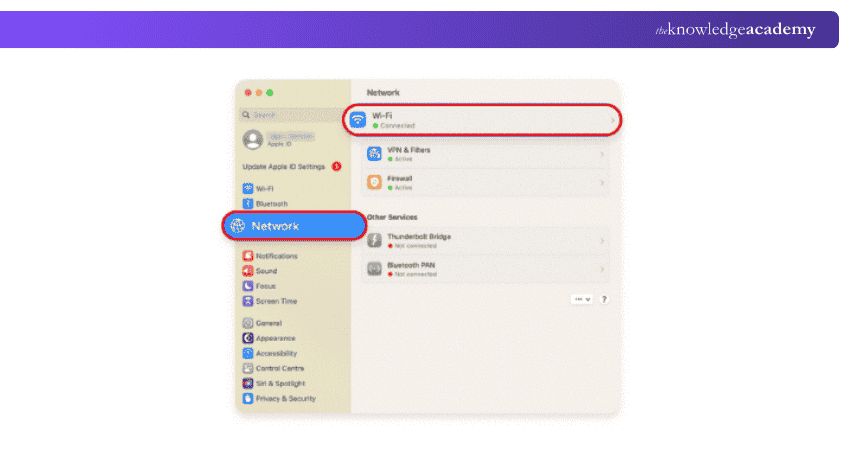
Where to Find the Network Security Key on Mac
a) Open “Applications,” then go to “Utilities,” and choose “Keychain Access”
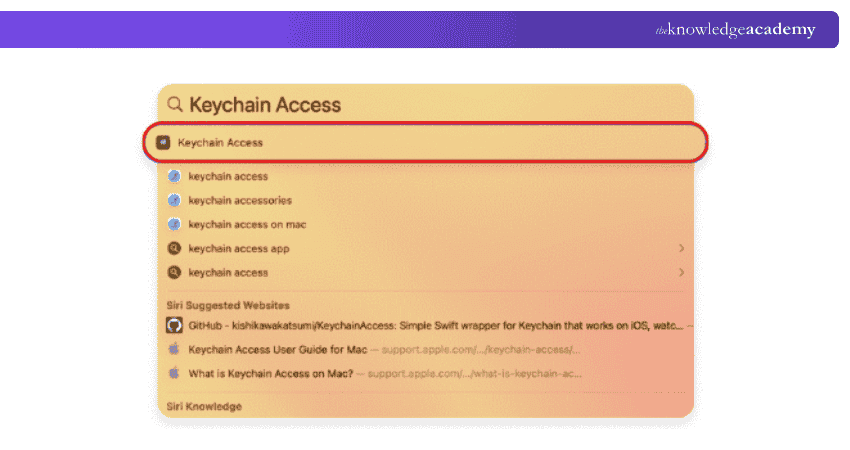
b) Look for your Wi-Fi network name, and double-click it
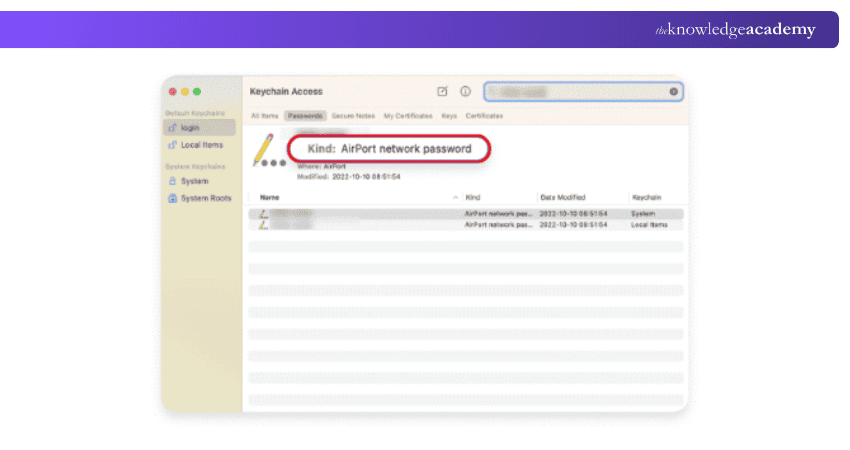
c) Select “Show Password”
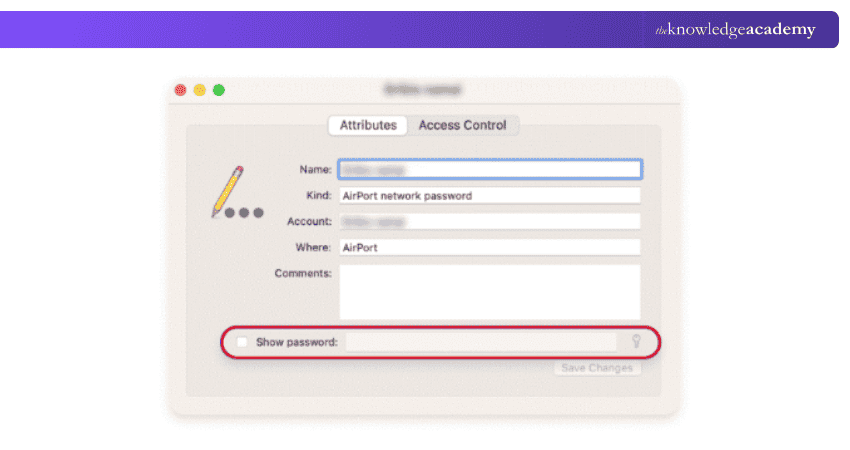
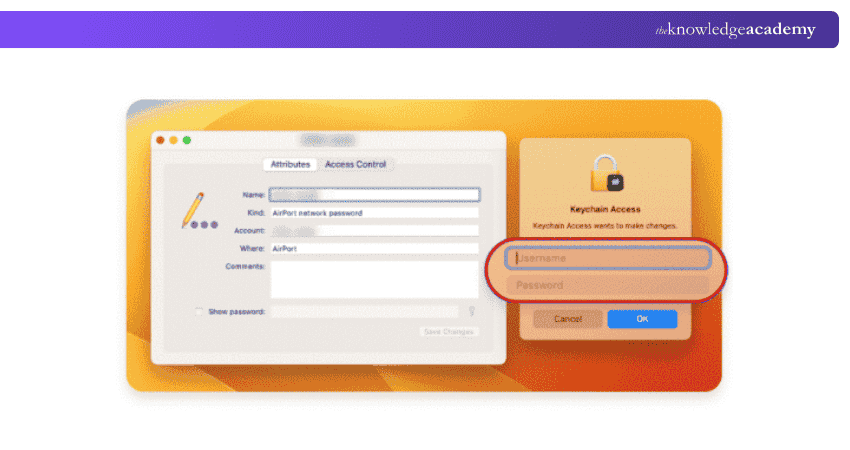
d) Enter your Mac password, and the Network Security Key will be revealed
Secure your network today with expert Cisco Umbrella Training now!
Where to Find the Network Security Key on Windows
a) In the Windows Start menu, look for and open the “Network Connections”
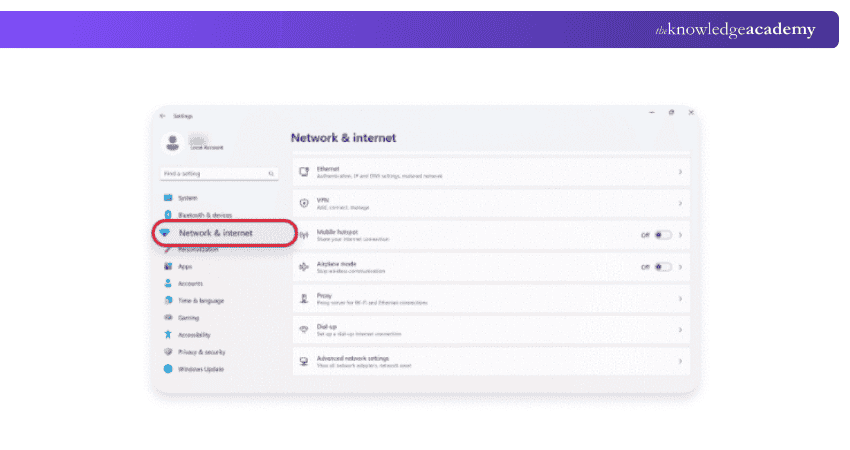
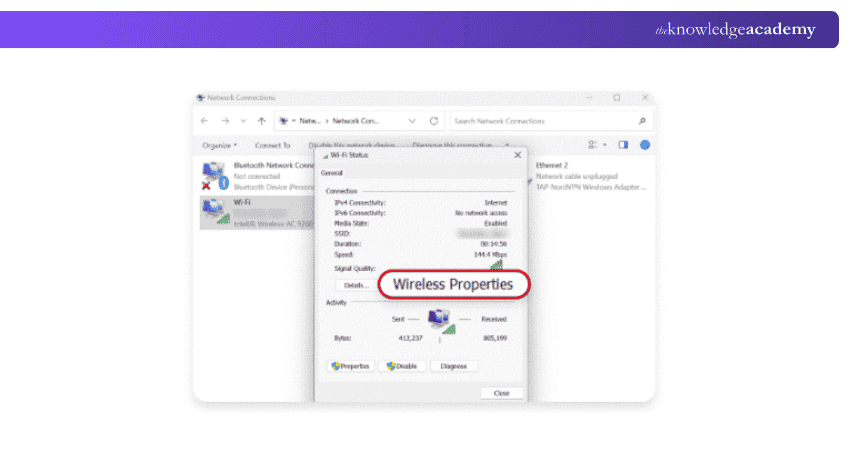
b) Double-click your Wi-Fi network and select “Wireless Properties” in the dialogue box that appears.
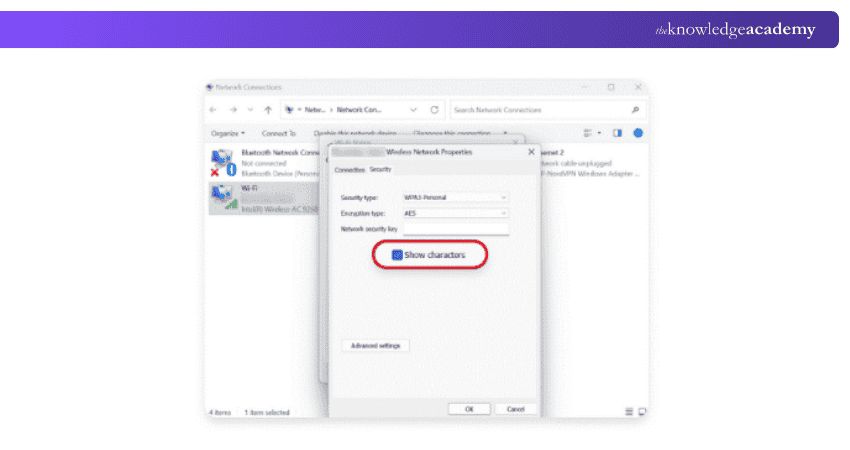
c) Navigate to the “Security” tab and look for the box labelled “Show Characters”
How to Use an iPhone or Android Device to Find the Network Security Key?
Keep Hackers at Bay! See How a Demilitarised Zone (DMZ) Protects Your Network.
Where to Find the Network Security Key on iPhone (iOS)
a) Open the "Settings" application on your iPhone and tap "Wi-Fi"
b) Next to your Wi-Fi network name, tap the blue "information icon"
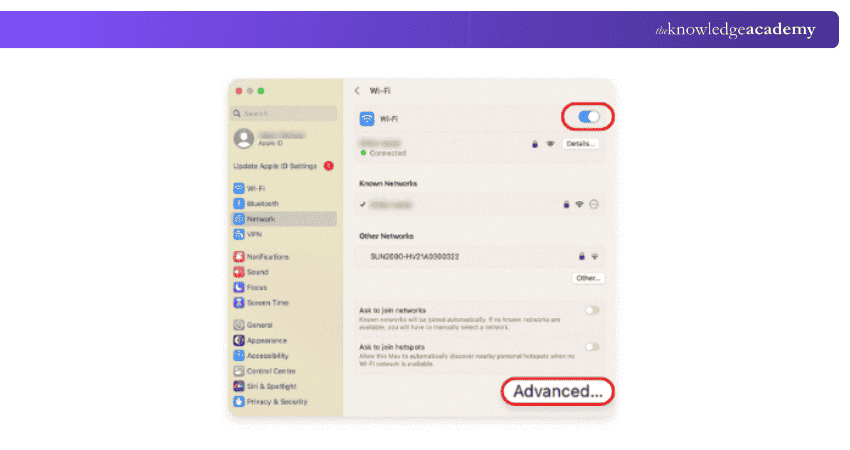
c) Copy the router’s IP address and paste it into your browser
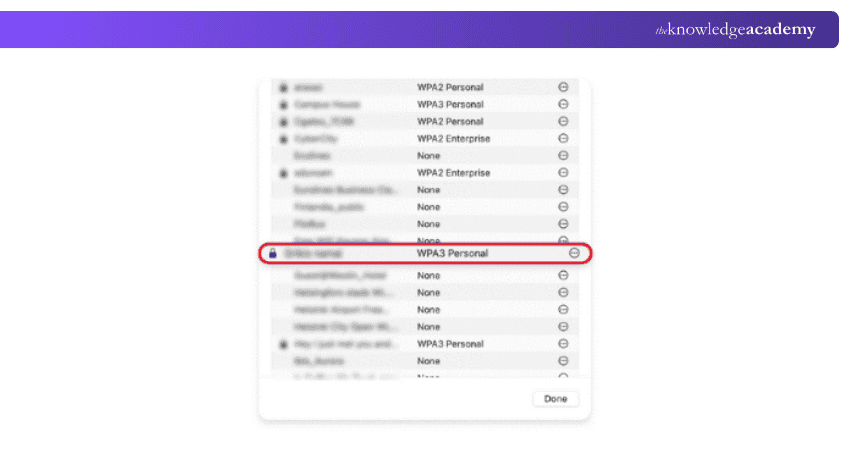
d) Log in to the router
Join our Cisco IOS Network Security Training and become proficient in techniques to protect your network – Sign up today!
Where to Find the Network Security Key on an Android Phone
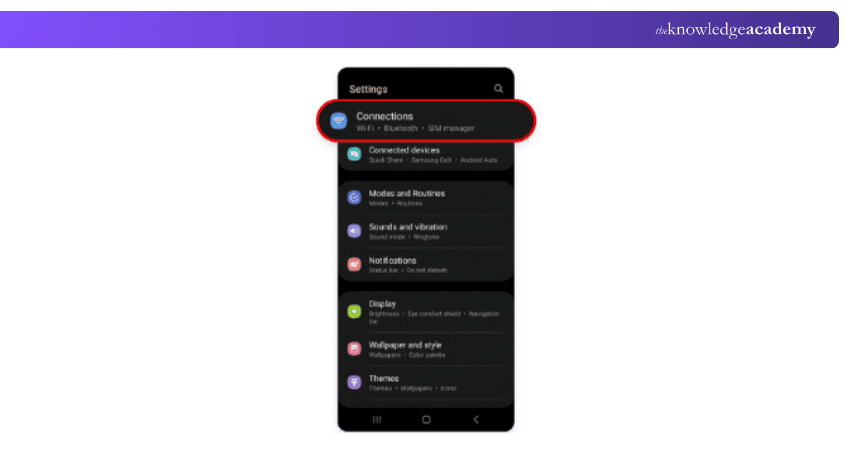
a) Open "Settings" on your Android device
b) Tap "Connections" and then Wi-Fi
c) Next to your current network, tap the "Settings" icon
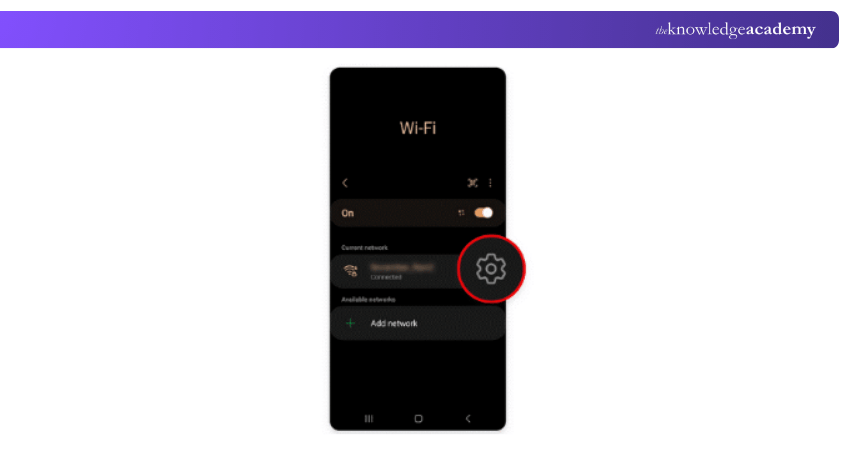
d) Select the "QR code" at the bottom left of the screen

Tips for Choosing a Strong Network Security Key
Choosing a strong password makes all the difference, whether you're securing a home Wi-Fi or setting up a hotspot network security key on the go. Choose a strong password by following these tips:
1) Prioritise Password Length – Longer passwords are harder to crack.
2) Use Special Characters – Symbols like @, #, &, and % add complexity.
3) Try a Password Generator – Use tools like Norton’s to create random, secure keys.
4) Change Your Password Regularly – Update it every few months to stay protected.
5) Avoid Reusing Passwords – Don’t use the same password across multiple accounts.
6) Limit Sharing – Consider setting up a guest network instead of sharing your main password.
Network Security Key Mismatch
A network security key mismatch occurs when the password entered to connect to a Wi-Fi network is incorrect or not recognised. These network security keys are essential for securing wireless connections, and any mismatch can prevent devices from accessing the network, even if the password appears to be correct.
Common Reasons for an Incorrect Wi-Fi Password
Several factors can cause issues when entering a Wi-Fi password, often leading to problems with the internet security key and preventing successful connection.
1) Incorrect Formatting – Case sensitivity or mistyped characters can lead to login errors.
2) Outdated Device Compatibility – Older devices may not support newer security protocols like WPA2.
3) Router Configuration Issues – Changes to router settings or firmware updates can reset or alter the network key.
4) Saved Password Conflicts – Devices may store outdated passwords that no longer match the current network key.
Conclusion
A network security key helps protect your Wi-Fi network by allowing only authorised devices to connect. It acts as a password that keeps your internet connection secure from unwanted access. Choosing a strong key is essential for safeguarding your personal data. In this blog, we’ll explain What Is A Network Security Key and how to manage it effectively.
Boost your wireless networking expertise with CCNP Wireless Training – Learn to design, implement, and secure enterprise Wi-Fi solutions.
Frequently Asked Questions
Are the Network Security Keys and Wi-Fi Password Similar?

Yes, the Network Security Key is like the Wi-Fi password. It is used to connect devices to your wireless network securely and ensures that only authorised users can access your internet connection.
How Often Should I Change my Network Security Key?
It's recommended to update your network security key every three months. This disconnects all previously connected devices, ensuring that only those with the new password can access your Wi-Fi network. It’s an effective way to manage and secure network access.

John Davies


Cyber Security Governance & Assurance Specialist
John Davies is a cybersecurity expert specialising in governance, risk management, and compliance. With over 15 years in the field, he has led enterprise-wide security programmes across finance, healthcare and public sector organisations. His content provides practical guidance on building secure environments, managing risk and aligning with regulatory frameworks.


 If you wish to make any changes to your course, please


