


 Top Rated Course

We may not have the course you’re looking for. If you enquire or give us a call on 01344203999 and speak to our training experts, we may still be able to help with your training requirements.
Essential SketchUp Tools Every Designer Should Know
Richard Harris 15 July 2026SketchUp tools like Push or Pull, Line, and Move help you draw, edit, and organise 3D models easily, making architectural and product designs simple even for beginners. These tools support rapid prototyping, accurate measurements, smooth model editing, and intuitive workflows that help users create clean, professional designs quickly.

Training Outcomes Within Your Budget!
We ensure quality, budget-alignment, and timely delivery by our expert instructors.
Table of Contents

SketchUp stands as a powerful 3D modelling software embraced by Architects, Designers, and Artists on a global scale. Its intuitive interface, combined with my tools, has solidified its position as a top choice for creating captivating 3D models. With a user-friendly interface accessible to beginners and professionals alike, SketchUp Tools appeal transcends skill levels.
You can explore this detailed blog about SketchUp Tools, uncovering crucial tools for 3D design that are essential to understand. If you are new to 3D modelling, there's something valuable to discover in the realm of SketchUp's versatile tools.
Table of Contents
1) What is SketchUp?
2) Essential Sketchup Tools for 3D Design
3) What plugins improve SketchUp tool functionality?
4) Why is grouping important after using drawing tools?
5) Conclusion
What is SketchUp?
Before we dive into the Tools, let's briefly introduce SketchUp. Developed by Trimble Inc., SketchUp is a versatile 3D modelling program used for numerous applications. Its user-friendly interface allows both beginners and professionals to create intricate 3D models with ease. SketchUp also offers a free version, as well as a paid version, which provides advanced features for professionals.
One of SketchUp's notable strengths is its accessibility. For beginners, the learning curve is gentle due to intuitive tools and a straightforward interface, making it an excellent starting point for 3D modeling. Whether using SketchUp or Blender, it offers a hands-on approach to learning without overwhelming technicalities. Additionally, by learning how to Change Units in SketchUp, you can tailor your model dimensions to specific needs, enhancing your design process.
Furthermore, SketchUp's collaborative nature enhances its appeal. Multiple users can work on the same model simultaneously, facilitating teamwork and streamlining the design process. This collaborative feature is particularly valuable in scenarios where input from different team members is essential for project success.

Essential Sketchup Tools for 3D Design
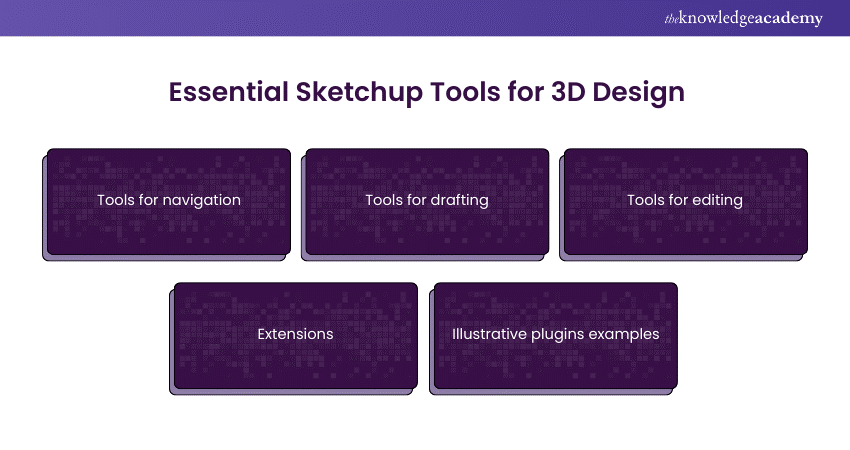
Before using Tools in SketchUp, you must discover the must-have Tools for creating stunning 3D designs. From navigation to editing, the following points can help you unlock the essentials for your projects. Let's explore SketchUp's key Tools together:
1) Sketchup Tools for Navigation
Navigation Tools in SketchUp are indispensable for exploring and manoeuvring within your 3D models. These Tools facilitate the ability to orbit, pan, zoom, and examine designs from various perspectives. Each Tool serves a distinct purpose:
a) Orbit Tool: This feature lets you freely orbit the camera around your model. Simply click and drag to adjust your perspective and view your model from any desired angle.
b) Pan Tool: With the Pan Tool, you can move your view horizontally and vertically. This is helpful for shifting your focus within the model without changing the zoom level.
c) Zoom Tool: The Zoom Tool allows you to zoom in for close-up details or zoom out for a broader view. You can simply click to zoom in or zoom out.
d) Walk Tool: This Tool offers a virtual walkthrough of your model, as if you're walking through it yourself. It provides a first-person perspective, which is useful for understanding the scale and spatial relationships within the design.
e) Look around Tool: When using the Look around Tool, you can change your view to observe your model from a fixed point. This Tool is particularly handy for examining details or specific areas of your design without altering the camera position.
2) Sketchup Tools for Drafting
Drafting Tools are the foundation for creating the basic structure of your 3D models in SketchUp. These Tools are essential for drawing shapes, lines, and surfaces with precision. The goals of each Tools are:
a) Line Tool: Use the Line Tool to draw straight lines, whether it's for creating edges or dividing surfaces.
b) Rectangle Tool: This Tool allows you to quickly create rectangles and squares by specifying the dimensions or dragging to define the shape.
c) Circle Tool: With the Circle Tool, you can easily create circles and arcs, useful for creating rounded elements in your design.
d) Arc Tool: The Arc Tool is ideal for drawing arcs and curves, adding curvature and complexity to your models.
e) Polygon Tool: Generate polygons with a specified number of sides using the Polygon Tool. This is handy for creating shapes with precise geometry.
f) Push/Pull Tool: The Push/Pull Tool allows you to extrude 2D shapes into 3D objects by pushing or pulling surfaces.
g) Offset Tool: It creates parallel lines or shapes at a set distance from existing lines or surfaces using the Offset Tool. This is useful for creating borders or offsets within your design.
Unleash your creativity with our Design Patterns Training – register today!
3) Sketchup Tools for Editing
Editing Tools in SketchUp are designed to refine and manipulate existing geometry, edges, and faces within your 3D models. These Tools provide the ability to make detailed modifications. An in-depth overview of those Tools is given below:
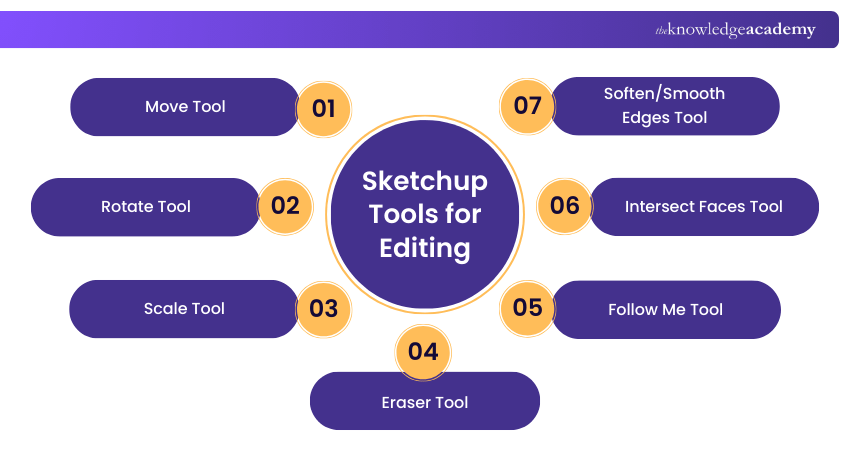
a) Move Tool: The Move Tool allows you to precisely move objects or geometry within your model. You can click and drag to relocate elements as needed.
b) Rotate Tool: Utilise the Rotate Tool to spin objects around a chosen axis, which is vital for altering the alignment of components in your design.
c) Scale Tool: The Scale Tool enables you to resize objects uniformly or along specific axes. This is helpful for adjusting the size of elements while maintaining proportions.
d) Eraser Tool: The Eraser Tool removes unwanted lines, edges, or faces from your model. You can simply click on the element you want to delete.
e) Follow Me Tool: The Follow Me Tool enables you to extend shapes along a predetermined path, facilitating the crafting of complex designs and intricate details.
f) Intersect Faces Tool: The Intersect Faces Tool combines intersecting shapes into a single object, useful for creating complex forms and intersections.
g) Soften/Smooth Edges Tool: This Tool adjusts the smoothness of edges and faces within your model, giving you control over the visual appearance of your design.
4) Extensions
SketchUp's functionality can be extended through a variety of plugins or add-ons. They provide with additional Tools and features to meet specific needs and workflows. Some of those Tools are discussed below:
a) Artisan: Artisan is a powerful organic modelling Tool designed for creating complex shapes with ease. It offers a range of sculpting and terrain modelling capabilities.
b) Render[in]: Render[in] is a rendering plugin that enhances SketchUp's visualisation capabilities. It paves the creation pathway for photorealistic images and animations.
c) Profile Builder: Profile Builder streamlines the process of creating custom profiles for extrusions. It further makes it easier to add intricate details to your designs.
d) Fredo6 Tools: Fredo6 Tools is a suite of extensions offering various modelling and utility Tools. It includes Tools for parametric modelling, curvature analysis, and more.
e) SU Podium: SU Podium is a rendering plugin that specialises in creating high-quality images and animations directly from SketchUp models. It offers realistic lighting and material effects.
f) Solid Inspector²: Solid Inspector² is a valuable tool for repairing 3D models to ensure they are watertight and suitable for 3D printing. As one of the essential 3D Printing Tools, it also helps to identify and fix geometry issues. It also helps to identify and fix geometry issues.
Join our Logo Design Course and craft memorable identities that stand out in any market!
5) Illustrative Plugins Examples
Illustrative plugins in SketchUp add unique effects and styles to your models. They further enable artistic expression and creative presentations. Some of their Tools include the following:
a) Sketchy styles: Sketchy Styles emulates hand-drawn sketches, giving your models a unique and artistic appearance. It is ideal for presentations where a sketchy and conceptual look is desired.
b) Dibac: Dibac simplifies the process of generating 2D floor plans from your 3D models. It automatically converts your 3D designs into 2D plans, saving time and effort.
c) Twilight render: Twilight render provides advanced rendering options and lighting effects. It also allows you to create stunning visualisations of your SketchUp models.
d) Vertex Tools: Vertex Tools offers advanced vertex editing and manipulation capabilities. It further provides precise control over individual vertices, edges, and faces for detailed adjustments.
e) Curviloft: Curviloft specialises in creating complex surfaces and shapes with ease. It is particularly useful for generating smooth, organic forms and intricate designs within your models.
What Plugins Improve Sketchup Tool Functionality?
Plugins enhance SketchUp’s performance by adding specialised tools that improve modelling speed, accuracy, and visualisation. For architects and designers, the following plugins are particularly valuable:
Memory Copy
This plugin simplifies repetitive modelling tasks by allowing quick duplication, arrangement, resizing, and rotation of geometry. It provides high precision and flexibility, making object management in complex designs effortless.
Fredo6 Animator
Fredo6 Animator is ideal for architectural visualisation. It helps create detailed animations, including path movements, construction sequences, and object interactions. With keyframes, designers can visualise motion and energy-efficient design elements effectively.
Shape Bender
Shape Bender transforms straight geometries into complex curves. It enables bending or stretching 3D objects along a predefined path, perfect for designing curved walls, windows, or doors with accurate curvature.
Twinmotion
Twinmotion allows real-time rendering for lifelike architectural presentations. It produces high-quality images, panoramas, and VR videos, integrating lighting, materials, and environmental effects for realistic 3D visualisations directly from SketchUp.
Why is Grouping Important After Using Drawing Tools?
Grouping in SketchUp is essential for maintaining organisation and efficiency. It keeps related elements together, allowing easy movement, resizing, and editing. Grouping also ensures consistency across objects, helping maintain uniform design adjustments throughout the model.
Conclusion
SketchUp offers a comprehensive array of tools, extensions, and plugins to facilitate the creation, exploration, and enhancement of 3D models. Whether you are navigating your model, adding artistic flair, or exploring SketchUp alternatives, SketchUp Tools provide the versatility for numerous design projects.
Gain the skills to craft mesmerising storylines in our comprehensive Animation and Design Training - Sign up now!
Frequently Asked Questions
How do inference points help while using SketchUp tools?

Inference points in SketchUp assist with precise 3D modelling by identifying key positions like midpoints or intersections. They use coloured markers and ScreenTips to guide accurate alignment and drawing within your model.
What makes SketchUp Pro different?
SketchUp Pro stands out with advanced features such as detailed modelling, precise measurements, and professional rendering capabilities. It is designed for complex projects where accuracy and professional-grade results are essential.

Richard Harris


Senior Full Stack Developer and Technology Educator
Richard Harris is a highly experienced full-stack developer with deep expertise in both frontend and backend technologies. Over his 12-year career, he has built scalable web applications for startups, enterprises and government organisations. Richard’s writing combines technical depth with clear explanations, ideal for developers looking to grow in modern frameworks and tools.


 If you wish to make any changes to your course, please


