




We may not have the course you’re looking for. If you enquire or give us a call on 01344203999 and speak to our training experts, we may still be able to help with your training requirements.
Top Microsoft OneNote Add-ins to Improve Your OneNote Experience
ByNilotpal SarmahLast updated on: 18 September 2026
Explore useful tools that extend OneNote through automation, formatting, web capture, code highlighting and batch management. Learn what each option does, where it works and what to check before installing it.

Not every tool labelled a OneNote add-in is actually the same kind of tool. Some work directly inside the Windows desktop application, some operate as browser extensions, and others are separate companion applications. That distinction matters when you are deciding what to install.
The most useful microsoft onenote add-ins can make everyday tasks quicker, improve how information is organised and introduce capabilities that are not available by default. But before choosing one, it is worth checking its purpose, platform support and compatibility with your version of OneNote.
What are Microsoft OneNote Add-ins?
Microsoft OneNote add-ins are tools that extend OneNote with capabilities such as automation, formatting, navigation, web capture and content management.
Not every tool works in the same way. Some integrate directly with the Windows desktop application, while others work as browser extensions or separate companion utilities.
Compatibility can also vary by OneNote version, operating system and application architecture, so always check the developer’s current requirements before installing a tool.

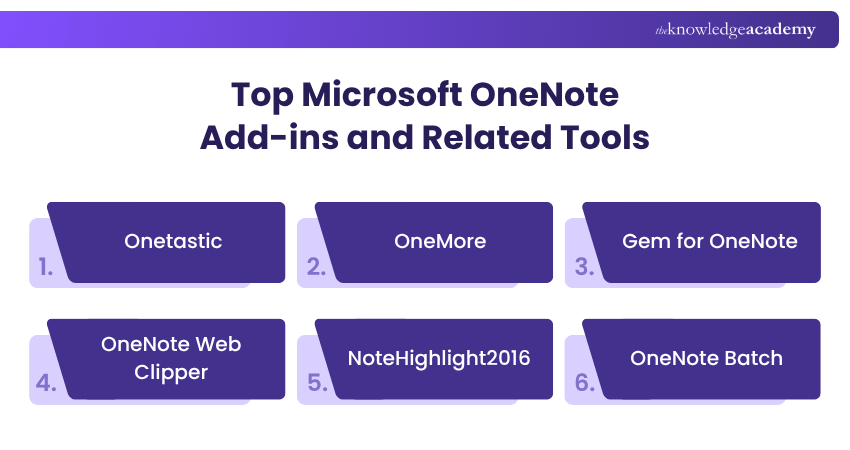
Top Microsoft OneNote Add-ins and Related Tools
The following options serve different purposes. The shortlist includes desktop add-ins, a browser extension and a companion batch utility because each meaningfully extends a OneNote workflow.
1) Onetastic
Onetastic is a multi-purpose add-in designed for OneNote on Windows desktop. It is especially useful for users who want to automate repeated actions and improve how notebooks are organised and formatted.
It includes macros, custom styles, batch file importing, favourites, image utilities and OneCalendar. Users can download existing macros or create and modify their own to automate tasks such as sorting information, building Tables of Contents or applying repeated formatting actions. OneCalendar is already included within Onetastic rather than functioning as a separate add-in.
Features: Macros, custom styles, OneCalendar, favourites, image tools and batch importing.
Benefits: Helps reduce repetitive work and gives users greater control over notebook organisation and formatting.
Best for: Users who want automation, macros and a broad collection of productivity enhancements within OneNote desktop.
2) OneMore
OneMore is an open-source OneNote add-in that adds a wide range of productivity and organisational commands to the Windows desktop experience.
Its capabilities include a command palette, searchable hashtags, navigation tools, custom styles, reusable snippets, image editing and syntax highlighting. Current installers support x86, x64 and ARM64 scenarios, although the installer must match the architecture of the installed copy of OneNote rather than simply the architecture of Windows.
Features: Command palette, hashtags, custom styles, snippets, navigation tools, image editing and syntax highlighting.
Benefits: Brings multiple productivity and content-management functions into one add-in, reducing the need for several smaller tools.
Best for: Power users who want a broad, open-source toolkit for navigation, formatting and content management.
3) Gem for OneNote
Gem for OneNote is a commercial toolkit designed to add a large range of advanced functions to Windows Office versions of OneNote.
Its current Windows package is organised across six tabs and includes hundreds of features for notebooks, sections, pages and content management. The developer lists support packages for OneNote 2024, 2021, 2016, 2013 and 2010, with the OneNote 2024 build supporting the current OneNote 365 desktop application.
Features: Advanced tools for notebooks, sections, pages, formatting, navigation and content management.
Benefits: Gives users a broad set of additional OneNote functions within a single toolkit rather than requiring several separate add-ins.
Best for: Users who need an extensive paid toolkit for managing more complex OneNote workflows.
Excel OneDrive Training to organise, store, sync, and securely manage files across Microsoft 365.
4) OneNote Web Clipper
OneNote Web Clipper is a browser extension that focuses on capturing useful online content and sending it directly to a OneNote notebook.
Users can capture an entire webpage, select a specific region or save an article as editable text and images. The destination notebook section can be selected before clipping, and Microsoft also documents support for capturing selected PDF pages.
Features: Webpage, region, article and supported PDF capture directly from the browser.
Benefits: Makes it faster to collect and organise online research without manually copying information into OneNote.
Best for: Students, researchers, writers and professionals who regularly save online material for later reference.
5) NoteHighlight2016
NoteHighlight2016 is an open-source add-in designed to improve how programming code is displayed inside OneNote.
It supports formatting existing text or inserting newly highlighted code. Users can select a programming language, apply syntax highlighting and configure additional languages through its settings. The project supports both 32-bit and 64-bit Office installations and continued to receive updates in 2026.
Features: Syntax highlighting, language selection and formatting controls for code snippets.
Benefits: Makes programming examples, scripts and technical notes easier to read and organise.
Best for: Developers, technical students and IT professionals who store code examples inside OneNote.
6) OneNote Batch
OneNote Batch is a companion utility designed for bulk operations involving OneNote content rather than functioning as a conventional in-app add-in.
It can support tasks such as importing, exporting and processing content across selected notebooks or sections. Its current Windows version also includes options for importing content from sources such as Evernote and Google Keep, while the OneNote Batch 2024 package supports OneNote 2024 and the current OneNote 365 desktop environment on Windows.
Features: Bulk importing, exporting and processing across notebooks, sections and pages.
Benefits: Reduces manual effort when migrating, restructuring or managing large amounts of OneNote content.
Best for: Users handling notebook migrations, bulk imports, exports or large collections of OneNote pages.
How to Choose and Install Microsoft Onenote Add-ins?
Choosing an add-in should start with compatibility and purpose rather than feature count. A tool that offers hundreds of commands is not automatically more useful than a specialised extension that solves one recurring problem exceptionally well.
1) Match the Tool to Your Workflow
Identify the problem you want the add-in to solve. Automation, web capture, syntax highlighting and batch management require different tools, so start with the workflow rather than the number of available features.
2) Check Version, Platform and Architecture
Confirm your OneNote version, operating system and application architecture before installing an add-in. Some Windows tools require separate 32-bit, 64-bit or ARM64 installers.
3) Use Trusted Download Sources
Download add-ins from the developer’s official website, recognised project repository or supported extension store. Avoid unofficial mirrors when an official source is available.
4) Check Permissions, Maintenance and Pricing
Review required permissions, current compatibility, update activity and licensing before installation. Workplace or school devices may also restrict third-party software.
Installation Checklist
Before installing an add-in, confirm:
1. Your exact OneNote version2. Windows, Mac, browser or mobile platform3. 32-bit, 64-bit or ARM64 architecture where applicable4. Official developer or extension-store download source5. Current maintenance and compatibility information6. Required permissions7. Free, trial or paid licensing conditions8. Whether you actually need the feature in your normal workflowA two-minute compatibility check can save considerably more time than troubleshooting an add-in that was never designed for your setup.
We hope this blog has helped you understand how Microsoft Onenote add-ins can enhance OneNote with features such as automation, web capture, formatting and batch processing. Choose a tool based on your workflow, check compatibility with your OneNote version and install it from a trusted source.
Explore Microsoft Fluid Framework Training to enhance real-time collaboration and streamline dynamic Microsoft 365 workflows.

Nilotpal Sarmah is a Senior Content Writer with 11+ years of overall experience spanning engineering, operations and content development. His technical knowledge and extensive writing experience enable him to simplify specialised topics across IT and Tech, Business Skills, Project Management, Health and Safety, and ISO and Compliance.
View Detail

 If you wish to make any changes to your course, please


