


 Top Rated Course

We may not have the course you’re looking for. If you enquire or give us a call on 01344203999 and speak to our training experts, we may still be able to help with your training requirements.
How to Save Photos From WhatsApp: An Ultimate Guide
James Smith 15 July 2026The blog provides an ultimate resource on saving WhatsApp photos on Android, iPhone, and PC. It covers manual and automatic saving methods for Android and simple steps for iPhone users. Explore this blog and discover How to Save Photos From WhatsApp to effortlessly save precious memories captured in WhatsApp photos.

Training Outcomes Within Your Budget!
We ensure quality, budget-alignment, and timely delivery by our expert instructors.
Table of Contents

WhatsApp stands as a cornerstone of our digital dialogue, seamlessly connecting us with friends and family. However, when it comes to safeguarding those treasured snapshots, the process isn’t always straightforward. Whether you’re using Android, iPhone, or PC, knowing how to save photos properly can make all the difference.
In this blog will help you walk through the various methods on How to Save Photos From WhatsApp with ease. So, with anticipation and curiosity, let’s embark on this enlightening journey together!
Table of Contents
1) Learn How to Save Photos From WhatsApp on Android
a) Manual Photo Saving
b) Automatic Photo Saving
2) How to Save Photos From WhatsApp on iPhone?
3) How to Save Photos From WhatsApp to a PC or Laptop?
4) Conclusion
Learn How to Save Photos From WhatsApp on Android
Android devices offer multiple ways to save photos from WhatsApp, catering to different preferences. If you're looking to Find Archived Chats on WhatsApp, you can also easily access your old conversations while saving images, ensuring that everything is organised according to your needs including options for saving WhatsApp Attitude Status images.
1) Manual Photo Saving:
a) Open the WhatsApp chat containing the photo you want to save.
b) Tap on the photo to open it in full view.
c) Look for the three-dot menu or download icon (usually an arrow pointing downwards) and tap on it to save the photo to your device's gallery.
2) Automatic Photo Saving:
a) Launch WhatsApp and tap on the three dots in the top-right corner to access settings.
b) Go to "Settings" > "Chats" > " Media visibility."
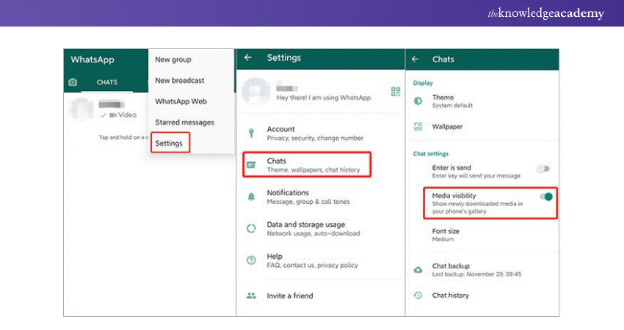
c) Enable “Media visibility” to automatically show newly downloaded media in your gallery.
d) To manage auto-download, go to “Settings” > “Storage and data” > “Media auto-download.” Select when photos should be downloaded (e.g. using Wi-Fi).

How to Save Photos From WhatsApp on iPhone?
Saving photos from WhatsApp on an iPhone is a straightforward process.
1) Open the WhatsApp chat containing the photo.
2) Tap on the photo to view it in full screen.
3) Tap and hold the photo until a menu appears.
4) Select "Save Image" from the menu to save the photo to your iPhone's Photos app.
Learn advanced strategies and tools for analysing and optimising your X presence with our X Marketing Course – register now!
How to Save Photos From WhatsApp to a PC or Laptop?
Saving WhatsApp photos to a PC or laptop allows for better organisation and backup.
1) Connect your phone to your PC using a USB cable.
2) Open File Explorer on your PC and navigate to your phone's storage.
3) Locate the WhatsApp folder and open it.
4) Inside the WhatsApp folder, you'll find a folder named “WhatsApp Images” under “Media.”
5) From there, you can find all the photos and videos shared on WhatsApp. Simply copy and paste the desired photos to your PC's desired location.
Elevate your Marketing skills with the Social Media Marketing Course – sign up now!
Conclusion
Through this blog, you’ve learned How to Save Photos From WhatsApp. The process is simple, whether you're using a mobile app or accessing WhatsApp Web on your desktop. By following the steps outlined, you can securely archive your treasured images and never worry about losing precious memories again. Saving them is just a few taps away.
Learn to grow your business using powerful, targeted strategies through the WhatsApp Marketing Training Course– join now!
Frequently Asked Questions
How do I download multiple photos from WhatsApp?

To download multiple photos from WhatsApp, tap and hold on one photo, then select the others you want to download. Finally, tap the download icon.
Does WhatsApp save photos twice?
WhatsApp typically saves photos once, either in the app's storage or in your device's gallery, depending on your settings.

James Smith


Digital Marketing Manager and Trainer
James Smith is a digital marketing professional with over a decade of experience in SEO, content strategy, paid media and analytics. He has supported both SMEs and global brands in transforming their digital presence. James’s writing and training are rooted in results-driven tactics and the latest marketing trends.
View Detail

 If you wish to make any changes to your course, please


