




We may not have the course you’re looking for. If you enquire or give us a call on 01344203999 and speak to our training experts, we may still be able to help with your training requirements.
How to Change Units in AutoCAD and Set Angular Movement
ByVidhya NairLast updated on: 10 October 2026
Change Units in AutoCAD correctly by using -DWGUNITS to fully convert and scale existing objects, or UNITS to adjust insertion scale and display format only. This approach keeps the drawing scale accurate and measurements consistent throughout. Using the wrong command can lead to size errors and incorrect dimensions.

If you have ever opened AutoCAD and struggled with measurements not matching your project, you are not alone. Every designer, architect, or student has gone through the dilemma of mismatched units at some point. These issues can slow you down, affect drawing accuracy, and make simple tasks frustrating.
Whether you are a solo worker or collaborating with a team, getting your units right is essential for precision and efficiency. In this blog, you will extensively learn How to Change Units in AutoCAD, set angular movements, and ensure consistency in your projects. Keep reading ahead!
Changing Units in AutoCAD
Changing units in AutoCAD is essential to ensure your drawings follow the correct measurement system, whether you're working in millimetres, inches, or feet. Adjusting units helps maintain accuracy, consistency, and smooth collaboration with other designers. This simple setting keeps your entire project aligned from the start.
Let’s now check How to Change Units in AutoCAD:
1) Using the UN Command
The UN (UNITS) command is the quickest and most direct way on How to Change Units in AutoCAD. This method is direct and allows you to configure both linear and angular measurements, as well as insertion scale settings. Here's how you can do it:
1) Open your drawing in AutoCAD and click anywhere in the workspace.
2) Type UN and press Enter. This opens the Drawing Units dialogue box.
3) In this box, focus on these three key areas:
a) Length: Choose the format (Decimal, Architectural, etc.) and set the precision.
b) Angle: Set your preferred angular measurement type (Degrees, Radians, Grads, etc.).
c) Insertion Scale: This determines the unit for inserted blocks or external references. Select the one that matches your drawing’s intended scale.
4) For example, if you’re working in metric, choose Decimal and set the insertion scale to Millimetres.
5) Once everything is set, click OK to confirm.
Your drawing will now operate under the new unit system.

2) Adjusting Units in AutoCAD by Turning on the Original Template File
If you're starting a new drawing and want to avoid unit issues from the outset, you can choose an appropriate template file that uses your desired unit system. Let's check its procedure:
1) From within AutoCAD, open a new file by clicking File > New, or pressing Ctrl + N on your keyboard.
2) A selection tab will open with four common template files:
a) acad.dwt: 2D drawing template in inches
b) acad3D.dwt: 3D drawing template in inches
c) acadiso.dwt: 2D drawing template in millimetres
d) acadiso3D.dwt: 3D drawing template in millimetres
3) Select the template that matches your unit preference, then click Open.
Your new drawing will now use the unit system defined in the selected template.

3) Installing the File Template
To save time and ensure consistency across projects, you can install and assign a default drawing template with your preferred unit settings. This allows every new drawing (QNEW) to start with the correct configuration automatically. Here's how you can create your template:
1) While in AutoCAD, click any point and type OP, then press Enter to open the Options dialogue.
2) Navigate to the Files tab and find the option Default Template File Name for QNEW.
3) Here, you can:
a) Assign a custom .dwt file with your preset units and settings
b) Or choose None if you prefer to manually select a template each time
4) Click OK to save the changes.
This sets your preferred units as the default for new drawings created with the QNEW command.
Boost your design skills with our Civil 3D Training – Explore your design world now!
Angle Direction in AutoCAD
Understanding angle direction and the importance of using units is vital for maintaining accurate and consistent representations of angles within your designs. AutoCAD, a powerful Computer-aided Design (CAD) software, provides tools for defining angle direction and incorporating appropriate units.
1) Defining Angle Direction
Angle direction in AutoCAD refers to the orientation or rotation of angles within your drawings. It determines how angles are measured and displayed, influencing their appearance and interaction with other design elements.
Defining angle direction provides clarity and consistency in your drawings, making it easier for viewers to understand and interpret your designs accurately. In AutoCAD, the angle direction can be set either clockwise or counterclockwise, depending on the specific requirements of your project.
2) Importance of Using Units for Angles
Using units for angle measurement is crucial for ensuring accurate and meaningful representations of angles in your designs. Here are key reasons why incorporating units in angle measurement is essential:
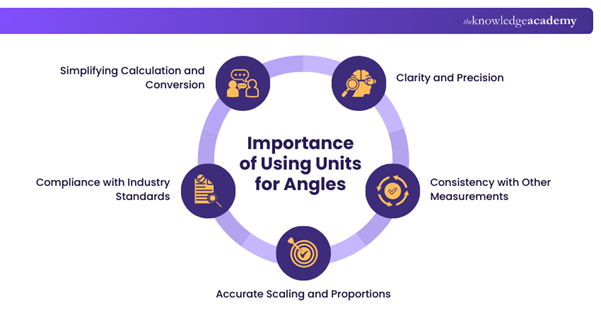
1) Clarity and Precision: Units provide a standardised and universally understood framework for expressing angular measurements. By using units, you can communicate the exact magnitude of an angle, enhancing clarity and precision in your drawings.
2) Consistency with Other Measurements: Units enable consistency across different types of measurements within your designs. When dimensions, distances, and angles share the same unit system, it fosters cohesiveness and compatibility, facilitating accurate interpretation and analysis of your drawings.
3) Accurate Scaling and Proportions: Utilising units ensures that angles are accurately scaled and proportioned within your drawings. This is particularly important when working on complex designs that involve intricate angles or require precise geometric relationships.
4) Compliance with Industry Standards: Different industries often have specific requirements for angle measurement units. By using the appropriate units, you comply with industry standards, ensuring compatibility and consistency when collaborating with other professionals or organisations.
5) Simplifying Calculation and Conversion: Incorporating units in angle measurement simplifies calculations and conversions. With consistent units, you can easily perform mathematical operations involving angles, such as addition, subtraction, multiplication, or division.
Spark your design expertise in Electrical Engineering with our cutting-edge AutoCAD Electrical Training – Sign up now!
Angular Measurement in AutoCAD
Understanding Angular Measurement is essential for accurately representing and manipulating angles within your designs in the process of How to Change Units in AutoCAD. AutoCAD provides various options for measuring and modifying angles, enabling precise representation and manipulation of rotational elements. Here’s how you can do it:
1) Overview of Angular Units
AutoCAD offers several units for measuring angles, including degrees, radians, grads, and surveyor's units. Each unit has its own purpose and relevance in specific design scenarios. Here is an overview of the different angular units in AutoCAD:
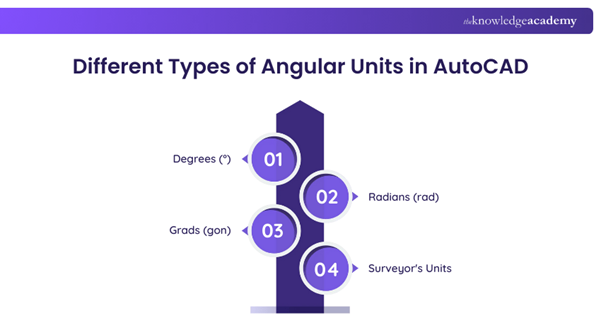
1) Degrees (°): Degrees are the most commonly used unit for measuring angles. They divide a circle into 360 equal parts, with each part representing one degree. Degrees are widely understood and accepted across various industries.
2) Radians (rad): Radians are alternative units for measuring angles that are commonly used in mathematical calculations. One radian corresponds to the central angle attached by an arc of the same length as the radius of the circle.
3) Grads (gon): Grads, also known as gons, are a unit of angular measurement that divides one circle into 400 equal parts. Grads are sometimes used in engineering or land surveying applications.
4) Surveyor's Units: Surveyor's units are specific to land surveying and divide a circle into 360 equal parts, similar to degrees. However, the notation and conventions used in surveying differ slightly from standard degrees.
2) Changing Angular Units in AutoCAD
AutoCAD provides a straightforward process for changing angular units within your designs. By following these steps, you can modify angular units to align with your project requirements:
1) Access the "Drawing Units" settings in AutoCAD.
2) In the "Drawing Units" dialogue box, navigate to the "Angles" tab.
3) Within the "Angles" tab, you will find a dropdown menu containing the available angular unit options.
4) Select the desired angular unit from the dropdown menu, such as degrees, radians, grads, or surveyor's units.
5) Once you have made your selection, click the "OK" button to apply the angular unit changes to your drawing.
By changing angular units in AutoCAD, you can accurately measure, represent, and manipulate angles in your designs. This flexibility allows you to work seamlessly with rotational elements and ensure precision in your drawings.
Learn industry-standard 3D tools for film, games, and animation with our AutoDesk Maya Training – Join now!
How to Set Alternate Units in Metres in AutoCAD?
To display dimensions in both the primary unit (e.g. millimetres) and alternate units (e.g. metres), you can enable and format alternate units in AutoCAD using the Dimension Style Manager. Let’s see how it can be done:
1) Go to the Home tab > Annotation panel > Dimension Style, or type DIMSTYLE and press Enter.
2) In the Dimension Style Manager, select the style you want to modify and click Modify.
3) In the Modify Dimension Style dialogue box, switch to the Alternate Units tab.
4) Tick the Display Alternate Units checkbox.
5) Under Alternate Units, configure the following:
a) Unit Format: Choose Decimal for metre display.
b) Precision: Select the level of decimal detail you require.
c) Multiplier for Alt Units: Set this to 0.001 if your primary units are in millimetres (to convert mm to metres).
d) Prefix/Suffix: You can add a suffix like m and a space if needed, e.g., “ m”.
6) Click OK, then Close to exit the Dimension Style Manager.
Does Changing Units Affect Existing Drawings in AutoCAD?
Changing units in AutoCAD using the UNITS command does not resize existing objects. It only changes how units are interpreted for new objects, which can cause measurement errors. For example, a line drawn as 10 inches will still be 10 units long after switching to millimetres, but AutoCAD will read it as 10 mm instead of converting it.
To properly change units and scale existing geometry, the -DWGUNITS command must be used. This step is essential when learning How to Change Units in AutoCAD, as it updates the drawing scale and automatically rescales all existing objects, ensuring measurements remain accurate and consistent across the drawing.
Learn to create precise drawings and designs quickly, improving work efficiency with our AutoCAD Courses – Join now!

Vidhya Nair is a Senior Copywriter with 7+ years of experience across copywriting, content writing and communication. Her extensive research and editorial experience supports her ability to present topics across Business Skills and Human Resources with clarity and purpose.
View Detail

 If you wish to make any changes to your course, please


