




We may not have the course you’re looking for. If you enquire or give us a call on +44 1344 203 999 and speak to our training experts, we may still be able to help with your training requirements.
How to Add Sharepoint to File Explorer: A Quick Guide
ByVishnu SankarLast updated on: 12 October 2026
Learn how to add SharePoint to File Explorer using OneDrive shortcuts or Sync, and understand when the legacy View in File Explorer option is available in Microsoft Edge.
Getting Started
1. OneDrive shortcuts provide convenient access to SharePoint files across devices.2. Sync connects a SharePoint library to File Explorer on a specific device.3. Files On-Demand helps you access cloud files without storing every file locally.4. View in File Explorer is a legacy option that requires specific Edge and SharePoint administrative settings.5. The best method depends on whether you need access across devices, persistent access on a specific computer, or temporary access through the legacy option.
SharePoint document libraries can be accessed through Windows File Explorer, giving you a familiar way to work with cloud-based files and folders. Microsoft currently recommends adding a shortcut to OneDrive or syncing the library for persistent File Explorer access.
In this blog, you’ll learn how to add SharePoint to File Explorer using these recommended methods. You’ll also explore the legacy View in File Explorer option, its requirements, limitations, and troubleshooting steps.
How to Add a SharePoint Document Library to File Explorer?
Adding a SharePoint document library to File Explorer gives you convenient access to cloud-based files from Windows. Microsoft recommends using Add shortcut to OneDrive when available because the shortcut can follow you across devices. You can also use Sync when you need to connect a library to a specific computer.

1) Open SharePoint Using View in File Explorer
The recommended approach is to add the SharePoint document library or a specific folder within it as a shortcut in OneDrive:
1) Sign in to your SharePoint site and open the document library you want to access.
2) Select Add shortcut to OneDrive from the library toolbar to add the entire library, or select a specific folder and choose Add shortcut to OneDrive.
3) Wait for confirmation that the shortcut has been added.
4) Ensure the OneDrive sync app is signed in on your Windows device.
5) Open File Explorer and locate your organisation’s OneDrive folder to access the SharePoint content.
Note
The Add shortcut to OneDrive option may not be available if the folder has already been added, the same location is already connected through Sync, or your organisation has disabled the feature. OneDrive shortcuts are intended for folders and document libraries, not individual files.
2) Sync a SharePoint Document Library to File Explorer
Alternatively, you can use Sync to connect a SharePoint document library to File Explorer on a specific computer. Follow these steps:
1) Sign in to your SharePoint site and open the document library you want to sync.
2) Select Sync from the library toolbar.
3) Allow your browser to open the OneDrive sync app when prompted.
4) Sign in with your work or school account if required.
5) Open File Explorer and locate the synced SharePoint library under your organisation's name.
Note
Unlike OneDrive shortcuts, which can appear across devices signed in to the same account, Sync connects the library to a specific computer. Avoid syncing a location that is already connected through an overlapping OneDrive shortcut.
SharePoint View in File Explorer
View in File Explorer is a legacy SharePoint capability that can open a document library temporarily in Windows File Explorer. Microsoft no longer recommends it for normal file management and instead recommends OneDrive shortcuts or Sync. However, organisations that still require the feature can enable it through Microsoft Edge and SharePoint administrative settings.
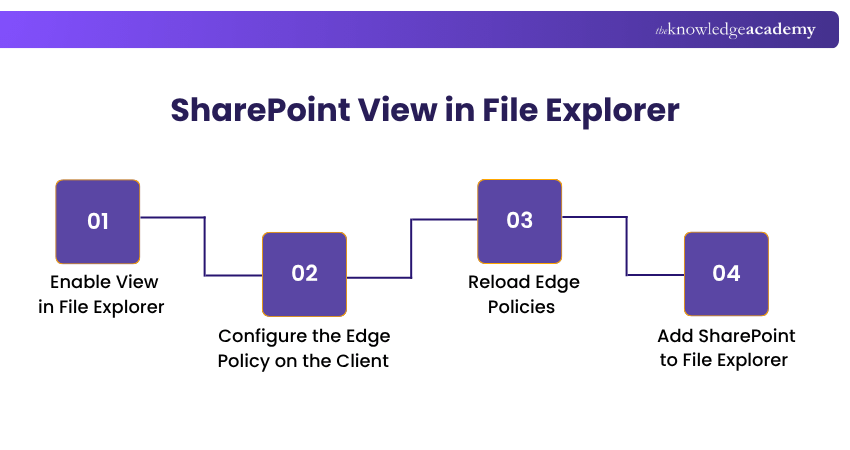
1. Enable View in File Explorer
View in File Explorer requires administrative configuration rather than a setting within an individual SharePoint library. Organisations that still use the feature need Microsoft Edge 93 or later and must configure the ConfigureViewInFileExplorer Edge policy. The policy is supported on Windows instances joined to a Microsoft Active Directory domain, or on Windows 10 Pro or Enterprise instances registered for device management.
A SharePoint administrator must also enable the tenant setting by using the SharePoint Online Management Shell. First, connect to the SharePoint Online administration service using the following command:
Connect-SPOService -Url https://contoso-admin.sharepoint.com
Replace contoso with your organisation's SharePoint tenant name. Then run:
Set-SPOTenant -ViewInFileExplorerEnabled $True
Ensure that the SharePoint Online Management Shell is version 16.0.21610.12000 or later to use the ViewInFileExplorerEnabled parameter.
2) Configure the Edge Policy on the Client
The View in File Explorer feature is controlled through the Microsoft Edge policy named ConfigureViewInFileExplorer. Administrators can deploy this policy through Group Policy or Microsoft Intune and specify the SharePoint domains and authentication cookies that are permitted. The policy requires the SharePoint domain and the rtFa and FedAuth authentication cookies.
For example, an administrator can configure a policy value such as:
[{"cookies": ["rtFa", "FedAuth"],"domain": "contoso.sharepoint.com"}]
Replace contoso.sharepoint.com with your organisation's SharePoint domain. The policy must be deployed through the appropriate administrative configuration method.
The policy can be verified in Microsoft Edge by opening edge://policy/ and checking that ConfigureViewInFileExplorer has been applied successfully.
3) Reload Edge Policies
After the Edge policy has been configured:
1) Open Microsoft Edge and enter edge://policy/ in the address bar.
2) Select Reload Policies.
3) Confirm that ConfigureViewInFileExplorer appears and has been applied successfully.
4) Close and reopen Edge if the policy does not appear immediately.
4) Add SharePoint to File Explorer
Once your organisation has enabled the required Edge policy and SharePoint tenant setting:
1) Open the SharePoint document library in Microsoft Edge.
2) Open the library View menu.
3) Select View in File Explorer.
4) Windows File Explorer will open the library for temporary access.
Note
After an administrator enables the SharePoint tenant setting, the View in File Explorer option may take up to 15 minutes to appear. If it remains unavailable, confirm that the required Edge policy has been applied successfully.
Benefits of Adding SharePoint to File Explorer
Adding SharePoint files to File Explorer can provide several advantages:
1) Easy File Access: Access SharePoint documents directly through the familiar Windows File Explorer interface without repeatedly opening a web browser.
2) File Synchronisation: Keep SharePoint files synchronised between your device and the cloud through OneDrive, ensuring changes are updated when connected.
3) Reduced Storage Usage: Use Files On-Demand to access cloud-based files without downloading every file to your device, helping save local storage space.
4) Offline File Availability: Make selected files available offline, allowing you to access and edit them without an internet connection. Changes synchronise when connectivity is restored.
Limitations of Accessing SharePoint Through File Explorer
The legacy View in File Explorer method has several limitations compared with OneDrive shortcuts and Sync:
1) Requires Specific Configuration
View in File Explorer requires Microsoft Edge and organisational policies configured by administrators.
2) No Persistent Synchronisation
The feature provides temporary access to the SharePoint library rather than creating a continuously synced folder.
3) Organisational Restrictions
Administrators can restrict or disable the feature based on device management and security requirements.
4) Less Suitable for Everyday Access
Microsoft recommends OneDrive shortcuts or Sync for regular File Explorer access because they provide persistent integration and support Files On-Demand.
Remember
View in File Explorer provides temporary access rather than persistent synchronisation. For regular access to SharePoint files, OneDrive shortcuts or Sync are more suitable options.
Strengthen your SharePoint file and library management skills with our Microsoft SharePoint End User Fundamentals Course today.
Troubleshooting Adding SharePoint to File Explorer
Issues with SharePoint access in File Explorer can result from OneDrive settings, account sign-in, Files On-Demand configuration, Edge policies, SharePoint tenant settings, or organisational restrictions. The appropriate troubleshooting steps depend on whether you are using a OneDrive shortcut, Sync, or the legacy View in File Explorer option.
Common Fixes to Try
Here are some quick solutions to resolve common issues when adding SharePoint to File Explorer. Follow these steps to troubleshoot and restore access to your SharePoint files.
a) Confirm the Method: For everyday File Explorer access, try Add shortcut to OneDrive or Sync first.
b) Check OneDrive: Ensure the OneDrive sync app is installed, running, and signed in with the correct work or school account.
c) Check Files On-Demand: Confirm that Files On-Demand is available if you want cloud files visible without storing every file locally.
d) Verify Edge Policies: If using View in File Explorer, open edge://policy/ and confirm that ConfigureViewInFileExplorer is active.
e) Check the SharePoint Tenant Setting: Ask your administrator to confirm that ViewInFileExplorerEnabled is enabled if your organisation relies on the legacy feature.
f) Check Organisational Policies: Contact your IT administrator if security or device-management policies prevent access.
g) Check for Conflicting Connections: If the SharePoint library or folder is already connected through Sync or a OneDrive shortcut, check for conflicting connections before setting it up again. Avoid creating overlapping connections to the same content.
h) Check Shortcut Availability: If Add shortcut to OneDrive is missing, confirm that the item is a folder or library and that your organisation permits OneDrive shortcuts.
If View in File Explorer remains unavailable, use Add shortcut to OneDrive or Sync where permitted, as these options are better suited to regular File Explorer access.
Difference Between View in File Explorer and Sync
Many users confuse View in File Explorer and Sync in SharePoint. Here’s how they differ:
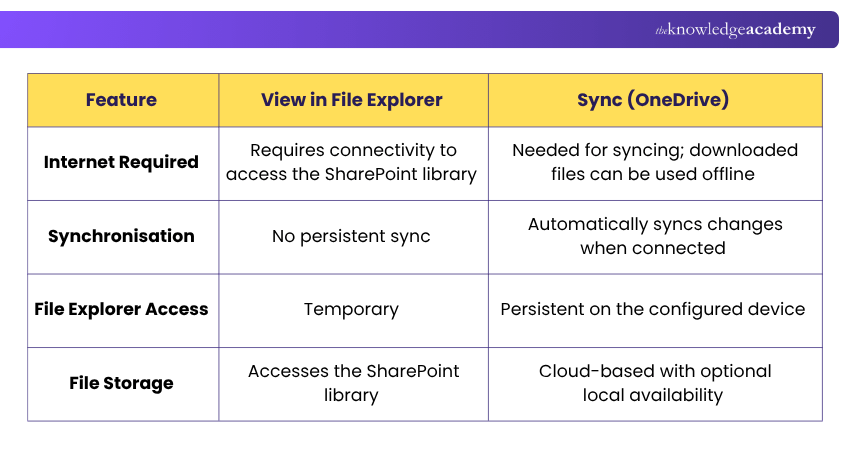
For regular File Explorer access, Add shortcut to OneDrive is Microsoft's recommended option when available, while Sync is useful for connecting a SharePoint library to a specific device. View in File Explorer should mainly be considered where an organisation has specifically configured the legacy feature.
Learn from highly trained instructors using flexible learning options with our Microsoft Office Training – Join now!

Vishnu Sankar is a Senior Content Writer with 5+ years of experience across content development, software development, web development and system administration. His technical background and professional training support his expertise in IT and Tech, while his extensive research and writing experience covers Project Management and Health and Safety.
View Detail

 If you wish to make any changes to your course, please


