




We may not have the course you’re looking for. If you enquire or give us a call on 01344203999 and speak to our training experts, we may still be able to help with your training requirements.
Windows Server Migration Tools: How to Install and Use Them
ByVishnu SankarLast updated on: 17 September 2026
Windows Server Migration Tools help administrators migrate supported server roles, features, settings, data, and shares between Windows Server environments. Explore what these tools do, how to install and use them, and the essential steps to follow before and after a server migration.
Before an old server can be switched off, there is one important question: has everything it was responsible for moved successfully?
That's the job Windows Server Migration Tools can help with. They support the transfer of selected roles, settings, data, and shares while giving administrators a structured migration process from preparation through to validation.
What are Windows Server Migration Tools?
Windows Server Migration Tools are a set of utilities available in Windows Server that help administrators migrate supported server roles, features, operating system settings, data, and shares from one Windows Server environment to another.
These tools provide PowerShell-based capabilities for identifying supported features and exporting, importing, or transferring relevant settings and data. The exact process varies depending on the server role, feature, and migration scenario.
Migration at a Glance
Source Server → Check Compatibility → Prepare → Export/Transfer → Import → Validate → Destination ServerEach stage helps ensure that supported components move correctly and function as expected in the destination environment.
What Can Windows Server Migration Tools Migrate?
Windows Server Migration Tools can help transfer supported components between source and destination Windows Server environments. What can be migrated depends on the specific server role, feature, and migration scenario.
Depending on the supported migration path, these tools can help transfer:
1) Server Roles and Features: Supported roles and their associated configuration settings
2) Operating System Settings: Selected settings supported by the migration tools
3) Data: Supported files and folders required on the destination server
4) Shared Folders: Shares along with supported permissions and properties
5) Local Users and Groups: Supported local account information where applicable
Since migration capabilities vary across roles and features, administrators should check Microsoft's role-specific migration guidance before starting the process.
Note: For file server and storage migrations, use Storage Migration Service, which is designed to transfer file-server data and configuration to newer Windows Server environments or other supported destinations.
What to Check Before a Windows Server Migration?
Preparation helps identify compatibility issues and migration risks before they affect the process. Before moving roles, settings, or data, administrators should assess both the source and destination environments. The 5C Migration Check:
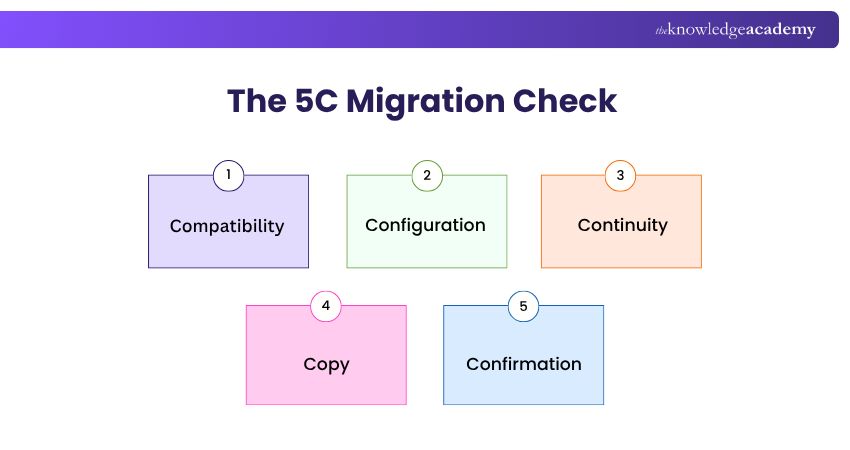
1) Compatibility: Confirm that the required roles and features support the planned migration path.
2) Configuration: Identify the roles, features, settings, shares, and data that need to move.
3) Continuity: Plan for potential downtime and check which services or applications depend on the server.
4) Copy: Create and verify backups of important data and configurations before migration.
5) Confirmation: Decide how migrated services, permissions, applications, and data will be tested afterwards.
Before starting, ensure the source and destination servers have the latest available updates for their operating systems. Also check hardware, operating system, network, application and role-specific requirements, and confirm that the planned source-to-destination migration path is supported.
How to Install Windows Server Migration Tools?
Windows Server Migration Tools are available as a Windows Server feature. Administrators can install them through Server Manager or Windows PowerShell, depending on how they prefer to manage the server.
1) Install Using Server Manager
Open Server Manager and select Add Roles and Features. Continue through the wizard until you reach the Features page, select Windows Server Migration Tools, and complete the installation.
Once installed, the migration tools and associated PowerShell cmdlets become available for supported migration activities.
2) Install Using PowerShell
For command-line installation, open Windows PowerShell with administrative privileges and run:
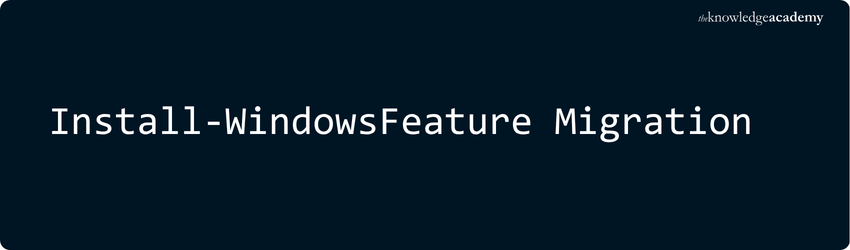
After the installation completes, verify that Windows Server Migration Tools are available before beginning the migration.
Quick Tip: Check the migration requirements for both the source and destination servers before transferring anything. Supported procedures can vary depending on the Windows Server versions and roles involved.
How to Use Windows Server Migration Tools?
The migration process varies depending on the server role, feature, settings, or data being moved. The following steps provide a practical workflow for using Windows Server Migration Tools:
1) Check Supported Roles and Features
Start by confirming that the required server role or feature supports migration between the source and destination environments.
Use the Get-SmigServerFeature cmdlet to identify Windows Server features that can be migrated from the local server. It can also check which features in a migration store can be installed on the destination server.
2) Prepare the Migration Environment
Ensure Windows Server Migration Tools are available where required and that the source and destination servers can communicate correctly. Confirm administrative access and complete any prerequisites required for the specific role being migrated.
Strengthen your server administration expertise with Windows Server Administration 55371AC Course - Join today!
3) Export Server Settings
Use Export-SmigServerSetting to export supported Windows features and operating system settings from the source server to a migration store.
Select the settings required for the migration and follow any additional instructions associated with the server role or feature.
4) Transfer the Migration Store
Move the migration store from the source server to an accessible location on the destination server.
Keep the migration store secure during the transfer, particularly when it contains configuration or account-related information.
5) Import Settings to the Destination Server
Use Import-SmigServerSetting on the destination server to import supported settings from the migration store.
After the import, review the resulting configuration and confirm that the required settings have been applied correctly.
6) Transfer Supported Data
For applicable migrations, Send-SmigServerData and Receive-SmigServerData can be used together to transfer supported folders, files, shares, and associated information between servers.
The exact commands and parameters depend on what is being transferred, so follow the requirements for the specific migration scenario.
7) Validate the Migration
Test the destination environment before considering the migration complete. Verify relevant services, shares, permissions, applications, network connectivity, user access, and role functionality.
Review errors or unexpected behaviour and resolve them before decommissioning the source server.
Think Beyond “Migration Complete”
A successful transfer answers:“Did everything move?”A successful migration also answers:“Does everything work correctly in the new environment?”The real finish line isn’t moving everything; it’s making sure everything works.
What to Do After Windows Server Migration?
Once the migration has been validated, attention shifts to keeping the new server environment stable, secure, and properly maintained. The following post-migration tasks help complete the transition:
1) Monitor Server Performance: Track resource utilisation, event logs, service health, and unexpected errors during the initial period after migration.
2) Review Security Settings: Check security configurations, access controls, firewall rules, updates, and other settings applicable to the new environment.
3) Update Documentation: Record the new server configuration, migration changes, issues encountered, and any revised administrative procedures.
4) Confirm Backup and Recovery: Add the destination server to the appropriate backup and disaster recovery processes and verify that recovery procedures work as intended.
5) Plan Source Server Decommissioning: Retire the old server only after the new environment is stable and any required rollback, retention, or dependency considerations have been addressed.
Build server and Active Directory skills with Install and Configure Microsoft Windows Server and Active Directory Training – Join today!

Vishnu Sankar is a Senior Content Writer with 5+ years of experience across content development, software development, web development and system administration. His technical background and professional training support his expertise in IT and Tech, while his extensive research and writing experience covers Project Management and Health and Safety.
View Detail

 If you wish to make any changes to your course, please


