




We may not have the course you’re looking for. If you enquire or give us a call on 01344203999 and speak to our training experts, we may still be able to help with your training requirements.
What is Ubuntu: A Complete Guide
ByThe Knowledge AcademyLast updated on: 24 September 2026
Ubuntu, a free and open-source Operating System based on Linux, is fast, secure, and user-friendly, making it ideal for desktops, servers, and IoT devices. It offers regular updates, strong community support, and a wide range of software. With its flexibility and reliability, Ubuntu has become one of the most popular Linux-based systems.
What You'll Discover
1. Understand what Ubuntu is and how it differs from Linux.2. Explore Ubuntu’s key features, common use cases across desktop, server, development, gaming, and IoT.3. Learn how to download, create installation media, and install Ubuntu.4. Understand the main benefits, limitations, and compatibility considerations.5. Find out whether Ubuntu is a suitable choice for your needs.
Is your current operating system slowing you down? It is not a single person's issue. Many users find their computers getting slower over time with constant updates, costly licences, and unnecessary background processes that make things worse. What if there is a way to bring your computer back to life, without spending a penny?
With Ubuntu, it is possible. But what is Ubuntu? It is an open-source Operating System (OS) that gives users extensive control over their computers without the limitations of traditional systems. If you’re ready to take back control of your computer, it is time to give Ubuntu a try. In this blog, you can discover what Ubuntu is, its key features, installation steps, and why it might be a suitable alternative to your current system. Let's dive in!
What is Ubuntu?
Ubuntu is a free, open-source operating system based on Linux, designed to make Linux simpler and more user-friendly for everyday computer users. You can perform daily tasks like browsing, writing documents, watching videos, and running software. It cn be used on desktops, laptops, servers, and even Internet of Things (IoT) devices.
Even more, Ubuntu offers everything most users need, like a clean interface, built-in apps, strong security, and lots of free software. It makes computing easy, secure, and efficient for everyone, from beginners to professionals. It offers a smooth, user-friendly experience whether you’re using it for personal, educational, or professional purposes.
Key Features of Ubuntu
Now that you know what is Ubuntu, below are its key features:
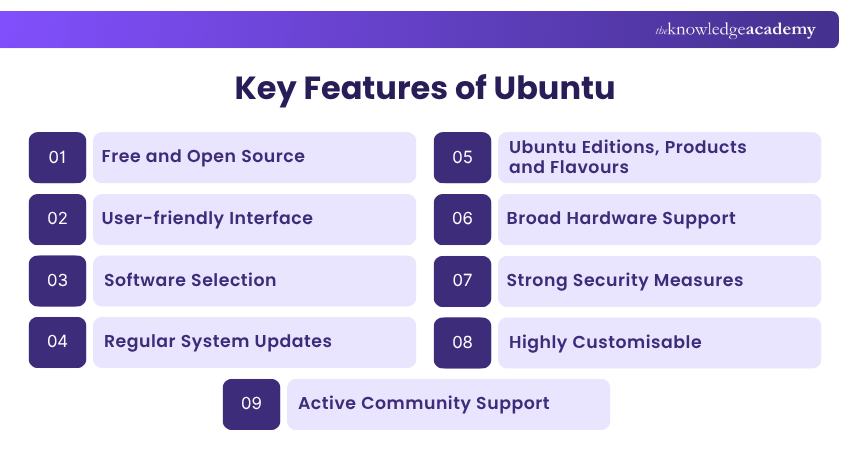
1) Free and Open Source
Ubuntu is completely free to download and use. Much of Ubuntu and the software it distributes is open source, allowing users and developers to inspect, modify and contribute to the underlying code according to the applicable licences.
2) User-friendly Interface
Ubuntu offers a clean, intuitive interface that’s easy to navigate, even for those new to Linux. Its graphical desktop environment allows users to perform many everyday tasks without relying heavily on command-line tools.
3) Software Selection
Ubuntu provides essential applications by default and offers additional software through the App Center. The exact pre-installed applications can vary depending on the Ubuntu release and installation option selected.
4) Regular System Updates
Canonical releases system updates for Ubuntu every six months, adding new features and security improvements. The Long-term Support (LTS) versions, released every two years, receive five years of standard security maintenance, with extended coverage available through Ubuntu Pro.
5) Ubuntu Editions, Products and Flavours
Ubuntu comes in different versions for different needs:
1) Ubuntu Desktop for personal computers
2) Ubuntu Server for websites and applications
3) Ubuntu Core for IoT devices
4) Ubuntu Cloud for virtual environments
5) Lightweight versions like Xubuntu and Lubuntu for older machines
6) Broad Hardware Support
Ubuntu supports a wide range of hardware, and many common devices work automatically. However, compatibility can vary, particularly with newer or specialised hardware.
7) Strong Security Measures
Ubuntu is known for being safe and secure. It has built-in protection tools, automatic updates, and uses a permission system where you must approve major actions. You don’t normally run as the “root” user, which adds another layer of safety.
8) Highly Customisable
Ubuntu offers extensive customisation options, including themes, icons, layouts and alternative desktop environments such as KDE Plasma or Xfce.
9) Active Community Support
One of Ubuntu’s greatest strengths is its active and supportive global community. Whether you face a technical issue or want to learn something new, you can easily find help through different sources and official support channels.
Build practical Linux administration skills with our Administering Linux Systems Course - Register today!
Common Use Cases of Ubuntu
Ubuntu can be used for many things, from simple home tasks to big business systems. Here are some of its common use cases:
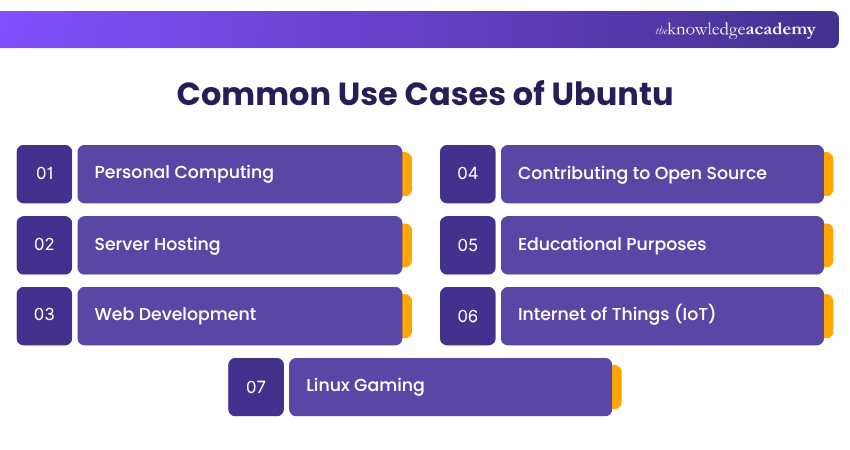
1) Personal Computing
Many people use Ubuntu every day for basic tasks like browsing the web, writing documents, watching videos, and using social media. It is lightweight and efficient. So, it is perfect for home or office computers.
2) Server Hosting
Ubuntu Server is widely used for web hosting, application servers, databases, cloud infrastructure and other server workloads. It is reliable, fast, and easy to maintain. Companies and data centres use it to host everything from small blogs to large data centres.
3) Web Development
Ubuntu supports popular programming languages such as Python, PHP and JavaScript, as well as web-server and database software such as Apache and MySQL.
4) Contributing to Open Source
Developers can contribute code, report or fix bugs, package software and participate in Ubuntu community projects. Advanced users can also create customised Ubuntu-based distributions or images.
5) Educational Purposes
Schools and universities use Ubuntu to teach programming, computer science concepts and system management. It is free, secure, and easy for students to experiment with without needing expensive licences.
6) Internet of Things (IoT)
Ubuntu Core is an immutable version of Ubuntu designed for embedded and IoT systems. It uses sandboxed applications and transactional updates to support secure and reliable device deployments.
7) Linux Gaming
Gaming on Ubuntu has grown significantly in recent years. With support from platforms like Steam, and tools such as Proton and Wine, users can enjoy both Linux-compatible and many Windows-based games. Performance and compatibility have improved greatly, making Ubuntu a solid choice for casual and dedicated gamers alike.
Bonus Tip: Before switching operating systems, list your essential applications and back up important files so compatibility gaps do not become unexpected problems.
Understand technology from the ground up with our IT Fundamentals Training – Join now!
How to Install Ubuntu on Your Device?
Now that you know the features and use cases of Ubuntu, let’s check how to install it on your device:
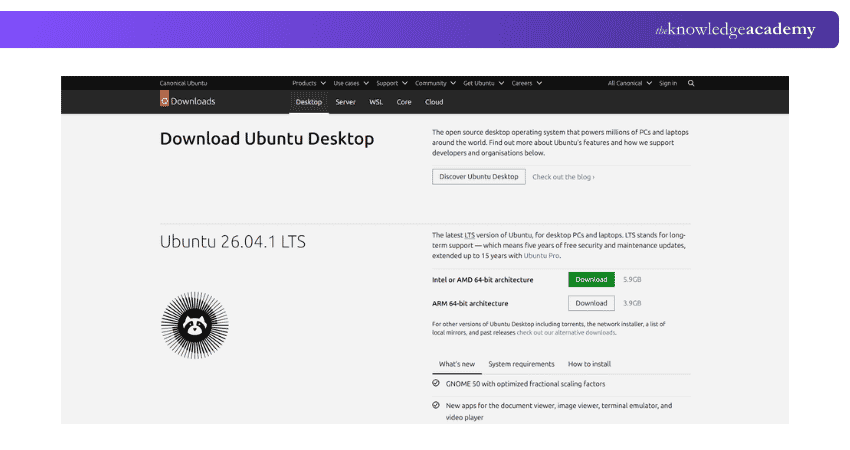
1) Downloading the Ubuntu ISO
You can download Ubuntu directly from the official Ubuntu website. You can choose the version you want and download the file. It contains everything needed to install Ubuntu. Save it on your computer.
2) Choose a Bootable USB Creation Tool
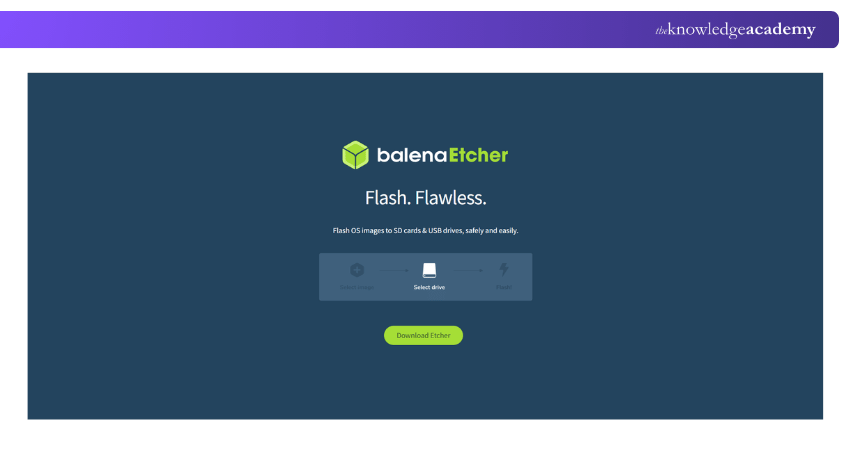
Ubuntu's official installation guide recommends different tools depending on your current operating system. Windows users can use Rufus, macOS users can use balenaEtcher, and Ubuntu users can use the Disks application.
Let's consider that you download and install a free balenaEtcher. It helps you put the Ubuntu installation file (ISO) onto a USB stick, so you can use it to install Ubuntu.
3) Creating a Bootable USB Drive
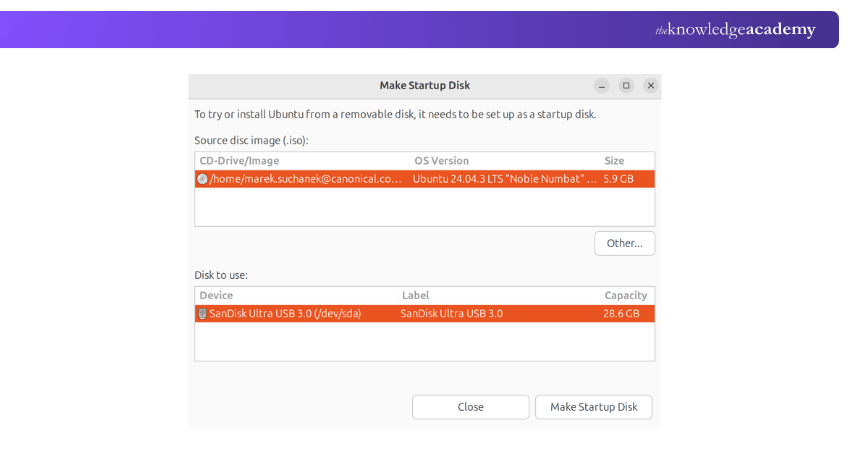
Once balenaEtcher is ready, insert a USB drive (8 GB or above) into your computer. Make sure it doesn’t contain important data because it will be erased. Now, open balenaEtcher and follow these steps:
1) Click Select Image and choose the Ubuntu ISO file you downloaded
2) Click Select Target and pick your USB drive
3) Click Flash to begin creating your installation drive
When the process finishes, safely remove your USB stick. It is now ready to install Ubuntu.
4) Booting from Installation Media
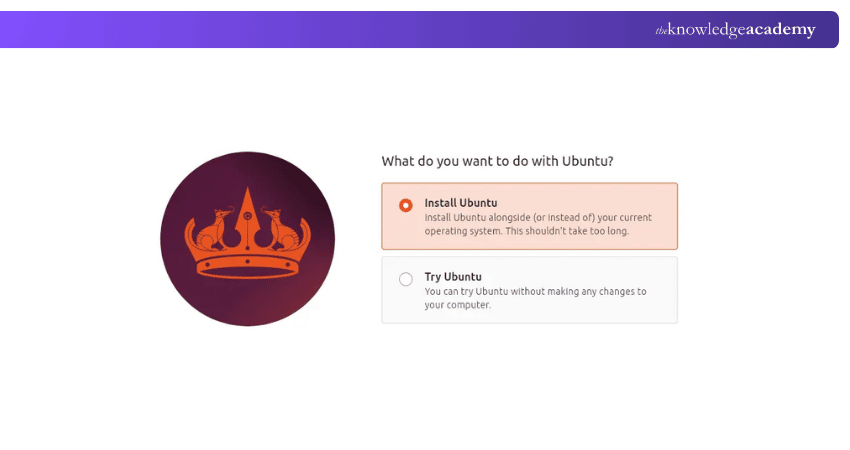
Restart your computer and open the boot menu (press F12, ESC, or another key depending on your system). Select your USB stick as the boot device. Ubuntu will start in “live mode,” allowing you to try Ubuntu before installing or go straight to Install Ubuntu.
5) Completing the Ubuntu Installation
Click Install Ubuntu and follow the on-screen instructions. Choose your language, accessibility settings, keyboard layout, and network preferences. For the installation method, select either interactive installation or automated installation.
Most users can choose interactive installation, followed by either Default selection for essential applications or Extended selection for additional office tools and utilities. Then configure the disk setup, create your account, select your time zone, and complete the installation.
Benefits of Using Ubuntu
When you know what is Ubuntu, you should not miss out on knowing its benefits. So, here are the benefits of using Ubuntu:
1) Global OSS Support
1) Ubuntu is open for everyone to use, share and change freely
2) People all over the world work together to make it better every day
3) Problems are usually fixed quickly by the global community
4) You can trust Ubuntu because everything is open and transparent
5) Anyone can join and help improve Ubuntu by giving feedback or testing new features
2) Free to Use With no Ads
1) Ubuntu is completely free to download and install from its official website
2) You don’t need to buy a licence or pay any monthly fees
3) There are no annoying ads or pop-up messages while using it
4) You get full access to all features without hidden costs
5) You also get free updates to keep your system safe and up to date
3) Desktop Option
1) Ubuntu looks clean and easy to use, even for beginners
2) It feels familiar if you’ve used Windows or macOS before
3) You can change colours, icons, and themes however you like
4) It supports many languages, so people everywhere can use it easily
5) You can do most tasks without learning complicated computer commands
4) Fast and Efficient
1) Ubuntu starts up quickly and runs smoothly
2) It works well even on old computers with low memory
3) You can run many apps at once without crashes
4) It doesn’t waste battery life on laptops
5) Background apps use less power and memory
5) Secure and Auto-update
1) Ubuntu is very safe and rarely gets viruses
2) It is more secure than many other operating systems
3) Uncomplicated Firewall (UFW) is available in Ubuntu but is disabled by default
4) Your files and data stay safe with strong privacy tools
5) Security bugs are fixed quickly by Canonical and the Ubuntu community
Drawbacks of Ubuntu
Although Ubuntu has many advantages, there are a few drawbacks you should know before switching.
1) Variation of Hardware Compatibility
1) Some new or unusual devices might not work as soon as you plug them in
2) Ubuntu might not find the right drivers for some hardware
3) Ubuntu keeps improving, but some hardware still needs work
2) Limited Compatibility with Some Software
1) Some popular apps made for Windows or macOS don’t work on Ubuntu
2) Many games and business tools are not made for Linux systems
3) You can use Wine to run Windows apps, but some may not run smoothly
3) May Require Command-line Knowledge
1) Sometimes you’ll need to use the Terminal to do certain tasks
2) This can be a bit confusing if you’re used to only clicking icons
3) Most daily tasks can still be done without using the Terminal often
Develop command-line and automation skills with our Linux Shell Programming Course - Sign up soon.
Is Ubuntu Right for You?
☐ You prefer free, open-source software☐ Your essential applications support Linux or have alternatives☐ Your hardware is Ubuntu-compatible☐ You are comfortable learning a few new workflowsMostly yes?Ubuntu may be worth testing before switching.
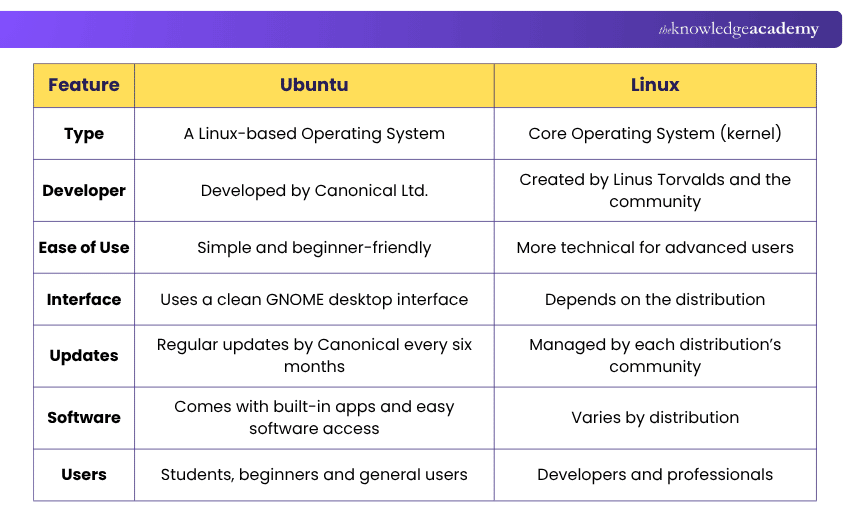
Ubuntu vs Linux: Understanding the Difference
Linux is the kernel, while Ubuntu is a Linux distribution that combines the Linux kernel with applications, desktop tools, package management, and other software. Now, let’s check how Ubuntu is different from Linux:

The Knowledge Academy develops accessible learning content across Project Management, IT, Cybersecurity, Data Science, Business Analysis, HR, Accounting and Finance, Leadership and Health and Safety. Its resources combine subject research with clear explanations to help professionals build practical knowledge across a wide range of disciplines.
View Detail

 If you wish to make any changes to your course, please


