







We may not have the course you’re looking for. If you enquire or give us a call on 01344203999 and speak to our training experts, we may still be able to help with your training requirements.
11 Best Video Editing Apps You Must Try
ByThe Knowledge AcademyLast updated on: 18 September 2026
Video editing apps like LumaFusion, iMovie, and CapCut help users cut, enhance, and export videos using clips, audio, text, effects, and transitions. These apps help you trim clips, add effects, adjust audio, and create polished content for social media or personal projects.
During the pandemic, when we were all locked in, videos, whether it be funny or motivational, found us and helped us get through that difficult time. Even before the pandemic, videos have always been the best way to connect with people. Today, there are numerous Video Editing Apps in the market that help many people, especially those who are in marketing.
According to Statista, the global creative software market, including video editing apps, is projected to reach £8.2 billion by 2029. This growth highlights the rising demand for accessible, high-quality editing tools. In this blog, we'll explore 10+ Best Video Editing Apps to help you create high-quality videos with ease. Read on to learn more!
11 Best Video Editing Apps
Here are some of the Best Video Editing Apps available on both mobile and desktop platforms. From simple tools for beginners to advanced features for content creators, vloggers, and professionals, these apps make it easy to produce high-quality, engaging videos.
1) DaVinci Resolve
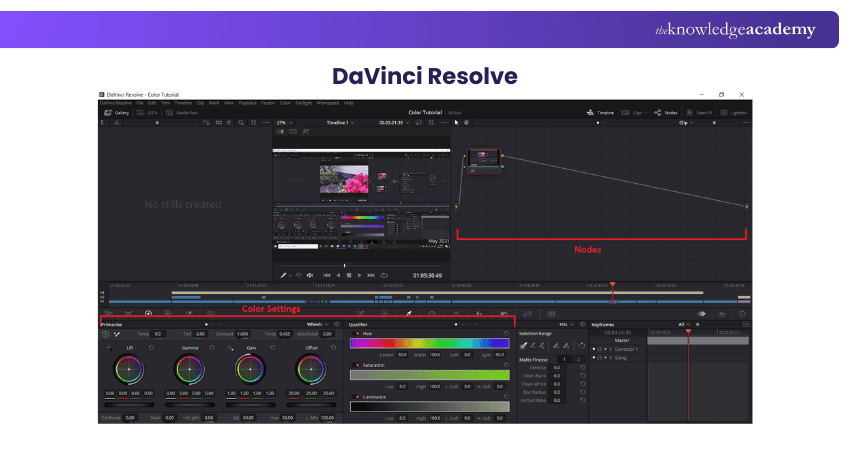
DaVinci Resolve is a powerful free video editing suite offering advanced features like multi-camera support, colour grading, and export tools. Ideal for professionals requires commitment but supports learning with extensive tutorials and documentation.
Key Features
a) Cut and Edit Interfaces: Quickly cut clips and build complex edits efficiently.
b) Multi-camera Support: Sync video and audio for seamless perspective switching.
c) Fusion Interface: Create advanced effects and animations.
d) Fairlight Interface: Professional-grade audio mixing capabilities.
e) Colour Grading Tools: Industry-leading features for precise colour adjustments and LUTs.
f) Direct Social Uploads: Upload to YouTube and TikTok with support for chapters, thumbnails, and titles.
Pros
a) Completely Free: Offers an extensive suite of professional editing tools at no cost.
b) Support Materials: Extensive tutorials and documentation available, along with user-generated resources.
c) Versatile: Combines basic editing tools with advanced capabilities for professionals.
Cons
a) Learning Curve: Requires commitment to unlock its full potential.
b) Overkill for Simple Tasks: May be more complex than necessary for basic editing needs.
Who Can Use It?
DaVinci Resolve is ideal for filmmakers, video editors, and content creators seeking a professional and versatile editing tool. Beginners can start with its user-friendly basic features, while advanced users can utilise powerful tools like colour grading, effects, and audio mastering. Whether you're creating YouTube videos or complex film projects, DaVinci Resolve delivers high performance and flexibility, making it a top choice for video editing.
2) CapCut (Windows, Mac, Web)
CapCut is a freemium Best Video Editing App for Windows and Mac, designed for beginners and advanced users alike. Its ease of use, advanced features, and ability to export in 8K resolution make it a standout choice for content creators.
Key Features:
a) Intuitive Interface: Simple drag-and-drop editing makes it beginner-friendly.
b) 8K Exports: Supports up to 60 frames per second with multiple formats, including ProRes.
c) Chroma Key Tool: Remove backgrounds with a colour picker and keyframe controls.
d) Advanced Editing Tools: Features like keyframe animations, curve adjustments, LUTs, and exposure settings.
e) Text-based Editing: Edit videos as if they were text files for easy adjustments.
f) Creative Tools: Includes effects, transitions, filters, stickers, and AI-powered features.
Pros
a) User-friendly: Intuitive design helps users start editing quickly.
b) Massive Export Capabilities: Free 8K video exports in various formats.
c) Room to Grow: Offers advanced tools like chroma key and animations for experienced editors.
Cons
a) Not as Advanced as DaVinci Resolve: Lacks depth for complex projects.
b) In-app Purchases: Many premium features are reserved for Pro users and require a subscription.
Who Can Use It?
CapCut is ideal for content creators, social media enthusiasts, and beginner editors looking for an accessible yet powerful tool. While professionals might find its limitations challenging, advanced features like chroma keying, text-based editing, and 8K exports make it an excellent option for those seeking high-quality results without steep learning curves.
3) Adobe Premiere Rush
Adobe Premiere Rush combines a user-friendly interface with extensive functionality, making it a top pick for all devices, including iOS, Android, Windows, and macOS. Its seamless workflow caters to beginners and professionals alike.
Key Features:
a) Cross-platform: Available on iOS, Android, Windows, and macOS.
b) Multi-track Editor: Allows layering of video, audio, and effects.
c) Optimised Exports: Automatically converts videos for social media platforms.
d) Customisation Tools: Includes colour correction, transitions, and titles.
e) Integration With Premiere Pro: Move content between apps for advanced editing.
Pros:
a) Cross-platform: Edit seamlessly across multiple devices.
b) Useful Export Options: Perfect for social media content creators.
c) Free Starter Plan: Accessible features without upfront cost.
Cons:
a) Subscription Required: Full version requires a paid plan.
Who Can Use It?
Premiere Rush is perfect for YouTubers, social media users, and professionals seeking a fast, efficient way to create high-quality videos. Beginners appreciate its simplicity, while professionals value its integration with Adobe Premiere Pro. With features like multi-track editing, royalty-free sound effects, and automatic social media optimisation, Premiere Rush strikes the perfect balance between ease of use and advanced functionality. It’s an ideal choice for anyone looking to edit and share videos effortlessly.
4) iMovie
iMovie, developed by Apple, is a sleek and intuitive Best Video Editing App for iOS and iPad users. While it’s not ideal for advanced creators, it remains a top choice for casual and beginner editors.
Key Features:
a) Three Editing Modes:
a) Movie: Full control for precise editing.
b) Storyboard: Guided editing with transitions and soundtracks.
c) Magic Movie: Automatically transforms selected clips into a short movie.
b) Cross-device Functionality: Works seamlessly on iPhone and iPad.
c) Ad-free Experience: No ads or tracking, unlike many competitors.
d) Free to use: Completely free with no hidden costs.
Pros:
a) Beginner-friendly: Easy for newcomers to learn and use.
b) Polished Interface: Sleek design ensures a smooth editing experience.
c) Quick Edits: Magic Movie mode allows for effortless video creation.
Cons:
a) Not Ideal For Advanced Users: Lacks cutting-edge tools for professionals.
b) Limited Features: Advanced creators may find it lacking compared to competitors.
Who Can Use It?
iMovie is perfect for casual creators, beginners, and those new to video editing. Its simplicity and ease of use make it a great starting point for exploring the world of filmmaking. However, advanced users seeking professional-grade tools may need to look elsewhere.
Unlock your potential and enhance your new skills with our Maxon Cinema 4D Training - Today!
5) LumaFusion
LumaFusion is one of the most feature-rich Best Video Editing Apps, ideal for professionals and advanced creators. Produced by the creators of Pinnacle Studio, it brings desktop-level editing capabilities to mobile devices, making it a powerful tool for serious video editors.
Key Features:
a) Multitrack Timeline: Six video/audio tracks and six additional audio tracks for narration, music, and sound effects.
b) Keyframing: Precision adjustments for effects and clip animations.
c) Advanced tools: Insert/overwrite, colour correction, title creation, and slow/fast motion.
d) MultiCam Sync: Sync and edit clips from multiple camera and audio sources.
e) Seamless Exports: Options for different resolutions, qualities, frame rates, and Final Cut Pro XML support.
f) Cross-platform Support: Available on iOS, Android, and Chrome OS.
Pros:
a) Professional-grade Features: Comprehensive tools for advanced video editing.
b) Integration With Cloud Services: Collaborate easily with Dropbox support.
c) Optimised for iPad Pro: Utilise Thunderbolt 4 for faster downloads and uploads.
Cons:
a) Steep Learning Curve: May be overwhelming for beginners.
b) Overkill for Casual Users: Advanced features may not be necessary for simple projects.
Who Can Use It?
LumaFusion is ideal for professional video editors, filmmakers, and advanced creators who require robust editing tools on the go. Its support for multi-camera editing, precise keyframing, and seamless exporting options make it a standout choice for producing high-quality video content. While it may be overwhelming for casual users, it’s an unbeatable value for professionals seeking a mobile editing powerhouse.
6) Kinemaster
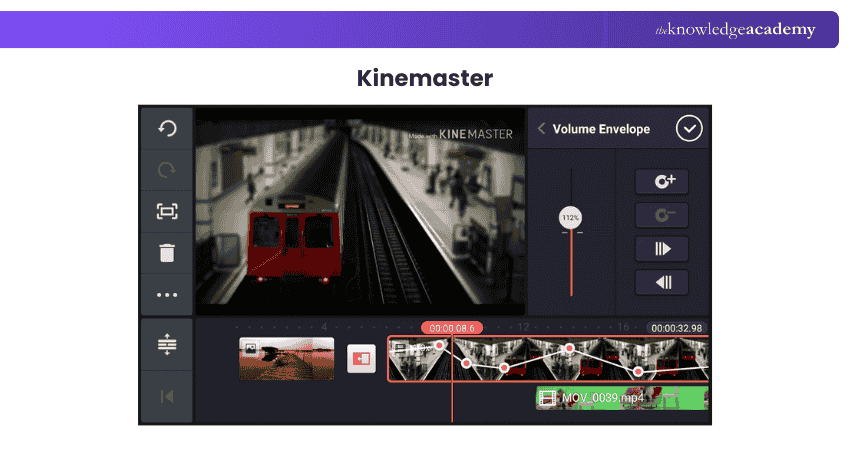
KineMaster is an intuitive video editing app offering free use with minimal limitations. It supports high-quality 4K exports at up to 60fps, intuitive touch gestures, and a polished interface. Subscribers can access premium features and extensive tools via its asset store.
Key Features:
a) Multi-layered Editing: Layer video, audio, and effects for a detailed editing experience.
b) Precision Cutting: Frame-by-frame trimming ensures high accuracy.
c) Instant Preview: Preview edits on the fly for immediate adjustments.
d) Diverse Asset Store: Access a library of music, clip graphics, transitions, and more.
e) Chroma key: Create green screen effects and replace backgrounds on mobile.
f) AI Features: Includes tools like Magic Remover for background removal and AI Styles for unique video effects.
g) Super Resolution: Upscale low-resolution content using AI-powered enhancements.
Pros:
a) User-friendly: An intuitive interface suitable for beginners and professionals alike.
b) Feature-rich: Advanced editing features comparable to desktop software.
c) Regular Updates: Frequently updated with new assets and functionalities.
Cons:
a) Watermark: Free version includes a watermark on exports, removable via subscription.
b) Subscription Model: Lacks a one-time purchase option, which some users may prefer.
Who Can Use It?
KineMaster is ideal for a broad audience, including social media influencers, educators, journalists, and content creators. Beginners appreciate its user-friendly design, while professionals value its advanced capabilities. Perfect for editing on the go without compromising quality, KineMaster is a standout mobile editing app in the digital industry.
7) InShot
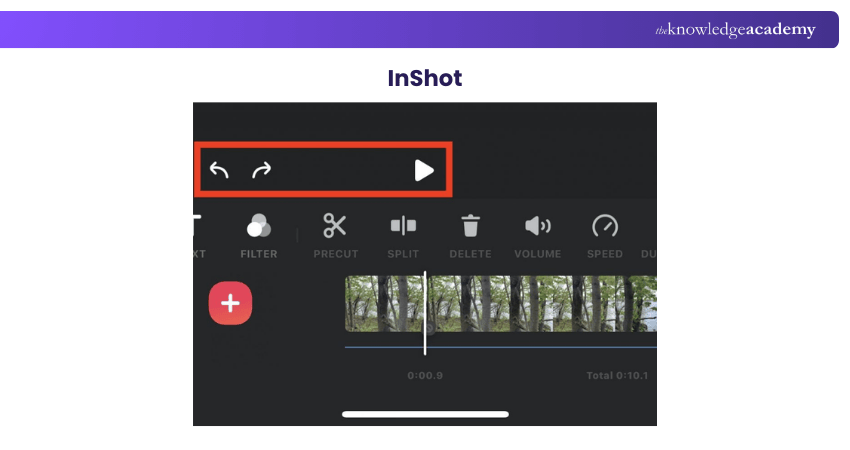
It is one of the best mobile Video Editing Apps, known for its simplicity and features tailored to social media content creation. It combines video editing, photo editing, and collage-making, making it perfect for enhancing digital content quickly.
Key Features:
a) Pre-set Canvas Sizes: Optimised for platforms like TikTok and Instagram.
b) Simple Editing Tools: Import, trim, and edit clips with ease.
c) Filters And Effects: Add fun transitions, stickers, and captions.
d) Music And Sound Effects: A library with free sounds to match various themes.
e) Stock Footage: Exclusive clips to enhance your videos.
Pros:
a) Easy-to-use Interface: Ideal for beginners and casual users.
b) Social Media-friendly: Designed for quick and platform-specific editing.
c) Free to Start: Access basic features without payment.
Cons:
a) Ads And Watermarks: Present in the free version, removable via subscription.
b) Advanced Features: Available only as one-off purchases.
Who Can Use It?
InShot is perfect for social media enthusiasts, content creators, and influencers who want to edit videos on the go. Its user-friendly design caters to beginners, while advanced tools appeal to professionals seeking quick and effective editing solutions. It bridges the gap between ease of use and professional output, making it a must-have for mobile video editing.
8) Quik
Born from the creators of GoPro, Quik is a free video editing app designed for automated, quick editing on mobile devices. Its speed and simplicity make it a go-to choice for transforming clips into polished videos effortlessly.
Key Features:
a) Automatic Video Creation: Select photos and clips, and Quik handles the editing.
b) Customisable Themes: Offers styles and templates to match your video’s mood.
c) Music Sync: Transitions sync seamlessly with the beats of your chosen soundtrack.
d) Speed Control: Create slow-motion or speed-up effects with ease.
e) Direct Sharing: Instantly share videos on social platforms or save them in HD.
Pros:
a) User-friendly: No prior editing experience required.
b) Fast Results: Perfect for quick, on-the-go video creation.
c) GoPro Integration: Optimised for editing footage from GoPro devices.
Cons:
a) Limited Advanced Tools: Not ideal for professional-grade editing needs.
b) Template-driven: Customisation options are limited to predefined templates.
Who Can Use It?
Quik is perfect for adventure enthusiasts, travellers, and everyday users seeking a quick way to turn memories into videos. Its seamless integration with GoPro devices makes it a favourite among action camera users, while its user-friendly design ensures accessibility for anyone. Quik lives up to its name, delivering stylish, quality videos in no time.
Enhance your creativity with our Animation and Design Training- register now!
9) Clipchamp (Web, Windows)
Clipchamp, owned by Microsoft, is a browser-based video editor that combines multi-track editing with simplicity and performance. Accessible through Chrome, Edge, or Windows 11, it is ideal for creating videos quickly and efficiently online.
Key Features:
a) Multi-track Editing: Drag and layer clips on a timeline, split clips, and detach audio.
b) Web-based Convenience: Edit directly in Google Chrome, Microsoft Edge, or a Windows 11 browser wrapper.
c) Creative Tools: Adjust colour, exposure, and playback speed; add filters and effects.
d) Templates and AI Auto-editor: Kickstart your edits with pre-made templates or AI-powered workflows.
e) Generous Free Assets: Access video transitions, motion graphics, audio, and auto-captioning tools.
f) Direct Exports: Export in up to 1080p to YouTube, TikTok, or LinkedIn with connected accounts.
Pros:
a) Multi-track Video Editing: Supports advanced layering and timeline editing in a browser.
b) Good Performance: Impressive speed and stability for a web-based app.
c) Decent Free Templates: Includes a variety of assets and tools for beginners.
Cons:
a) Browser dependency: Requires Google Chrome or Microsoft Edge to run.
b) Windows App Limitation: Functions as a wrapper for the web-based version, offering no additional features.
Who Can Use It?
Clipchamp is perfect for casual creators, marketers, and social media enthusiasts who prefer the convenience of a web-based tool. While it has some limitations compared to desktop apps, its multi-track editing, free templates, and direct export options make it a strong contender for quick, accessible video editing.
10) Filmmaker Pro (iOS)
Filmmaker Pro operates as an advanced mobile video editing solution that caters to both iPhone and iPad user needs. This application provides high-level editing functions such as multi-track editing and both colour manipulation and voice-over addition to create professional-quality videos on the go.
Key Features:
a) Tracking: Multi-track video editing with unlimited projects.
b) Filters: Over 30 professional transitions and video filters.
c) Editing: Support for 4K video and green screen editing.
d) Colouring Tools: Advanced colour grading tools.
e) Voice Record: Audio ducking and voice-over recording.
f) Sharing: Direct sharing to social media platforms.
Pros:
a) User-friendly interface: It is suitable for both beginners and professionals.
b) Editing Tools: A Comprehensive set of editing tools available on a mobile device.
c) Versions: Free version offers decent features.
d) Fast Editing: Ideal for quick edits and social media content.
Cons:
a) Paid Versions: Watermark on videos in the free version.
b) Locked Features: Some advanced features require in-app purchases.
c) Platform Dependent: Only available on iOS devices.
Who Can Use It?
Perfect for beginner to intermediate content creators, social media influencers, and mobile filmmakers seeking a robust video editing solution on iOS.
11) Final Cut Pro for iPad
Apple designed Final Cut Pro for iPad as a professional-grade video editing application exclusively for their tablet platform. The iPad benefits from this application because it features advanced desktop features including magnetic timelines combined with colour grading tools and ProRes encoding capabilities.
Key Features:
a) Timeline: Multi-touch timeline and magnetic timeline editing.
b) Support: Live drawing and Apple Pencil support.
c) Compatible Devices: Optimised for M1 and M2 iPads.
d) Effects: Professional-grade transitions, effects, and colour grading.
e) App Integration: Seamless integration with Mac version via iCloud.
f) Supported Formats: Support for ProRes and HDR video formats.
Pros:
a) Brings desktop-level editing to iPad.
b) Ideal for professionals on the go.
c) Touch controls make editing more intuitive.
d) Constant updates from Apple ensure stability and new features.
Cons:
a) Subscription-based pricing model.
b) Requires newer iPad models for optimal performance.
c) May have a learning curve for new users.
Who Can Use It?
Perfect for professional video editors, mobile journalists, and advanced creators who need desktop-quality features on a portable iPad device.
How to Choose the Best Video Editing App?
To choose the Best Video Editing App, consider your editing needs, budget, and device compatibility. Evaluate the app's features, ease of use, and customer reviews. Trial versions can help you determine if the app meets your requirements.
Common Mistakes to Avoid While Using Video Editing Apps
Many beginners overlook audio quality, leading to inconsistent or out-of-sync sound that disrupts the viewing experience. Always record in a quiet environment, use quality microphones, and ensure your audio aligns perfectly with your visuals for a professional finish.
Another common mistake is overusing effects and transitions. While they can enhance storytelling, too many can make videos look cluttered or unpolished. Focus on clean cuts, balanced pacing, and music that matches the tone to create engaging, seamless edits.

The Knowledge Academy develops accessible learning content across Project Management, IT, Cybersecurity, Data Science, Business Analysis, HR, Accounting and Finance, Leadership and Health and Safety. Its resources combine subject research with clear explanations to help professionals build practical knowledge across a wide range of disciplines.
View Detail

 If you wish to make any changes to your course, please


