




We may not have the course you’re looking for. If you enquire or give us a call on 01344203999 and speak to our training experts, we may still be able to help with your training requirements.
Power Query in Excel: A Step-by-Step Guide
ByVishnu SankarLast updated on: 18 September 2026
Power Query in Excel is a powerful tool that enables users to connect to and combine data from various sources. It simplifies data preparation for analysis. It simplifies data preparation by enabling easy cleaning, reshaping, and loading of data into Excel, making analysis faster and more efficient with minimal coding knowledge.

Looking for a way out of the headache of messy spreadsheets, endless copy-pasting and manual updates? Embrace the power of Power Query in Excel! This data transformation and data preparation engine helps you clean, transform and combine vast datasets effortlessly. By automating data preparation through a range of functions, including summarising data and creating relationships between datasets, this tool ensures that users can keep their focus on analysis and decision-making.
This blog brings you an in-depth insight into How to Use Power Query in Excel, encompassing its phases, benefits, and the transformations it can perform. So, dive in and transform your Excel workflow with Power Query's amazing data-handling features!
What is Power Query in Excel?
Power Query is a powerful data connection and transformation tool built into Excel. It allows users to extract, transform, and load (ETL) data from a variety of sources using a user-friendly interface. With Power Query Editor, users can apply step-by-step transformations such as filtering, merging, and reshaping data, all without writing complex code. The processed data can then be loaded into Excel sheets or the data model for analysis.
Power Query simplifies repetitive data tasks by letting you create reusable queries that refresh with a click. It supports handling large datasets and automates cleaning processes efficiently. Compared to Excel formulas or VBA, Power Query has a gentler learning curve, making it ideal for both beginners and experienced Excel users.

Steps to Download the Power Query Add-on Excel
Follow the steps below to learn how to download Power Query Excel:
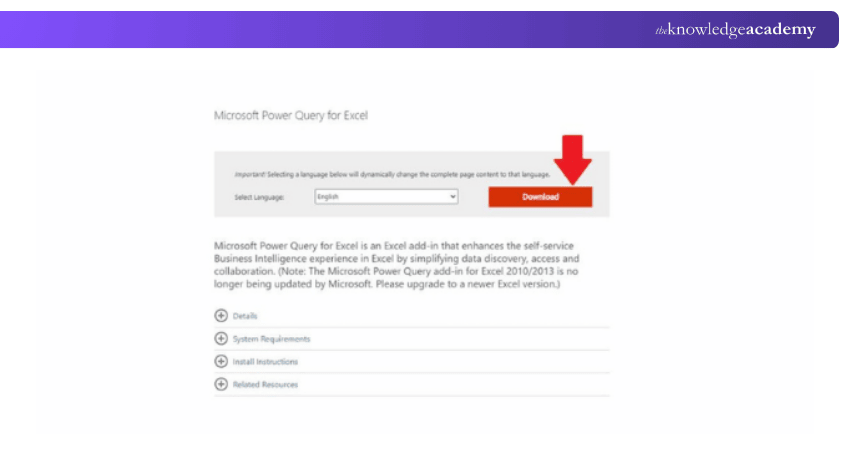
Step 1: On Microsoft’s official website, when you click on the download button, it redirects you to a dialogue box where you can opt for the correct download option.
Step 2: Choose the preferred file size and click on the “Next” option.

Step 3: Click on the “RUN” option to execute the download.
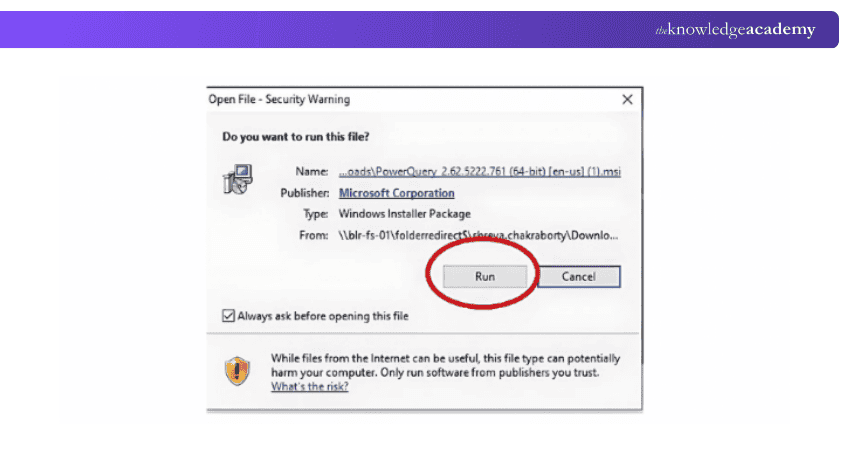
Step 4: To successfully complete your Power Query Microsoft download, Click on the “Finish” button.
Four Phases of Power Query
Power Query follows a structured ETL (Extract, Transform, Load) process through four main phases. These steps help users gather, clean, combine, and use data efficiently within Excel.
Connect
In the Connect phase, Power Query allows users to link Excel to various data sources such as databases, Excel files, web pages, or CSVs. Users can also enter login credentials or apply authentication settings to securely access the data.
Transform
Once the data is connected, the Transform phase lets users clean and shape it using built-in tools. You can remove errors, split or merge columns, filter rows, remove duplicates, and more, all through a visual interface without writing code.
Combine
This phase enables you to merge or append data from different sources to create a unified dataset. You can join tables using matching columns or stack datasets from similar sources, which is ideal for consolidating large or complex data.
Load
In the final phase, the cleaned and combined data is loaded into a chosen destination. You can insert it into an Excel worksheet, load it to the data model, or establish a connection that updates automatically when the source data changes.
Amplify your business analysis game with our comprehensive Business Analytics With Excel Course - register now!
Benefits of Power Query
Power Query is a game-changer for anyone who works with data in Excel. It simplifies complex tasks, reduces manual work, and helps maintain data accuracy across various sources. Here are some key benefits:
1) User-friendly interface: Power Query uses a simple, Excel-like interface, making it easy to learn and use.
2) No coding required: You can clean, transform, and reshape data using built-in tools without writing any formulas or code.
3) Connects to multiple data sources: Import data from Excel files, databases, web pages, CSV files, and more.
4) Reusable and refreshable queries: Create a query once, then refresh it anytime to pull updated data instantly.
5) Handles large data sets: Power Query can manage and process millions of rows efficiently without slowing down.
6) Minimises errors: Automated steps reduce the risk of mistakes caused by repetitive manual processes.
7) Improves reporting workflows: Clean and structured data makes it easier to build reports, dashboards, and pivot tables.
Build your career as a Data Analystwith our Data Analysis Training Using MS Excel- Sign up now!
Functions of Power Query
Power Query is a widely used ETL tool. It is an innovative tool which can save hours, reduce manual errors, and allow users to source data from a singular source of truth. Power Query can retain the user's data, transformation steps, and efficiently automating manual processes. Let’s take a closer look at some of its functions:
1) Transferring Data
Transferring data becomes manageable using the "Get and Transform Data" section of the Data tab in Excel.
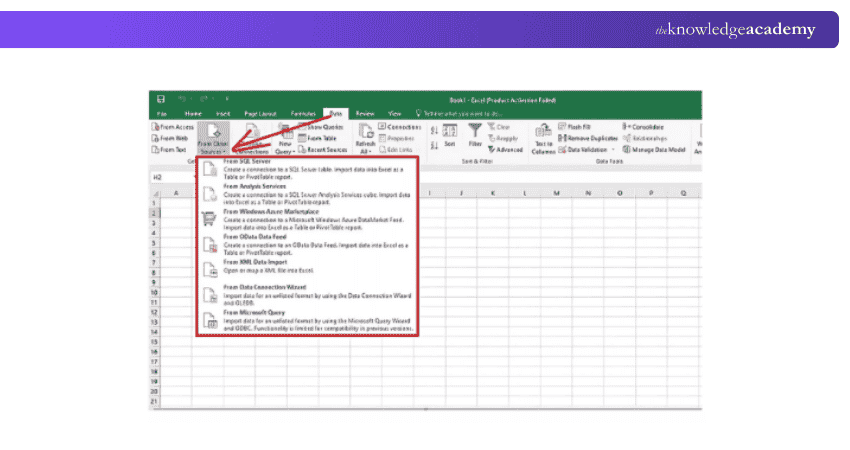
You can transfer data from various sources:
1) Excel files (Workbooks), text or CSV files, XML files, and JSON files can all be read from.
2) SQL Server, Microsoft Access, and SQL Server Analysis Services are databases.
3) Excel Tables/Ranges, the Web, Microsoft Query, and OData feeds are among additional sources.
2) Modifying Data
The objective of Power Query is to modify data. This refers to editing the layout, reducing errors, and making the data more presentable to use.
Common data modifications in Power Query include:
a) Unpivot and pivot
b) Dividing/combining columns
c) Data Filtering
d) Adding customised columns
e) Removing blank, error, and header rows
f) Various data types
g) Insert values
Here's what the Power Query Editor Interface looks like:
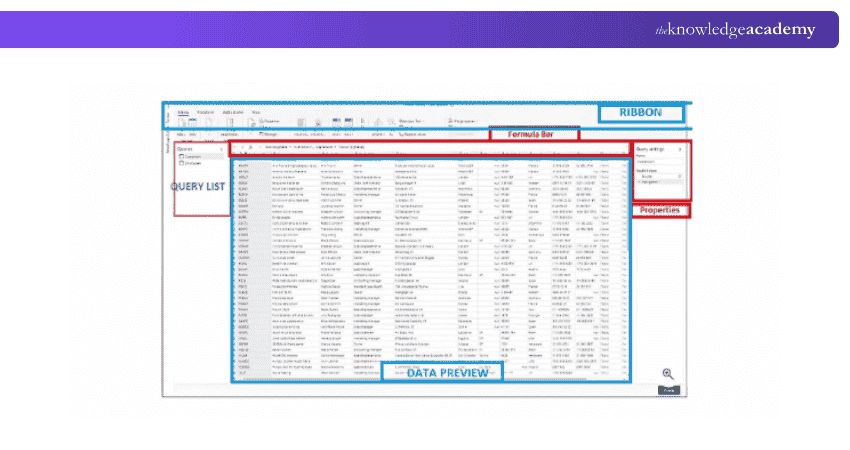
Let’s take an example to understand a simple transformation process:
Go through the steps below to understand how to sort a table based on a single column:
Step 1: Enter the data in the editor
Step 2: Choose the preferred column to sort
Step 3: Tap on the filter icon
There are icons to sort your column in either ascending or descending order in the Sort group under the “Home” tab.

There is a drop-down menu indicator next to the column's name. The column sorting option appears when you pick the icon.
The buttons in the Sort group on the “Home” tab will be used to carry out the excel function. This operation adds a new step called Sorted rows to the Applied steps section.

3) Exporting to Excel
After finishing them all, you must export the editor's operations to our Excel sheet. Choose "Close and Load” from the Power Query Editor's Ribbon menu to perform this task.

After choosing this option, the Editor will be directed toward closing and this will help you get the result of your worksheet.
Excel Sheet Data Import: Four Different Ways
Follow the steps below to import data from various data sources:
1) Import Data From a Text File
a) Click Text/CSV File under the Data tab.
b) After choosing "Text/CSV file," a new "Import data" dialogue box appears.
c) Click Import after choosing the text file you want to import.
d) When a dialogue box is opened, a preview of the data is displayed inside.
e) Finally, to import the data, click Load.
2) Importing Data from a CSV File
The steps listed below can be used to import data from CSV files into Power Query:
a) Click “Text/CSV” File under the Data tab.
b) After choosing "Text/CSV file," a new "Import data" dialogue box appears.
c) Click on import after choosing the CSV file you want.
d) When a dialogue box is opened, a preview of the data inside is displayed.
e) To import the data, click Load at the end.
3) Single Data Source Import From an Excel Workbook
Follow the steps below to import a single data source:
a) To access the Get Data command, select the Data tab, following which a drop-down menu appears. You can import the data using a range of options from the drop-down menu. You can choose "From File" and then "From Workbook" to import data from the Excel workbook.
b) When you navigate and choose the workbook using Excel, a dialogue box appears.
c) Once you've found the worksheet, click on it and choose "Open" from the menu.
d) As a result, the navigation dialogue box appears, where you can access a number of data sources.
e) You can choose the data you want to work with from here.
f) To import the data, click 'Load' at the end.
4) Import Multiple Data Sources From an Excel Workbook
The steps listed below will help you to get an idea of importing multiple data sources from the Excel workbook:
a) After clicking the "Data" tab, select the Get data command. Upon clicking, a drop-down menu will appear. You can import the data using a variety of options from the drop-down menu. You choose "From File" and then "From Workbook" to import data from an Excel workbook.
b) Excel displays a dialogue box to assist in selecting and browsing the workbook.
c) Once you have found the worksheet, you can click on it and select "Open" from the menu.
d) The navigation dialogue box appears after that. You can access a number of data sources via the navigation dialogue box.
e) There is a "Select Multiple Items" option in the navigation dialogue box. You can pick multiple items when you choose this option.
f) From this point, you may choose more than one data sources you want to use.
g) To import the data, click “Load” at the end.
h) These were some of the steps which will help you in understanding how to import data to Excel.
Master basic Excel skills by signing up for our class Microsoft Excel Course today!
How do I activate Power Query in Excel?
Power Query is usually found in the “Data” tab under the “Get & Transform Data” section. If it is not visible, you can check Excel Options by clicking File > Options > Add-ins. At the bottom, manage “COM Add-ins” and click Go. From there, select “Microsoft Power Query for Excel” and click OK to enable it. Once activated, you can start using Power Query to import and transform data from various sources.
What is the purpose of a Power Query in Excel?
Power Query helps users connect, clean, transform, and combine data from multiple sources into Excel. It simplifies data preparation through an easy interface, automates repetitive tasks, and ensures reliable, refreshable data workflows for reporting and analysis purposes.
Expand your Microsoft Excel expertise with our Microsoft Excel Expert MO201 Training - Sign up now!

Vishnu Sankar is a Senior Content Writer with 5+ years of experience across content development, software development, web development and system administration. His technical background and professional training support his expertise in IT and Tech, while his extensive research and writing experience covers Project Management and Health and Safety.
View Detail

 If you wish to make any changes to your course, please


