




We may not have the course you’re looking for. If you enquire or give us a call on 01344203999 and speak to our training experts, we may still be able to help with your training requirements.
Calculation of Percentage Formula in Excel with Examples
ByVishnu SankarLast updated on: 18 September 2026
Want to upskill yourself in Microsoft Excel? Read this blog to learn percentage formula in Excel with the help of examples to advance your Excel skills.
Microsoft Excel, a popular spreadsheet software, has many functionalities. You can use the percentage formula in Microsoft Excel to calculate the 'per cent' value of a figure. The Latin word "percent" signifies "by 100". The basic mathematical formula for percentage is (Part/Whole * 100). In contrast, Excel's percentage formula doesn't include '*100'.
Excel calculates a percentage when you divide the part by the whole. You can then apply the percentage (%) format to display the decimal result as a percentage, without multiplying the formula by 100. Additionally, when working with data that needs organisation, Splitting Cells in Excel can help separate values before performing percentage calculations.
So, when calculating a Percentage in Excel, you'll no longer have to multiply the result of the fraction by 100. Fortunately, the advent of Excel has made percentage calculation even more straightforward. Excel helps you calculate percentages easily by entering the value and percentage in your spreadsheet.
Some Excel formulas allow you to calculate changes in percentage or percentages of totals of the same item entered multiple times. Excel simplifies percentage calculations by automatically calculating results once the required formulas are entered. This will help you understand how to use the percentage formula in Excel. We'll be covering the following topics in this blog.
Before You Start
Before working with percentage formulas in Excel, make sure your data is arranged clearly and you understand basic cell references. Excel usually calculates percentages as decimal values, which can then be displayed using the Percentage (%) format.
Keep these basics in mind:
1. Know which value represents the part and which represents the whole.2. Use formulas such as =B2/B10 to calculate a proportion.3. Apply Home > Number > Percentage (%) to display the result as a percentage.4. Avoid multiplying by 100 when you plan to apply Excel’s Percentage format.5. Check that denominator cells do not contain zero to prevent #DIV/0! errors.
How to Use a Percentage Formula in Excel?
The fundamental mathematical formula for Percentage is (Part/Whole*100). However, Excel's percentage formula omits '*100'. Excel calculates the proportion when you divide the part by the whole. You can then apply the Percentage (%) format to display the decimal result as a percentage. This means you no longer need to multiply the result of the fraction by 100 when calculating a Percentage in Excel.

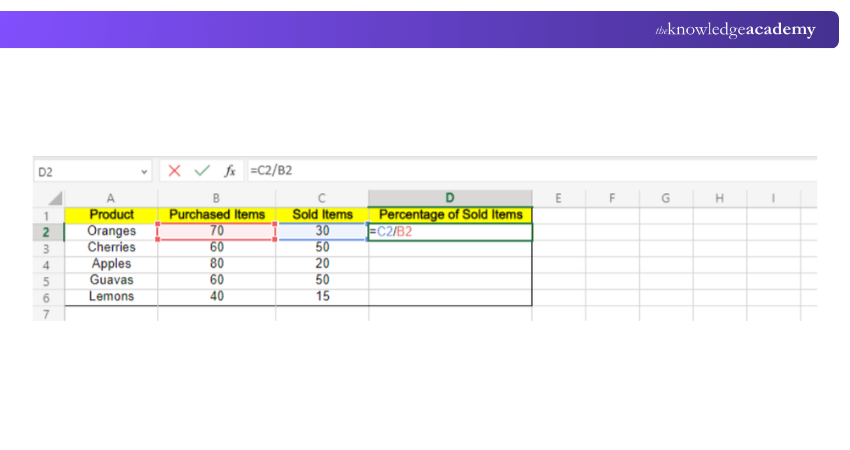
Let's see how to use this formula with the help of a real-life example. Suppose column A contains the list of items, column B contains the number of purchased items and column C contains the number of sold items.
To calculate the percentage of sold items, select cell D2 and enter =C2/B2.
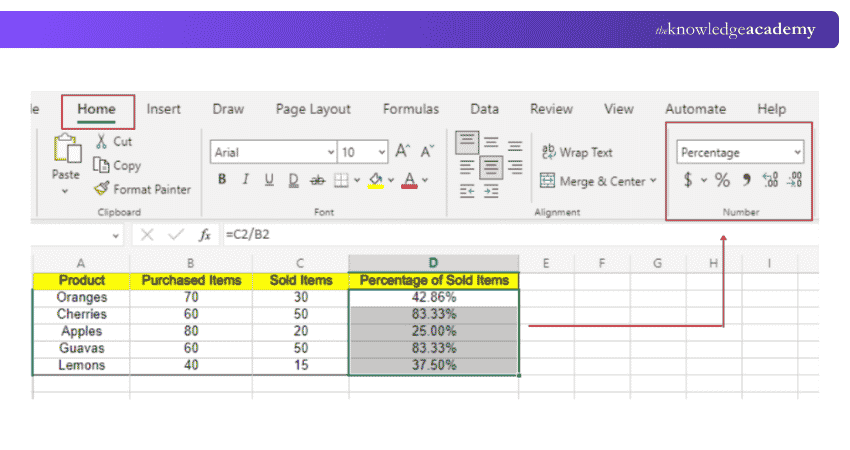
Select the Home tab > Number group and select the Percent button.
This will convert the decimal fraction to a percentage. You can also increase or decrease the decimal places if required.
In the following image, column D represents the percentage of sold items. Here, we have converted the decimal value into a percentage.
How to Use Simple Percentage Formulas in Excel?
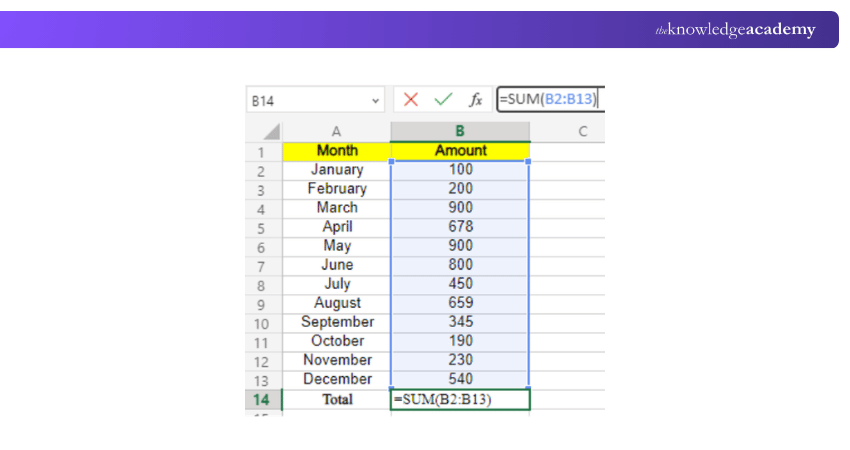
You can also use the simple percentage formula to ease your daily calculation tasks. Firstly, you’ll have to add the total expenses.
Step 1: You need to derive the sum of all amounts. To do this, you must enter the following formula =SUM(B2:B13) in B14.
Step 2: Calculate January’s percentage of the total in Column C. For example, enter =B2/$B$14. Then apply the Percentage (%) format to display the result as a percentage.
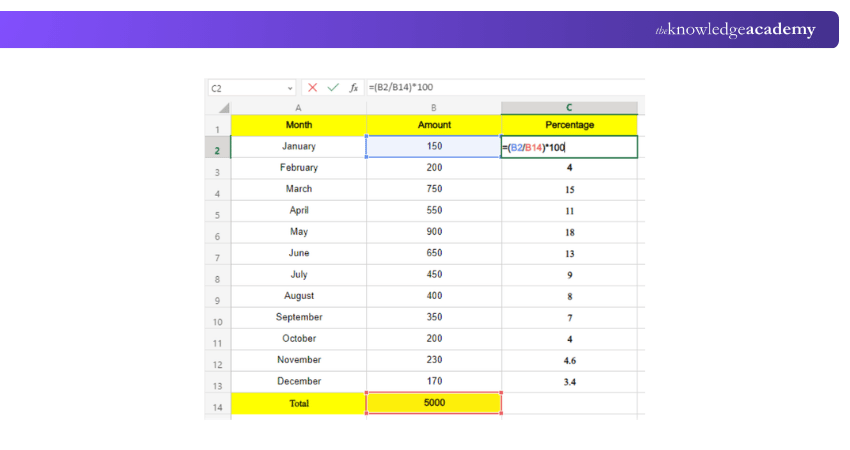
Tip: If the resultant value is represented in decimal format, you must convert it into a percentage. You can change this value into a percentage by clicking on the percent symbol.
Example 1: How to Calculate a Change in Percentage?
Percentage change measures how much a value has increased or decreased relative to its original value. When the value increases, the positive percentage change can also be described as percentage growth.
Percentage Change= (C-B)/B
Calculation of the percentage change between two columns.
The value of column B shows the original value that hasn’t been changed. For example, when we compare the sales of two months, April and May, the sales in April represent the original value of sales. Let’s take a look at the following example to learn how to calculate percentage growth:
=(C2-B2)/B2
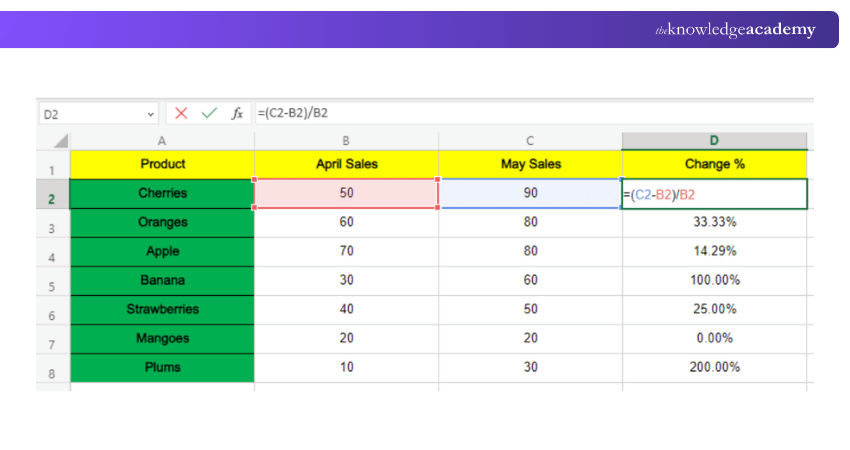
Note: Calculation showing an increase in the percentage of sales using an Excel formula
Percentage of Growth =(B3-B2)/B2
Calculation of percentage growth between two distinct rows
You can use the Excel spreadsheet to track the total number of sales every month. Here, you can calculate increases or decreases in monthly sales and represent the change as a percentage. The data included in two rows are used to estimate the changes in sales every month. For example, the sales that take place every month are included in column B.
Similarly, the percentage of growth calculated is entered in column C. Enter the sales data in B2 for January. Next, you can calculate the increase in sales for February by selecting cell C3. To derive this value, you’ll have to enter the formula in cell C3:=(B3-B2)/B2
Next, you can use this formula in the following rows commencing from C4. The % of growth in the Excel spreadsheet is shown as:
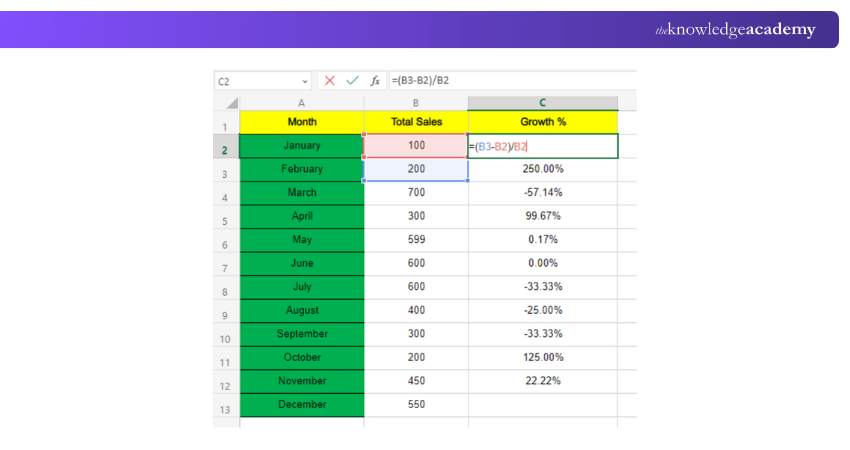
Note: When calculating the growth % in Excel, you can leave C2 or the first row in Column C blank. You cannot include C2 because it is not being compared with any of the other values. In our example, the sales figure for January isn’t being compared to the former month.
Build your career as a Data Analyst - Sign up for Data Analysis Training Using MS Excel - Register now!
Example 2: Calculate Percentage Increase or Decrease in Excel
You can follow a few simple techniques to calculate percentages in Excel. In our example, we've used a sheet with a list of travel expenses in different months. Here, you’ll be able to understand how the % can change due to an increase or decrease in prices each month.
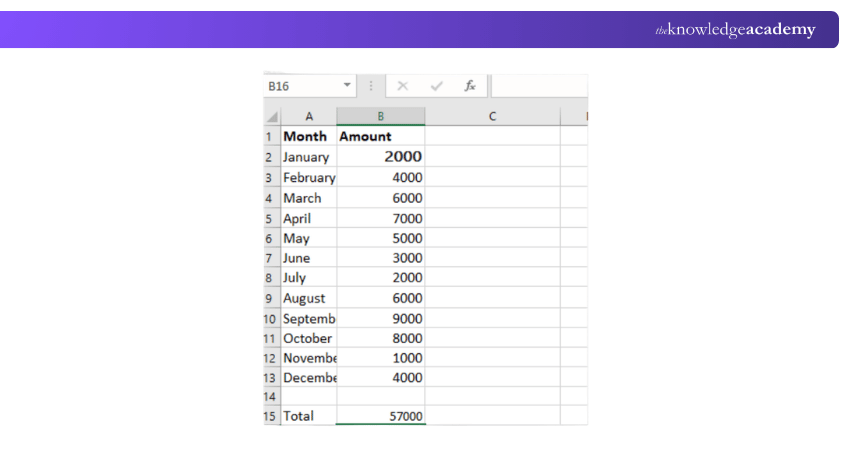
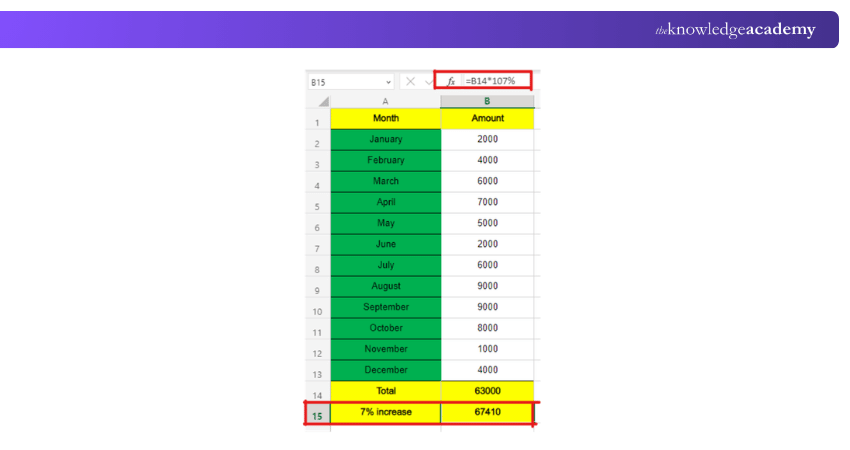
Step 1: Suppose you expect an increase in your travel expenses by 7 percent. It’s important to note that Excel allows you to enter percentages in the form of a decimal or a percent sign. For example, when you can include thirty percent in the spreadsheet by entering 0.3 or 30%. Excel’s formatting function will consider these two values the same.
In B14, enter:
= B14* 1.07
Or, if you want, you can enter it in the following format:
=B14*107%
The result derived is:
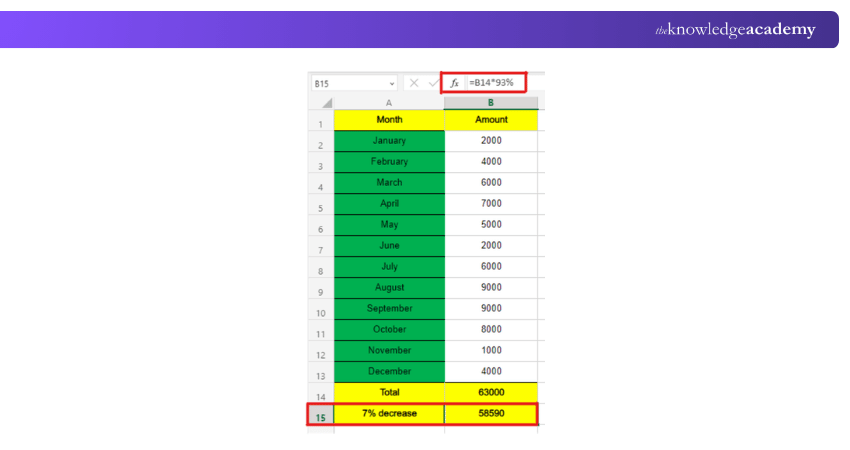
Step 2: Suppose you expect your travel expenses to decrease by 7 percent. Here, you can calculate the amount in numbers. You can use the steps mentioned below to calculate the estimate in figures.
In B14, enter:
=B14*93%
Or, you can also enter the value as:
=B14*0.93
The result derived is:
Example 3: Percent Change Between 2 Columns
Let’s say you want to calculate the price difference between two columns; we can do this using simple formulas. In this case, we will find the Percentage change between columns B and C using the following methods. Conditional formatting can be applied to highlight the cells that meet certain criteria, making it easier to apply the percentage formula.
Method 1
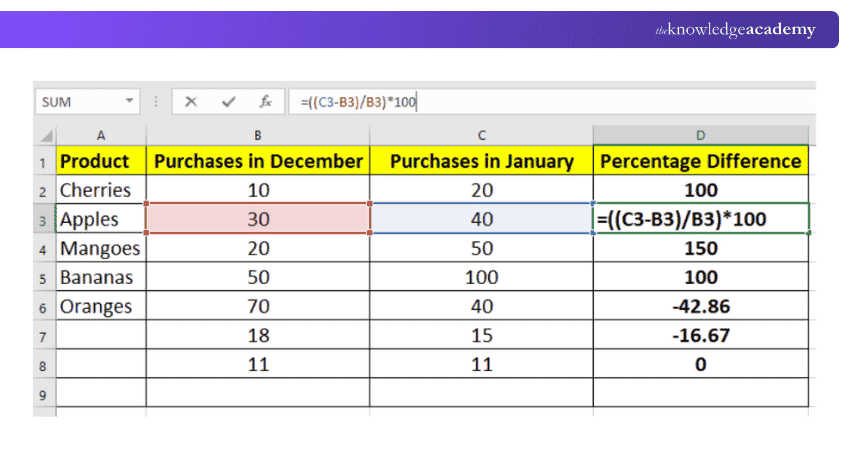
Percentage change formula =((C2-B2)/B2)*100
Step 1: Enter this formula in an empty cell next to the columns for which you want to find the difference. Here, we have entered our formula in cell D2, which is empty and close to the other columns.
Step 2: Drag the formula pasted in cell D2 and drag it down further to find the Percentage change for all the cells with data.
Method 2
Percentage Change formula =(C2-B2)/B2
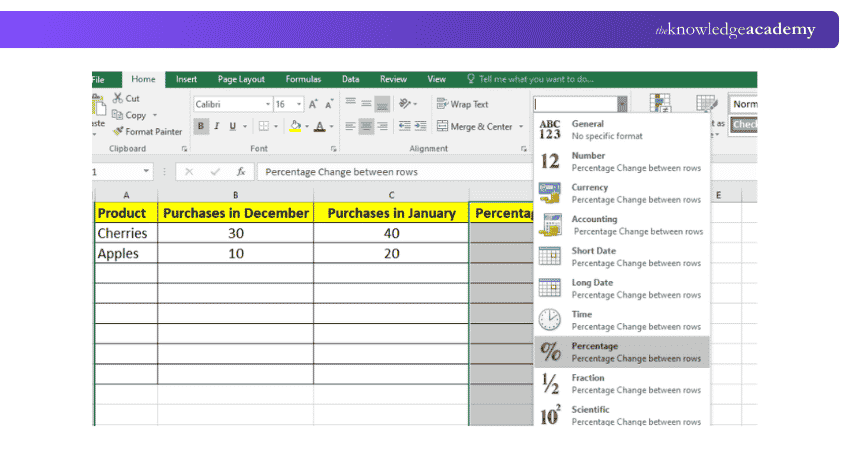
Step 1: Select all the cells in column D and change the number format from general to Percentage on the Home tab.
Step 2: Enter the above formula in an empty cell.
Step 3: Drag and drop the formula to find the Percentage change for other rows.
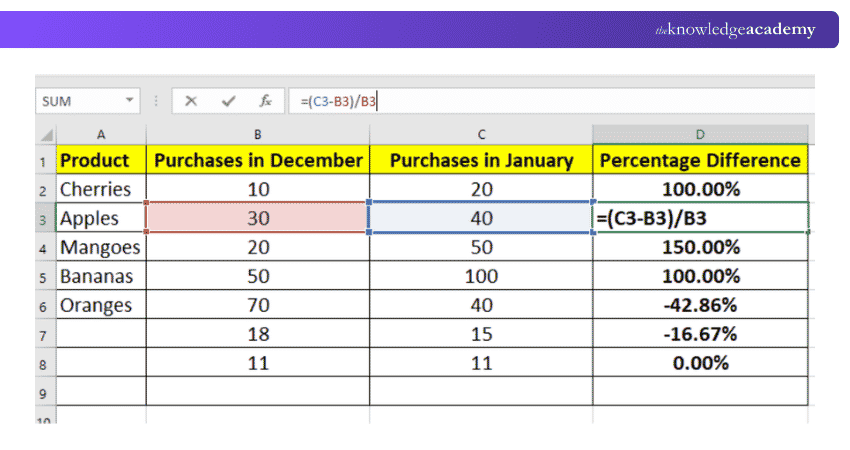
It is as simple as that; you can use any of the above two methods to determine the Percentage change between 2 columns.
Example 4: Percent Change Between Rows
Formula to find the Percentage change between rows =(B3-B2)/B2
Step 1: Enter the entire column where you want to paste the formula and change its formatting to Percentage from the Home tab.
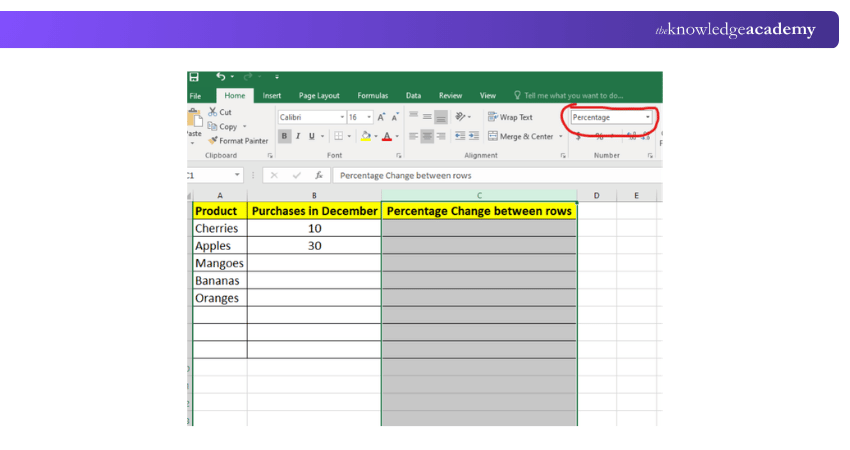
Step 2: Enter the formula in an empty cell
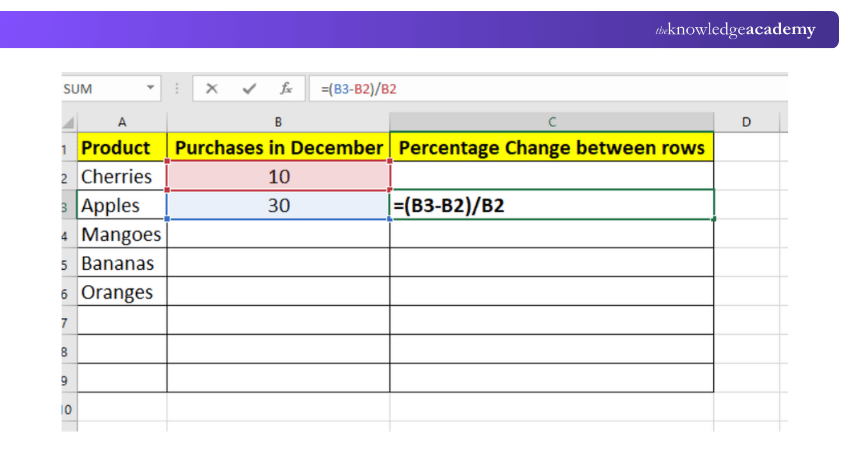
Step 3: Drag and drop the formula down to find the value for all the cells.
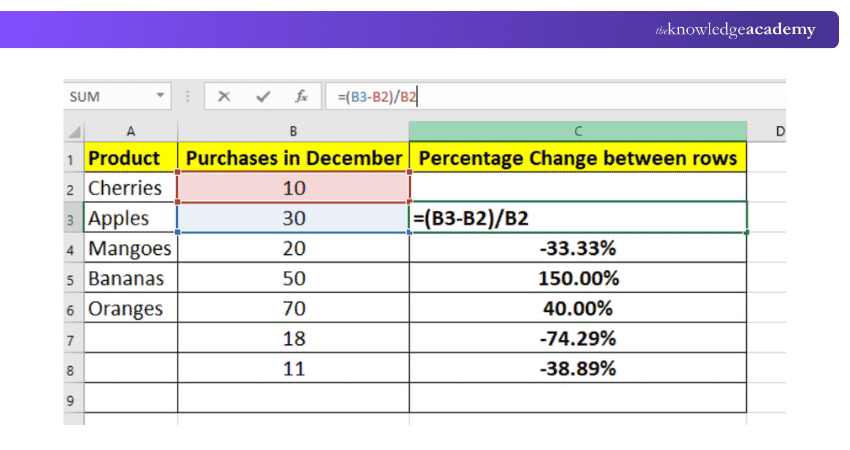
The final result would look something like this
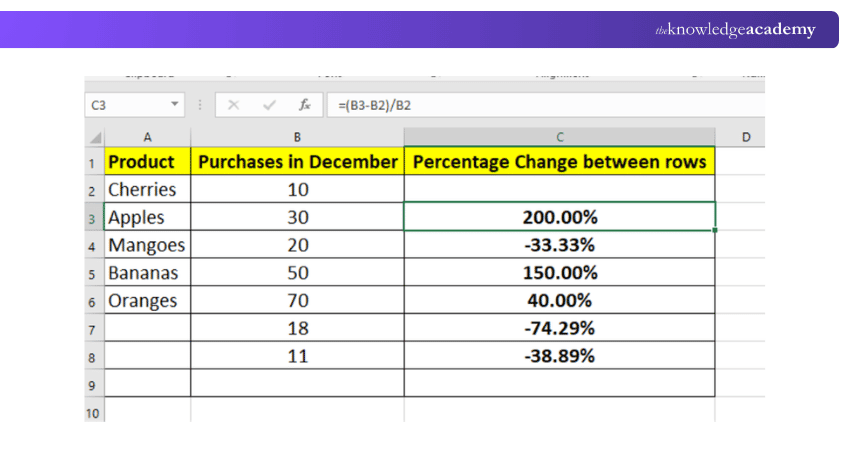
There you go; we have now calculated the Percentage change between two rows with a simple formula.
Example 5: Estimating Total Percentage in Excel
In the above example, we learn how to calculate an increase or decrease in percentage. However, using Excel is also helpful in making several complex calculations to find the percentage of the total.
Step 1: Calculate the percentage of a total at the end of the table
This step is helpful if the retailer wants to know the total number of products he purchased. Similarly, the retailer can evaluate the part (%) of the total purchase amount attributed to a particular product. Excel calculates the percentage of the total that a specific amount represents.
To calculate this, first, we will have to add the number of items in cell B10 by using the formula =SUM (B2:B9). In the right column or column C, we will enter an Excel formula to calculate the total percentage represented by each product. Secondly, to calculate this, we’ll have to use the formula =B2/B10, B3/B10, B4/B10, etc. Also, you can select the value by clicking with the mouse. Next, you can convert decimal numbers into percentages by clicking on %.
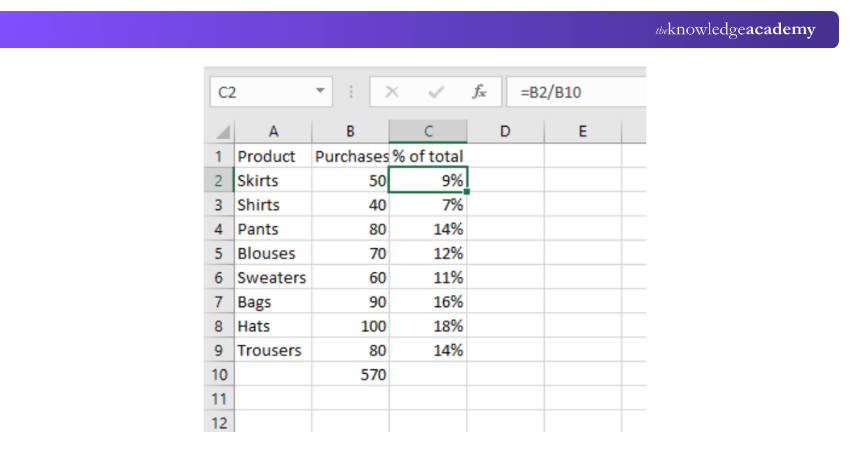
Note: The value of B10 doesn't change here. However, the other values can change as per the formula used in the spreadsheet.
Step 2: Calculate the percentage of the total in different rows
Sometimes a retailer has to maintain multiple rows to represent the quantity of the same product. Let's say the retailer wants to calculate the total percentage represented by a particular product.
In this case, the retailer can apply the SUMIF formula. The SUMIF formula helps to derive the sum of the values that can match your chosen criteria. When the SUMIF formula is combined with the formula for calculating percentages, the Excel formula is written as:
=SUMIF(range, criteria, sum_range)/total
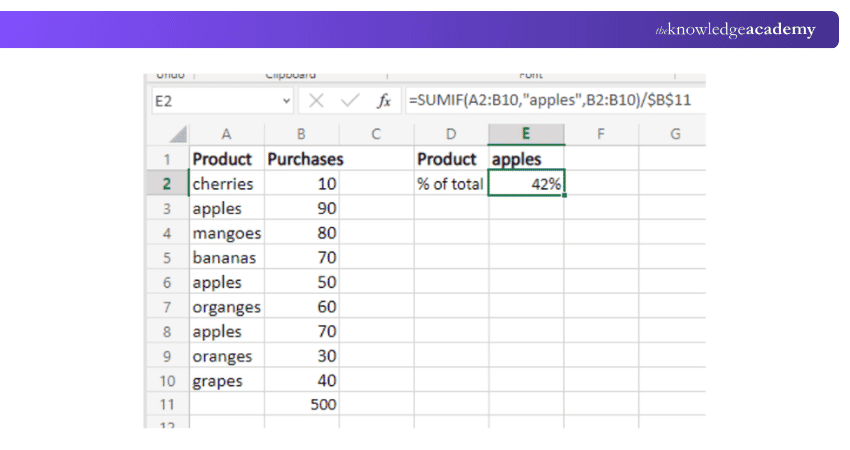
Note: The SUMIF formula in MS Excel helps to calculate the total percentage a particular product represents. The SUMIF formula is used to add the values under your chosen criteria.
We have chosen the criteria “apples” in our example in E1. The sum of values we want to derive is listed under column B. Similarly, the product names we want to select automatically are listed under column A. You can refer to the Excel cheat sheet for a quick reference on essential formulas, and you can use any of the two formulas.
=SUMIF(A2:A10,"apples",B2:B10)/$B$11
Sign up and learn the top 10 Excel shortcuts and how to apply percentage formula in Excel with our Microsoft Excel Courses - Join now!
Example 6: Calculating the Percentage Change Between Two Numbers
Step 1: Select the column where you want to find the Percentage change between two numbers and change its formatting to Percentage, similar to the image shown below.
Formula to find the Percentage change between two numbers =(C2-B2)/B2
Step 2: Enter the formula in the empty cell where you want the values to be shown
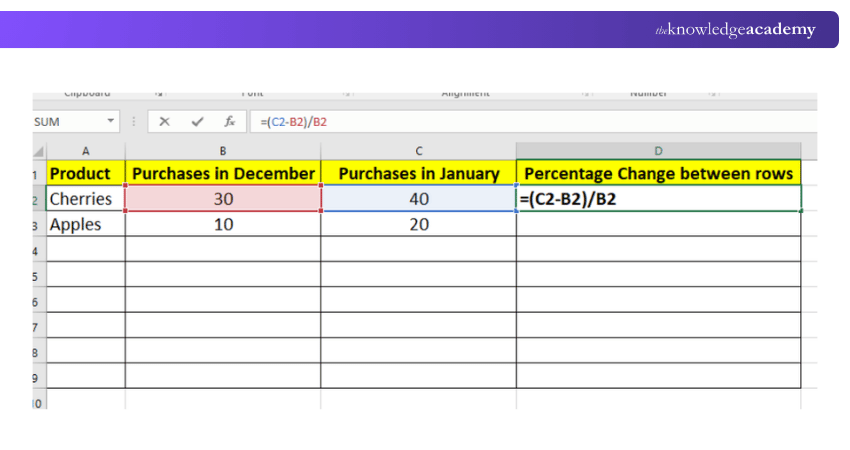
Step 3: Copy the formula to all the cells using the fill handle.
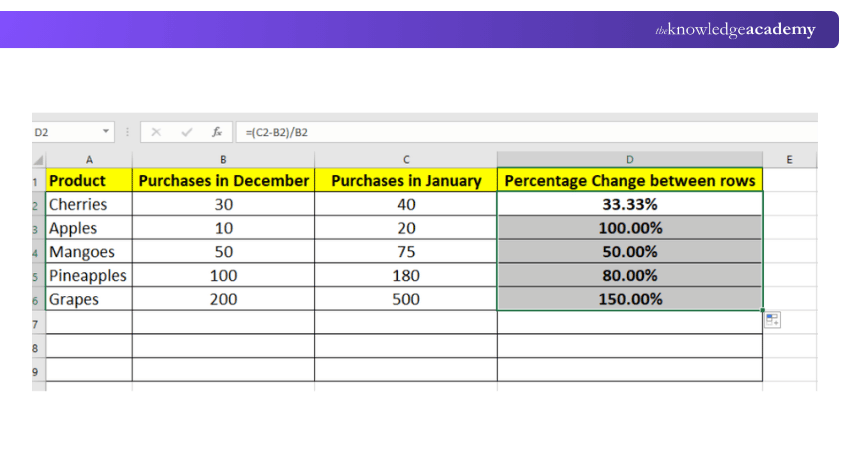
Now we have calculated the Percentage change between the two numbers.
Example 7: Parts of the Total are in Multiple Rows
To find out the value for parts of the total which are in multiple rows, we can use the following formula:
Formula =SUMIF(range, criteria, sum_range) / total
Step 1: Make sure the cell where you want the Percentage value has a Percentage format on the home tab.
Step 2: Next, enter the formula in an empty cell. For example, we are using Cell D2
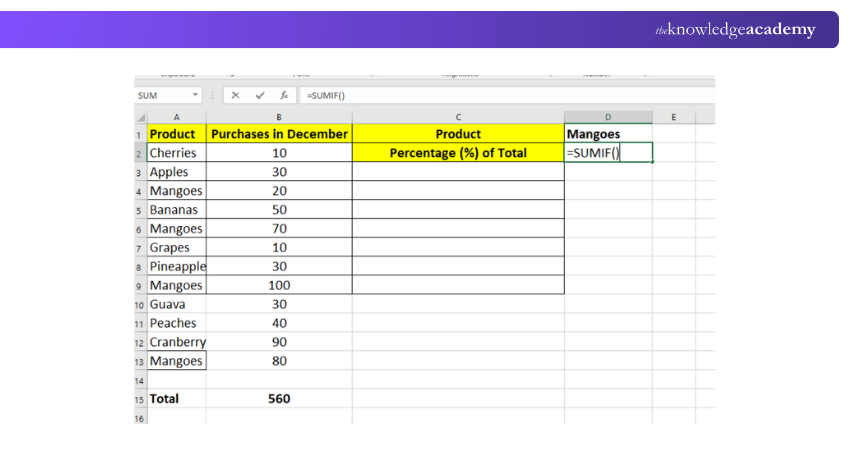
Step 3: Select the ranges for which you want to find the Percentage values.
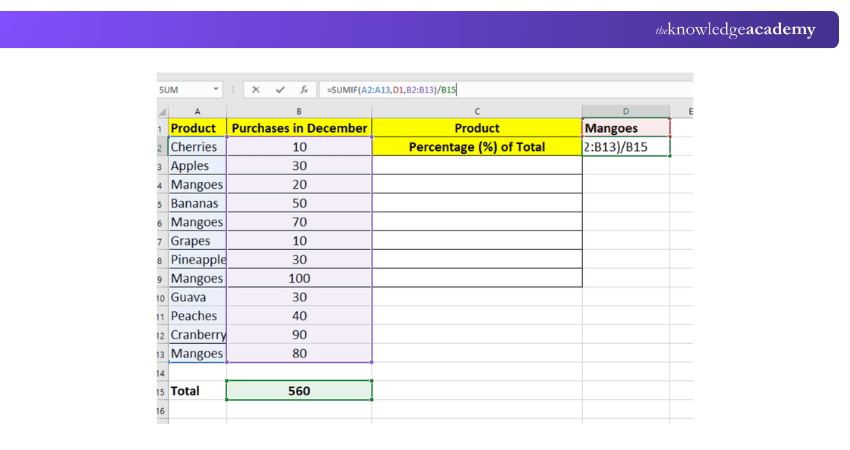
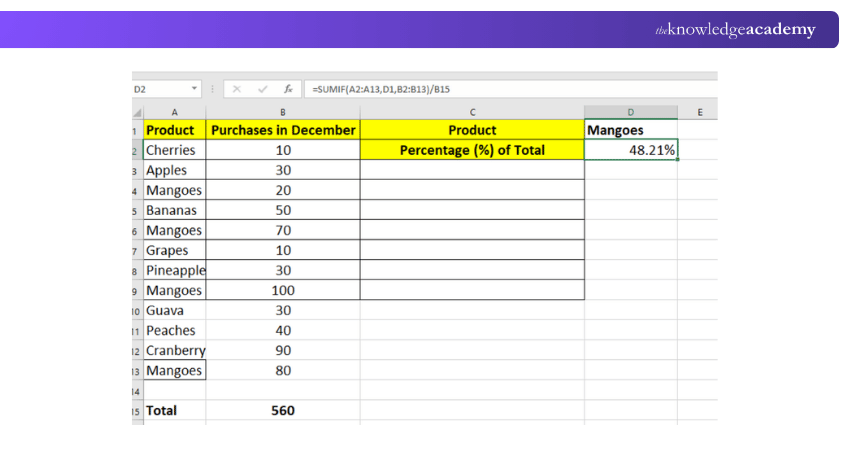
Now let’s find out the final value, as shown in the image below:
Example 8: How to Increase/Decrease a Number by Percentage
Calculating the increased and decreased value by Percentage is super simple. We are going to find them out with examples.
How to Increase a Number by Percentage?
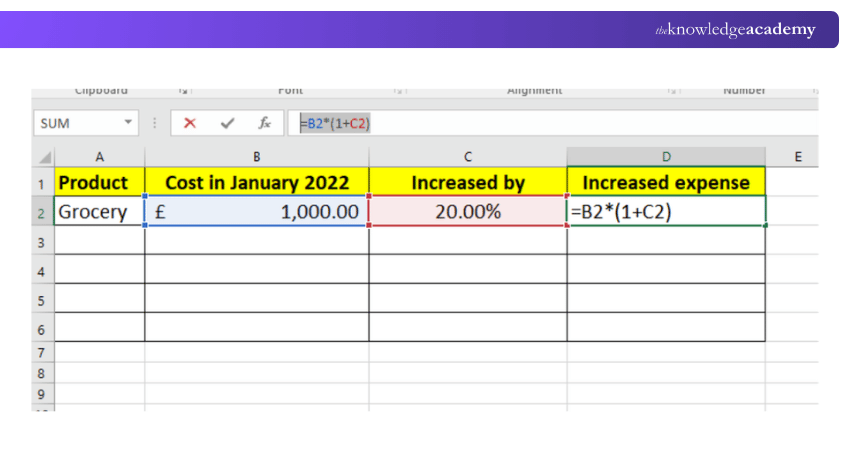
To make this interesting, let’s use a simulated example highlighting the impact of inflation. Suppose the average monthly grocery cost was £1,000 in 2022, and we want to calculate the effect of a 20 per cent increase.
We can use the following formula to increase a number by a percentage:
Formula to Increase = Number * (1 + Percentage value)
Here in our example, the formula =B2*(1+C2)
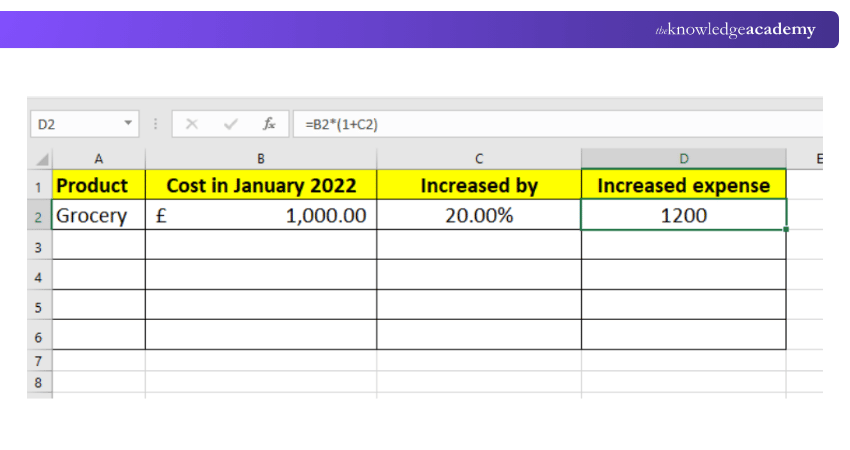
So, when we increased the number by 20 per cent, the value changed to 1200 GBP.
How to Decrease a Number by Percentage?
Let’s now assume that the grocery cost decreases by 20 per cent.
To decrease a number by a percentage, we can use the following formula:
Formula to Decrease = Number * (1 – Percentage value)
Here in our example, the formula =B2*(1-C2)
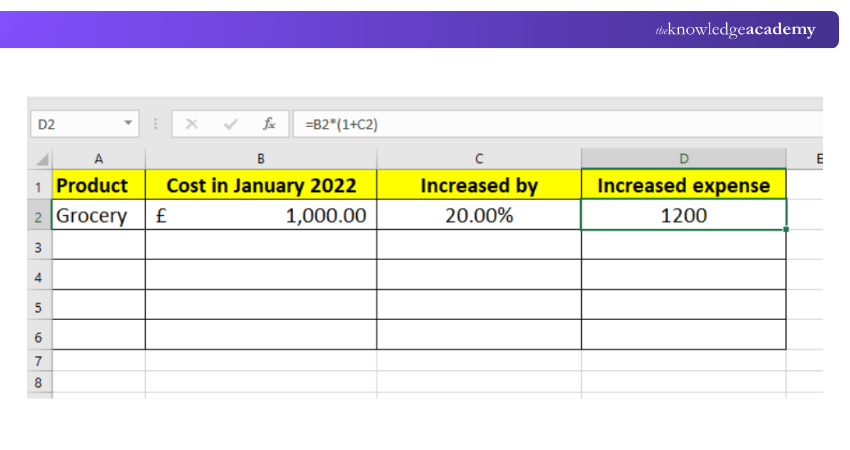
Now the cost of £1,200 is reduced by 20 per cent to £960. Hopefully, something like this happens in real life too.
Key takeaways
a) To handle errors such as #DIV/0! in percentage calculations, you can use the IFERROR function.b) The percentage is represented as a proportion per 100.c) To calculate a percentage in Excel, divide the part by the whole and apply the Percentage (%) format to the result.d) Usually, Excel users get a percentage value in the form of a decimal. Next, Excel users can convert it by using the % form.e) To change the resultant data into percentage form, users can use Excel Shortcuts and enter the shortcut command Ctrl+Shift+% in Microsoft Excel.
Learn essential Excel functions to manage accounting data more efficiently with our Excel For Accounting Course – Join now!

Vishnu Sankar is a Senior Content Writer with 5+ years of experience across content development, software development, web development and system administration. His technical background and professional training support his expertise in IT and Tech, while his extensive research and writing experience covers Project Management and Health and Safety.
View Detail

 If you wish to make any changes to your course, please


