




We may not have the course you’re looking for. If you enquire or give us a call on 01344203999 and speak to our training experts, we may still be able to help with your training requirements.
MROUND Function in Excel: A Detailed Guide
ByVishnu SankarLast updated on: 03 October 2026
Learn how the MROUND function in Excel rounds values to the nearest specified multiple. This blog explains its syntax, practical examples, time-based rounding, common errors and key differences from other rounding functions.

Getting Started
1. MROUND rounds numbers to the nearest specified multiple.2. The function requires two arguments: number and multiple.3. It can be used for numbers, quantities, financial values and time intervals.4. MROUND differs from ROUND, which rounds numbers to specified decimal places.5. Choosing the correct multiple is essential for getting the expected result.
Working with large spreadsheets often means dealing with numbers that do not fit convenient intervals. You may need prices rounded to the nearest 0.5, quantities grouped into multiples of 5 or employee times rounded to 15-minute intervals. This is where the MROUND function in Excel becomes useful. It rounds values to a specified multiple, making numerical and time-based data easier to standardise and analyse.
What is MROUND in Excel?
The MROUND function in Excel is used to round the specified cell value up or down to the nearest multiple of the given number. The MROUND function rounds a number to the nearest specified multiple. It takes two arguments: the number to round and the multiple to which it should be rounded. MROUND rounds away from zero when the remainder from dividing the number by the multiple is greater than or equal to half the value of the multiple. If the cell value is already an exact multiple, then no rounding occurs, and the original number is retained.
1) Syntax
The syntax for MROUND is as follows:
=MROUND(number, multiple)
The function takes two arguments, “number” and the other is “multiple.” Here, “number” is the numerical value or the cell number that needs to be rounded off. On the other hand, the multiple specifies the interval to which the number should be rounded, such as 5, 10, 0.5 or 0.25.

2) Use Cases of MROUND
After you have read about the MROUND in detail, it is time to understand where you can use this function. The following are the key areas where MROUND is used:
1) Rounding prices to fixed increments
2) Grouping quantities into packaging or batch sizes
3) Standardising scores or measurements
4) Rounding time to 5-, 10- or 15-minute intervals
MROUND at a Glance
Purpose: Round a number to the nearest specified multipleSyntax: =MROUND(number, multiple)Example: =MROUND(17,5)Result: 15Useful for: Fixed intervals such as 5, 10, 0.5 or 15-minute time blocks
How to Use the MROUND Function in Excel?
The Excel MROUND function can be used in various scenarios, such as rounding to a multiple of five, rounding negative numbers and rounding to zero. But the question arises: how to do that? Here’s a step-by-step-look into rounding the numbers up and down using the MROUND function in Excel:
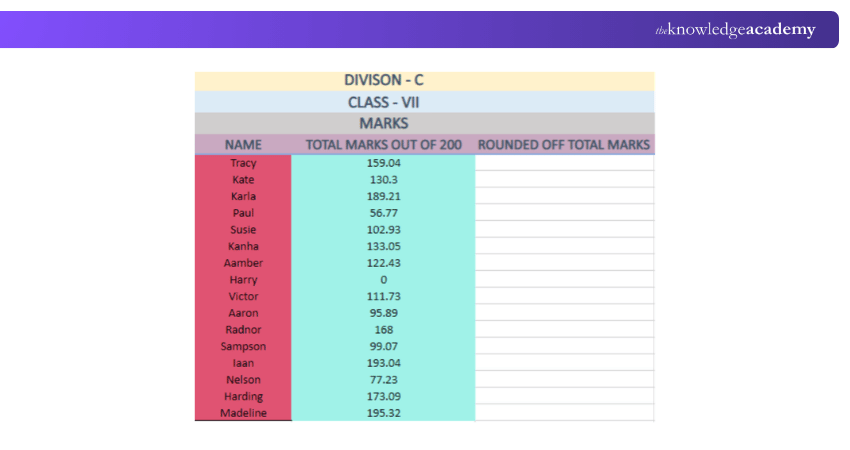
Here we have the marks of the students from Class – VII. As shown in the table, the marks contain decimal points that can make it difficult to find out the aggregate by using the percentage formula of each student. So, let’s have a look at - how we can round off the numbers in the spreadsheet.
1) Rounding to the Nearest Multiple
Enter the formula in a cell where you want to get the desired result. For example, =MROUND(H5, 0.5)
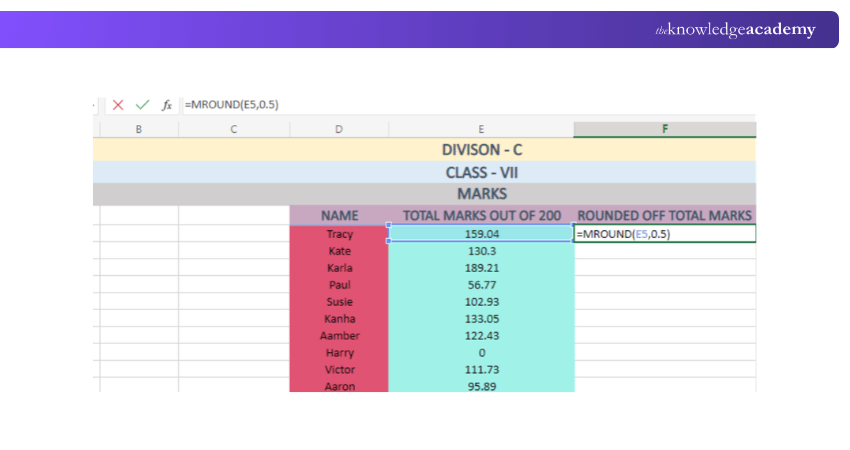
MROUND compares the value with the nearest multiples of the specified interval and returns whichever multiple is closest. For example, =MROUND(159.04,0.5) returns 159 because 159 is closer than 159.5. To round off a number to its nearest multiple, you will need to follow the below-mentioned steps:

However, using two as the multiple for rounding up the number would have given you the end value of 160. If 2 is used as the multiple, =MROUND(159.04,2) returns 160 because 160 is the nearest multiple of 2.
Tip
Enter the MROUND formula in the first cell, select that cell and the cells below, then press Ctrl+D to fill the formula down.
Learn how to prepare, sort, arrange, filter sheets and maintain data using MS Excel with our Data Analysis Training Using MS Excel course now!
2) Rounding to the Nearest Whole Number
Sometimes the numbers may be closer to .99. Using the Excel MROUND can help round the cell value to the nearest 1. Let’s have a look at how it can be done using MROUND:
a) Enter the formula for MROUND in the desired cell.
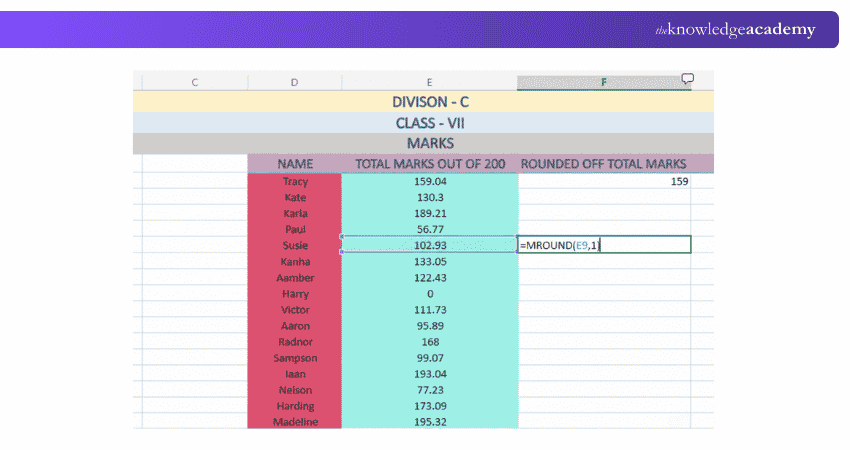
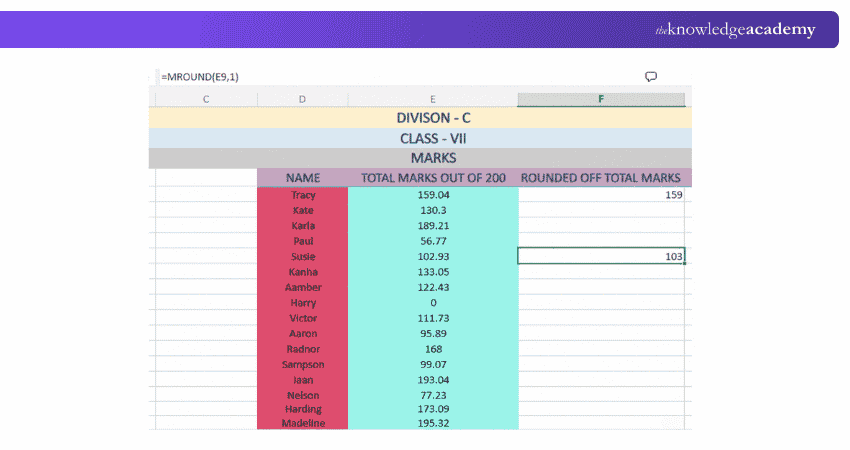
b) MROUND will round up the cell value to 1 as its multiple arguments. So, here, the E9 cell value, i.e., 102.93, will round up to 103, and the result will look something as follows:
3) Rounding Minutes
Almost all organisations require to keep the attendance of their employees on machines. It includes the date, time and even minutes of working hours. Since data is kept over the machines, it means that every minute and even second of working hours get counted through the machines. To eliminate and avoid counting each minute and second, individuals can use MROUND in Excel.
To round a time to the nearest 15 minutes, use =MROUND(A2,TIME(0,15,0)). It will round up and down the cell value depending on the number of minutes. Here’s what it will look like:
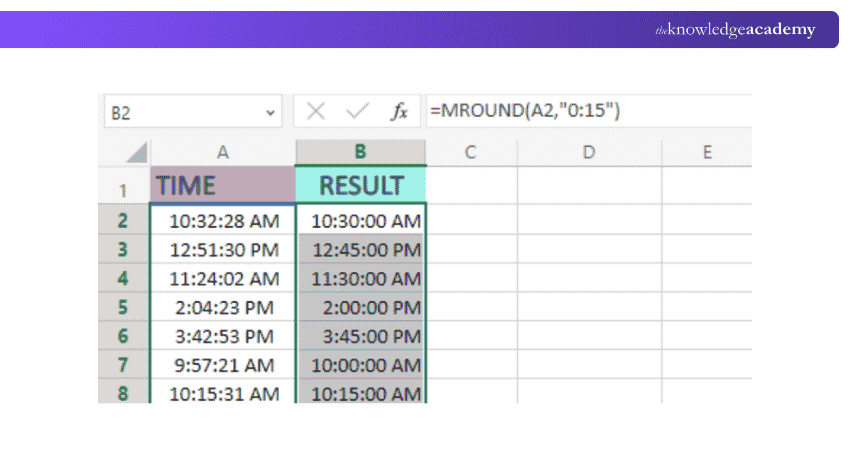
In the image above, the specified multiple value is “0:15.” Therefore, it will automatically convert to the nearest multiple. For example, 9:32 rounds to 9:30 when the multiple is 15 minutes. Here are a few tips you need to keep in mind while dealing with the Time format in Excel:
1) Set the format to “Time” before beginning to fill in the data
2) Both parameters should be numbered, i.e., the cell to be rounded off and the time interval.
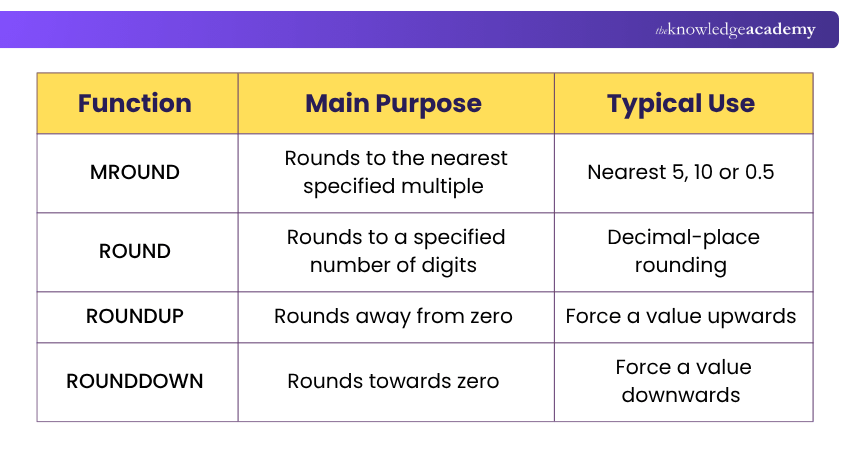
Excel provides several rounding functions, so choosing the correct one depends on the result you need:
MROUND Errors and Limitations
In a few use cases, MROUND remains irrelevant to use. Either it will result in an error, or it will not return any number as a cell value. Let’s look in detail where you should not use this function:
1) Zero Values
If any cell contains zero (0) as its value, then it will not round off any value. The result will be zero (0). Following is the manner in which it will yield the result:
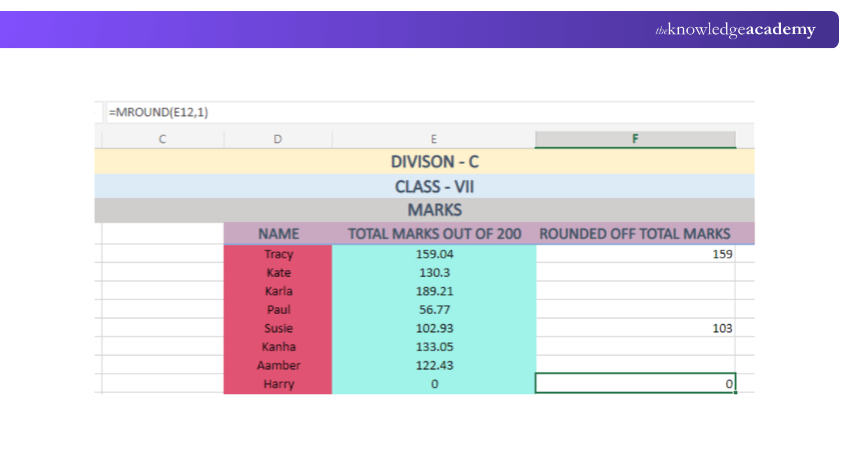
The image above shows that the MROUND function performs no calculations on a cell with a zero (0) value.
2) Rounding the Whole Numbers
What if there is no decimal point in one of the numbers? How does MROUND in Excel deal with it? Let’s see how it can be done:
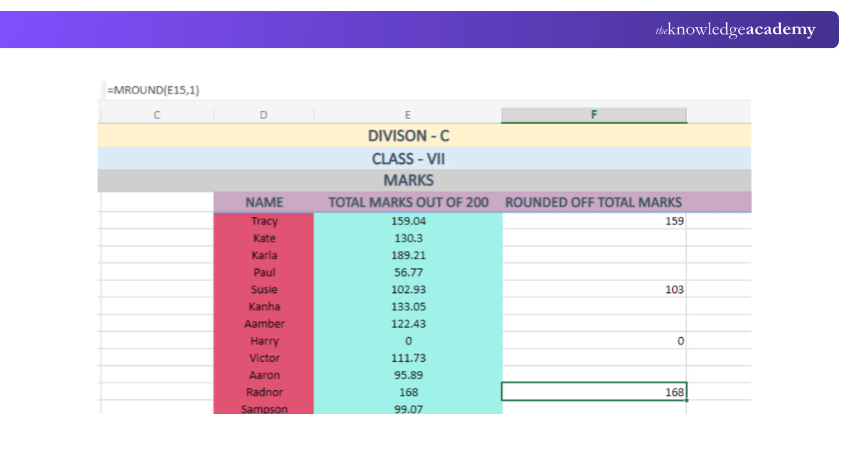
MROUND also works with whole numbers. If the number is already an exact multiple, it remains unchanged. Otherwise, Excel rounds it to the nearest specified multiple. For example, =MROUND(168,5) returns 170, while =MROUND(168,4) returns 168.
3) Rounding the Negative Numbers
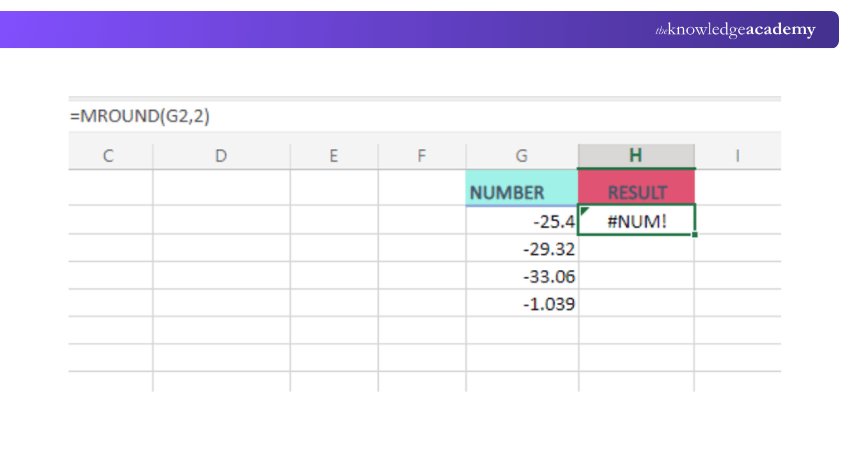
MROUND can round negative numbers when the number and multiple have the same sign. For example, =MROUND(-10,-3) returns -9. If the signs differ, Excel returns a #NUM! error. Excel will return a #NUM! Error. Look at the following image, for example:
Points to Remember When Using MROUND
1. Use =MROUND(number, multiple) as the formula structure.2. Choose the multiple according to the interval you need.3. Remember that MROUND rounds to multiples rather than decimal places.4. A zero value remains zero.5. A value already at the required multiple may remain unchanged.6. Check your arguments if Excel returns an error.7. Use ROUND instead when you specifically need decimal-place rounding.
Want to learn how to convert text, validate and consolidate data in Excel? Join our Microsoft Excel Courses now!

Vishnu Sankar is a Senior Content Writer with 5+ years of experience across content development, software development, web development and system administration. His technical background and professional training support his expertise in IT and Tech, while his extensive research and writing experience covers Project Management and Health and Safety.
View Detail

 If you wish to make any changes to your course, please


