


 Top Rated Course

We may not have the course you’re looking for. If you enquire or give us a call on 01344203999 and speak to our training experts, we may still be able to help with your training requirements.
Convert Microsoft Project to Excel: Step-by-Step Guide
David Evans 09 March 2026Learn how to Convert Microsoft Project to Excel using the Export Wizard. Map tasks, resources, and assignments to create a structured XLSX file. Follow simple steps to customise fields and format your output. Improve reporting accuracy and streamline project data analysis.

Training Outcomes Within Your Budget!
We ensure quality, budget-alignment, and timely delivery by our expert instructors.
Table of Contents
Related Courses

Managing projects gets easier when you use the right tools. Microsoft Project helps you plan tasks, assign resources, and track progress, while Excel gives you the power to crunch numbers, create visuals, and share insights quickly. Together, they can turn complex project data into something clear, useful, and easy to act on.
In this blog, we’ll explore how these tools work together. You’ll learn about Microsoft Projects and Excel and a Step-by-step guide to Convert Microsoft Project to Excel. We’ll also cover whether you can open MS Project files without Project and whether they can be converted to PDF.
Table of Contents
1) Understanding Microsoft Projects and Excel
2) Step-by-step Guide: Converting Microsoft Project to Excel
3) Common Issues When Converting Microsoft Project to Excel
4) Tips to Maintain Data Accuracy During Conversion
5) Can you Open MS Project Files Without a Project?
6) Can you Convert MS Project to PDF?
7) Conclusion
Understanding Microsoft Projects and Excel
Microsoft Project and Excel are two strong tools that support project planning and Data Analysis in different ways. MS Project is built mainly for Project Management. It helps users create detailed schedules, resource allocation, set deadlines, and link tasks with dependencies. It also offers Gantt Charts for a clear visual view of project timelines and progress.
Excel is built for data handling and analysis. Converting project files to Excel lets users run advanced calculations, create charts, and track resources with ease. It also simplifies collaboration by allowing stakeholders without MS to access updates and enabling integration with other workbooks for cross-functional reports.

Step-by-step Guide: Converting Microsoft Project to Excel
After learning about Project and Excel, the next step is how to convert data. Here’s a step-by-step guide to Convert Microsoft Project to Excel and simplify the whole process:
Exporting Microsoft Project Data
While MS Project offers built-in reports to represent data, exporting the files to MS Excel can provide in-depth analysis and visualised reporting. The various features of Excel, such as PivotTables, charts and many others Basic Excel Functions, help visualise more efficiently.
But firstly, it is crucial to know how to leverage the benefits of these features. Follow the below-mentioned steps to learn how to export Microsoft Project data to Excel:
a) Open the project file that you want to convert to Excel
b) Go to the “File” menu
c) Click the “Save As” or “Export” option
d) Select the location on your system to store the exported file
e) Select “Excel” or “CSV” as the file format for exporting
f) Adjust any export options or settings as per your preferences
g) Now, the Export Wizard Dialogue box will appear
h) Choose a Project Excel Template from the dialogue box
i) Further, apply the default settings or the Selected Data option to customise the output
j) Lastly, you will have your output as an Excel Workbook
Note: To view your exported data, open the workbook in MS Excel.
Become familiar with the worksheet, data, and formulas in the worksheet. Join our Excel Training with Gantt Charts now!
Importing Data Into Excel
Users can not only export but also import data into Excel. The various features of Excel bring external data sources into their spreadsheets for analysis, manipulation, and reporting. Excel provides various data import methods, offering users flexibility and convenience. Let’s explore the different ways to import data into Excel
a) Open Excel on your computer
b) Go to the “File” menu
c) Click on the “Open” or “Import” option
d) Go to the location where you have saved the exported file from MS Project
e) A Wizard dialogue box will appear. Here, you can specify how the data should be imported and organised within Excel
f) Review the imported data in Excel, ensuring that it matches your project data
g) Select the file and click the “Open” or “Import” option
Note: Follow any import wizard or prompts, if applicable, to specify the import settings
Formatting and Manipulating Data in Excel
Formatting, manipulating and converting data in Excel are crucial for organising, cleaning, and presenting data effectively. With Excel’s powerful features, you can enhance data readability and facilitate analysis. Here are some of the key techniques:
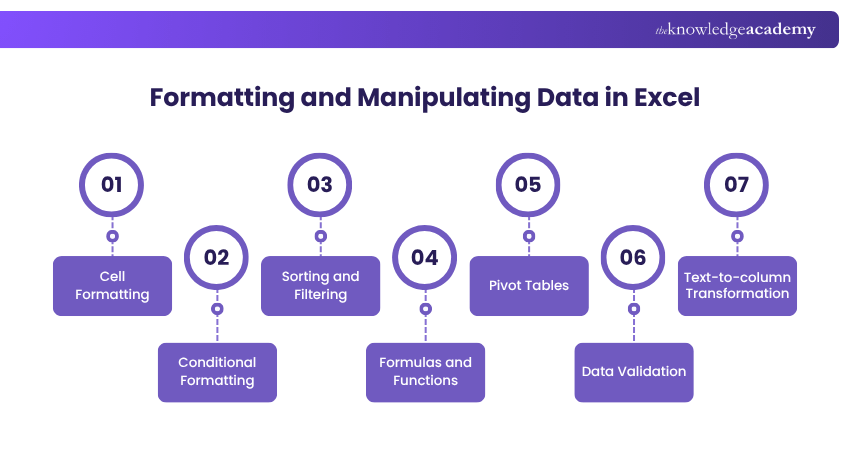
a) Cell Formatting: The users can change font, size, and colour and apply bold or italic formatting. They can also choose to format cells and explore other formatting options.
b) Conditional Formatting: Excel allows highlighting the data based on conditions. The users can do so through the Home tab and by invoking the Conditional Formatting to apply visual cues. By understanding these differences, you can efficiently manage and visualise project schedules using Conditional Formatting in Excel.
c) Sorting and Filtering: Data Analysis is also possible by sorting it in ascending or descending order. Users must click the “Sort” button under the “Data” tab. Further, they can apply filters to display specific data using the “Filter” button.
d) Formulas and Functions: The users can utilise built-in functions for calculations, text manipulation, data extraction, etc. Excel provides suggestions and auto-complete options as well.
e) Pivot Tables: Pivot tables are another feature used to dynamically summarise and analyse large datasets. The users can create a pivot table by selecting data, going to the “Insert” tab, and clicking on the “PivotTable” option. Understanding How to Create Pivot Table in Excel can greatly enhance Data Analysis efficiency.
f) Data Validation: Data Validation in Excel means setting rules and restrictions for Data Entry to maintain accuracy. This can be done by accessing the “Data Validation” option under the “Data” tab.
g) Text-to-column Transformation: This feature allows the users to split a text into separate columns based on delimiters. To do so, they can use the “Text to Columns” feature under the “Data” tab.
Acquire knowledge of time-saving shortcuts and productivity tips. Join our Microsoft Excel Course now!
Common Issues When Converting Microsoft Project to Excel
A common problem with the exportation of the Microsoft project data to Excel is the manner in which the date fields are treated. The users say that when attempting to enter data in Project, the dates present well, but when they are exported, it will be accompanied by an unwanted time added (e.g., 10/10/11 8:00 am) even when only a date is required, since Excel will keep the date and time together by default.
Another common challenge is that some fields (like % Complete) may come through as text strings instead of proper numeric formats, which can require extra conversion steps in Excel.
Typical workarounds include using Excel functions like DATEVALUE or VALUE to convert text dates or percentages into true Excel formats or exporting to a tab-delimited file first to avoid unwanted formatting.
Tips to Maintain Data Accuracy During Conversion
It might appear that it is easy to convert the data in Microsoft Project to Excel, but even minor formatting variances can introduce discrepancies. Following these tips helps preserve data integrity and ensures your reports remain reliable:
a) Standardise Date Formats Before Export: Before exporting Microsoft Project, all date fields must be in the same format. Because the Excel can automatically assume the addition of time values, check formatting right after conversion to eliminate reporting errors.
b) Verify Field Mapping in the Export Wizard: Thoroughly check the field mappings of the Export Wizard. Maps that may be incorrectly mapped may cause misplaced data, missing columns or values may be placed under different headers.
c) Check Numeric Fields for Text Formatting: Checks are text fields that are formatted to allow the entry of a numeric value. <|human|>Check Numeric Fields: The check is a text field that is formatted to enable it to accept a numeric value.
Fields like % Complete, Work, or Cost may export as text instead of numeric values. After conversion, confirm numeric formatting in Excel to avoid calculation errors in formulas or dashboards.
d) Remove Unnecessary Custom Fields: Before exporting, clean up unused or hidden custom fields. Exporting only essential data reduces clutter and minimises the risk of incorrect interpretation.
e) Validate Data After Export: There should be a fast audit of comparing totals, tasks, and vital measures of Microsoft Project and Excel. This action is taken to make sure that the data has not been truncated or changed in the course of conversion.
Can you Open MS Project Files Without a Project?
Yes, you can open MS Project files (.mpp) without having Microsoft Project installed by using alternative tools such as Project Viewer, Microsoft Project Online, or third-party applications like Seavus Project Viewer or MOOS Project Viewer.
Additionally, you can import .mpp files into Excel or use cloud-based solutions like Project Plan 365, which allow you to view and edit project files without needing the full Microsoft Project software.

Can you Convert MS Project to PDF?
Yes, you can easily convert MS Project files to PDF to share project information in a readable and accessible format. In Microsoft Project, simply open your project, go to the File menu, select Print, and choose Microsoft Print to PDF or another PDF printer as the destination.
This creates a PDF version of your project, including Gantt Charts, task lists, and timelines, making it convenient for distribution to stakeholders who don’t have MS Project.
Conclusion
When you Convert Microsoft Project to Excel, you gain more flexibility in analysing, sharing, and presenting project data. It allows teams to collaborate smoothly, generate clear reports, and combine insights across multiple projects. With Excel’s advanced features, project tracking becomes more efficient, helping organisations stay on top of deadlines, resources, and overall performance.
Learn to plan, track, and manage projects effectively. Join our Microsoft Project Training today!
Frequently Asked Questions
What is the Difference Between Microsoft Project and Excel?

Microsoft Project is specialised in Project Management, offering tools for task scheduling, resource allocation, and tracking progress. Excel is a versatile spreadsheet application used for Data Analysis, complex calculations, and creating visual reports and dashboards.
Why use MS Project Over Excel?
Use MS Project over Excel for advanced Project Management features, such as task scheduling, resource allocation, Gantt Charts, and progress tracking. MS Project offers specialised tools that streamline complex project planning and execution, enhancing overall efficiency and control.
What are the Other Resources and Offers Provided by The Knowledge Academy?
The Knowledge Academy takes global learning to new heights, offering over 3,000+ online courses across 490+ locations in 190+ countries. This expansive reach ensures accessibility and convenience for learners worldwide.
Alongside our diverse Online Course Catalogue, encompassing 17 major categories, we go the extra mile by providing a plethora of free educational Online Resources like Blogs, eBooks, Interview Questions and Videos. Tailoring learning experiences further, professionals can unlock greater value through a wide range of special discounts, seasonal deals, and Exclusive Offers.
What is The Knowledge Pass, and How Does it Work?
The Knowledge Academy’s Knowledge Pass, a prepaid voucher, adds another layer of flexibility, allowing course bookings over a 12-month period. Join us on a journey where education knows no bounds.
What are the Related Courses and Blogs Provided by The Knowledge Academy?
The Knowledge Academy offers various Microsoft Project Training, including the Microsoft Project Training. This course caters to different skill levels, providing comprehensive insights into Microsoft Project Interview Questions.
Our Office Applications Blogs cover a range of topics related to Microsoft Project, offering valuable resources, best practices, and industry insights. Whether you are a beginner or looking to advance your Project Management skills, The Knowledge Academy's diverse courses and informative blogs have got you covered.

David Evans


Certified Project Trainer and Agile Delivery Expert
David Evans brings over a decade of hands-on experience in project delivery, Agile transformation, and team leadership. With a background in technology and business consulting, David has led cross-functional teams through Agile and Waterfall projects in both public and private sectors. He combines technical knowledge with practical insights to help readers navigate the challenges of modern project environments.

Upcoming Office Applications Resources Batches & Dates
Date
 Microsoft Project Training Course
Microsoft Project Training Course
Wed 8th Apr 2026
Microsoft Project Training Course
Wed 6th May 2026
Microsoft Project Training Course
Tue 2nd Jun 2026
Microsoft Project Training Course
Tue 7th Jul 2026
Microsoft Project Training Course
Tue 4th Aug 2026
Microsoft Project Training Course
Wed 2nd Sep 2026
Microsoft Project Training Course
Tue 6th Oct 2026
Microsoft Project Training Course
Tue 3rd Nov 2026
Microsoft Project Training Course
Tue 8th Dec 2026

 If you wish to make any changes to your course, please


