


 Top Rated Course

We may not have the course you’re looking for. If you enquire or give us a call on 01344203999 and speak to our training experts, we may still be able to help with your training requirements.
How to Update iOS on iPad? Step-by-Step Guide
Richard Harris 15 July 2026Learn How to Update iOS on iPad using different methods to harness enhanced features, improved security, and optimal performance. This blog offers you straightforward steps for manual and automatic updates, ensuring your device stays current effortlessly. Read along to stay updated with the latest iOS and its latest enhancements.

Training Outcomes Within Your Budget!
We ensure quality, budget-alignment, and timely delivery by our expert instructors.
Table of Contents
If your iPad is feeling a bit under the weather, sluggish and slow, or if you’re simply itching to get your hands on the latest features, updating its iOS is the perfect remedy. It’s like giving your device a fresh cup of coffee to perk it up! Not only does an update rejuvenate your iPad, making it run as smoothly as silk, but it also fortifies its defences, keeping pesky digital gremlins at bay. This blog explores steps on How to Update iOS on iPad.
Table of Contents
1) Wireless iPhone/iPad Update
2) Customise auto updates
3) Update via iTunes
4) Update using Mac or PC
5) Conclusion
Wireless iPhone/iPad Update
Updating your iOS device wirelessly is the most straightforward method:
1) Ensure your iPad is connected to Wi-Fi. Avoid using cellular data due to potential data charges and connection stability issues.
2) Plug your iPad into a power source. It avoids the device from running out of battery during the update process.
3) Navigate to Settings > General > Software Update. Your device will check for available updates. If one is available, a Download and Install option will appear.
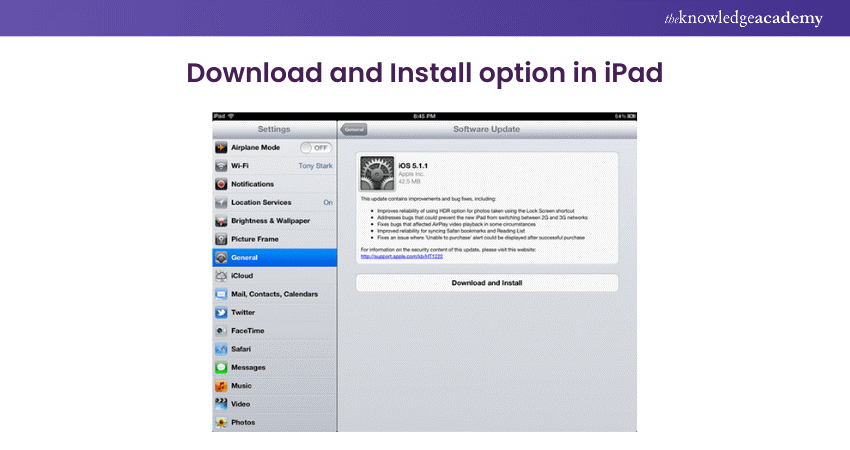
4) Tap Download and Install. Follow the instructions on your screen to complete the update. If your iPad has insufficient space, it may ask you to temporarily remove apps, which will be reinstalled after the update. If you're wondering How Long Does an IOS Update Take, factors like device model, internet speed, and available storage can influence the duration.

Customise auto updates
If you’d rather customise your auto updates, follow these steps:
1) Enable auto updates
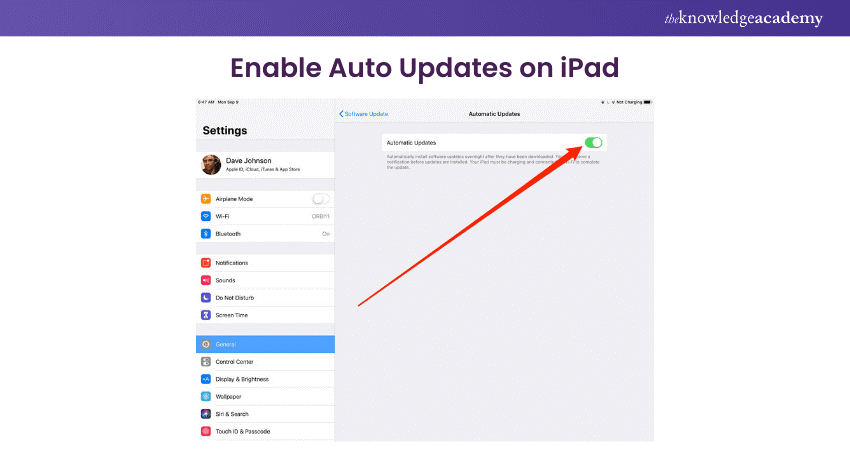
For convenience, iOS allows you to enable automatic updates:
1) Go to Settings > General > Software Update.
2) Tap on Automatic Updates, then switch it on to make sure your device always has the latest software without manual intervention.
2) Install quick security fixes
iOS now offers an option to install security updates separately from major software updates:
In the same section, toggle on Install System Data Files and Security Updates to automatically receive critical security patches.
Unlock your potential in mobile development with our iOS App Development Course - start creating impactful apps today!
Update via iTunes
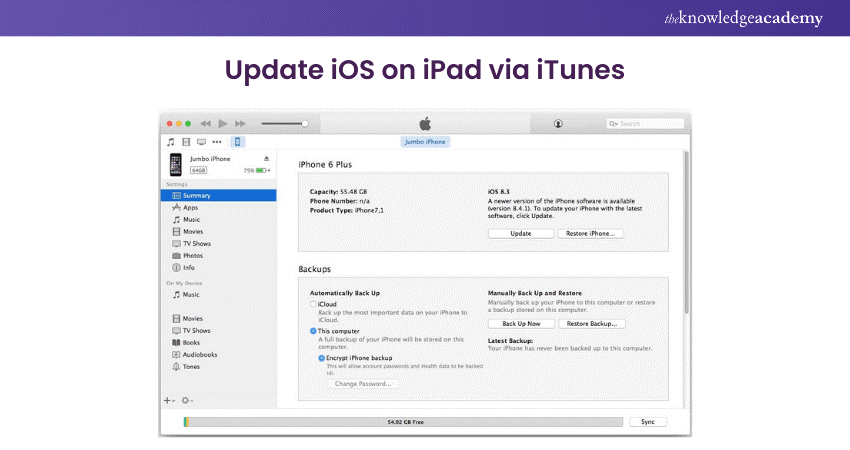
For those who prefer using iTunes to update their iPad:
1) Connect your iPad and your computer and open the iTunes application.
2) Select your device in iTunes.
3) Click Summary, then click Check for Update.
4) Click Download and Update. If prompted, enter your iPad’s passcode.
Discover the future of mobile apps – join our Mobile App Development Training Using Flutter today!
Update Using Mac or PC
With macOS Catalina and later, iTunes is replaced by Finder:
1) Connect your iPad to your computer. Open Finder.
2) Select your iPad in Finder.
3) Click General or Settings, then click Check for Update.
4) Click Download and Update. Follow the prompts to complete the installation.
Conclusion
Mastering how to update iOS on iPad is your ticket to unlocking exciting new features, boosting performance, and strengthening security. Whether you're updating wirelessly or through your PC or Mac, each method ensures optimal iPad performance. In the midst of this, iOS Interview Questions can help deepen your understanding of the system. Stay current with updates for a smooth, secure, and superior user experience.
Transform your digital skills – join our comprehensive App & Web Development Training today!
Frequently Asked Questions
What should I do if the update takes too long?

If an update is unusually slow, check your internet connection and ensure your iPad remains charged. If necessary, restart the update process.
Can I use my iPad while it's updating?
Your iPad will be temporarily unavailable during an iOS update. It’s best to update it when you don’t need immediate access to your device.

Richard Harris


Senior Full Stack Developer and Technology Educator
Richard Harris is a highly experienced full-stack developer with deep expertise in both frontend and backend technologies. Over his 12-year career, he has built scalable web applications for startups, enterprises and government organisations. Richard’s writing combines technical depth with clear explanations, ideal for developers looking to grow in modern frameworks and tools.


 If you wish to make any changes to your course, please


