


 Top Rated Course

We may not have the course you’re looking for. If you enquire or give us a call on 01344203999 and speak to our training experts, we may still be able to help with your training requirements.
How to Screen Mirror iPhone to TV? A Step-by-Step Guide
Richard Harris 16 July 2026Ever wondered How to Screen Mirror iPhone to TV seamlessly? Turn your small screen into a cinematic experience with ease! This blog walks you through step-by-step instructions, explores compatible devices, and offers troubleshooting tips to ensure flawless mirroring for work, play, or binge-watching. Let’s cast your screen like a pro!

Training Outcomes Within Your Budget!
We ensure quality, budget-alignment, and timely delivery by our expert instructors.
Table of Contents
Looking for a way to enjoy your iPhone’s content on a larger display? How to Screen Mirror iPhone to TV is the perfect solution, allowing you to project your iPhone or iPad screen onto a TV or computer. This feature enlarges and enhances visuals, making movies, photos, and presentations more immersive.
In this blog, you will get all the information you need regarding the best and easiest way to How to Screen Mirror iPhone to TV. We’ll walk you through the simplest steps to mirror your iPhone or iPad’s screen onto a TV and explore alternative methods for those without Apple’s AirPlay technology.
Table of Contents
1) How to Screen Mirror iPhone or iPad to TV or Computer?
a) Step: 1 Check Compatibility
b) Step: 2 Connect to Wi-Fi
c) Step: 3 Open Control Center
d) Step: 4: Enable AirPlay
e) Step: 5 Select Device
f) Step: 6 Stop Mirroring
2) Other Methods to Screen Mirror or Cast iPhone to TV
3) Conclusion
How to Screen Mirror iPhone or iPad to TV or Computer?
AirPlay lets you extend what is on your iPhone or iPad screen via Screencasting, displaying it on a larger screen, for instance a TV or computer This feature is great if the user wants to watch videos or movies, share his photos or give a presentation. Here's a quick breakdown of the process:
Step: 1 Check Compatibility
Make sure that your TV or other media consuming device supports AirPlay or some sort of a screen casting solution. If not, there might be a necessity to have an appropriate streaming device that can be Apple TV, Chromecast or Roku.

Step: 2 Connect to Wi-Fi
Ensure that the iPhone (iOS) device and the television are connected to the same network. This is important in order to facilitate arbitration amongst the devices so that efficient interaction can be achieved.
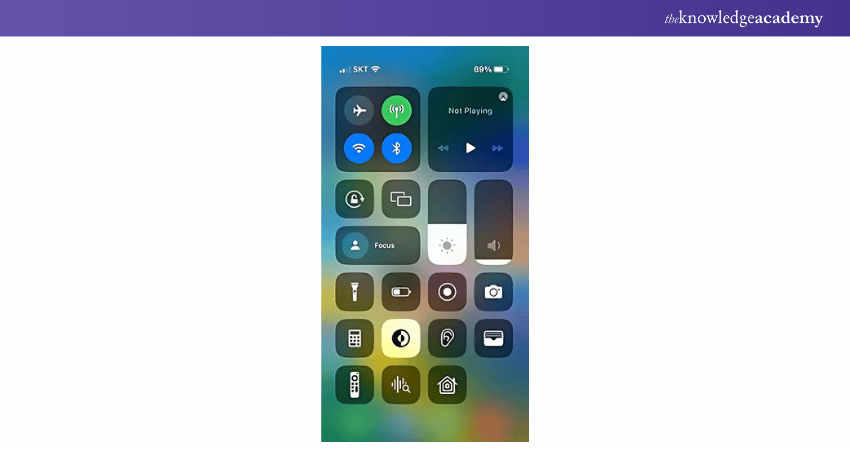
Step: 3 Open Control Center
Go to the top or bottom of your iPhone screen, right corner if it is the latest version, for the control center.
Step: 4: Enable AirPlay
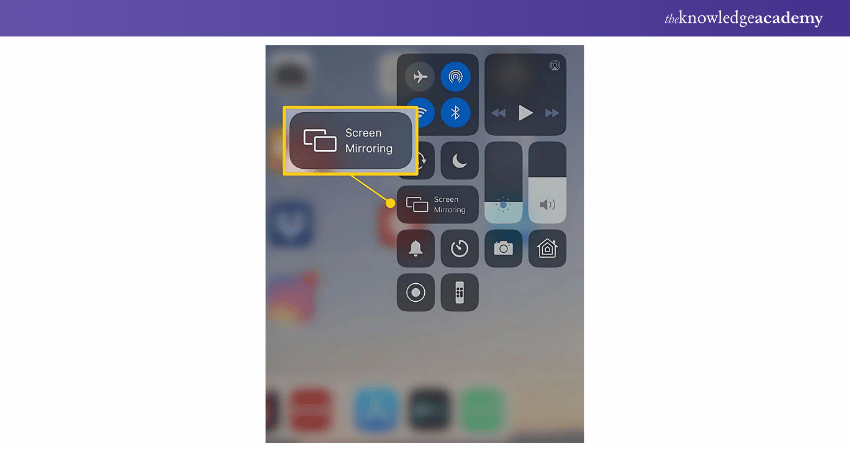
Click on “Screen Mirroring” or “AirPlay Mirroring” which appear together on the TV screen. The interface will expand with a list of available devices.
Step: 5 Select Device
Select your television or any compatible device from the list. If everything is set correctly, your iPhone screen should be displayed onto your television completely.
Step: 6 Stop Mirroring
However, the user wants to stop screen mirroring, they have to return to the control center and tap on “Stop Mirroring”. The screen mirroring will stop after the click on the option.

Set Up Your Chromecast in Minutes! Learn How to Connect Chromecast to WiFi.
Other Methods to Screen Mirror or Cast iPhone to TV
If your TV or device doesn’t support AirPlay natively, don’t fret — there are more ways to mirror iPhone onto a TV. In the middle of exploring solutions like How to Deactivate Voicemail in iPhone, you might also find it handy to know these alternatives. Below are five alternative methods explained in detail:
Method 1: Wireless Connection via Apple TV
Apple TV is the easiest solution for the wireless screen mirroring.
a) Make sure your iPhone and Apple TV are connected to the same network of course, this suggests use of Wi-Fi.
b) This should be done on your iPhone by waking the screen and swiping from the bottom of the screen, then tapping the “Screen Mirroring” icon on the Control Center.
c) Choose your Apple TV from among the other connected devices on the screen.
d) Your iPhone screen will now show on your TV.
Need to Save a Conversation? Here’s How to Record a Phone Call on iPhone.
Method 2: Using an HDMI Cable
If one want to use a wired connection, then use an HDMI cable in combination with a Lightning to HDMI adapter.
a) Connect the Lightning connector of the adapter to your iPhone.
b) Plug one end of the HDMI cable into the adapter.
c) Connect the other end of the HDMI cable to an available HDMI port on your TV.
d) Switch on your TV and connect to the correct HDMI input source.
e) Your iPhone screen will now be duplicated or mirrored to the TV.
Stronger the skills of database with our MongoDB Certification - Register now!
Method 3: Casting to Google Chrome
There is little doubt that with the help of Google Chromecast, you can cast the content from the selective apps on your iPhone.
a) Insert the Chromecast device in the television port and make the device ready by using the Google Home application.
b) Ensure your iPhone as well as Chromecast are both connected to the same wireless network.
c) Go to compatible app like YouTube, Netflix etc., tap on the cast button on your screen and then select your Chromecast.
Method 4: Casting to Amazon Fire Stick
Amazon Fire Stick owners can utilize a screen mirroring app called AirScreen to pair a Fire Stick remote and seamlessly mirror their screen.
a) AirScreen app is available for download on the app store of Amazon and can be installed in the Fire Stick.
b) First, ensure that your iPhone and Fire Stick are connected to the same Wi-Fi network.
c) Turn on Screen mirroring on Fire Stick by launching Open AirScreen and following the procedures displayed on your television.
d) Officially, using AirPlay on an iPhone to connect to the Fire Stick follows these steps.
Method 5: Casting to Roku
AirPlay and screen mirroring are available on all Roku devices for compatible models.
a) Firstly, ensure that your Roku device is connected with the same Wi-Fi network from which the iPhone is connected.
b) Unlock your Roku device by going to Settings > System > Screen Mirroring available in the device.
c) Swipe down in your iPhone and select the Control Center then tap on screen mirroring.
d) Select your Roku from the list, and your iPhone screen will be mirrored on your TV.
Enhance the art of app development with our Mobile App Development Course - Join today!
Conclusion
As discussed above, there is no need to complicate the process of mirroring your iPhone’s screen to a television. By following the steps outlined, along with other approaches you can try, you will be able to watch your favourite content on bigger screen with less effort. People tend to use either AirPlay or HDMI cable if they own Apple TV or a non-Apple HDMI TV or use other third-party devices.
Transform ideas into excellent applications with our IOS App Development Course - Sign up today!
Frequently Asked Questions
Can You Mirror an iPhone Without AirPlay?

Yes! You can use a Lightning-to-HDMI conversion cable with an HDMI cable or try other applications like Reflector and ApowerMirror. Devices such as Chromecast, Roku, and Fire Stick have their own systems for screen mirroring and do not require AirPlay.
Do You Need Internet Connection for Screen Mirroring?
Not always! AirPlay and the wireless approach require networks, but they do not consume bandwidth unless streaming online. HDMI connection does not need internet at all. Some devices like Chromecast, or Roku support offline mirroring if on the same local network.

Richard Harris


Senior Full Stack Developer and Technology Educator
Richard Harris is a highly experienced full-stack developer with deep expertise in both frontend and backend technologies. Over his 12-year career, he has built scalable web applications for startups, enterprises and government organisations. Richard’s writing combines technical depth with clear explanations, ideal for developers looking to grow in modern frameworks and tools.


 If you wish to make any changes to your course, please


