




We may not have the course you’re looking for. If you enquire or give us a call on 01344203999 and speak to our training experts, we may still be able to help with your training requirements.
How to Run Python Scripts: A Beginner's Guide
ByThe Knowledge AcademyLast updated on: 06 October 2026
Learn the essentials of running Python scripts effortlessly! Dive into our beginner's guide on “how to run Python scripts?” Explore step-by-step instructions on running Python scripts from command-line execution to IDE usage and file manager techniques.
What You’ll Learn
By the end of this blog, you’ll be able to:
1. Run Python scripts using the command line.2. Test code instantly in Python’s interactive mode.3. Execute and debug scripts using IDEs and code editors.4. Run suitable Python scripts directly from a file manager.5. Choose the right execution method for different tasks.
Perhaps you are tired of using languages like Golang, PHP or Java and want to try your hand at something new. Python is just the language you need. With its simple syntax, dynamically typed code, extensive standard library and object-oriented features, Python is widely used by programmers across multiple disciplines. But beginners still struggle with the basic question of "how to run Python scripts?"
If you want to learn about this versatile language and how to run its scripts, this blog is for you. Read this blog to understand how to run Python scripts using various methods ranging from command-line execution and Integrated Development Environments (IDEs) to file manager techniques.
How to Run Python Scripts from the Command Line?
Executing Python scripts from the command line is an essential skill for any Python developer or enthusiast. This process consists of several steps that enable users to run Python code effortlessly.
a) Open the Command Prompt or Terminal
On Windows, press Win + R, type "cmd," and press Enter.
On macOS or Linux, open the Terminal.
b) Navigate to the Script's Directory
Use the Change Directory (cd) command in CMD to change the current directory to the one containing your Python script.
cd path/to/script/directory
c) Run the Python Script
Enter the following command to execute the Python script.
python script_name.py
Replace "script_name" with the actual name of your Python script.
If you are using Python 3, you may need to use python3 instead of python:
python3 script_name.py
d) Use the Shebang Line (Optional)
On macOS and Linux, include a shebang line at the start of your script to specify the Python interpreter.
#!/usr/bin/env python3
Make the script executable with the following command:
chmod +x script_name.py
Now, you can run the script directly:
./script_name.py
e) Pass command-line arguments (Optional)
If your script accepts command-line arguments, you can pass them after the script name:
python script_name.py arg1 arg2
f) Virtual environments (Optional)
Consider using virtual environments to isolate dependencies for your project.
Consider the following commands (For macOS/ Linux & Windows)
python -m venv venvsource venv/bin/activate # On macOS/LinuxvenvScriptsactivate.bat # On Windows Command Prompt
g) Check the Python version
Ensure that the correct Python version is installed and available in your system's PATH.
python --version

Pros and Cons of Running Python Scripts from the Command Line
Running Python scripts from the command line or terminal has some advantages, such as:
a) It is fast and easy to use, especially for testing and debugging.
b) It allows you to run Python scripts from any location on your system as long as you know the path to the script file.
c) It gives you direct access to the Python interpreter and its features, such as command-line arguments, environment variables, and error messages.
However, running Python scripts from the command line or terminal also has some disadvantages, such as:
a) Typing long and complex commands can be tedious and error-prone, especially if you have multiple script files or dependencies.
b) Reading and editing your code on a text-based interface can be difficult, especially if you have a large and complex script.
c) Switching between the command line or terminal and other tools, such as a web browser or text editor, can be inconvenient.
Common Command-line Errors
Python not recognised: Check that Python is installed and available through your system's PATH.
File not found: Confirm the script name and current directory.Module not found: Check whether the required package is installed in the active environment.Permission denied: On macOS/Linux, check the relevant file permissions when executing a script directly.
How to Run Python Scripts in Interactive Mode?
Running Python scripts in interactive mode provides a dynamic environment for testing code snippets, exploring Python features, and interacting with the interpreter in real-time. Interactive mode allows users to interact with Python code on a line-by-line basis.
Unlike running scripts where the entire code executes at once, interactive mode lets you enter commands, receive immediate feedback, and explore Python's functionality. Here's a detailed guide on how to run Python scripts in interactive mode:
a) Open the Command Prompt or Terminal
Open Command Prompt or PowerShell on Windows, or Terminal on macOS/Linux.
b) Enter the Python Interpreter
Type python or python3, depending on your system, and press Enter.
python
c) Interactive Shell Prompt
Upon entering the Python interpreter, you'll see the interactive shell prompt (>>>). This indicates that Python is ready to receive commands.
>>> print("Hello, World!")Hello, World!>>> 2 + 35
d) Run a Python Script
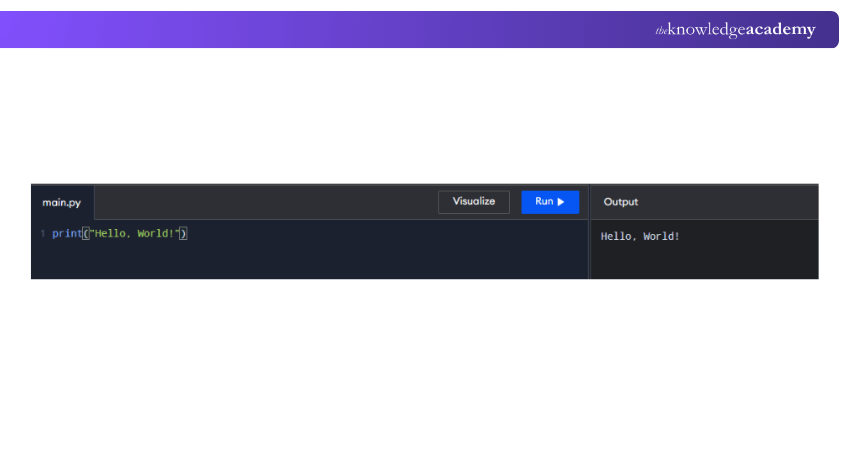
Use the exec() function to execute an existing Python script within the current interactive session. If only the filename is provided, ensure the script is saved in the current working directory.
>>> exec(open('your_script.py').read())
For example, if your_script.py contains:
e) Explore Variables and Expressions
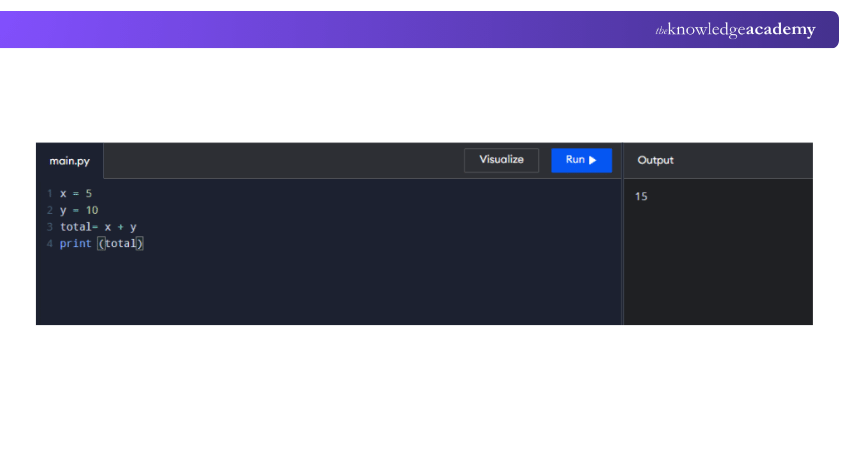
Define variables, perform calculations, and explore expressions interactively.
f) Multiline Statements
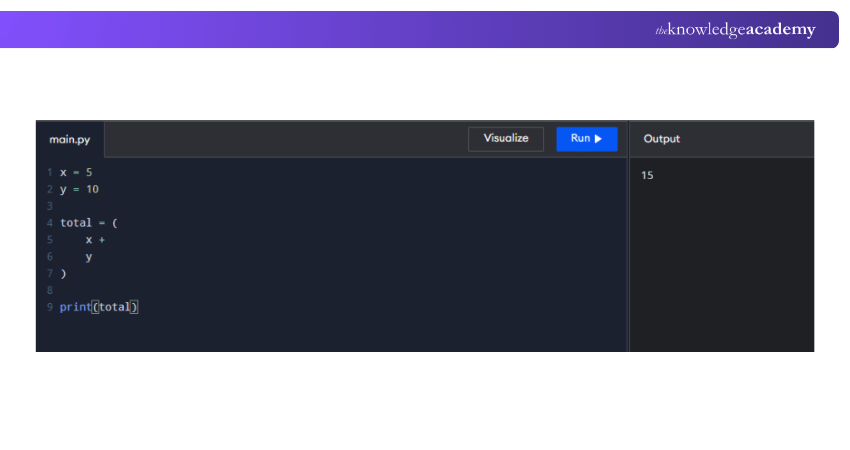
For multiline statements, use an open parenthesis or another construct that requires additional input. The interpreter will display the continuation prompt (...) until the statement is complete.
g) Access Help and Documentation
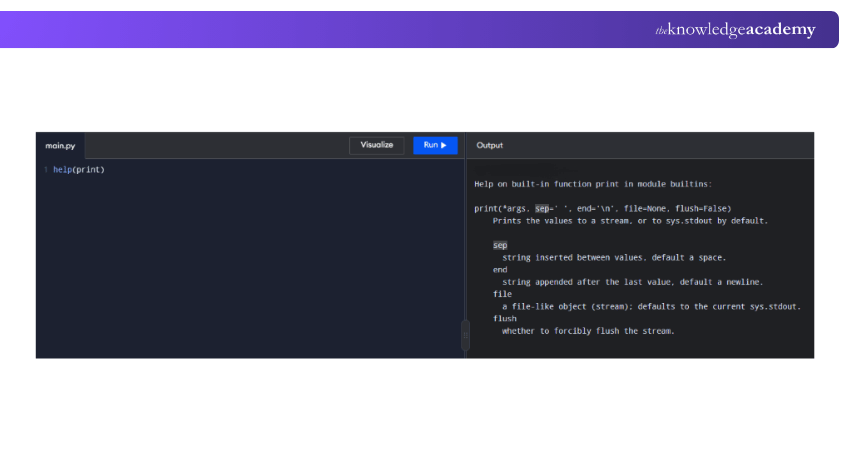
Utilise the help() function to access built-in help and documentation in the Python interactive shell.
>>> help(print)
h) Exit Interactive Mode
To exit interactive mode, type exit() or quit(), or use Ctrl + Z followed by Enter on Windows, or Ctrl + D on macOS/Linux.
i) Use IPython (Optional)
IPython is an enhanced interactive Python shell with advanced features. Install it using:
pip install ipython
Start IPython with the command ipython for an enhanced interactive experience.
Trainer’s Pro Tip
When working on projects with external packages, activate a virtual environment before running your script. This helps keep project dependencies separate and reduces conflicts between package versions.
Pros and Cons of Running Python Scripts in Interactive Mode
Running Python scripts in interactive mode or REPL has some advantages, such as:
a) It is convenient and fun, especially for learning and experimenting with Python code.
b) It allows you to run Python code without creating and saving a script file, which can save time and disk space.
c) It gives you immediate feedback and results, which can help you understand and debug your code.
However, running Python scripts in interactive mode or the REPL also has some disadvantages, such as:
a) Running complex and multi-line Python code can be less convenient than using a script file, especially for longer programs.
b) It can be hard to keep track of the variables and objects you created and modified in the interactive mode or REPL, as they are not saved or cleared automatically.
c) Reusing and sharing your code can be challenging, as you have to copy and paste it from the interactive mode or REPL to a script file or another tool.
Quick Practice Challenge
Try entering the following in interactive mode:
>>> price = 20>>> quantity = 3>>> total = price * quantity>>> total60
Challenge: Change the price and quantity values and check how the result changes. Change the price and quantity values and check how the result changes.
Gain practical experience with Django's powerful features and functionalities with our Python Django Training – Sign up today!
How to Run Python Scripts from an IDE or a Code Editor?
Running Python scripts from an Integrated Development Environment (IDE) or code editor offers developers a streamlined and feature-rich experience. Tools such as PyCharm, Visual Studio Code and Jupyter Notebook provide environments for writing, testing and running Python code.
a) Setting up a Project: IDEs allow developers to organise code into projects, providing a structured environment. A project typically includes source files, dependencies, and configuration settings. Setting up a project ensures a cohesive workspace for script execution.
b) Code Completion and Suggestions: IDEs enhance the development process with features like code completion and suggestions. As developers type, the IDE suggests completions, reducing the likelihood of syntax errors and improving coding efficiency.
c) Integrated Debugging: Debugging seamlessly integrates into IDEs, enabling developers to set breakpoints, inspect variables, and step through code. This enables the identification and solution of issues during script execution.
d) Execution from Within the IDE: IDEs offer the convenience of executing Python scripts directly from the interface. Developers can run scripts with a simple button click or keyboard shortcut, providing a quick and efficient way to test and validate code.
e) Interactive Shells: Many IDEs include interactive Python shells or consoles, allowing developers to execute code interactively. This feature is useful for exploring data, testing small code snippets, and experimenting with Python features in real-time.
f) Integrating with Version Control: Many IDEs and code editors provide integration with version control systems such as Git. Developers can commit changes, switch branches, and collaborate with team members directly from the IDE, ensuring version history and project integrity.
g) Customisations and Extensions: IDEs are highly customisable, allowing developers to customise the environment to their preferences. Extensions and plugins enhance functionality, providing access to additional tools, frameworks, and language support.
h) Performance Profiling: Some IDEs offer performance profiling tools that help identify bottlenecks and optimise code. Profiling features assist in creating efficient and optimised Python scripts.
i) Jupyter Notebooks: Jupyter Notebooks are a popular choice for data science and exploratory coding. These notebooks, often integrated into IDEs, allow developers to create and share documents containing live code, equations, visualisations, and narrative text.
Pros and Cons of Running Python Scripts from an IDE or a Code Editor
Running Python scripts in IDEs and code editors has some advantages, such as:
a) It is comfortable and productive, especially for developing and debugging large and complex Python projects.
b) It provides a rich and powerful set of tools and features that enhance and automate your Python coding experience.
c) It integrates well with other tools and services, such as version control systems, testing frameworks, web servers, etc.
However, running Python scripts on IDEs and code editors also has some disadvantages, such as:
a) It can be overwhelming and confusing to use, especially for beginners and casual users, as there are many options and settings to choose and configure.
b) Some IDEs and code editors can be more resource-intensive than command-line tools, particularly when running multiple extensions or advanced development features.
c) Different IDEs and code editors may require different configurations, extensions or project settings, which can create inconsistencies across development environments.
Develop confidence in writing logic, automating tasks, and solving problems with our Python Course – Register now!
How to Run Python Scripts from a File Manager?
Running a Python script from a file manager allows you to launch the script directly without manually entering a command in the terminal. The behaviour depends on your operating system and how .py files are associated with Python.
a) File Preparation
Begin by creating a Python script using a text editor. Save the script with a .py extension. For example, create a file named myscript.py. Ensure that the Python interpreter is installed on your system.
b) Python Installation
Install Python on your computer if it's not already installed. Use an installation method appropriate for your operating system and ensure that Python is correctly configured before running the script.
c) Navigate to Script Location
Open the file manager and navigate to the location where your Python script is saved. Locate the .py file you want to run.
d) Execute the Python Script
If .py files are associated with Python on your system, open the script from the file manager to execute it. The exact method and behaviour may vary depending on your operating system and file associations.
e) Observe Output
Observe the script's output. Depending on the script and system configuration, a console window may appear for command-line output, while GUI-based scripts may open their own application window.
f) Troubleshooting
If the script does not run when opened from the file manager, check that Python is installed correctly and that .py files are associated with an appropriate Python interpreter.
Pros and Cons of Running Python Scripts from a File Manager
Running Python scripts from a file manager has some advantages, such as:
a) It is simple and intuitive, especially for non-technical or occasional users, as you do not need to type commands or open tools.
b) It allows you to run Python scripts with a single click or a simple gesture, saving time and effort.
c) It can be convenient for GUI-based Python applications that are designed to launch without command-line interaction.
However, running Python scripts from a file manager also has some disadvantages, such as:
a) It can be limited and restrictive to use, especially for advanced or professional users, as you do not have much control or flexibility over the execution of your script.
b) It can be problematic and unreliable, especially for cross-platform or collaborative development, as different operating systems and file managers may have different behaviours and requirements.
c) It can be insecure and risky, especially for unknown or untrusted scripts, as it may execute malicious code without your consent or awareness.
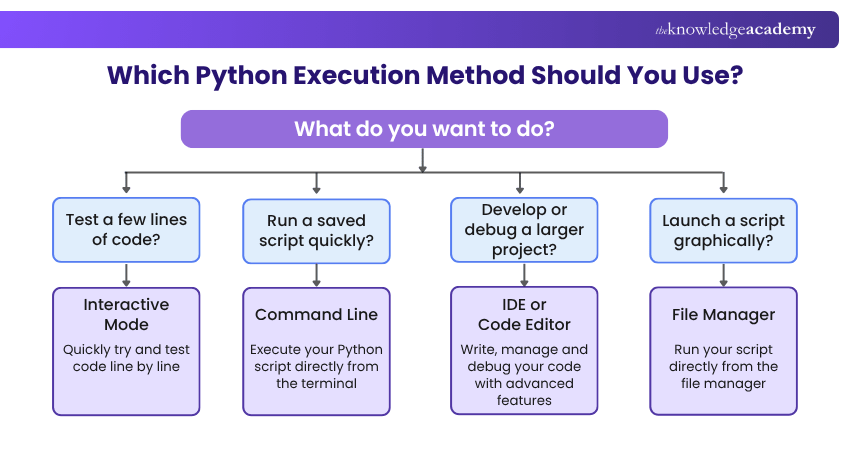
Which Python Execution Method Should You Use?
Gain hands-on experience working with real-world projects and technologies with our Programming Training – Join now!

The Knowledge Academy develops accessible learning content across Project Management, IT, Cybersecurity, Data Science, Business Analysis, HR, Accounting and Finance, Leadership and Health and Safety. Its resources combine subject research with clear explanations to help professionals build practical knowledge across a wide range of disciplines.
View Detail

 If you wish to make any changes to your course, please


