


 Top Rated Course

We may not have the course you’re looking for. If you enquire or give us a call on 01344203999 and speak to our training experts, we may still be able to help with your training requirements.
How to Install PIP on Windows: Step-by-Step Guide
Richard Harris 16 July 2026Pip Installs Packages (PIP) is Python’s standard package manager, used to install, update, and manage libraries and dependencies that extend its core functionality. Learn How to Install PIP on Windows with this easy guide, enabling you to manage Python packages effortlessly and enhance your programming productivity.

Training Outcomes Within Your Budget!
We ensure quality, budget-alignment, and timely delivery by our expert instructors.
Table of Contents

Have you ever felt stuck trying to add new Python libraries but didn’t know where to start? Learning How to Install PIP is your first step toward effortless package management. PIP empowers you to expand Python’s capabilities, just like adding new tools to a toolkit. By mastering this skill, you save time, boost productivity, and unlock endless coding possibilities. Ready to streamline your development process and elevate your projects? Let’s dive in and get started today!
Table of Contents
1) What is PIP?
2) Verify Python and PIP Installation
3) Installing Python PIP on Windows
4) How to Upgrade PIP on Windows?
5) Troubleshooting Tips
6) Managing Python Packages with PIP
7) Conclusion
What is PIP?
PIP is Python’s official package manager. Think of it as a tool that lets you add new features to Python by downloading ready-made libraries created by others. These libraries live on a big online storehouse called PyPI (Python Package Index).
When you use pip, it fetches the library you want, installs it into your Python environment, and keeps track of its version. You can also use it to update libraries when new releases come out or remove ones you no longer need. In short, pip makes Python flexible and powerful by managing all the extra tools developers rely on.

Verify Python and PIP Installation
To verify if pip is already present on your system, you can check its installation through your command line or terminal. When pip is installed, it is linked to your Python environment and can be confirmed in a couple of simple ways:
1) Check the pip version: Running the version command shows if pip is available and which version is installed.
2) Use Python to check pip: By asking Python directly, you ensure you’re checking pip that’s tied to the correct Python interpreter.
3) Look for pip in your environment: If pip isn’t installed, the system will give an error instead of showing details.
Installing Python PIP on Windows
To install Python PIP on Windows, follow the step-by-step methods below. These include downloading the required installation script, running it through Command Prompt, and verifying the setup for a successful installation.
1) Download PIP
Before installing PIP on Windows, you first need to download the installation script. This can be done either automatically using cURL or manually through a web browser, depending on your preference and setup.
Method 1) Install Python pip using Python cURL
This method uses the cURL command-line tool to directly fetch the get-pip.py script from the official Python Packaging Authority (PyPA) server. This method of Installing PIP on Windows is quick and reliable way to download PIP without needing a browser.
Step 1: Open Command Prompt
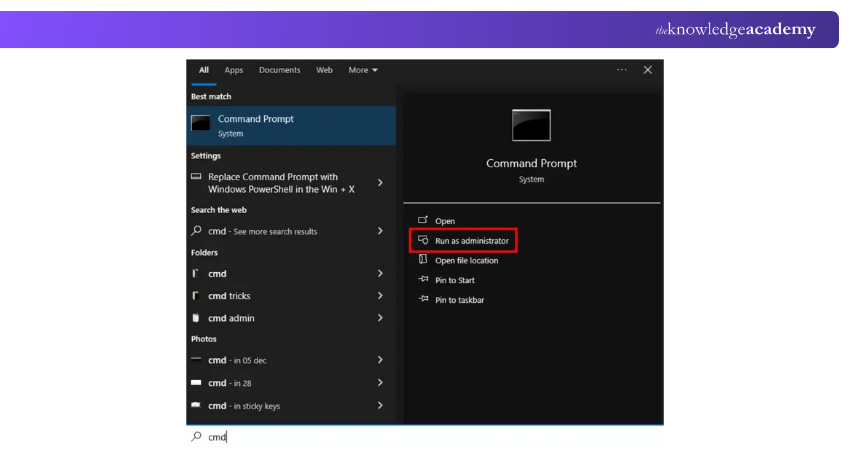
To begin Installing PIP on Windows, open the Command Prompt on your Windows system. You can do this by typing “cmd” into the search bar and selecting the Command Prompt application from the results.
2) Installing PIP
Once the get-pip.py script has been downloaded, the next step is to run it using Python through the Command Prompt. This process installs PIP on your system and prepares it for use.
Step 2: Transfer Data Request from a Server
Now that the Command Prompt is open, use the following command to request and download the get-pip.py installation script from the official Python Package Authority (PyPA) server:

This command tells Windows to connect to the server, fetch the get-pip.py file, and save it locally in your current working directory. The file will later be executed by Python to complete the PIP installation.
Method 2. Manually Download and Install Python PIP on Windows
For users who prefer a manual process in Installing PIP on Windows, PIP can be installed by downloading the official get-pip.py script from the Python Package Authority website. Save the file in a known directory, open Command Prompt, navigate to that folder, and run the script using Python to complete the installation.
1) 1 Download PIP
In this method, you will manually download the get-pip.py script from the official Python website and prepare your system by placing the file in a directory accessible through Command Prompt.
Step 1: Download the get-pip-py Script
Visit the official PyPA bootstrap page in your web browser and download the get-pip.py file. Save it in a location you can easily access, such as the Downloads folder.
Step 2: Change the Directory
Open Command Prompt and use the cd command to navigate to the folder where you saved the get-pip.py file. This ensures Python can execute the script from the correct location.
2) 2 Installing PIP on Windows
At this stage, you run the downloaded script to begin installing PIP. Once executed, the installation process completes automatically, and you will receive a confirmation message showing that PIP is ready to use.
Step 3: Execute the command to Install Python
In Command Prompt, navigate to the folder containing the get-pip.py file and run:

Step 4: Wait Untill You Get the Confirmation
The installation will take a few moments. Once completed, a confirmation message will appear in the Command Prompt, indicating that PIP has been successfully installed on your Windows system.
3) Verify the PIP Installation
After installing, it’s important to confirm that PIP is working correctly. Open Command Prompt and type pip --version or pip -V. If installed successfully, it will display the installed PIP version along with the Python path.
4) Adding PIP to Windows Environment Variables
If PIP is not recognised as a command, you may need to add its installation directory to the Windows Environment Variables, allowing you to run PIP from any location in Command Prompt.
Step 1: Locate the PIP installation directory
Find the folder where PIP is installed. Typically, it is inside the Scripts folder of your Python installation directory (e.g., C:Python39Scripts).
Step 2: Add to the PATH
Open System Properties → Environment Variables, then edit the PATH variable under System Variables. Add the directory path of the PIP Scripts folder and save your changes.
Step 3: Verify
Reopen Command Prompt and type pip --version. If the PATH is set correctly, you will see the installed PIP version, confirming it can now be accessed globally from any location.
Build smarter coding solutions with our Python Scripting Training – Get Started Today!
How to Upgrade PIP on Windows?
Keeping PIP up to date ensures you have the latest features and bug fixes. Upgrading is simple:
1) Open the Command Prompt.
2) Run this command:

3) PIP will update itself to the latest version.
You can verify the upgrade by checking the version again:

How to Downgrade PIP on Windows?
Sometimes, you may need an older version of PIP for compatibility reasons. Downgrading is as easy as upgrading:
1) Open the Command Prompt.
2) Use the following command, replacing x.x.x with the version you need:

3) Verify the downgrade:

This flexibility makes PIP a highly versatile tool for developers.
Troubleshooting Tips
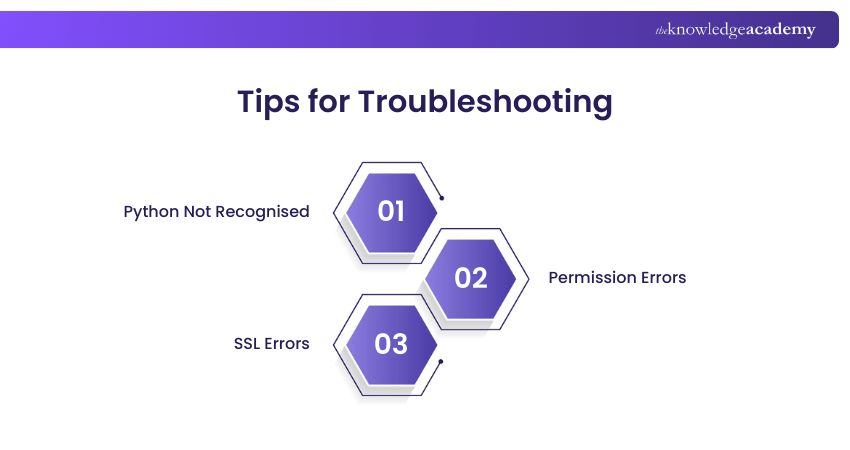
Even after installation, you may face common issues while using PIP on Windows. Here are some quick solutions to help you resolve frequent errors effectively.
1) Python Not Recognised
This issue occurs when Python isn’t properly added to the system PATH. Reinstall Python and select “Add Python to PATH” during setup, or manually edit the environment variables to include the correct installation directory.
2) Permission Errors
Permission errors usually happen when installing packages system-wide without administrator rights. Opening Command Prompt as Administrator or using the --user option ensures packages install correctly without needing elevated system permissions every time.
3) SSL Errors
SSL errors appear when pip cannot verify secure connections due to outdated certificates or libraries. Updating pip, correcting system date and time, or upgrading Python typically resolves these connectivity and encryption-related issues effectively.
Master coding fundamentals with our Introduction To Programming With Python And Java Training – Join Today!
Managing Python Packages with PIP
Now that PIP is installed, let’s explore its capabilities for managing Python packages. Here are some common commands you’ll find invaluable:
1) Install a Package:

Example:

2) Upgrade a Package:

3) Uninstall a Package:

4) List Installed Packages:

5) Search for a Package:

Managing packages with PIP is efficient and keeps your Python projects organised.
Looking to enhance your Python expertise? Sign up for our Python Django Course now!
Conclusion
Knowing How to Install PIP on Windows doesn’t have to be daunting. Whether you prefer using get-pip.py or the built-in ensurepip module, the process is straightforward. Keeping PIP up-to-date and knowing how to manage packages effectively are vital skills for any Python developer. With this blog, you’re now equipped to handle PIP installation, upgrades, downgrades, and package management confidently.
Start Your IT journey with our Programming Training and boost your career to greater heights. Sign up now!
Frequently Asked Questions
What is the PATH Environment Variable in Windows?

The PATH Environment Variable in Windows is a system setting that tells the operating system where to find executable files. It allows users to run programs like Python or PIP from any directory in Command Prompt without needing their full path.
What is the Purpose of Adding Python to the PATH Environment Variable?
Adding Python to the PATH Environment Variable lets you run Python commands directly in Command Prompt from any location. Without it, you would need to navigate to Python’s installation folder every time to execute scripts or use pip.

Richard Harris


Senior Full Stack Developer and Technology Educator
Richard Harris is a highly experienced full-stack developer with deep expertise in both frontend and backend technologies. Over his 12-year career, he has built scalable web applications for startups, enterprises and government organisations. Richard’s writing combines technical depth with clear explanations, ideal for developers looking to grow in modern frameworks and tools.


 If you wish to make any changes to your course, please


