


 Top Rated Course

We may not have the course you’re looking for. If you enquire or give us a call on 01344203999 and speak to our training experts, we may still be able to help with your training requirements.
How to Copy and Paste on Mac? Keyboard shortcut, and Mouse
The Knowledge Academy 16 July 2026To Copy and Paste on Your Mac, you have to select the text, file, or image you want to copy. Then press Command (⌘) + C to Copy it. Move to where you want to paste it and press Command (⌘) + V. You can also right-click on the selected item and choose Copy, then right-click in the new location and select Paste.

Training Outcomes Within Your Budget!
We ensure quality, budget-alignment, and timely delivery by our expert instructors.
Table of Contents

Planning to Switch to a Mac or just getting started? One of the first things you'll want to master is the simple How to Copy and Paste on Mac. While it’s easy once you know how, Mac users have a few extra tricks up their sleeves. They are keyboard shortcuts, trackpad gestures, and even cross-device copying with Universal Clipboard.
In this blog, you can explore How to Copy and Paste on Mac? We’ll also cover special features like cutting and pasting folders, using the clipboard viewer, and copying between devices. If you’re ready to level up your everyday Mac skills, this piece of information is for you. So, grab your MacBook and get ready to learn all the smart, smooth, and surprising ways to copy and paste like a pro.
Table of Contents
1) How to Copy and Paste on Your Mac?
2) How to Copy and Paste an Image on Mac?
3) How to Cut and Paste on a MacBook?
4) Where to Find the Clipboard on a Mac?
5) MacBook vs Windows: Key Differences
6) Conclusion
How to Copy and Paste on Your Mac?
When there is something, you want to copy, be it a sentence, an image, a URL, maybe a meme, there are some ways. It's beneficial to find out what the easiest way to paste it somewhere else.
The beauty of MacOS is that there are several ways to do this, and you can choose the one that suits your style best.

Using Keyboard Shortcuts
This is one of the most popular and fastest methods to Copy and Paste. Mac users depend heavily on keyboard shortcuts to improve productivity. Whether you're dealing with text, files, or images, this shortcut can be the best one.
Here are the steps to follow:
1) To Copy, select the item and press Command (⌘) + C
2) To Paste, go to your address and press Command (⌘) + V
Pro Tip: Command is the key with the ⌘ symbol on it, usually found right next to the spacebar
Learn iOS app development from our Web Development Training- No experience needed!
With a Mouse
In case you rely on mouse more than keyboard shortcuts, you can still Copy and Paste easily.
Here are the mouse-friendly steps:
1) First select the content you want to copy
2) Right-click or Control + Click if you don't have a right-click button
3) Choose Copy from the menu
4) Go to the destination where you want to paste
5) Right-click again and select Paste
Tip: It is Ideal for visual learners or anyone who likes to take things step by step
Using a Trackpad
MacBooks come with super useful trackpads which can be used to Copy and Paste things. Steps to follow:
1) Highlight the text using your trackpad by clicking and dragging
2) Tap with two fingers, equivalent of right-click
3) Select Copy
4) Go to the new location
5) Tap with two fingers again and select Paste
Tip: Trackpad gestures can be super automatic once you get used to them
Through the Menu Bar
If you are the one who is not accustomed to the mouse or keyboard shortcuts, the menu bar at the top of your screen has your back. You can follow the steps below:
1) Select the content you want to copy
2) In the top menu, click Edit
3) Choose Copy
4) Go to your desired location
5) Click Edit again and then Paste
Tip: New users who are not so familiar with MacOS can use this method to make things easier
Transferring Content Between Apple Devices
Apple’s ecosystem offers a cool feature, Universal Clipboard. This lets you copy something on one device and paste it on another.

Here’s What you Need:
1) All devices must be signed into the same iCloud account
2) Bluetooth and Wi-Fi should be turned on
3) Handoff must be enabled
Pro Tip: Steps to enable Handoff (System Settings > General > Airplay & Handoff)
Pixels, pages, and possibilities—unlock them with our App & Web Development Training now!
How to Copy and Paste an Image on Mac?
Copying and pasting an image on a Mac is just as simple as copying text or files. It is the same if you’re taking an image from a webpage, a document, or even your Photos app. MacOS offers several simple ways to get the Copy Paste done. Here’s a step-by-step breakdown you can follow:
Right-click the Desired Image
The first step will be locating the image you want to copy. This could be on a website, in a document, or on your desktop. Navigate your cursor over the image, then right-click or Control + Click.
Note: If you're using a trackpad, you can tap with two fingers to bring up the context menu.
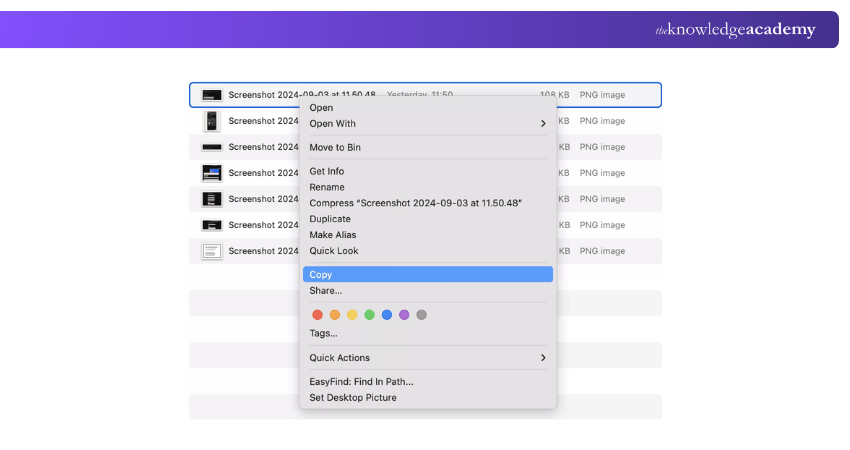
Choose "Copy Image" from the Dropdown Menu
Once the menu appears, select Copy Image. This step copies the actual image not just the file name or URL to your Mac’s clipboard.
Note: If you’re copying from Application Software like Preview or Finder, the words might differ slightly, such as Copy or “Copy filename.

Navigate to the Destination
To navigate properly open the application or file where you want to paste the image. Examples include an email, a document in Pages or Word, a note in the Notes app, or even a message in iMessage or Slack.
Note: Make sure your cursor is placed in the right spot, where you want the image to appear.
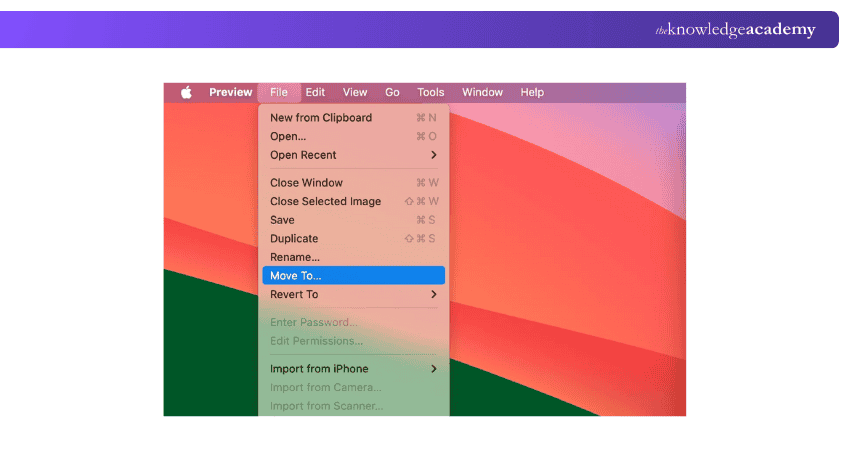
Press Command + V to Paste
Copy the image to your clipboard and put your cursor in place. The next step is to press Command (⌘) + V to paste the image. It should appear instantly in the address you want to paste.
Note: This process works in most Apple-native apps and third-party tools that support image input.

How to Cut and Paste on a MacBook?
MacOS has a fun fact-it doesn’t have a proper "cut” function for files as compared to Windows. Let's study some of the things to remember.
If you want to move files or folders:
1) Select the file and press Command (⌘) + C to copy
2) Go to your desired folder or location
3) Press Command (⌘) + Option (⌥) + V to move the item instead of just copying it
For text within documents or browsers, you can use the usual cut shortcut:
1) Command (⌘) + X to cut
2) Command (⌘) + V to paste

Where to Find the Clipboard on a Mac?
MacOS doesn’t have a visible clipboard history like Windows' clipboard manager. But you can access the last item you copied by following the steps:
1) Open Finder
2) Click Edit in the top menu bar
3) Choose Show Clipboard
A small window will pop up showing the most recent copied content. It can be text, a file name, or an image reference.
If you want full clipboard history functionality, you’ll need to use a third-party app like Paste or CopyClip.
Build, test, and launch apps with our Laravel Web Development Training- Register Today!
MacBook vs. Windows: Key Differences
In case you're switching from Windows to Mac, some shortcuts and functions are slightly different. Here’s a quick comparison to help ease the understanding:
When it comes to MacOS, it offers a clean interface and intuitive design. But it might take some time to get used to it for the new users. If you are accustomed to Windows the good news is once you get the hang of Mac’s shortcuts and gestures, you may never want to go back.
Conclusion
Learning How to Copy and Paste on Mac is like unlocking a hidden superpower; suddenly, moving text, files, or images feels effortless. In case you are a student, designer, or multitasking pro, these simple tools speed things up without breaking your flow. Now you’ve got the know-how, it’s time to copy with flair and paste with purpose!
From beginner to builder-master web and app skills now with our Mobile App Development Course!
Frequently Asked Questions
What Is the Fastest Way to Copy and Paste on a Mac?

The fastest way to copy and paste on a Mac is by using keyboard shortcuts. Simply press Command (⌘) + C to copy and Command (⌘) + V to paste. It works for text, files, images, and more. It’s quick, easy, and saves you from using the mouse or menus.
How To Paste Without Formatting Mac?
To paste without formatting on a Mac, use the shortcut Command (⌘) + Shift + Option + V instead of the regular paste. This pastes the text as plain text, removing fonts, colours, and styles.
It’s perfect when you want your text to match the formatting of your current document.

The Knowledge Academy


Global Training Provider
The Knowledge Academy is a world-leading provider of professional training courses, offering globally recognised qualifications across a wide range of subjects. With expert trainers, up-to-date course material, and flexible learning options, we aim to empower professionals and organisations to achieve their goals through continuous learning.


 If you wish to make any changes to your course, please


