




We may not have the course you’re looking for. If you enquire or give us a call on 01344203999 and speak to our training experts, we may still be able to help with your training requirements.
Booting in Operating System: An Ultimate Guide
ByRichard HarrisLast updated on: 03 October 2026
Understand the fundamental concept of booting in computer systems and explore the various types of booting in operating systems. Learn about the mechanisms involved in system booting and why it is a vital process.
The Brief on Booting
1. Core Concept: Booting initialises a computer and prepares it to load and run an operating system.2. Main Types: Cold booting starts a powered-off computer, while warm booting restarts a system that is already powered.3. Boot Sequence: The process moves through firmware initialisation, hardware checks, bootloader execution and operating system startup.4. System Readiness: Booting prepares hardware, drivers and essential system services for normal operation.5. Dual Booting: A dual-boot setup allows users to choose between two installed operating systems when starting a computer.
Booting is a fundamental process in the world of computing. Whether you're using a desktop computer, a laptop, a smartphone, or even an embedded system, it all starts with booting. Operating Systems (OS) undergo booting as well before commencing any operation. If you’re wondering what exactly booting in operating systems is, then this blog is just for you.
In this blog, we will delve into the intricacies surrounding booting in operating systems. We will explore what booting means, the different phases involved, and their significance.
What is Booting in Computer Systems?
Booting, the process of initialising and starting a computer, can be triggered either by hardware, such as a physical button press, or through a software command. When a computer is powered on, the Central Processing Unit (CPU) lacks any software in its main memory, necessitating the loading of software into memory before it can execute tasks. This loading process can be executed by hardware or firmware embedded in the CPU, or it might involve a separate processor within the computer system.
Restarting a computer is commonly referred to as "Rebooting." It can be a "Hard" Reboot, such as when electrical power to the CPU is switched off and then on again, or a "Soft" Reboot, where power remains uninterrupted. In some systems, a Soft Reboot may include the option to clear the computer's Random Access Memory (RAM) and reset it to zero.
Notably, waking a computer from a state of sleep doesn't entail a booting sequence, whereas restoring it from hibernation does. In certain cases, particularly with embedded systems, booting may not be overtly noticeable, as these systems can commence functioning upon startup, running operational programs stored in Read Only Memory (ROM). Essentially, all computer systems are regarded as state machines, and rebooting serves as a method to return a system to a predefined zero state when it has inadvertently entered an unintended, locked state.
Furthermore, aside from loading an operating system or stand-alone utility, the Boot process can also encompass loading a storage dump program, which is utilised for diagnosing issues within an operating system.

Types of Booting in Operating System
In this section, we will delve deeper into the concepts of cold booting and warm booting in the computer startup processes.
1) Cold Booting
Cold booting is akin to the inaugural moments when a computer comes to life or is reignited from a completely powered-down state. During this process, the computer undergoes a series of essential steps. It all commences with pressing the power button, which initiates the flow of electricity through the computer's circuits. Subsequently, the computer's Basic Input/Output System (BIOS), typically stored in Read Only Memory (ROM), takes centre stage.
The BIOS plays a pivotal role in orchestrating the startup sequence by executing a series of predefined instructions. These instructions involve hardware checks, initialisation, and, ultimately, loading the operating system into memory. This process is comprehensive but, as a trade-off, takes a bit longer compared to warm booting. Cold booting is the equivalent of a fresh start in the computer world, wherein the entire system powers up from scratch.
Develop hands-on skills in system support and network management with a wide range of IT Support and Solution Courses – Sign up now!
2) Warm Booting (Rebooting)
In contrast, warm booting or rebooting is an act akin to hitting the "reset" button on a running computer. It occurs when the computer is already up and operational, but issues like system hang-ups or unresponsiveness necessitate a fresh start.
There can be several reasons behind initiating a Warm Boot, but they all involve restarting the system while it's still powered on. For instance, one might need to perform a Warm Boot after installing new software or hardware. In such cases, a Reboot is indispensable to apply the changes accurately. A Reboot can be initiated in several ways; one common method is by pressing the Ctrl+Alt+Del keys. Alternatively, some computer systems feature a reset button on the exterior that can be pressed to restart the device.
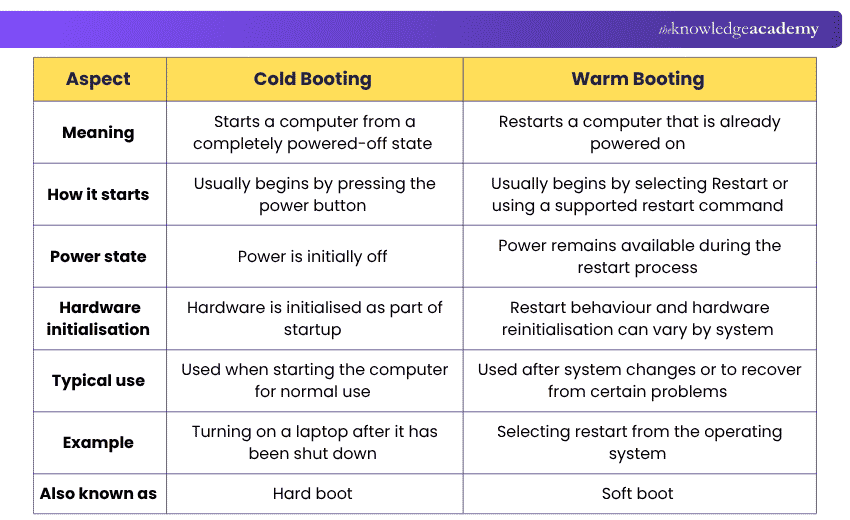
Here's a quick look at the difference between cold booting and warm booting:
How does an Operating System Boot?
Here are the steps involved in the booting process of a computer's Operating System:
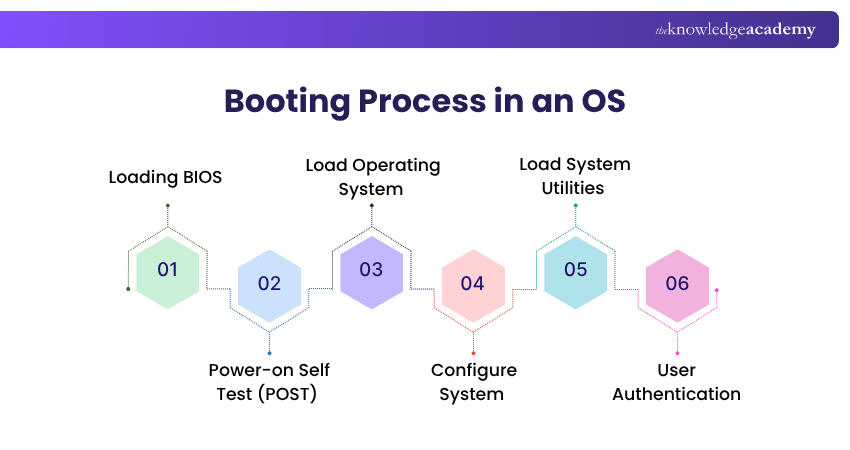
a) Loading of BIOS: The booting sequence begins with the loading of BIOS instructions, which are stored in a chip known as ROM. The CPU plays a pivotal role by executing these BIOS instructions, utilising system calls in the operating system to facilitate the computer's startup process.
b) Power-on Self Test (POST): Once BIOS takes the stage, it proceeds to perform a crucial task known as the Power-On Self Test (POST). The primary objective of POST is to rigorously examine the operability of all the hardware components connected to the computer system. This includes the CPU, memory, storage devices, and more. If any hardware issues or malfunctions are detected during POST, the BIOS will alert the user through various means, such as audible POST beeps or on-screen messages.
c) Loading of Operating System: Following the successful completion of POST, the BIOS's attention shifts to the operating system. The BIOS consults the Bootable sequence, typically stored in the Complementary Metal Oxide Semiconductor (CMOS) memory. Based on this sequence, BIOS embarks on a search for the Master Boot Record (MBR) across bootable devices, which can encompass floppy disks, CD-ROMs, and hard disks. If none of these devices contains the MBR, the system halts and displays a "No Boot Device Found" message. However, if the MBR is found, the BIOS proceeds to load a unique application program known as the Boot Loader. The Boot Loader's primary role is to initiate the loading of the operating system.
d) Successful System Configuration: After successfully loading the operating system, the next step is to configure it. This involves loading device drivers into memory to ensure that all hardware devices function correctly. The system needs to recognise and interact with components like graphics cards, network adapters, and input devices.
e) Loading System Utilities: In this stage, the operating system utilities such as antivirus software, volume control, and other essential tools are loaded into memory. These utilities enhance the functionality of the computer system and are often crucial for maintenance and User Experience.
f) User Authentication: If any form of user authentication has been established, the user will be prompted by the system to enter their credentials. Once the correct login details are provided, the computer system proceeds to launch the Graphical User Interface (GUI) shell or the Command Line Interface (CLI) shell, depending on the system configuration.
Pro Tip
Back up important files before changing storage partitions or installing another operating system. Partitioning or installation mistakes can put existing data at risk
Why do We Need Booting?
Booting, a fundamental process in computing, is essential for various reasons in the functionality of modern computer systems. Here's why we need booting:
a) Initialisation: When a computer is powered on, the CPU begins executing instructions stored in the firmware, specifically in the BIOS or Unified Extensible Firmware Interface (UEFI). These instructions initiate hardware tests, memory checks, and the detection of peripherals. BIOS plays an essential role in this process and is often the first code that runs when a system starts. Booting serves as the system's method of self-initialisation.
b) Loading the Operating System: Once the hardware is verified and initialised, the booting process continues to load the OS. A critical aspect of this process is thrashing, which can occur when excessive paging in operating system hampers system performance. The OS, being an essential component, offers a user-friendly interface, efficiently manages hardware resources, and enables applications to run smoothly. Booting plays a vital role in transitioning the system from a dormant state to an active state where the OS takes full control.
c) Software updates: Booting is vital for applying software updates and patches. Upon startup, the computer can check for the latest updates and install them as necessary. These updates comprise security patches, bug fixes, and performance enhancements. Without booting, the system wouldn't have the opportunity to update its software.
d) Clearing memory: Some computer systems, particularly those utilising Soft Reboots, use the booting process to reset the system's memory, typically the RAM. Clearing memory is crucial for ensuring a clean slate and preventing memory-related issues from affecting system performance.
e) Recovery: In case of system failures or crashes, booting provides a way to recover the system's operation. It allows users to restore the computer to a functional state, resolve issues, and continue working.
f) Optimal resource allocation: The booting process facilitates the optimal allocation of resources by initialising hardware components and software services. It ensures that the system is in a consistent and controlled state for users and applications.
Real-world Example
Consider what happens when you switch on a laptop. The firmware starts first and prepares the hardware. A bootloader then helps start the operating system. The OS loads its kernel, drivers and services before presenting the login screen. What appears to be a simple press of the power button therefore involves several coordinated stages.
What is Dual Booting?
Dual booting is a computer setup that allows a user to run two different operating systems on a single machine. It's a configuration in which a computer has two separate operating systems installed, and the user can choose which one to use when the computer starts up. This offers the flexibility to switch between different operating systems based on specific needs or preferences.
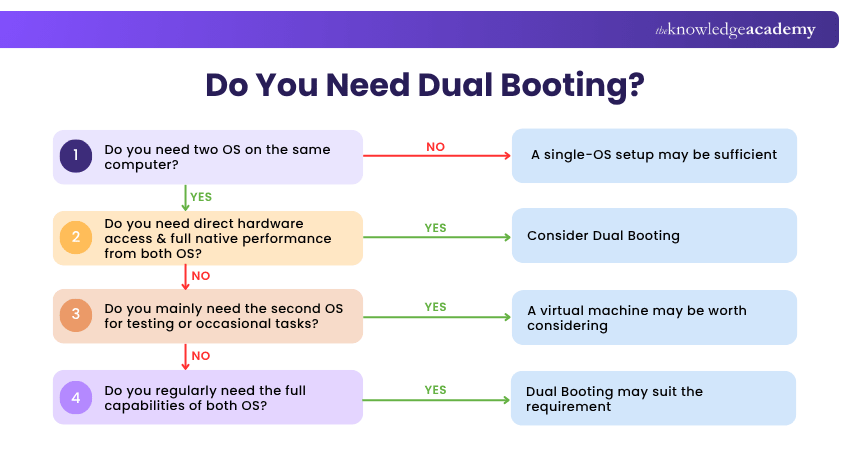
The primary motivation for dual booting is to run software that is compatible only with a specific operating system. For example, a user may prefer to use macOS for creative tasks but need Windows for certain software applications. Dual booting enables this kind of versatility. Similarly, someone might want to experiment with a different operating system without fully committing to it, and dual booting provides a safe way to do so. Here's a quick look into how you can decide if you need dual booting:
Setting up a dual boot system involves partitioning the computer's storage space to allocate separate areas for each operating system. Users typically select their preferred operating system at startup through a Boot menu. The Boot menu allows them to choose between the installed operating systems, effectively determining which one will run on the computer.
Dual booting is a valuable solution for users who require the capabilities of different operating systems and want the freedom to switch between them conveniently. It offers the best of both worlds without the need for multiple physical computers.
Quick Troubleshooting Checklist
Use this checklist when a computer does not boot correctly:
□ Check that power is available□ Confirm that POST completes successfully□ Check whether the storage device is detected□ Confirm that the correct boot device is selected□ Check whether the bootloader starts□ Confirm that the Operating System loads□ Check that drivers and system services start correctly
Don't let hardware failures slow you down. Sign up for our Computer Hardware Troubleshooting Course – Sign up now!

Richard Harris creates technically detailed yet accessible content on full-stack development, software architecture and modern development frameworks. His knowledge of frontend and backend technologies helps developers understand how scalable, efficient and high-performing applications are designed and built.
View Detail

 If you wish to make any changes to your course, please


