




We may not have the course you’re looking for. If you enquire or give us a call on 01344203999 and speak to our training experts, we may still be able to help with your training requirements.
What is Azure Load Balancer? Features, Types, Pricing & Benefits
Pearl Williams 01 December 2025Azure Load Balancer distributes incoming network traffic across multiple resources to ensure high availability, scalability, and reliability in the cloud. It operates at Layer 4 of the OSI model. It uses a combination of frontend IP configurations, backend server pools and load balancing rules to direct traffic to healthy instances.

Designing And Implementing Microsoft Azure Networking Solutions AZ-700 Training
 Top Rated Course
Top Rated Course
Exclusive 40% OFF
Training Outcomes Within Your Budget!
We ensure quality, budget-alignment, and timely delivery by our expert instructors.
Table of Contents
Related Courses
- Microsoft Azure Fundamentals AZ-900 Certification
- AZ-140 Configuring And Operating Azure Virtual Desktop Course
- Administering Configuration Manager - Fundamentals and Asset Management 55313AC
- Developing Solutions For Microsoft Azure AZ-204 Certification
- Install and Configure Microsoft Windows Server and Active Directory Training - dummy
Think of the Azure Load Balancer as the traffic cop of your network who ensures smooth distribution, zero bottlenecks and maximum uptime. It intelligently distributes traffic and ensures smooth performance even during heavy demand. From handling millions of requests to scaling effortlessly, this Cloud-based Networking service powers modern applications with precision.
In this blog, you’ll uncover the standout features of Azure Load Balancer along with its powerful types, pricing structure and the real benefits that make it a backbone of modern Cloud Architectures. So read on and embrace this trusted partner in your journey towards building scalable, resilient systems!
Table of Contents
1) What is Azure Load Balancer?
2) Key Features of Azure Load Balancer
3) Different Types of Azure Load Balancers
4) Steps to Create an Azure Load Balancer
5) Azure Load Balancer Pricing
6) Benefits of Using Azure Load Balancer
7) Best Practices for Using Azure Load Balancer
8) Conclusion
What is Azure Load Balancer?
Azure Load Balancer is a Cloud-based Networking service offered by Microsoft that improves application performance and ensures high availability. It achieves this by distributing incoming network traffic evenly across multiple servers hosted within the Azure environment.
As a layer-4 load balancing solution, it operates at the Transport Layer, managing TCP and UDP traffic. This helps it support various use cases, from basic web applications to advanced multi-tier architectures running across several virtual machines.
Key Features of Azure Load Balancer
Azure Load Balancer includes several powerful capabilities that help distribute traffic efficiently and maintain high availability. Below are its key features.
1) Load Balancing
Azure Load Balancer distributes traffic using a 5-tuple hash consisting of the source IP, source port, destination IP, destination port, and protocol. This ensures that the traffic is consistently balanced across backend resources.
2) Health Probes
Health probes continuously monitor the status of virtual machines in the backend pool, and they stop routing traffic to unhealthy instances. This ensures high availability by keeping traffic flowing only to healthy resources.
3) Automatic Reconfiguration
The load balancer automatically adjusts its settings as backend resources scale up or down. This helps maintain seamless performance even when application demand changes.
4) Outbound Connection
Outbound traffic from private IPs within the virtual network to public internet addresses can be mapped to the load balancer’s frontend IP. This provides secure outbound connectivity without exposing individual virtual machines.
5) Port Forwarding
It supports port forwarding, which allows multiple web servers to provide services without assigning a public IP to each one. This simplifies network design and reduces the need for additional public IP addresses.
6) Application Agnostic and Transparent
The load balancer does not inspect or process TCP or UDP traffic directly. This transparency supports flexible routing methods, including URL-based routing and multi-site hosting, making it suitable for many different application types.
Build the foundation for a strong career in the Cloud with our Microsoft Azure Fundamentals AZ-900 Certification - Sign up now!
Different Types of Azure Load Balancers
Azure provides two main types of load balancers. Each serves a specific purpose depending on the workload and level of performance required. Here is a clear breakdown of both:
1) Azure Load Balancer (Classic)
The Classic Load Balancer is the earlier version of Azure’s load balancing service. It offers basic traffic distribution and supports simple workloads that rely on TCP and UDP protocols. While functional, it provides limited features compared to the modern Standard Load Balancer and is generally used in older or legacy deployments.
2) Azure Load Balancer (Standard)
The Standard Load Balancer is the more advanced and modern option, designed to replace the classic version. It provides better load balancing features and supports a wider range of protocols, including TCP, UDP, HTTP, and HTTPS. These offer greater reliability and performance.
Steps to Create an Azure Load Balancer
Here are the nine crucial steps you can take to create an Azure Load Balancer:
1) Create an Azure Load Balancer
1) Sign in to the Azure Portal. Ensure you have an active subscription. If you recently created a free account, you’ll already have a 1-month Free Trial subscription available.
2) In the top search bar, type ‘Load Balancer’ and select the Load Balancer service from the results.
3) Click ‘Add’ on the top left corner to begin creating a new load balancer.
4) In the ‘Basics’ tab of the ‘Create Load Balancer’ page, provide the following details and leave the other settings as default before selecting Review + create:
a) Subscription
b) Resource Group
c) Name
d) Region
e) Type
f) SKU
g) Public IP address
h) Public IP address name
2) Set Up a Virtual Network
1) On the upper-left corner, select Create a resource > Networking > Virtual network, or simply search for ‘Virtual network’ using the search bar.
2) In the Create ‘virtual network’ page, fill in the required details under the ‘Basics’ tab, including:
a) Subscription
b) Resource group
c) Name
d) Region
3) Click ‘Next: IP Addresses’ at the bottom. In the ‘IP Addresses’ tab, provide the following:
a) IPv4 Address Space
b) Add Subnet
4) Select the default subnet name (default) to edit it. In the ‘Edit subnet’ window, enter the required details, click ‘Save’, then proceed to ‘Review + create’.
3) Define the Backend Pool
A backend pool holds the IP addresses of the virtual machine Network Interfaces (NICs) linked to the Azure Load Balancer.
1) Go to ‘All services’ from the left-hand menu, open ‘All resources’, and select ‘myLoadBalancer’ from the list.
2) Under the ‘Settings’ section, choose ‘Backend pools’, then click ‘Add’.
3) On the ‘Add a backend pool’ page, fill in the required details and select ‘Add’ to create the pool.
4) Configure a Health Probe
The Azure Load Balancer employs a health probe to check the status of your application. Based on these health checks, it automatically adds or removes virtual machines from the backend pool.
1) Navigate to ‘All services’, open ‘All resources’, and select ‘myLoadBalancer’ from the list.
2) In the ‘Settings’ section, choose ‘Health probes’, then click ‘Add’.
3) Provide the necessary details on the ‘Add health probe’ page and select ‘OK’ to create the probe.
5) Set Load Balancer Rules
A load balancer rule controls how the incoming traffic is distributed across virtual machines. It specifies the frontend IP configuration for incoming requests, the backend pool that receives the traffic and the source and destination ports.
1) Go to ‘All services’, open ‘All resources’, and select ‘myLoadBalancer’ from the list.
2) Under the ‘Settings’ section, click ‘Load balancing rules’, then choose ‘Add’.
3) Enter the required values to configure the Azure load balancing rule and select ‘OK’ to apply the settings.
6) Provision Two Windows Virtual Machines
This step involves creating two different ‘Windows Server’ Virtual Machines.
You can create both the VMs in an Availability Set and pick the previously created VNet named “myVNet” under the Networking tab. You have to consider these details in the ‘Create a Virtual Machine’ tab:
1) Virtual Network
2) Subnet
3) Puplic IP
4) NIC network security group
5) Public inbound ports
6) Select inbound ports
Redefine remote work with our AZ-140 Configuring and Operating Azure Virtual Desktop Course - Register now!
7) Install IIS for Testing Purposes
Run the following command in the Azure Cloud Shell to install Internet Information Services (IIS) on the virtual machine. Change the ‘Location’ and ‘Resource Group’ parameter according to the VM in which you have deployed:
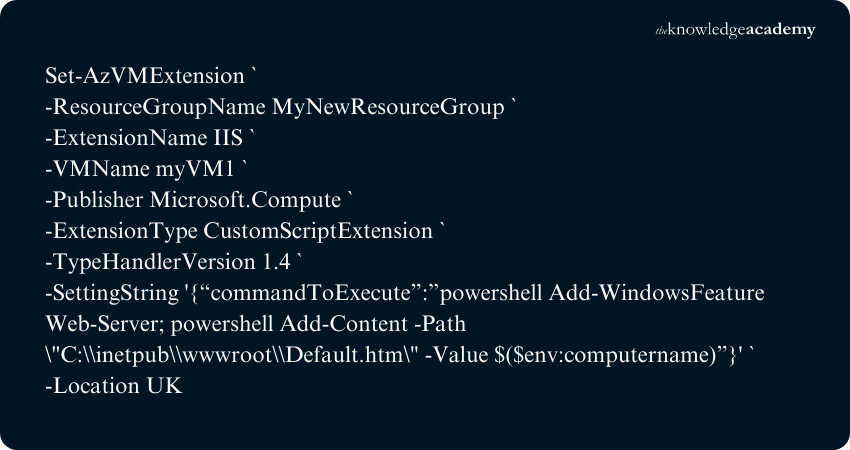
Change the -VMName line to “myVM2” for installing IIS on the second Virtual Machine
8) Assign Virtual Machines to the Backend Pool
1) Go to ‘All services’, open ‘All resources’, and choose ‘myLoadBalancer’ from the list.
2) In the ‘Settings’ menu, click ‘Backend pools’ and select ‘myBackendPool’.
3) Choose ‘myVNet’ under ‘Virtual Network’ and set ‘Associated to’ as ‘Virtual machines’.
4) In the ‘Virtual machines’ section, click ‘+ Add’, select both newly created VMs, and then click ‘Save’.
9) Test the Load Balancer Functionality
1) Go to the ‘Overview’ page of the Load Balancer and locate its ‘public IP address’.
2) Copy the public IP and paste it into your web browser’s address bar. If you receive a valid response, it confirms that the load balancer is functioning and communicating with the backend VMs.
3) Refresh the page several times. You should see responses alternating between ‘myVM1’ and ‘myVM2’. This confirms that the load balancer is distributing traffic correctly.
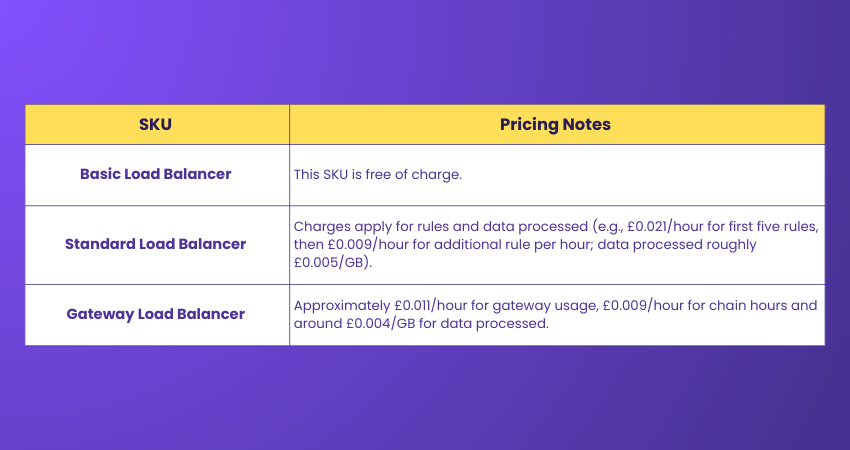
Azure Load Balancer Pricing
Here’s the pricing pertaining to Azure Load Balancer:
Benefits of Using Azure Load Balancer
Azure Load Balancer offers a wide range of advantages that help applications stay reliable, scalable and secure. Below are the key benefits that make it such a powerful service:
1) Enhanced Availability and Resilience
1) Azure Load Balancer improves uptime by distributing incoming traffic across multiple servers, preventing any single server from becoming overloaded.
2) It automatically detects unhealthy or unresponsive servers and reroutes traffic to healthy instances.
3) It supports zone-redundant and cross-region load balancing to boost availability.
4) It distributes traffic across different zones or regions to protect applications from zone- or region-level failures.
2) Seamless Scaling for High Traffic
1) Azure Load Balancer helps applications scale smoothly as business demand and traffic volumes increase.
2) It balances the load across multiple servers to maintain consistent performance during high-traffic periods.
3) It supports autoscaling by automatically adjusting the number of servers based on current workload requirements.
3) Integrated Security Features
1) Azure Load Balancer works seamlessly with Azure Network Security Groups (NSGs) to control the traffic at the NIC or subnet level.
2) It helps secure backend resources by preventing unauthorised access through controlled inbound and outbound traffic flows.
3) It integrates with Azure DDoS Protection to safeguard applications against large-scale network attacks.
4) It ensures the isolation of inbound and outbound flows, thus maintaining a secure pathway between clients and backend VMs.
4) Integration with Azure Services and Resources
1) Azure Load Balancer connects effortlessly with Azure Virtual Machines, Virtual Machine Scale Sets, and Virtual Networks for unified deployment.
2) It works alongside Azure Autoscale to dynamically adjust backend capacity based on real-time demand.
3) It integrates with Azure Monitor, enabling detailed insights, metrics, and diagnostics to track performance and health.
4) It supports Azure Application Gateway and Azure Firewall for advanced routing and boosted security architectures.
Best Practices for Using Azure Load Balancer
Consider these best practices to make the best of Azure Load Balancer:
1) Use Multiple Availability Zones
To maximise the benefits of Azure Load Balancer, deploy your virtual machines across numerous availability zones. This ensures that in case one zone goes down, your application continues to run from the other zones.
2) Integrate with Azure DDoS Protection
Boost your application’s security by pairing Azure Load Balancer with Azure DDoS Protection. This service defends against Distributed Denial of Service attacks by using intelligent mitigation techniques in real time.
3) Regularly Review Diagnostic Logs
Routinely check the diagnostic logs to monitor how your load balancer is performing. These logs help you identify potential issues early, support troubleshooting and provide an audit trail of operational changes to ensure smooth performance.
4) Only Create the Minimal Necessary Load Balancing Rules
When setting up your load balancer, focus on creating only the necessary rules. A streamlined configuration reduces the risk of errors, amplifies performance and helps maintain a secure and efficient environment.
5) Always Configure Network Security Groups (NSGs)
Improve your network security by applying Network Security Groups to manage inbound and outbound traffic. NSGs act as a virtual firewall, allowing you to define access rules that block unauthorised traffic and protect your virtual machines from threats.
Conclusion
Azure Load Balancer stands as a dependable force in keeping Cloud applications resilient and smooth. Thanks to its intelligent traffic distribution, strong security integrations and flexible pricing, it empowers businesses to deliver seamless digital experiences. Whether you are handling growing workloads or building fault-tolerant systems, it ensures that your applications stay protected and ready for anything the Cloud brings.
Become Azure certified and open doors to innovation. Sign up for our Microsoft Azure Certification now!
Frequently Asked Questions
What is the Difference Between Azure Gateway and Load Balancer?

Azure Load Balancer distributes incoming network traffic across virtual machines to improve performance and availability. On the other hand, Azure Application Gateway is a layer-7 service that provides advanced features like SSL termination, URL-based routing, web application firewall (WAF), and session affinity.
Do We Need Both API Gateway and Load Balancer?
In the case of many architectures, yes. An API Gateway handles authentication, rate limiting, routing, caching, and API Management features, while a Load Balancer distributes traffic across backend servers. Using both together helps ensure secure and well-structured API-driven applications.
What are the Other Resources and Offers Provided by The Knowledge Academy?
The Knowledge Academy takes global learning to new heights, offering over 3,000+ online courses across 490+ locations in 190+ countries. This expansive reach ensures accessibility and convenience for learners worldwide.
Alongside our diverse Online Course Catalogue, encompassing 19 major categories, we go the extra mile by providing a plethora of free educational Online Resources like Blogs, eBooks, Interview Questions and Videos. Tailoring learning experiences further, professionals can unlock greater value through a wide range of special discounts, seasonal deals, and Exclusive Offers.
What is The Knowledge Pass, and How Does it Work?
The Knowledge Academy’s Knowledge Pass, a prepaid voucher, adds another layer of flexibility, allowing course bookings over a 12-month period. Join us on a journey where education knows no bounds.
What are the Related Courses and Blogs Provided by The Knowledge Academy?
The Knowledge Academy offers various Microsoft Azure Certifications, including the Designing and Implementing Microsoft Azure Networking Solutions AZ-700 Training, Microsoft Azure Fundamentals AZ-900 Certification and the Developing Solutions for Microsoft Azure AZ-204 Certification. These courses cater to different skill levels, providing comprehensive insights into Azure Blob Storage.
Our Microsoft Technical Blogs cover a range of topics related to Azure Load Balancer, offering valuable resources, best practices, and industry insights. Whether you are a beginner or looking to advance your Microsoft Technical skills, The Knowledge Academy's diverse courses and informative blogs have got you covered.
Upcoming Microsoft Technical Resources Batches & Dates
Date
 Designing And Implementing Microsoft Azure Networking Solutions AZ-700 Training

 If you wish to make any changes to your course, please


