


We may not have the course you’re looking for. If you enquire or give us a call on 01344203999 and speak to our training experts, we may still be able to help with your training requirements.
7 Benefits of Microsoft Planner
ByThe Knowledge AcademyLast updated on: 12 November 2026
Discover the benefits of Microsoft Planner, from organised task management and visual tracking to improved collaboration and Microsoft 365 integration. Learn how its features enable teams to assign responsibilities, monitor deadlines, access shared tasks, and manage projects more efficiently.

Quick Look
1. Microsoft Planner helps teams organise tasks, assign responsibilities and track progress in one shared workspace.2. Buckets, checklists and deadlines keep related work together instead of scattered across emails and spreadsheets.3. Grid, Board, Charts and Schedule views are in basic plans, while Timeline and People views need premium.4. Task assignments, comments and notifications support clear ownership and collaboration.5. Integration with Microsoft Teams, To Do and SharePoint connects task tracking with existing Microsoft 365 tools.
A team has an important project deadline approaching, but tasks are scattered across emails, spreadsheets and conversations. Some employees are unsure about their responsibilities, while others struggle to track progress. Microsoft Planner helps bring these activities into one organised workspace.
Microsoft Planner is a cloud-based work management tool within Microsoft 365 that helps individuals and teams organise tasks, assign responsibilities and monitor progress. But what makes it useful for teams? The benefits below show how it supports everyday task management and wider project work. Let’s begin!
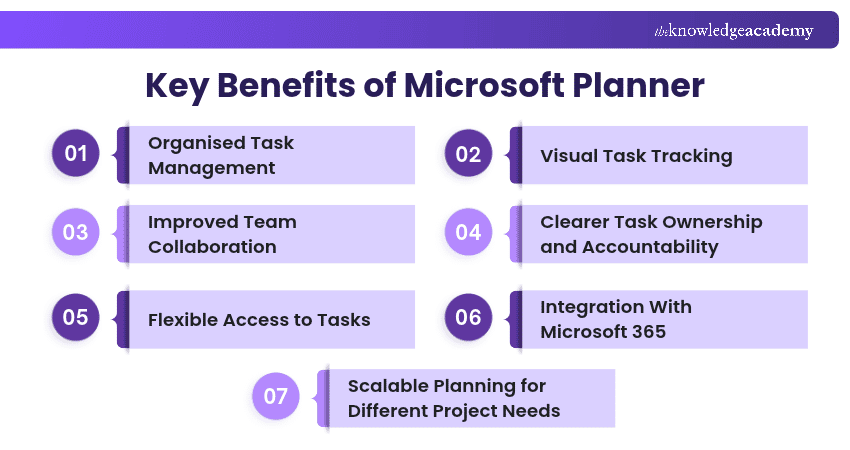
Key Benefits of Microsoft Planner
Microsoft Planner simplifies task coordination by combining structured task management, visual progress tracking and collaboration features. Here are seven benefits that make it useful for managing individual and team workloads:
1) Organised Task Management
Organised task management refers to the structured approach of categorising, prioritising and tracking tasks to completion. Microsoft Planner helps teams organise their work through shared plans, task cards and customisable buckets.
Key benefits include:
a) Task Organisation: Create tasks and organise them into buckets based on project stages, categories or priorities.
b) Clear Deadlines: Set start dates, due dates and priorities to help teams organise their workload.
c) Task Checklists: Break larger activities into smaller, manageable steps using checklists.
d) Centralised Details: Add descriptions, attachments and relevant information to individual tasks.
e) Simplified Workflows: Keep related activities within one plan, reducing the need to track tasks across separate documents.
By organising tasks consistently, teams can manage their daily work more effectively and reduce confusion about outstanding activities.

2) Visual Task Tracking
Visual task tracking uses graphical views to show which work is planned, in progress or complete. Microsoft Planner provides different views that help users understand tasks and progress without relying entirely on written updates.
Planner offers these task views:
a) Grid View: Displays tasks in a structured format, making it easier to review details and assignments.
b) Board View: Organises task cards into columns, helping teams visualise their workflows.
c) Charts View: Provides visual summaries of task status and progress, supporting performance monitoring.
d) Schedule View: Displays tasks on a calendar in basic plans, helping users review upcoming deadlines.
e) Timeline View: Available with suitable premium plans, this Gantt-style view supports more detailed project scheduling.
These visual options help teams choose how they want to review their work, identify pending activities and understand project progress.
3) Improved Team Collaboration
Seamless team collaboration facilitates smooth interaction, communication and shared work efforts among team members, irrespective of their physical location. Microsoft Planner supports collaboration by allowing multiple team members to work within shared plans and coordinate task-related activities.
Key advantages include:
a) Shared Plans: Team members can access common plans and review assigned activities.
b) Task Conversations: Comments allow team members to discuss individual tasks and share relevant updates.
c) File Attachments: Users can attach relevant files and links to provide context for their work.
d) Team Coordination: Shared task updates help colleagues understand progress and outstanding work.
e) Microsoft Teams Integration: Users can access Planner within Microsoft Teams, where chats and meetings take place.
This helps teams coordinate their work without treating Planner as a replacement for dedicated messaging or video conferencing tools.
Real-world Example
A marketing team preparing a product launch creates a shared Planner plan for content, design and promotional tasks. Members attach files, discuss tasks and update progress in one place, so no separate status spreadsheets are needed.
4) Clearer Task Ownership and Accountability
When several people contribute to a project, knowing who is responsible for each activity is essential. Microsoft Planner helps teams establish clearer ownership by connecting tasks to specific team members.
Key benefits include:
a) Task Assignments: Assign tasks to individuals or multiple team members to clarify responsibility.
b) Individual Work Visibility: Team members can review tasks assigned to them and identify upcoming deadlines.
c) Progress Updates: Assigned users can update task status as work moves towards completion.
d) Task Notifications: Supported notifications help users stay informed about assignments and relevant changes.
Clear task ownership helps reduce uncertainty, supports accountability and makes it easier to identify activities requiring attention.
5) Flexible Access to Tasks
Access anytime, anywhere is a principle that allows employees to access work resources and manage responsibilities without being restricted to a single office location. As a cloud-based service, Microsoft Planner supports flexible working by allowing users to access supported task management features through different applications and devices.
Key advantages include:
a) Remote Access: Review and update tasks while working away from the office, provided the required connection and permissions are available.
b) Web Access: Access supported Planner features through a web browser.
c) Mobile Accessibility: Use supported mobile experiences to review tasks and manage work while travelling.
d) Cross-location Collaboration: Teams working in different locations can coordinate activities through shared plans.
However, feature availability can differ between web, Teams and mobile experiences, and access depends on the organisation's subscription and settings.
Organise information, connect teams and simplify collaboration with the Microsoft SharePoint Training - Join now!
6) Integration With Microsoft 365
Microsoft ecosystem is an interconnected collection of applications and services that support communication, collaboration and productivity. Microsoft Planner integrates with supported Microsoft 365 services, helping users connect task management with their existing workplace tools.
Important integrations include:
a) Microsoft Teams: Users can access and manage Planner plans and tasks within Teams.
b) Microsoft To Do: Tasks assigned in Planner appear in the ‘Assigned to me’ list, helping users manage their personal workload.
c) Microsoft 365 Groups and SharePoint: Plans linked to a group give members shared access to related resources, such as files in the group’s SharePoint site.
These connections can reduce the need to switch between unrelated platforms and help users manage tasks alongside other Microsoft 365 activities.
Trainer's Insight
Planner organises assignments, deadlines and progress, while Teams handles chats and meetings. Using both lets teams discuss work and track responsibilities in one connected environment.
7) Scalable Planning for Different Project Needs
Microsoft Planner supports everything from everyday task coordination to more advanced project planning. Teams can use basic features for simple work or add premium planning features when projects need more detail.
Planner supports these planning needs:
a) Simple Project Planning: Organise tasks, deadlines and responsibilities for routine projects using basic Planner features.
b) Advanced Scheduling: Premium timeline view supports Gantt-style planning for projects requiring more detailed schedules.
c) Task Dependencies: Premium features allow users to define relationships between tasks and understand how activities affect one another.
d) Workload Visibility: Premium People view helps teams review assignments and identify possible workload imbalances.
e) Project Milestones: Premium capabilities support important checkpoints for tracking progress towards project objectives.
This flexibility allows organisations to select planning capabilities appropriate to their requirements without assuming every advanced feature is included in basic Planner subscriptions.
Bring conversations, collaboration and productivity together with the Microsoft Teams Training - Join now!

The Knowledge Academy develops accessible learning content across Project Management, IT, Cybersecurity, Data Science, Business Analysis, HR, Accounting and Finance, Leadership and Health and Safety. Its resources combine subject research with clear explanations to help professionals build practical knowledge across a wide range of disciplines.
View Detail

 If you wish to make any changes to your course, please


