




We may not have the course you’re looking for. If you enquire or give us a call on 01344203999 and speak to our training experts, we may still be able to help with your training requirements.
Home
 Resources
Microsoft Technical
Microsoft Power Platform Build Tools for Azure DevOps: A Complete Guide
Resources
Microsoft Technical
Microsoft Power Platform Build Tools for Azure DevOps: A Complete Guide
Resources
Microsoft Technical
Microsoft Power Platform Build Tools for Azure DevOps: A Complete Guide
Microsoft Power Platform Build Tools for Azure DevOps: A Complete Guide
ByNilotpal SarmahLast updated on: 17 September 2026
Microsoft Power Platform Build Tools for Azure DevOps help automate Application Lifecycle Management (ALM) activities for Power Platform solutions.
Your Power Platform solution is ready. The changes work, the team is happy and it is time to deploy the solution to the next environment.
Then comes the repetitive part:
Export the solution
Move the files
Validate everything
Import it again
Repeat the process for each environment
What starts as a simple deployment can quickly become a time-consuming routine.
Microsoft Power Platform Build Tools for Azure DevOps help automate these ALM activities through structured Azure DevOps tasks. In this blog, we’ll explore how to configure and use them to create more consistent CI/CD workflows.
What are Microsoft Power Platform Build Tools?
Microsoft Power Platform Build Tools are a collection of Power Platform-specific Azure DevOps tasks designed to support the Application Lifecycle Management of applications built using Microsoft Power Platform. They reduce the need to download custom tooling and scripts for common ALM operations manually.
Keynote: The Build Tools are supported for Microsoft Dataverse environments that have a database.
You can use the tasks individually or combine them with other Azure DevOps tasks to create build and release pipelines. They can support activities such as:
1) Synchronising solution components with source control
2) Generating build artefacts
3) Deploying solutions to downstream environments
4) Provisioning or deprovisioning environments
5) Performing static analysis with Power Apps Checker

How to Install Power Platform Build Tools in Azure DevOps?
Microsoft Power Platform Build Tools can be installed into an Azure DevOps organisation through Azure Marketplace. Once installed, the included Power Platform tasks become available for use in new or existing pipelines. The basic process is:
1) Open the Microsoft Power Platform Build Tools extension in Azure Marketplace.
2) Select the Azure DevOps organisation where you want to install it.
3) Complete the installation.
4) Open an existing pipeline or create a new one.
5) Search for Power Platform when adding pipeline tasks.
Pro Tip
Use the current Power Platform Build Tools 2.0 tasks consistently within your pipeline. Microsoft warns against mixing task versions within the same build pipeline.
How to Configure Power Platform Build Tools?
After installing the Build Tools, you need to configure the tasks required by your pipeline. Tasks that interact with a Power Platform environment also require an appropriate connection.
1) Authentication and Service Connections
A service connection allows Build Tool tasks to authenticate and perform operations against a Power Platform environment. Microsoft's current Build Tools documentation identifies these connection approaches:
a) Service Principal via Workload Identity Federation: Uses federated credentials and is Microsoft's recommended option.
b) Service Principal and Client Secret: Uses service principal-based authentication with a client secret.
c) Username/Password: Uses a generic service connection and does not support users who require Multi-factor Authentication (MFA).
For new implementations, workload identity federation is the preferred approach. It avoids storing a client secret by using OpenID Connect to establish trust between Azure DevOps and Microsoft Entra ID.
Trainer Insight
Authentication for automated pipelines should be designed for unattended processes. Workload identity federation can reduce reliance on stored secrets and the associated secret-management overhead.
2) Configuring Build Tool Tasks
Once authentication is available, you can add Power Platform tasks to your pipeline and configure the required inputs. The exact configuration depends on the operation. For example, a task that imports a solution requires different information from one that checks a solution or manages an environment. Build Tools can be used individually or combined to create scenarios such as Initiate, Export from Dev, Build and Release pipelines.
Key Features of Microsoft Power Platform Build Tools
As stated above, Microsoft Power Platform Build Tools for Azure DevOps helps automate different stages of ALM. Here are the key features that make it all possible:
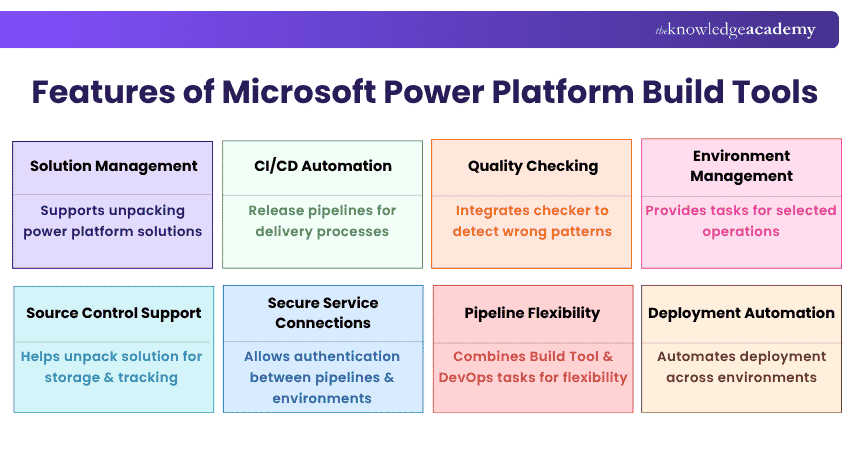
1) Solution Management: Supports operations such as exporting, importing, packing and unpacking Power Platform solutions.
2) CI/CD Automation: Enables Power Platform tasks to be incorporated into Azure DevOps build and release pipelines for more consistent delivery processes.
3) Quality Checking: Integrates Power Platform Checker to perform static analysis and identify problematic patterns in solutions.
4) Environment Management: Provides tasks for selected environment lifecycle operations, helping teams automate activities across Power Platform environments.
5) Source Control Support: Helps teams unpack solution components so they can be stored, tracked and managed through source control.
6) Secure Service Connections: Supports service connections that allow Azure DevOps pipelines to authenticate with Power Platform environments.
7) Pipeline Flexibility: Individual Build Tool tasks can be combined with other Azure DevOps tasks to create workflows suited to different ALM requirements.
8) Deployment Automation: Helps automate the movement of solutions between development and downstream environments, reducing repetitive manual deployment activities.
Take the big leap in boosting your Power Platform expertise with our Microsoft Power Platform Developer PL400 Course – Join now!
Key Microsoft Power Platform Build Tool Tasks
Microsoft broadly categorises Power Platform Build Tools tasks into four groups: helper, quality check, solution and environment management. Let’s explore the main tasks in detail:
1) Tool Installer Tasks
The Power Platform Tool Installer is a helper task. It makes the Power Platform-specific tooling required by the agent available for subsequent Build Tools tasks. The helper task prepares the agent with the tools required to execute Build Tool operations.
2) Solution Tasks
Solution tasks automate operations involving Power Platform solutions. Depending on the task and workflow, these can include operations such as:
a) Exporting solutions
b) Importing solutions
c) Packing solutions
d) Unpacking solutions
e) Publishing customisations
f) Setting solution versions
Solutions are central to Power Platform ALM because they package apps and components so they can be transported between environments or deconstructed for source control.
3) Power Platform Checker
Power Platform Checker is a quality-check capability that performs static analysis against solutions. It can help identify problematic patterns against defined rules or best practices. It’s advisable to include solution checking before deployment where it fits your workflow. Detecting issues earlier gives the team an opportunity to investigate them before the solution reaches downstream environments.
4) Environment Management Tasks
Environment Management tasks automate selected operations across the Power Platform environment lifecycle. The Build Tools support environment-related operations alongside solution and quality-check activities.
How Do Power Platform Build Tools Support Azure DevOps CI/CD?
Continuous Integration and Continuous Delivery/Deployment (CI/CD) can help teams create repeatable processes for building, validating and deploying Power Platform solutions. Microsoft's ALM guidance supports using Azure DevOps pipelines for solution source code and deployment workflows. A typical Build Tools-based workflow includes the following stages:
1) Exporting Solutions: Changes are first captured in a Power Platform solution in the development environment. The solution can then be exported as part of an automated workflow.
2) Unpacking and Storing Solutions: An exported solution can be unpacked so that its components can participate in a source-control workflow. Source control helps track changes, supports collaboration and provides a controlled location for development assets.
3) Building and Validating Solutions: The pipeline can perform required build operations and quality checks. For example, you can incorporate Power Platform Checker to analyse a solution before it progresses further through the delivery process.
4) Importing and Deploying Solutions: Once the required validation and packaging activities are complete, solutions can be imported into downstream environments. Microsoft recommends using managed solutions when deploying beyond the development environment, such as to test, SIT, UAT and production environments.
5) Trainer Insight: CI/CD is not simply about releasing more quickly. Its value also comes from making validation, packaging and deployment more consistent and repeatable.
Here’s the Power Platform CI/CD Workflow:
Develop → Export → Unpack → Source Control → Build & Validate → Checker → Pack → Import → Test & Release
Best Practices for Power Platform Build Tools
A successful pipeline depends on more than adding Build Tool tasks. The surrounding ALM process should also be structured carefully. Here are some best practices:
1) Use Source Control: Keep solution source files under appropriate source control. This provides change tracking and supports collaboration between developers and makers.
2) Use Appropriate Authentication: For new service connections, consider Microsoft's recommended service principal via workload identity federation rather than relying on username/password authentication.
3) Add Quality Checks: Include appropriate validation before deployment. Power Platform Checker can help detect problematic patterns in solutions.
4) Separate Development and Deployment Environments: Use an environment strategy appropriate to your ALM requirements. Microsoft recommends managed solutions when deploying to environments that are not development environments for that solution.
5) Keep Pipeline Stages Clear: Separate activities such as validation, build and deployment where practical. A clear pipeline makes it easier to identify where a process has failed.
6) Keep Build Tools Current: Use supported Build Tool versions and avoid mixing task versions within the same pipeline.
Quick Pre-deployment Checklist
Before running your deployment pipeline, check:
Is the correct solution being used?
Are solution components appropriately source-controlled?
Is authentication configured securely?
Are the correct target environments configured?
Have relevant solution checks been completed?
Are pipeline permissions appropriate?
Has the deployment process been tested?
Can failures be traced and investigated?
Want to manage finance, sales, customer service, and more, all in one platform? Learn how with our Microsoft Dynamics 365 Training – Sign up now!

Nilotpal Sarmah is a Senior Content Writer with 11+ years of overall experience spanning engineering, operations and content development. His technical knowledge and extensive writing experience enable him to simplify specialised topics across IT and Tech, Business Skills, Project Management, Health and Safety, and ISO and Compliance.
View Detail

 If you wish to make any changes to your course, please


