


We may not have the course you’re looking for. If you enquire or give us a call on 01344203999 and speak to our training experts, we may still be able to help with your training requirements.
15 Best UI Design Tools: Features and How to Choose
ByThe Knowledge AcademyLast updated on: 12 November 2026
Explore 15 UI design tools for wireframing, interface creation and interactive prototyping. Discover their features, practical uses and strengths, and learn how to choose suitable tools based on design requirements, collaboration, platform support and budget.
At a Glance
1. Wireframe: Plan the structure and layout of an interface.2. Design: Create screens, components and consistent visual styles.3. Prototype: Simulate navigation, interactions and user journeys.4. Test: Review prototypes, gather feedback and identify potential usability issues.5. Handoff: Share design specifications and assets with developers.
"The button looks perfect, but what happens when someone clicks it?"
A well-designed interface is more than attractive colours and neatly arranged elements. Every button, menu and interaction should help users complete their tasks without unnecessary confusion. This is where UI design tools help designers turn ideas into interfaces that can be reviewed and refined.
However, not every design task requires the same tools or capabilities. Some tools focus on visual design, while others specialise in collaboration, advanced interactions or developer handoff. In this blog, we'll explore 15 UI design tools and what makes each one useful for different project needs.
15 Best UI Design Tools
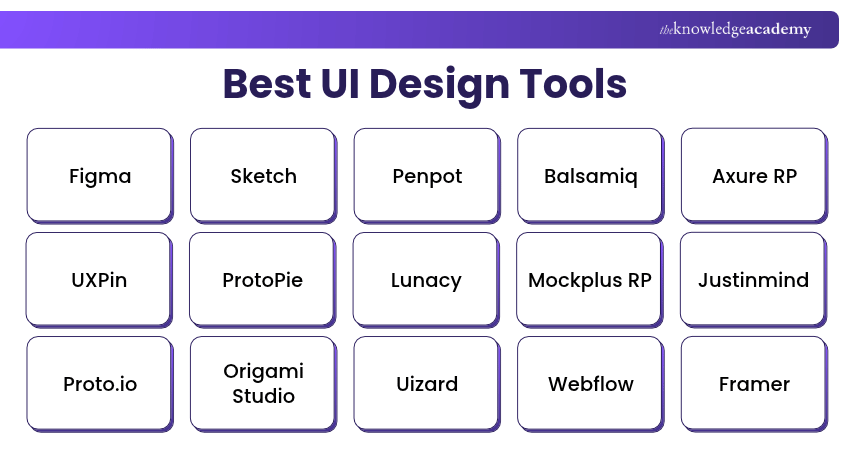
UI design tools help designers create, refine and communicate the visual and interactive elements of websites, applications and other digital products. The following tools support different stages of the design process, including wireframing, interface creation, prototyping and development handoff. Some also support visual website development and publishing.
1) Figma
Figma is a collaborative interface design platform used to create digital layouts, interactive prototypes and reusable design components. Its browser-based environment allows designers to work on shared files and review changes throughout the design process.
Teams can use Figma to design websites and application interfaces, maintain design systems and gather stakeholder feedback. For example, a product team developing a mobile application can create multiple screens, connect them into a prototype and review the user journey before development begins.
Key Features:
a) Collaborative Design: Work together on shared design files.
b) Interactive Prototyping: Connect screens and simulate user interactions.
c) Components and Libraries: Create reusable interface elements and shared styles.
d) Auto Layout: Build layouts that adapt to changes in content and component dimensions.
e) Developer Handoff: Share design details and assets through supported inspection and development features.
Explore Figma's design and prototyping features to improve your UI design skills and workflow efficiency with our Figma Course – Sign up now!
2) Sketch
Sketch is a vector-based interface design tool built primarily around a native macOS design application. It supports the creation of interface layouts, reusable components, design systems and interactive prototypes.
Designers can use Sketch to create high-fidelity screens, organise symbols and share their work for review. While the main design application requires a Mac, stakeholders and developers can access shared designs through Sketch's web-based workspace.
Key Features:
a) Vector Editing: Create precise interface graphics and layouts.
b) Symbols and Libraries: Reuse components and maintain design consistency.
c) Shared Styles: Apply consistent colours, typography and visual properties.
d) Prototyping: Connect screens to demonstrate interface navigation.
e) Design Handoff: Share design specifications and assets with developers.
3) Penpot
Penpot is an open-source design and prototyping platform that supports collaborative interface design. It helps designers create layouts, reusable components and interactive prototypes while supporting workflows between design and development teams.
Its web-based environment makes it suitable for teams using different operating systems. Organisations can use Penpot to develop interface designs, share feedback and maintain consistent visual components across digital products.
Key Features:
a) Interface Design: Create web and application layouts using visual design tools.
b) Interactive Prototyping: Connect screens to demonstrate navigation and interactions.
c) Components and Libraries: Build reusable design elements.
d) Collaborative Workflows: Share files and gather feedback from team members.
e) Open-source Deployment: Use available cloud services or supported self-hosted environments.
Trainer's Insight
Accessibility becomes harder to address when it is treated as a final review activity. Establish requirements for keyboard navigation, readable text and clearly labelled controls during early design discussions to reduce avoidable revisions.
4) Balsamiq
Balsamiq is a wireframing tool designed to help users quickly sketch interface structures and communicate early design ideas. Its low-fidelity approach encourages teams to focus on layout, navigation and functionality before detailed visual styling.
Designers, developers and project stakeholders can use Balsamiq to plan website pages, application screens and user journeys. Its sketch-like presentation helps communicate that a design is still being explored rather than representing the finished interface.
Key Features:
a) Low-fidelity Wireframes: Create simple interface layouts.
b) Drag-and-drop Components: Add common buttons, menus and form elements.
c) Sketch-style Visuals: Present design concepts in an unfinished format.
d) Screen Organisation: Create and arrange related wireframes.
e) aFeedback and Sharing: Review early interface ideas with stakeholders.
5) Axure RP
Axure RP is a wireframing and prototyping tool designed for complex digital interfaces. It supports interactive behaviours, conditional logic and dynamic content, allowing designers to simulate workflows before development.
For example, a designer working on an online registration system can create a prototype that displays different responses depending on the information entered into a form. This makes Axure RP particularly useful for evaluating detailed business processes and interaction requirements.
Key Features:
a) Advanced Prototyping: Create interactive interface simulations.
b) Conditional Logic: Define different outcomes based on user actions.
c) Dynamic Panels: Build components with multiple interactive states.
d) Variables and Data: Simulate content changes and more complex workflows.
e) Annotations and Documentation: Explain interface behaviour and requirements.

6) UXPin
UXPin is a UI/UX design and prototyping platform that supports interactive interfaces, reusable components and design systems. It focuses on bringing design workflows closer to the behaviour of real digital products.
Its advanced prototyping capabilities help teams model different interface states and interactions. UXPin Merge also enables supported workflows using code-based components, helping organisations connect interface designs with established development systems.
Key Features:
a) Interactive Prototyping: Create realistic interface behaviours and states.
b) Design Systems: Organise reusable components and styles.
c) Conditional Interactions: Simulate changes based on user actions.
d) Code-based Components: Use supported development components through UXPin Merge.
e) Team Collaboration: Share designs and gather stakeholder feedback.
7) ProtoPie
ProtoPie is an advanced interaction prototyping tool used to demonstrate how digital interfaces behave. It allows designers to create detailed interactions without having to develop a complete application.
Designers can use ProtoPie to simulate touch gestures, transitions, device inputs and interactions between screens. For example, a mobile app prototype can demonstrate how an interface responds when a user swipes, taps or changes the device's orientation.
Key Features:
a) Interaction Prototyping: Create detailed user interactions.
b) Gesture Support: Simulate tapping, swiping and dragging.
c) Conditional Behaviour: Define responses based on interaction conditions.
d) Device Input Support: Prototype interactions using supported device capabilities.
e) Prototype Testing: Preview and share interactive experiences.
8) Lunacy
Lunacy by Icons8 is a graphic and interface design application available for Windows, macOS and Linux, with a browser-based version also offered. It supports vector editing, interface layouts and prototyping, making it useful for creating visual designs across different desktop environments.
Designers can use Lunacy to create website screens, application layouts and reusable graphics. Its built-in design assets can also support interface projects that require icons, illustrations and other visual elements.
Key Features:
a) Vector Editing: Create and modify interface graphics.
b) Interface Layouts: Design screens for websites and applications.
c) Prototyping: Connect screens to demonstrate navigation.
d) Built-in Design Assets: Access supported icons, illustrations and graphics.
e) Cross-platform Support: Work on Windows, macOS and Linux, or use the browser-based version.
9) Mockplus RP
Mockplus RP is an online wireframing and prototyping tool that helps designers create interactive interfaces for websites, mobile applications and other digital products. Its drag-and-drop environment makes it easier to develop UI concepts without writing code.
Design teams can use Mockplus RP to build wireframes, connect screens and simulate user interactions. Its reusable components and collaboration features also help teams review designs and gather feedback before development.
Key Features:
a) Wireframing: Create interface layouts using ready-made templates and components.
b) Interactive Prototyping: Connect screens and simulate user interactions.
c) Component Libraries: Use reusable UI elements and design assets.
d) Team Collaboration: Share designs and gather feedback from team members.
e) Preview and Sharing: Present interactive prototypes for review.
10) Justinmind
Justinmind is a UI/UX prototyping tool used to create interactive website and application prototypes. It supports wireframing, dynamic behaviours and simulated user interactions.
Designers can use Justinmind to test interface flows and explore how users may interact with forms, menus and other components. Its extensive widget libraries help teams create detailed prototypes without developing the final application.
Key Features:
a) Interactive Prototyping: Create clickable web and mobile application prototypes.
b) Widget Libraries: Add ready-made interface elements.
c) Conditional Interactions: Simulate responses based on user actions.
d) Data-driven Components: Create dynamic lists and interface content.
e) Collaboration and Feedback: Review prototypes with project stakeholders.
11) Proto.io
Proto.io is a browser-based prototyping platform that helps designers create interactive prototypes for mobile applications, websites and other digital products. Its visual editing tools support prototyping without requiring users to write application code.
Teams can use Proto.io to demonstrate navigation, transitions and interface behaviour. Its component libraries and animation capabilities help designers build realistic presentations of proposed digital experiences.
Key Features:
a) Drag-and-drop Prototyping: Create interactive screens using visual tools.
b) UI Component Libraries: Use ready-made interface elements.
c) Animations and Transitions: Simulate changes between interface states.
d) Prototype Sharing: Present interactive designs to stakeholders.
e) Feedback Collection: Gather comments and review proposed designs.
12) Origami Studio
Origami Studio is a free interface design and prototyping application developed by Meta for macOS. It helps designers create interactive prototypes with animations, gestures and more advanced interface behaviours.
Its Patch Editor allows users to connect visual logic blocks to create interactions. Designers can also preview supported prototypes on devices, making Origami Studio useful for exploring realistic interface behaviour.
Key Features:
a) Advanced Prototyping: Create interactive interface experiences.
b) Patch Editor: Build behaviours using connected visual logic blocks.
c) Gestures and Animations: Simulate interactions and visual transitions.
d) Live Preview: Test supported prototypes on devices.
e) Design Import: Incorporate design elements from supported external tools.
13) Uizard
Uizard is an AI-powered UI design platform that helps users create wireframes, mockups and interactive prototypes for websites and applications. Its visual interface allows designers and product teams to turn ideas into editable interface designs.
For example, a product team can use Uizard Autodesigner to generate an initial application layout from a text prompt. Designers can then modify the screens, adjust components and share the prototype for feedback.
Key Features:
a) AI-assisted UI Design: Generate editable interface designs from text prompts.
b) Wireframe Scanner: Convert hand-drawn wireframes into digital designs.
c) Screenshot Scanner: Transform website and application screenshots into editable mockups.
d) Interactive Prototyping: Connect screens to demonstrate navigation and interactions.
e) Team Collaboration: Share projects and work with team members on interface designs.
14) Webflow
Webflow is a visual website design and development platform that allows users to create responsive websites through a graphical interface. Unlike tools that produce only mockups, Webflow can also publish functional websites.
Designers can use Webflow to create layouts, define responsive behaviour, manage website content and add interactions. Its visual development approach is particularly useful when a project requires both website design and production-ready publishing capabilities.
Key Features:
a) Visual Website Design: Create web layouts using a visual editor.
b) Responsive Design: Adjust layouts for different screen sizes.
c) CMS Integration: Manage structured website content.
d) Interactions and Animations: Add supported visual behaviours.
e) Hosting and Publishing: Deploy websites through available hosting services.
15) Framer
Framer is a visual website design platform that helps designers create responsive interfaces, interactive layouts and functional websites. It combines design and prototyping capabilities with website publishing tools, allowing teams to move from interface concepts to live web experiences.
Designers can use Framer to build website layouts, add animations and preview interactions across different screen sizes. Its reusable components and collaborative features also help teams maintain consistency throughout the design process.
Key Features:
a) Visual Interface Design: Create website layouts using an interactive design canvas.
b) Responsive Design: Adapt layouts to different screen sizes and devices.
c) Interactive Components: Add animations, transitions and interactive elements.
d) Team Collaboration: Review and refine website designs with team members.
e) Website Publishing: Publish completed websites through integrated hosting and deployment features.
Learn to design responsive, visually engaging websites with our Website Design Course – Sign up now!
How to Choose the Right UI Design Tool?
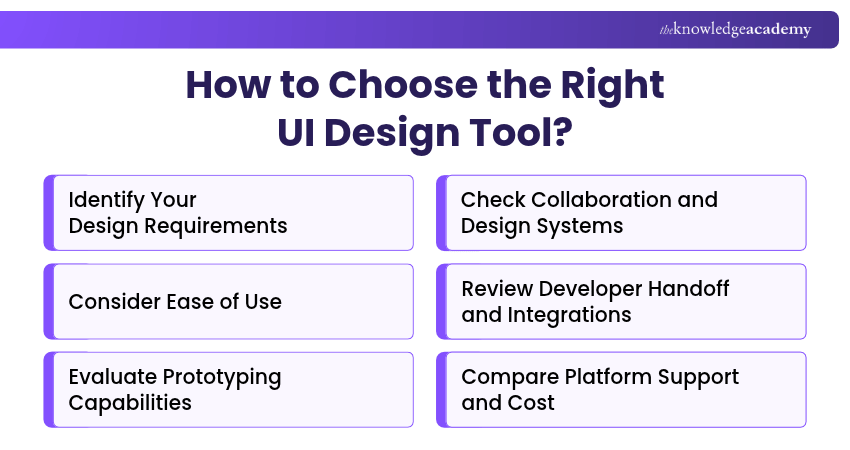
The right UI design tool depends on the type of interface you are developing, the level of interaction required and how your team works. Here are six factors to consider when comparing different options.
1) Identify Your Design Requirements
Start by deciding whether your project needs simple wireframes, detailed interface screens, interactive prototypes or a published website.
For example, Balsamiq suits early layout planning, while Axure RP is more appropriate when a prototype requires detailed logic and conditional behaviour.
2) Consider Ease of Use
Evaluate how easily your team can learn the interface and perform common design tasks.
A simple wireframing tool may be easier for occasional users, while advanced prototyping software may require more time to learn.
3) Evaluate Prototyping Capabilities
Consider whether you need basic screen transitions or more realistic interactions involving conditions, animations and device inputs.
Advanced tools such as ProtoPie, Axure RP and Origami Studio are useful when interaction behaviour is a central part of the project.
4) Check Collaboration and Design Systems
If several designers work on the same product, examine file sharing, feedback, reusable components and design-system management.
These capabilities help teams maintain consistency across multiple interface screens and projects.
5) Review Developer Handoff and Integrations
Check how the tool shares design specifications, exports assets and connects with existing development workflows.
For projects involving several developers, clear handoff information can reduce misunderstandings during implementation.
Pro Tip
Before selecting a UI design tool, test it with a small project. Check how easily your team can create components, review prototypes and share design specifications with developers. This can reveal workflow limitations before you commit.
6) Compare Platform Support and Cost
Consider operating-system requirements, available plans, team licensing and access to specialised features.
For example, Sketch's main design application requires macOS, while browser-based platforms may offer greater flexibility for teams working across different operating systems.
Keep This in Mind
A UI design tool should suit the project rather than simply offer the longest feature list. Consider what you need to create, how realistic your prototype must be and how designs will reach developers. Choosing tools around these requirements can make your design workflow more practical and consistent.

The Knowledge Academy develops accessible learning content across Project Management, IT, Cybersecurity, Data Science, Business Analysis, HR, Accounting and Finance, Leadership and Health and Safety. Its resources combine subject research with clear explanations to help professionals build practical knowledge across a wide range of disciplines.
View Detail

 If you wish to make any changes to your course, please


