




We may not have the course you’re looking for. If you enquire or give us a call on +44 1344 203 999 and speak to our training experts, we may still be able to help with your training requirements.
Salary Slip Format in Excel
ByNilotpal SarmahLast updated on: 17 September 2026
A Salary Slip Format in Excel provides a structured way to record an employee's earnings, deductions and net pay for a pay period. To learn how to create a Salary Slip in Excel, read this blog for a clear breakdown of the format, key components and steps involved.

Imagine you need to prepare monthly salary slips for 25 employees. Creating each one from scratch means repeatedly entering headings, calculating totals and checking deductions. It also increases the chance of making manual errors.
Instead, you create one Salary Slip Format in Excel. Employee and payroll information goes into designated cells, while formulas calculate gross earnings, deductions and net pay. Once the structure has been tested, you can reuse it for future pay periods.
This blog explains the main components of a salary slip, how to create one in Excel, useful formulas and practical checks to perform before issuing it.
What is a Salary Slip?
A Salary Slip, also known as a payslip, is an official document issued by an employer to an employee. It provides a detailed breakdown of the employee's earnings and deductions for a specific pay period, usually a month.
It typically includes:
1) Employee details (name, ID, designation)
2) Employer details (company name and address)
3) Basic salary
4) Allowances (house rent allowance, travel allowance, bonuses, etc.)
5) Deductions (Provident Fund, Professional Tax, Income Tax, insurance, etc.)
6) Gross salary
7) Net salary (take-home pay)

Key Components of a Salary Slip
Before creating a salary slip in Excel, decide which information needs to appear in the template. Keeping related information together makes the document easier to understand and calculate.
1) Employer and Employee Details
The top section should contain the information needed to identify the organisation, employee and relevant pay period.
Common details can include:
a) Organisation name
b) Employee name
c) Employee ID
d) Designation
e) Department
f) Pay period
g) Date of joining, where required
h) Working or paid days, where applicable
i) Relevant payroll or payment details
Only include information that is necessary for the organisation's payroll process.
2) Earnings
Earnings represent the amounts payable to the employee before applicable deductions. Depending on the organisation and employment arrangement, these may include:
a) Basic salary
b) Applicable allowances
c) Bonus or incentives
d) Other earnings
The original salary slip examples separate basic pay and different allowances before calculating total or gross earnings.
3) Deductions
Deductions are amounts subtracted from gross earnings before the final payment is calculated. They may include applicable:
a) Tax deductions
b) Retirement or social security contributions
c) Loan or salary advance recovery
d) Other authorised deductions
The exact deductions depend on the employee, organisation and applicable payroll rules.
4) Salary Summary
The final section should clearly display the main totals:
a) Gross Earnings: Total earnings before deductions
b) Total Deductions: Combined value of applicable deductions
c) Net Pay: Final amount payable after deductions
How to Create a Salary Slip Format in Excel
Once you know which information the salary slip needs, you can build the template in Excel. Here are the main steps for creating the ideal Salary Slip Format in Excel:
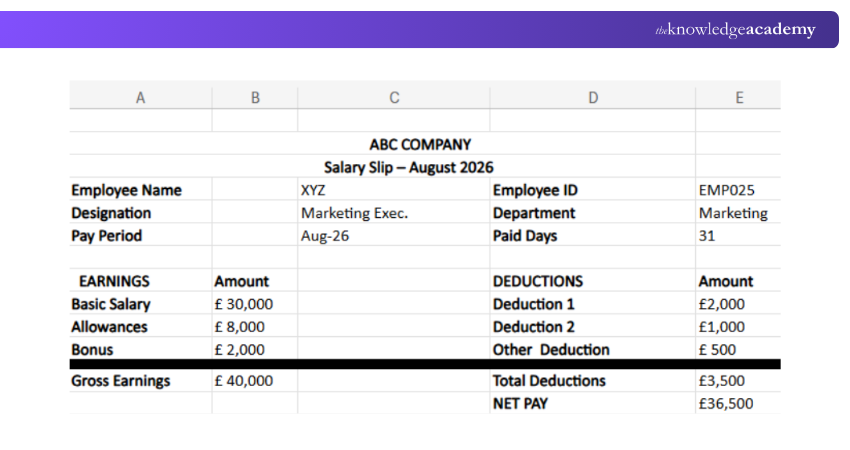
Step 1: Create a New Workbook
Open Excel and create a new workbook. Give the file a clear name and save it in an appropriate location.
Step 2: Add Organisation and Pay Period Details
At the top of the worksheet, add information such as:
a) Company Name
b) Company Address
c) Salary Slip - [Month and Year]
Format this section so the organisation and pay period can be identified easily.
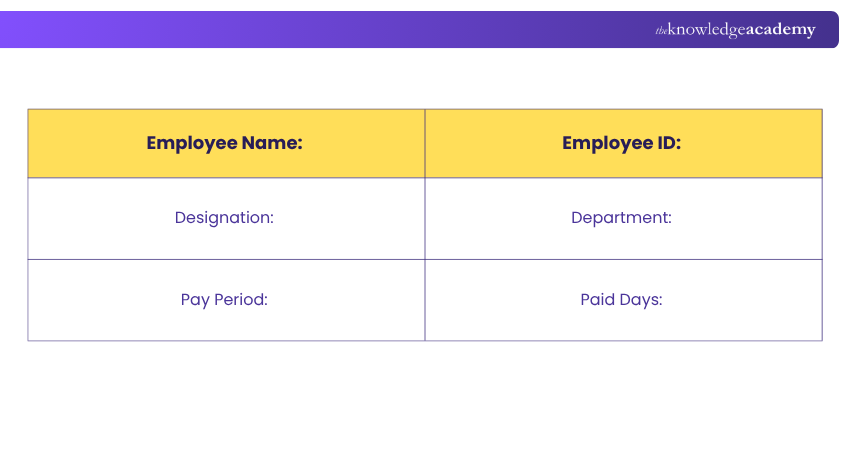
Step 3: Add Employee Details
Create a dedicated section for employee information:
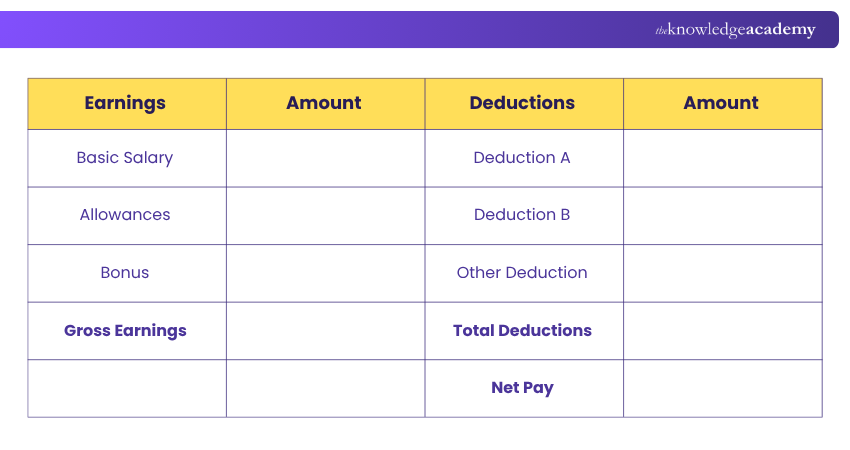
Step 4: Create the Earnings and Deductions Sections
Create separate rows for each applicable earning, such as basic salary, allowances, bonuses and other earnings. Similarly, create rows for applicable deductions, such as taxes, contributions or other authorised deductions. Include only the deductions that apply to the employee.
Step 5: Add the Net Pay Calculation
Create a clearly labelled Net Pay field below the earnings and deductions. The calculation should subtract total deductions from gross earnings.
Step 6: Format the Salary Slip
Use borders, headings, number formats and alignment to separate each section clearly. Keep the design professional and easy to scan. Important figures such as Gross Earnings, Total Deductions and Net Pay should be easy to identify.
Step 7: Review and Save the Template
Check every formula and field using sample information. Once verified, save a clean master copy. Duplicate the template when preparing future salary slips instead of rebuilding it every month.
Pro Tip
Keep input cells separate from formula cells. This makes monthly updates easier and reduces the risk of accidentally changing a calculation.
Useful Excel Formulas for a Salary Slip
Excel formulas can automate recurring calculations and reduce the need to calculate salary totals manually. Here are the main formulas:
1) Calculate Gross Earnings
Suppose an employee's earnings are entered in cells B12:B16.
Use: =SUM(B12:B16)
This adds the earnings components and returns the total gross earnings.
2) Calculate Total Deductions
If applicable deductions are entered in E12:E15, use: =SUM(E12:E15)
This returns the total amount to be deducted.
3) Calculate Net Pay
Suppose:
B17 = Gross Earnings
E16 = Total Deductions
Use: =B17-E16
The result is the employee's net pay.
Pro Tip
Test every formula with sample values before using the template for actual payroll. Check gross earnings, deductions and net pay independently.
Learn how to turn Microsoft Excel into your analytics superpower with our Business Analytics with Excel Course - Sign up now!
Benefits of Creating Salary Slips in Excel
Excel can provide a practical way to create and maintain salary slip templates, particularly when the payroll requirements are straightforward.
Customisable Format: You can create a layout that matches the information your organisation needs instead of using a fixed structure.
Automated Calculations: Formulas can automatically calculate earnings, deductions and net pay when the input values change.
Reusable Templates: Once a salary slip has been designed and tested, the basic structure can be reused for future pay periods.
Easy Data Organisation: Rows, columns, tables and formatting can keep employee and salary information organised and readable.
Useful Excel Features: Functions, formulas, tables and other Excel features can support payroll calculations and data management.
Pro Tip
Keep an untouched master copy of your template. If a formula or layout is accidentally changed, you can return to the verified version instead of rebuilding it.
Every Excel skill learned is a step toward greater productivity. Sign up for our range of Microsoft Excel Courses today!

Nilotpal Sarmah is a Senior Content Writer with 11+ years of overall experience spanning engineering, operations and content development. His technical knowledge and extensive writing experience enable him to simplify specialised topics across IT and Tech, Business Skills, Project Management, Health and Safety, and ISO and Compliance.
View Detail

 If you wish to make any changes to your course, please


