




We may not have the course you’re looking for. If you enquire or give us a call on 01344203999 and speak to our training experts, we may still be able to help with your training requirements.
Microsoft Excel Basics: A Beginner’s Guide
ByNilotpal SarmahLast updated on: 17 September 2026
Learn Microsoft Excel Basics, from navigating worksheets and formatting data to using essential formulas, functions, sorting, and filtering for everyday spreadsheet tasks.

Every Excel spreadsheet starts with the same small opportunity: an empty cell waiting for data. What begins in A1 can grow into a budget, employee database, sales report, or performance tracker. Learning Microsoft Excel Basics helps you understand how cells, formulas, formatting, sorting, and filtering work together to turn a blank worksheet into something useful.
What is Microsoft Excel?
Microsoft Excel is a widely used spreadsheet application that helps users organise, calculate, analyse, and visualise data. It provides a grid-based workspace where information can be entered into rows and columns, making it easier to manage everything from simple lists to business records.
Understanding Excel Basics involves learning how to work with workbooks and worksheets, entering and formatting data, using formulas and functions, sorting and filtering information, and creating basic charts. These foundational skills can help you:
1) Enter and organise data
2) Perform basic calculations
3) Format cells and data
4) Sort and filter information
5) Create charts and graphs
6) Use basic formulas and functions

Main Components of Microsoft Excel
Before working with formulas and data analysis, it is important to understand the basic components of Excel. These elements form the foundation of almost every task performed within a spreadsheet.
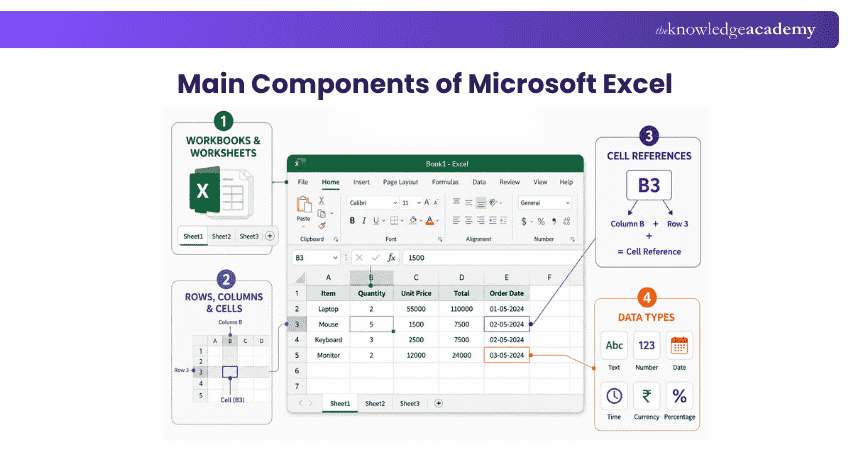
1) Workbooks and Worksheets
An Excel file is known as a workbook. A workbook can contain one or more worksheets, allowing related information to be organised across separate sheets within the same file.
2) Rows, Columns, and Cells
A worksheet is organised into rows and columns. Rows run horizontally and are identified by numbers, while columns run vertically and are identified by letters. The point where a row and column intersect is called a cell.
3) Cell References
Every cell has a unique reference based on its column letter and row number. For example, B3 refers to the cell located in column B and row 3. Cell references are particularly important when creating formulas.
4) Data Types
Excel cells can contain different types of information, including text, numbers, dates, times, currencies, and percentages. Applying the appropriate format helps make data easier to understand and use.
Did You Know?
A modern Excel worksheet provides space for up to 1,048,576 rows and 16,384 columns, with the columns extending from an all the way to XFD.
What are Basic Excel Formulas and Functions?
Formulas allow Excel to perform calculations using the values stored in cells. A formula begins with an equal's sign (=) followed by the required values, cell references, operators, or functions.
Some simple formulas include:
1) Addition: =A1+B1
2) Subtraction: =A1-B1
3) Multiplication: =A1*B1
4) Division: =A1/B1
Excel also provides built-in functions that simplify common calculations:
1) SUM: Adds a range of numbers
2) AVERAGE: Calculates the average of selected values
3) MIN: Returns the smallest value
4) MAX: Returns the largest value
5) COUNT: Counts cells containing numbers
Learning these basic formulas and functions provides a foundation for performing more complex calculations later.
How to Enter and Format Data in Excel?
Entering and formatting data is one of the fundamental skills for working with Excel. To enter data, select a cell and type the required text, number, date, or value. Press Enter to move to the cell below or Tab to move to the next cell.
Once the data is entered, Excel provides several formatting options to improve its appearance and readability. From the Home tab, you can change the font, size, alignment, borders, and cell styles. You can also apply number formats such as Currency, Percentage, and Date depending on the type of information stored.
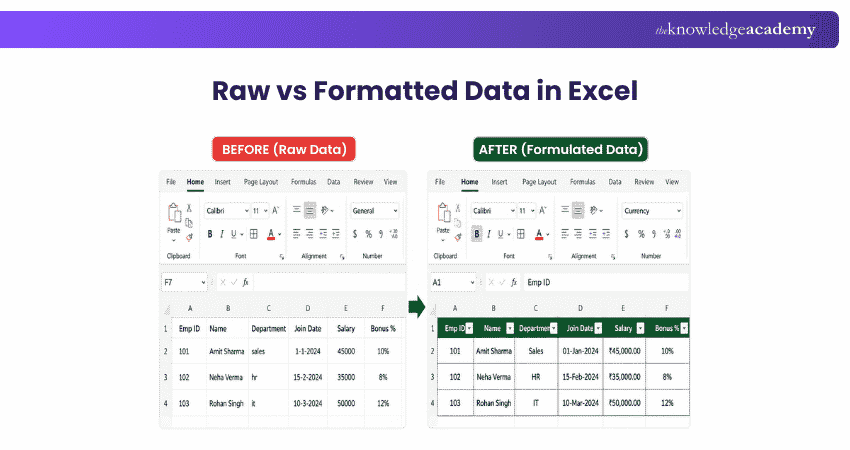
For example, a simple sales worksheet can contain product names such as text, quantities as numbers, prices in Currency format, and discount rates in Percentage format. Applying the correct format helps keep the worksheet clear and consistent.
How to Sort and Filter Data in Excel?
Sorting and filtering make it easier to organise and find information, especially when working with larger datasets. These options are available from the Data tab in Excel.
a) Sorting: Rearranges data based on selected criteria. For example, you can sort names alphabetically, arrange numbers from smallest to largest, or organise dates from oldest to newest.
b) Filtering: Displays only the rows that meet specific criteria without removing the remaining data. For example, in an employee list, you can filter the Department column to display employees from a particular department. Clearing the filter displays the complete dataset again.
Build your career as a Data Analyst, learn to prepare tables. charts, sheets and reports with our Data Analysis Training using MS Excel – Join now!
How to Manage Worksheets in Excel?
An Excel workbook can contain multiple worksheets, allowing you to organise related information within a single file. Worksheet tabs appear at the bottom of the workbook and help you move between different sheets.
Some common worksheet management actions include:
1) Add a Worksheet: Select the New Sheet (+) button beside the sheet tabs to create another worksheet.
2) Rename a Worksheet: Double-click the sheet tab or right-click it and select Rename, then enter a suitable name.
3) Move or Copy a Worksheet: Right-click the sheet tab and select Move or Copy to change its position or create a copy.
4) Delete a Worksheet: Right-click the worksheet tab and select Delete to remove a sheet that is no longer required.
Using descriptive worksheet names such as Sales, Expenses, or Employee Records can make a workbook easier to navigate and manage.
What are the Essential Excel Tips for Beginners?
Below are a few Essential Excel Tips for Beginners.
1) Learn Keyboard Shortcuts: Use shortcuts such as Ctrl+C, Ctrl+V, Ctrl+Z, and Ctrl+S to work faster.
2) Understand Cell References: Learn relative, absolute, and mixed references for accurate formulas.
3) Start With Basic Formulas: Practise functions such as SUM, AVERAGE, MIN, MAX, and COUNT.
4) Sort and Filter Data: Use these features to quickly find, arrange, and analyse specific information.
5) Keep Data Consistent: Use clear headings and consistent formats to make worksheets easier to understand.
Trainer's Tip
Build confidence by practising these Excel features on small, real-world datasets. Focus on understanding how formulas, references, sorting, and filtering work together before moving on to more advanced functions.
Track Tasks with Excel with our Excel Training with Gantt Charts Course – Register now!

Nilotpal Sarmah is a Senior Content Writer with 11+ years of overall experience spanning engineering, operations and content development. His technical knowledge and extensive writing experience enable him to simplify specialised topics across IT and Tech, Business Skills, Project Management, Health and Safety, and ISO and Compliance.
View Detail

 If you wish to make any changes to your course, please


