




We may not have the course you’re looking for. If you enquire or give us a call on 01344203999 and speak to our training experts, we may still be able to help with your training requirements.
What is LibreOffice: A Detailed Overview
ByNilotpal SarmahLast updated on: 15 October 2026
LibreOffice is a free, open-source office suite that offers tools for word processing, spreadsheets, presentations and more. With broad format compatibility and cross-platform support, it is suitable for personal, educational and professional use.

What You’ll Discover
1. LibreOffice provides tools for creating documents, managing spreadsheets, preparing presentations and other productivity tasks.2. Its six main applications are Writer, Calc, Impress, Draw, Base and Math.3. LibreOffice supports Microsoft Office file formats, although complex files may require formatting adjustments.4. Templates, macros, PDF export and data analysis tools help users work more efficiently.5. LibreOffice runs on Windows, macOS and Linux, offering an alternative to subscription-based office software.
Need to create documents, spreadsheets or presentations without paying for office software? LibreOffice provides a free, open-source solution for everyday productivity tasks. While many Microsoft Office products and Microsoft 365 plans require payment, LibreOffice offers its core office applications free of charge. LibreOffice offers free alternatives to Microsoft Word, Excel and PowerPoint through Writer, Calc and Impress, with tools for common document, spreadsheet and presentation tasks.
For those seeking a budget-friendly yet powerful office suite, LibreOffice is an excellent choice. It provides tools for common office tasks, making it a practical option for individuals and organisations. In this blog, we will explore what LibreOffice is, how to use it, its main applications, key features, benefits and supported platforms.
What is LibreOffice?
LibreOffice is a free, open-source office suite that includes tools for word processing, spreadsheets, presentations, and more. It’s a powerful alternative to Microsoft Office, offering compatibility with various file formats. With regular updates and strong community support, LibreOffice is widely used for personal, academic, and professional tasks, making it a versatile choice for productivity.
Trainer Insight
LibreOffice is both free to use and open-source. Users can access its applications without licence fees, while developers can inspect, modify and distribute its source code under the applicable licences. This gives individuals and organisations greater flexibility in how they use the software.

How to Use LibreOffice?
Follow these steps to get started with LibreOffice:
1) Install: Download and install from the official website.
2) Launch: Open LibreOffice from your applications menu.
3) Select an Application: From the LibreOffice Start Centre, choose an application such as Writer, Calc or Impress based on the type of document you want to create.
4) Navigate: Explore the menus, toolbars and sidebar to access editing, formatting and document management tools.
5) Open Documents: Select “Open” to access existing files.
6) Create New Documents: Select File > New and choose the type of document you want to create.
7) Save Work: Select File > Save to save your document or File > Save As to choose another format, such as DOCX, XLSX or PPTX.
Components of LibreOffice
LibreOffice comprises several core components, each designed for specific tasks:
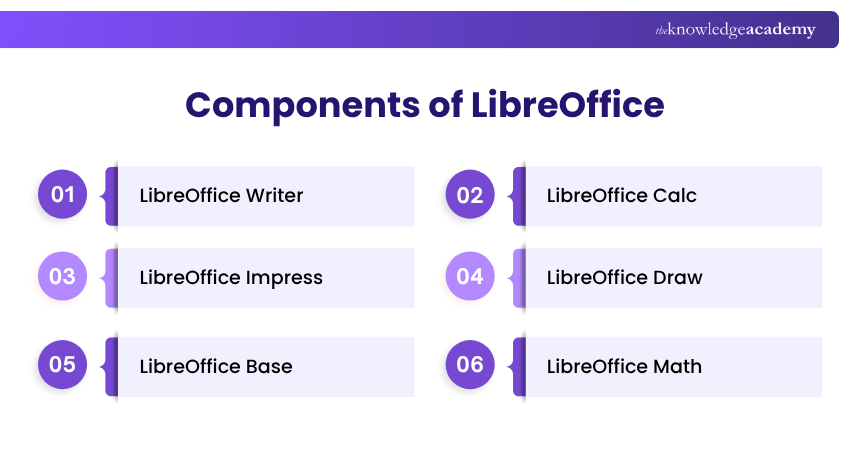
1) LibreOffice Writer: Writer is a word-processing application for creating letters, reports, resumes, essays and books. It supports text formatting, tables, images, page layouts and document reviewing.
2) LibreOffice Calc: Calc is a spreadsheet application used for organising data, performing calculations and analysing information. It includes formulas, charts, filtering tools and pivot tables.
3) LibreOffice Impress: Impress helps users create presentations with text, images, charts, animations and slide transitions. It is suitable for classroom presentations, meetings and business proposals.
4) LibreOffice Draw: Draw is a graphics application used to create flowcharts, diagrams, illustrations and vector graphics. It provides drawing tools, shapes and connectors to organise visual information.
5) LibreOffice Base: Base helps users create and manage databases. It provides tools for working with tables, queries, forms and reports, and can connect to supported database systems.
6) LibreOffice Math: Math is a formula editor that helps users create mathematical expressions and equations. These formulas can also be inserted into documents and presentations.
Learn to integrate graphics, images, and multimedia elements into your documents. Sign up for the Introduction to Mac Pages Course now!
Key Features of LibreOffice
LibreOffice provides tools designed to improve productivity, simplify document management and support everyday office tasks. Its features range from file compatibility and formatting options to data analysis and automation. Here are the key features:
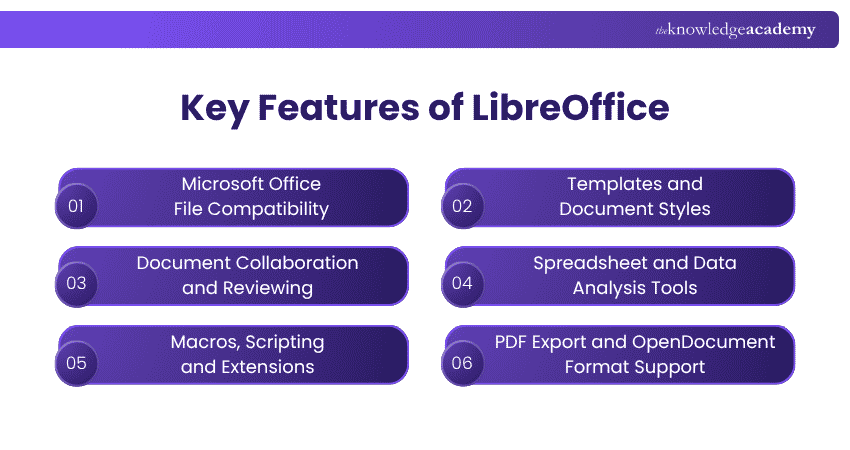
1) Microsoft Office File Compatibility
LibreOffice supports many Microsoft Office file formats, including DOCX, XLSX and PPTX. This allows users to open, edit and save documents created in Word, Excel and PowerPoint. However, certain advanced features, macros and complex layouts may not transfer perfectly between applications.
Pro Tip
When sharing documents with Microsoft Office users, review the formatting after saving in DOCX, XLSX or PPTX. Complex layouts, fonts, formulas and animations may behave differently across applications.
2) Templates and Document Styles
LibreOffice offers templates and formatting styles that help users create professional-looking documents more efficiently. Templates provide ready-made layouts for reports, letters and presentations, while styles help maintain consistent headings, paragraphs and other elements throughout a document.
3) Document Collaboration and Reviewing
LibreOffice supports document reviewing through comments and tracked changes. These tools allow users to suggest edits, review modifications and provide feedback. Documents can be reviewed using comments and tracked changes.
In Calc, a spreadsheet stored on a shared drive or server can be opened by several users at once through the Share Spreadsheet feature; changes are merged when each user saves. Writer, Impress and Draw allow only one person to edit a document at a time.
However, the standard LibreOffice desktop suite does not offer the same integrated, browser-based co-authoring experience as Microsoft 365. Browser-based collaborative editing requires a compatible online office solution, such as a separately deployed LibreOffice-based service.
4) Spreadsheet and Data Analysis Tools
LibreOffice Calc provides features for organising and analysing information. Users can perform calculations, create charts, apply filters and summarise datasets through pivot tables. These capabilities are useful for preparing budgets, tracking expenses, analysing sales figures and managing operational records.
For example, a small business can use Calc to calculate monthly expenses, compare sales performance and visualise trends.
5) Macros, Scripting and Extensions
LibreOffice supports automation using LibreOffice Basic and other supported scripting interfaces, including Python.
Macros can automate repetitive activities such as formatting documents or processing spreadsheet data.
Extensions can introduce additional tools, templates and functionality. Users can explore available extensions through the LibreOffice extensions repository.
Trainer Insight
LibreOffice macros can save time when handling repetitive work. However, macros may also execute potentially harmful code. Enable macros only from trusted sources and review their purpose before allowing them to run.
6) PDF Export and OpenDocument Format Support
LibreOffice uses OpenDocument Format (ODF) as its native file format, including ODT for text documents, ODS for spreadsheets and ODP for presentations. Users can also export documents to PDF, making them easier to share while preserving their appearance across devices.
For example, a student can prepare an assignment in Writer and export the finished document as a PDF before submitting it.
Benefits of LibreOffice
LibreOffice offers several benefits for individuals and organisations looking for flexible, cost-effective office software:
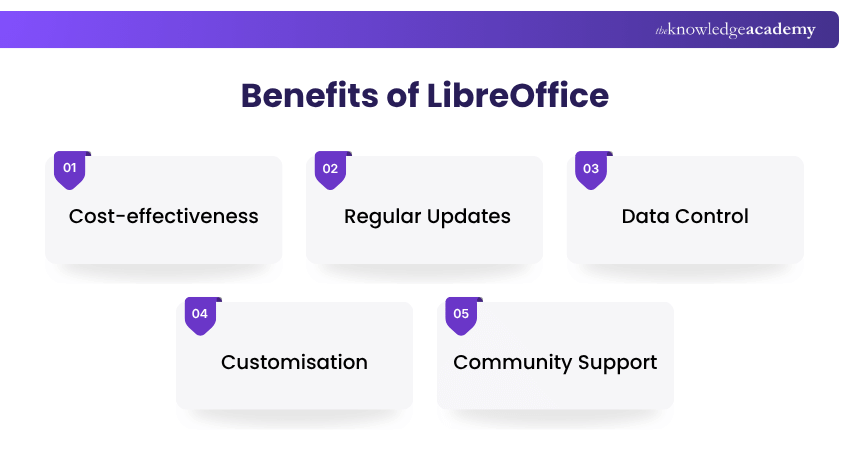
1) Cost-effectiveness: LibreOffice is released free of charge, so there are no licensing fees for individuals or organisations.
2) Regular Updates: LibreOffice receives updates that introduce features, fix bugs and improve software performance and stability.
3) Data Control: LibreOffice allows users to create, edit and store documents locally without requiring cloud-based storage. However, data security still depends on how files are stored, shared and protected.
4) Customisation: LibreOffice allows users to customise toolbars, menus and settings. Its open-source code also enables developers to modify the software under the applicable licences.
5) Community Support: LibreOffice has an active community that provides documentation, tutorials, discussion forums and other resources to help users learn and troubleshoot issues.
Checklist: Getting Started With LibreOffice□ Check your operating system requirements.□ Confirm that the downloaded installer matches your operating system.□ Complete the installation and launch the software.□ Choose the application suited to your task.□ Create or open a sample document.□ Explore templates and formatting tools.□ Save the file in an appropriate format.□ Check that the saved document opens correctly.
Which Platforms Support LibreOffice?
LibreOffice is widely supported across various platforms, including:
1) Windows: LibreOffice supports Windows 10 and 11 for current releases, allowing users to access its desktop productivity applications.
2) macOS: LibreOffice supports compatible Intel-based and Apple Silicon Macs. Current system requirements list macOS 11 or later.
3) Linux: LibreOffice is available for many Linux distributions, including through distribution Package Managers and other supported installation methods.
4) Android: The Document Foundation offers LibreOffice Viewer for Android, with experimental editing support. It is not equivalent to the complete desktop office suite.
Pro Tip
Before moving all your work to LibreOffice, test a few important documents, spreadsheets and presentations. Check whether formatting, formulas, macros and collaborative workflows behave as expected. This helps identify compatibility issues before they affect everyday work.
Learn how to create, share and manage documents using Microsoft 365 applications. Sign up for the Microsoft 365 Training now!

Nilotpal Sarmah is a Senior Content Writer with 11+ years of overall experience spanning engineering, operations and content development. His technical knowledge and extensive writing experience enable him to simplify specialised topics across IT and Tech, Business Skills, Project Management, Health and Safety, and ISO and Compliance.
View Detail

 If you wish to make any changes to your course, please


