




We may not have the course you’re looking for. If you enquire or give us a call on 01344203999 and speak to our training experts, we may still be able to help with your training requirements.
What is Google Cloud Shell: A Complete Guide
ByVishnu SankarLast updated on: 10 October 2026
Google Cloud Shell is a powerful cloud-based development environment that simplifies and streamlines the coding process, offering Developers several benefits. It offers a pre-configured virtual machine with various tools and the Google Cloud SDK, enabling you to manage your Google Cloud projects directly from the browser.
What You'll Discover
1. Google Cloud Shell provides browser-based command-line access for working with Google Cloud.2. It includes pre-installed development and command-line tools.3. Its persistent home directory allows files and configurations to remain available across sessions.4. It can support resource management, development, scripting, automation and Kubernetes-related tasks.5. Cloud Shell Editor provides code-editing capabilities alongside terminal access.
What if you could open your browser and dive straight in to manage your cloud resources instead of wrestling with installations and configurations? This is made possible by the Google Cloud Shell. It's like having a fully equipped development environment at your fingertips. This web-based command-line tool offers you instant access to Google Cloud resources, pre-loaded with essential tools and a ready-to-use virtual machine.
In this blog we’ll explore, what is Google Cloud Shell in detail, showing how it makes deploying apps, managing Kubernetes, or automating workflows so seamless. So read on, unlock Google Cloud's full potential and supercharge your workflow!
What is Google Cloud Shell?
Google Cloud Shell is a web-based, interactive shell environment that you can access through your web browser. It provides you with a pre-configured virtual machine with a variety of developer tools, utilities, and the Google Cloud SDK, enabling you to manage your Google Cloud projects directly from your browser.
The basic process can be understood as:
Open Google Cloud Console↓Launch Google Cloud Shell↓Access the pre-configured environment↓Use command-line and development tools↓Interact with Google Cloud resources

Key Features of Google Cloud Shell
Google Cloud Shell provides several features that make working with Google Cloud resources more convenient.
1) Browser-based Access: Cloud Shell can be accessed through a web browser. This reduces the need to prepare a separate local command-line environment before performing Google Cloud tasks.
2) Pre-installed Tools: The environment comes with development tools, utilities and Google Cloud command-line tools already available. It also supports various programming languages.
3) Persistent Home Directory: Files and configurations stored in the persistent home directory can remain available across sessions, helping users maintain continuity between tasks. Google Cloud Shell provides 5 GB of persistent storage, although this storage may be deleted after 120 days of inactivity.
4) Access to Google Cloud Resources: Cloud shell allows users to interact with their Google Cloud resources through commands and development tools.
5) Cloud Shell Editor: Cloud Shell Editor provides a browser-based environment for editing code and configuration files alongside terminal access.
Trainer's Insight
Cloud Shell is particularly useful when you need quick access to Google Cloud tools without first setting up a complete local development environment.
What is Google Cloud Shell Used for?
Uses of Google Cloud Shell include:
1) Managing Google Cloud Resources: Google Cloud Shell lets you create, configure and manage Google Cloud resources using command-line tools. It provides quick access to resources directly from your browser.
2) Code Development: You can write, edit and test code using the integrated cloud shell editor and terminal. Its pre-installed development tools help you start coding without extensive local setup.
3) Version Control: Google Cloud Shell supports version control workflows using tools such as Git. You can work with repositories and manage code changes directly from the cloud shell environment.
4) Kubernetes Management: Cloud shell provides command-line tools for interacting with Kubernetes environments. You can use it to manage and troubleshoot Kubernetes resources from your browser.
5) Secure Access: Cloud shell provides authenticated access to Google Cloud resources based on your account permissions. This helps you work with authorised resources without maintaining a separate local command-line setup.
6) Cloud Storage Access: You can use cloud shell to interact with Google Cloud storage resources through command-line tools. This allows you to perform tasks such as viewing and managing stored data.
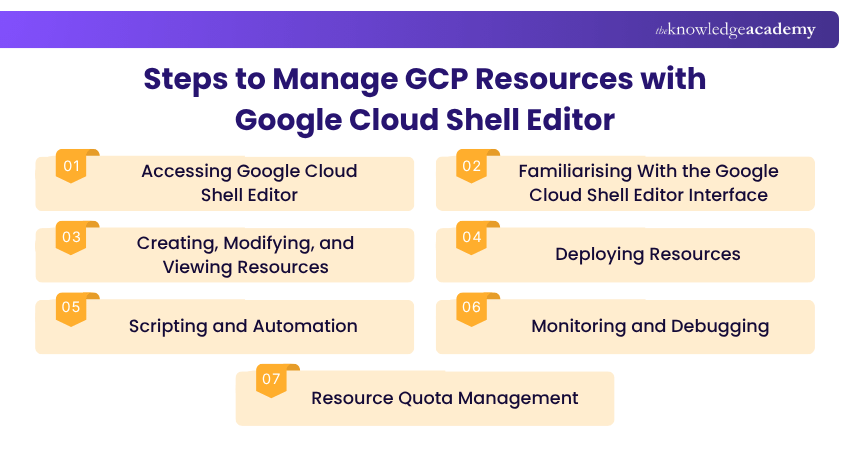
Managing GCP Resources Using Google Cloud Shell Editor
Google Cloud Shell editor is a powerful web-based code editor that allows Developers to efficiently manage and control their GCP resources. With its intuitive interface and pre-installed tools, cloud shell editor streamlines the process of interacting with GCP resources directly from the Google Cloud console. Here, we will explore how to effectively control your GCP resources using the Shell Editor:
1) Accessing Google Cloud Shell Editor
The first step is very simple: sign in to the Google Cloud console with your GCP credentials. In the top-right corner, click the Activate Cloud Shell icon to launch cloud shell. Then click the "Open Editor" button in the cloud shell toolbar to launch the cloud shell editor. Let's now get familiar with the interface.
2) Familiarising With the Google Cloud Shell Editor Interface
The cloud shell editor interface includes several useful features, such as the following:
1) Code Editor: The primary area where you write and edit your code and configuration files. It comes with syntax highlighting, intelligent code completion, and version control integration with Git.
2) Terminal: The built-in terminal gives you direct access to the Google Cloud SDK and other essential command-line tools. Use it to run gcloud commands and manage your resources, including Google Cloud functions, efficiently.
3) Web Preview: Preview web applications running in your cloud shell session directly from the browser without a separate deployment. This is useful for testing an app before you deploy it.
Together, the editor and terminal let you define your resources as code and manage them from the same window: you write or edit configurations in the editor, then run commands in the terminal to create, update, or inspect resources.
Trainer's Insight
Use the terminal when you primarily need to execute commands. Use Cloud Shell Editor when your task involves writing or modifying scripts, application code or configuration files.
3) Creating, Modifying, and Viewing Resources
With Google Cloud Shell Editor, you can perform various tasks to manage your GCP resources effectively:
1) Creating New Resources: Write configurations for your GCP resources in the code editor (for example, Terraform or YAML files), then create them from the terminal with commands such as terraform apply, kubectl apply, or gcloud.
2) Modifying Existing Resources: Edit the corresponding configuration files in the editor and re-apply them from the terminal, or use the appropriate command-line tools to update existing resources directly.
3) Viewing Resource Status: Check the status of your GCP resources from the terminal using Google Cloud SDK commands such as gcloud compute instances list.
Unleash your app development prowess on the Google Cloud platform with our Developing Applications With Google Cloud Platform Training – Sign up now!
4) Deploying Resources
Cloud shell editor makes deployment convenient because your code, terminal, and Google Cloud SDK are all in one place. Whether you're deploying a web application, a function, or another GCP resource, the process looks like this:
1) Write the necessary code or configurations for your resource in the code editor.
2) Use the terminal to run the appropriate deployment command (e.g., gcloud app deploy for Google App Engine).
3) Once the deployment completes, review the command output to confirm its status. Depending on the service, the output may provide a URL, resource identifier or other details needed to access or manage the deployed resource.
INFO
Cloud Shell provides a built-in web preview feature that allows you to test web applications running in its virtual machine before deploying them to Google Cloud services.
5) Scripting and Automation
Google Cloud Shell editor enables scripting and automation, making it easy to perform repetitive tasks on your GCP resources. You can create shell scripts or use popular scripting languages like Python or Node.js to automate various operations. However, Cloud Shell is intended for interactive use rather than continuously running unattended automation, as sessions are subject to usage and inactivity limits.
1) Write the script in the cloud shell editor's code editor.
2) Make it executable if needed (e.g., chmod +x script.sh) and run it from the terminal.
3) Review the output in the terminal and adjust the script as required.
6) Monitoring and Debugging
Monitoring and debugging are essential aspects of resource management. Cloud shell editor simplifies troubleshooting by providing easy terminal access to logs and debugging tools (such as those available through cloud code), helping you resolve issues and optimise GCP resources.
1) Use the terminal to fetch and view logs for your applications and services (for example, with gcloud logging read).
2) Use the debugging features and command-line tools available in cloud shell editor to identify and fix issues.
7) Resource Quota Management
While working with GCP, it's crucial to keep an eye on your resource quotas to avoid interruptions. GCP resources have quotas that limit how many resources you can create or use within a specific period. Note that these are separate from cloud shell's own usage limits.
a) Check your current quotas from the Quotas & System Limits page under IAM & Admin in the Google Cloud Console or use service-specific gcloud commands, such as gcloud compute project-info describe, to inspect project-wide Compute Engine quota information.
b) Plan your resource usage accordingly to stay within the allocated quotas.
Best Practices for Using Google Cloud Shell
Following a few practical habits can make Cloud Shell workflows safer and easier to manage.
Google Cloud Shell Checklist
□ Confirm the active project before executing commands□ Review commands before modifying resources□ Use appropriate access permissions□ Organise important scripts and configuration files□ Automate repetitive tasks where practical□ Use version control for important code□ Review command output and errors carefully□ Keep sensitive information out of scripts where possible
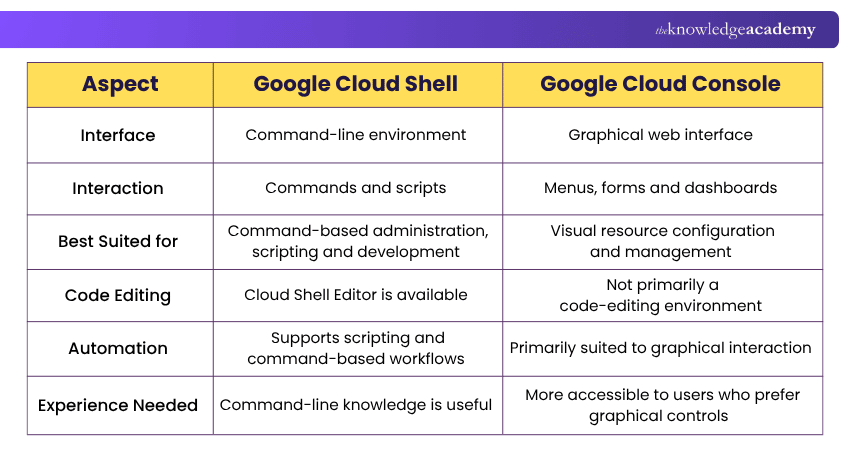
What is the Difference Between Google Cloud Console and Shell?
Google Cloud console offers a web-based Graphical User Interface for managing Google Cloud resources. Google Cloud Shell is a Command-line Interface (CLI) accessible through a web browser. It offers a Linux shell environment for interacting with your cloud resources. Here are the key distinctions:
Learn how to architect secure and scalable cloud infrastructure in the Architecting Infrastructure with Google Cloud Platform Training – Sign up now!

Vishnu Sankar is a Senior Content Writer with 5+ years of experience across content development, software development, web development and system administration. His technical background and professional training support his expertise in IT and Tech, while his extensive research and writing experience covers Project Management and Health and Safety.
View Detail

 If you wish to make any changes to your course, please


