


 Top Rated Course

We may not have the course you’re looking for. If you enquire or give us a call on 01344203999 and speak to our training experts, we may still be able to help with your training requirements.
Power BI Dashboard: Key Differences Explained
The Knowledge Academy 24 August 2026A Power BI dashboard is a single-page view that displays key metrics through visual tiles, offering quick insights and linking to detailed multi-page reports. It provides quick, real-time insights and connects directly to detailed multi-page reports. Dashboards help users monitor performance, identify trends, and make informed, data-driven decisions efficiently.

Training Outcomes Within Your Budget!
We ensure quality, budget-alignment, and timely delivery by our expert instructors.
Table of Contents

The Power BI Dashboard is an integral feature of Power BI, enabling users to craft a personalised data view that highlights essential metrics and supports informed, data-centric decision-making. In the modern era where data management is paramount, organisations are on a constant quest for effective data handling solutions.
Microsoft’s Power BI stands out as a formidable business analytics tool that aids organisations in Data Analysis and visualisation. Infoclutch’s research indicates that approximately half of the global companies have adopted Microsoft Power BI. This blog aims to demystify Power BI Dashboards, offering an exhaustive tutorial on their creation and utilisation, exploring practical use cases, and discussing their benefits and potential drawbacks.
Table of Contents
1) What is Power BI?
2) Features of Power BI
3) How to Create Power BI Dashboard?
4) Before Making a Power BI Dashboard
5) Advantages and Disadvantages of Power BI Dashboards
6) Differences Between Power BI Dashboards and Reports
7) How Many Types of Dashboards are in Power BI?
8) What are the top 5 Visuals in Power BI?
9) Conclusion
What is Power BI?
A Power BI Dashboard is a visual analytics tool that displays key performance indicators (KPIs) and essential business insights in an easy-to-understand format. It transforms raw data into interactive visuals, helping organisations make informed, data-driven decisions.
Power BI Dashboards allow users to monitor metrics such as financial performance, business growth, and customer engagement in real time. Whether using a pre-built Power BI Showcase or designing a custom dashboard, the aim remains the same: to convert complex data into clear, meaningful insights that drive better outcomes.

Features of Power BI
Attributes of Power BI include:
a) Elevated speed and efficiency with small data sets.
b) A user-oriented interface, similar to the one known by Microsoft Office 365, that is highly intuitive and easy to use.
c) Compatibility with data sources such as Excel, Text/CSV, JSON, SQL Server databases, IBM DB2, MySQL, etc.
d) Integration with R programming language together with DAX measure and functions.
e) Integration of the solution with the Microsoft Azure cloud platform allows the identification of insights and patterns within the data sets.
Simplify Data Analysis with our Power BI Cheat Sheet for Faster, Smarter Reporting – Download now!
How to Create Power BI Dashboard?
Creating a Power BI Dashboard all about transforming organised data into understandable and interactive insights with the help of which decisions are made. The emphasis of the process is on linking data, modelling it appropriately, creating meaningful visuals, and publishing insights in an efficient way as emphasised in practical dashboard-building guides.
The following is a step-by-step process of creating a Power BI Dashboard:
a) Sign in to Power BI Service: Start by logging on to the Power BI service with your account. Create an account in case you are new to the platform and begin creating and publishing dashboards online.
b) Connect to Your Data: Use the Get Data option to connect to relevant sources. These may include Excel files, CSV datasets, SQL databases, or cloud-based services. Selecting the right dataset is the foundation of a meaningful dashboard.
c) Load and Prepare Data: After connecting, load your data into Power BI. Use Power Query Editor to clean, shape, and transform the dataset. This can involve elimination of duplicates, renaming of columns, data type corrections or making calculated columns. Proper reporting is achieved with clean data.
d) Build Data Relationships: In case your model has two or more tables in it, you can create relationships between the tables in the data model view. Proper relationships allow proper filtering, aggregation, and cross table analysis.
e) Create Report Visualisations: Design a report before developing a dashboard. Present major insights using charts, tables, KPIs, cards, and other visuals. Pay attention to the choice of visuals that are explicit on the presentation of trends, comparisons, and performance indicators.
f) Apply Filters and Slicers: To increase interactivity include slicers and filters.These allow users to segment data dynamically, such as by date, region, product, or category, improving analytical flexibility.
g) Pin Visuals to a Dashboard: After the report is prepared, post it to the Power BI Service. Create a pinboard with crucial images. To add visuals to an existing or create a new dashboard, simply press the pin icon on the visuals that have been selected.
h) Create and Name the Dashboard: Provided that the dashboard does not exist, create a new one and give it a meaningful and easily identified name. This maintains dashboards in order and with business objectives.
i) Arrange and Optimise Layout: Resize, reposition, and organise tiles to create a clean and logical layout. An effective dashboard design places important KPIs on the first page and makes them easy to read.
j) Share and Collaborate: Once the dashboard is completed, it should be shared safely with colleagues or stakeholders. The use of Power BI enables teamwork without violating data control and governance.
A strong Power BI Dashboard is not just a collection of visuals. It conveys performance effectively, emphasises on measurable performance, and allows users to respond to insights promptly. This type of building dashboard also empowers your professional profile and proves to have the ability to tell data stories practically.
Understand how to manage teams with our Grafana Training – Join now!
Before Making a Power BI Dashboard
Power BI Dashboards have become common in all industries to transform raw operational data into actionable understandings. As evidenced by real-life dashboard applications in industries, organisations are using Power BI to follow the performance, keep an eye on KPIs, and make faster decisions. Below are some common real-world applications:
a) Sales and Marketing Analytics: The sales dashboards assist teams to monitor revenue trends, region, conversion rates, and campaign performance. Visual KPIs are employed by marketing leaders to assess customer acquisition, engagement rates, and the ROI.
b) Financial Reporting and Analysis: Finance dashboards allow financial managers to have a centralised representation of the income statements, expenses, profit margins, and budget comparisons.
c) Supply Chain and Operations Monitoring: Operational dashboards assist in monitoring the inventory, supplier performance, logistics, and efficiency of the order fulfilment. This live-time visibility will be able to make decisions proactively and enhance the supply chain resilience.
d) Human Resources Analytics: HR dashboards assist organisations to track employee turnover, recruitment pipelines, attendance trends, and workforce performance.
e) Healthcare Performance Tracking: Dashboards are used in healthcare institutions to track patient admissions, treatment outcomes, bed occupancy, and readmission rates. Real-time insights increase the efficiency of operations and the quality of services.
f) Education and Academic Insights: Educational institutions use dashboards to examine student achievement, school attendance, test results, and school performance metrics.
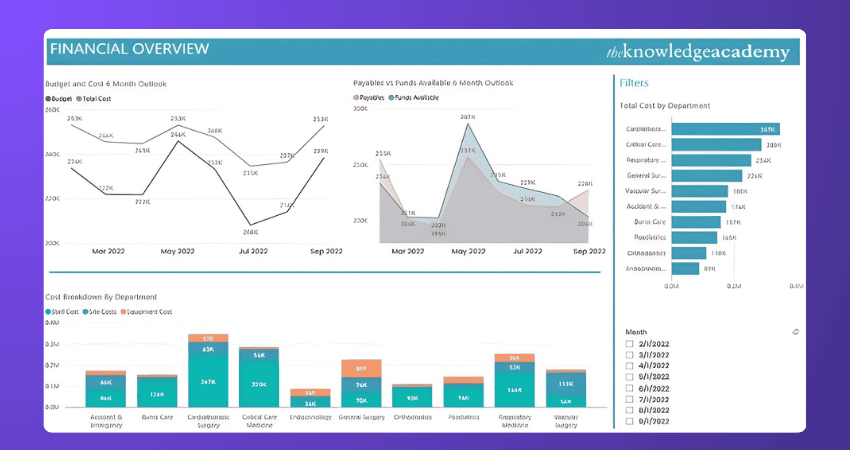
6) Education: Power BI Dashboards can be used in the education and education technology sector to track student performance, analyse test scores and monitor teacher performance. They can also be used to create Dashboards that provide a more profound outlook into key education metrics such as student attendance, graduation rates, and teacher effectiveness based on results. This can be further enhanced by insights from a Power BI Book, offering detailed guidance on data analysis and visualisation techniques.
Advantages and Disadvantages of Power BI Dashboards
As established, Power BI Dashboards can connect to a wide range of data sources and provides a drag-and-drop interface to create visualisations, analyse data and create custom and flexible Dashboards. However, despite its many advantages, Power BI Dashboards have some disadvantages that need to be considered before choosing it as a Data Analysis tool:
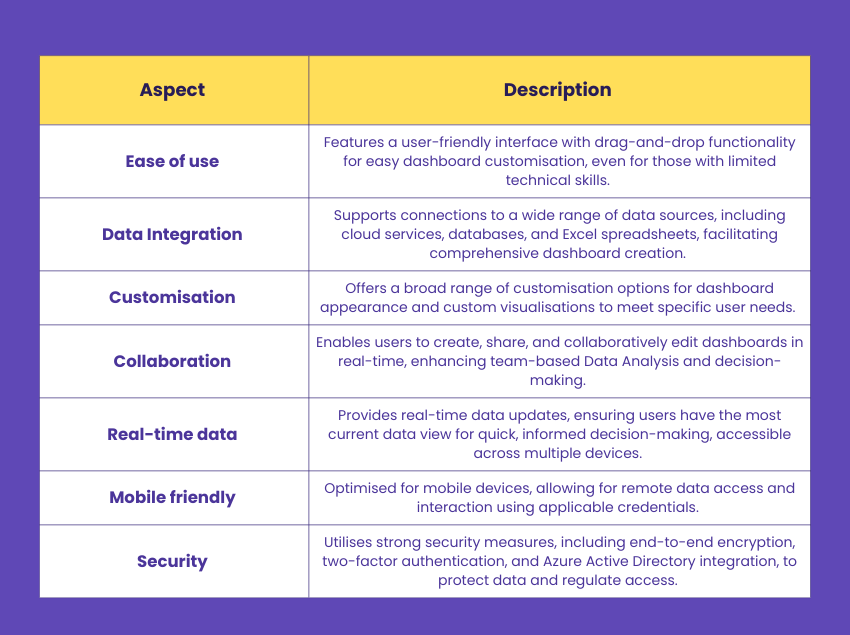
Advantages
This table provides a focused view of the key benefits of Power BI Dashboards:
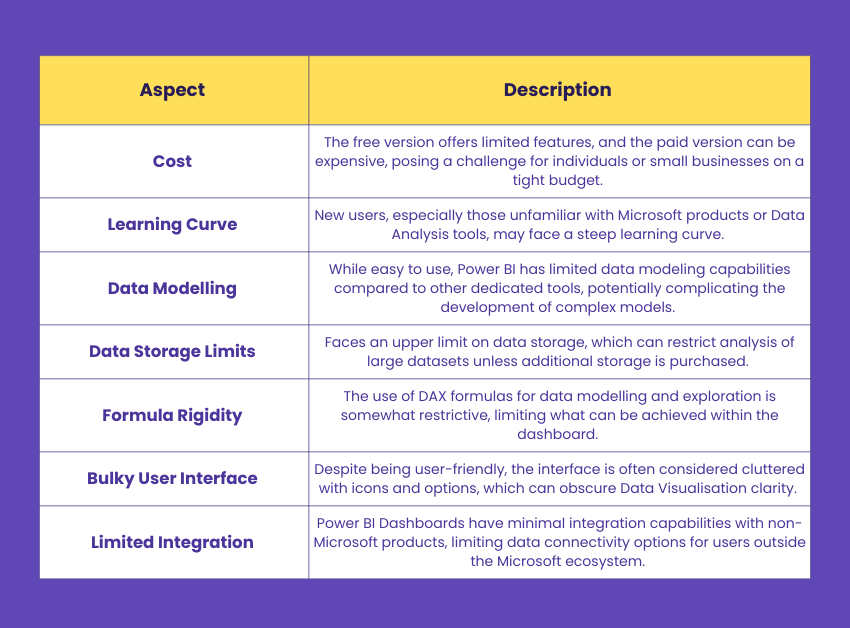
Disadvantages
These tables provide a focused view of the disadvantages of using Power BI Dashboards:
Get yourself familiar with the most influential expression language in Power BI with DAX Training!
Differences Between Power BI Dashboards and Reports
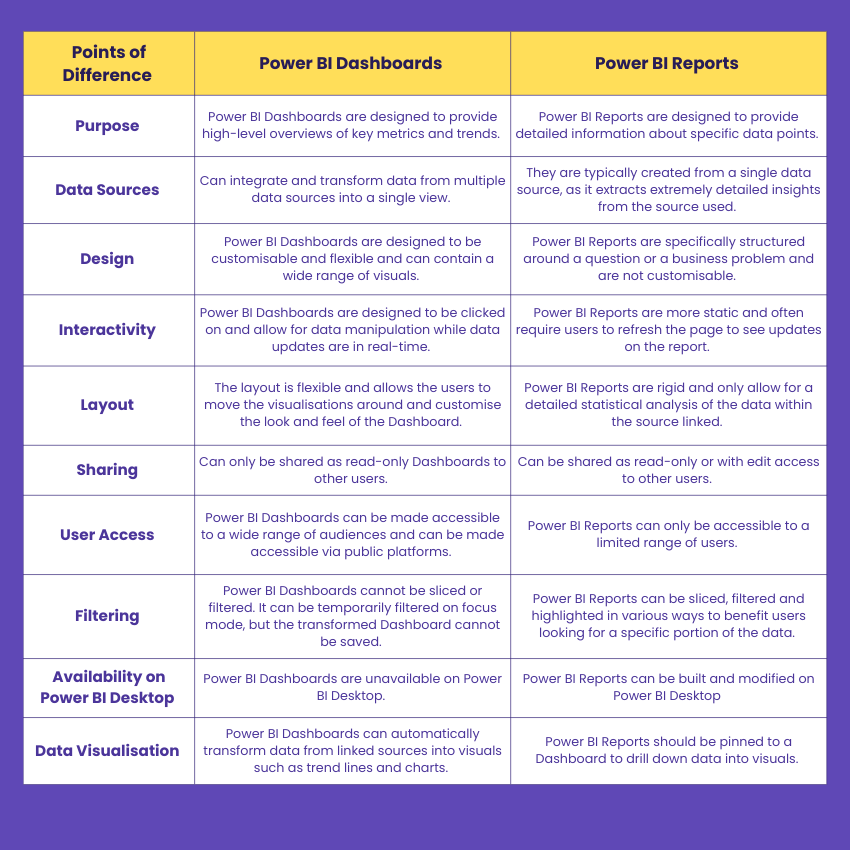
Power BI Reports and Dashboards are two essential components of the Power BI suite for data visualisation and analysis. While they may seem similar at first glance, the two have significant differences. Below are the major differences between Power BI Dashboards and Reports:
Interested in data consulting? Explore How to Become a Power BI Consultant and tap into lucrative opportunities!
How Many Types of Dashboards are in Power BI?
Power BI allows four categories of dashboards, namely Strategic, Operational, Analytical, and Tactical. Strategic dashboards give broad level information that aligns with long-term business goals. Operational dashboards concentrate on day-to-day operations and real time. Analytical dashboards allow exploring trends and patterns in more depth, whereas Tactical dashboards bridge the gap between overall strategy and departmental action. Combined, these types of dashboard can assist organisations in the performance monitoring and data-driven decision-making.
Together, these dashboards help teams at all levels monitor progress, identify patterns, and make informed decisions based on accurate, real-time data.
What are the top 5 Visuals in Power BI?
Power BI has numerous data visualisation chart options that are powerful. The most widely utilised ones are bar charts, column charts, line charts, pie charts or donut charts, and area charts. Every visual is focused on working with a specific goal, comparing categories, tracking patterns over time, displaying proportions, or performance trends.
When used correctly, such images can transform complex data into visual, interactive information that will enhance the quality of reporting and enable more effective decision-making.
Conclusion
Overall, the applications of Power BI Dashboards are almost limitless. However, understanding the Difference Between Alteryx and Power BI will help you better determine when to use each tool for data visualisation and decision-making. When comparing Power BI with other tools like Cognos, Power BI stands out for its simplicity and ease of use. Dashboards in Power BI provide a valuable tool for businesses and organisations seeking summarised data and insights based on the data on a singular canvas.
Enlist yourself in Microsoft Power BI Data Analyst PL300 Training now to become an expert in Power BI, the market leader in Data Analysis tools!
Frequently Asked Questions
How can Power BI Dashboards Enhance Decision-making?

Power BI Dashboards aggregate critical data into a single view, enabling quick insights and informed decisions by highlighting trends, outliers, and patterns in real-time.
Can Power BI Dashboards be Customised for Individual Roles?
Yes, Power BI Dashboards offer extensive customisation options, allowing the creation of role-specific views that focus on metrics relevant to particular job functions or departments.

The Knowledge Academy


Global Training Provider
The Knowledge Academy is a world-leading provider of professional training courses, offering globally recognised qualifications across a wide range of subjects. With expert trainers, up-to-date course material, and flexible learning options, we aim to empower professionals and organisations to achieve their goals through continuous learning.


 If you wish to make any changes to your course, please


